Quick Start: Turn On the AI Assistant
Five steps to get Gage answering questions in Atlas, Historian, Explorer or Collector: confirm it is on, enter your API key in Pulse, connect the component, add an agent, and ask.
Overview#
Gage is the AI assistant built into Timebase. Every component that offers one - Atlas, Historian, Explorer, Collector - reaches its model through Pulse, which holds the provider credentials, the model catalogue and the usage limits. No component declares a model, a provider or an API key of its own.
That means turning the assistant on is two jobs: configure the model once in Pulse, then point each component at it. This article walks both, in the order the components' own setup card lists them.
A fresh installation ships most of the way there. Pulse seeds an Anthropic provider and one OAuth client per component, and every component ships with the assistant switched on. What is left is the part only you can do:
- your LLM API key, in Pulse (Step 2)
- the component's client secret, which Pulse generates and you copy across (Step 4)
If a component shows you an Agent setup required card, the numbered steps on it match the steps below.
You will need: a running Pulse, an API key from your LLM provider, and administrator access to both Pulse and the component.
Step 1: Confirm authentication and Gage are on#
Gage needs an identified caller, so authentication has to be on. A component with authentication disabled does not offer the assistant at all.
Both switches ship on, so on a fresh installation this is a confirmation rather than an edit. In the component's settings.config:
{
  "Pulse": {
    "Host": "pulse",
    "Port": 4542,
    "UseTls": true,
    "Gage": { "Enabled": true },
    "Auth": {
      "Enabled": true,
      "ClientId": "Explorer",
      "ClientSecret": "<the secret from Pulse>"
    }
  }
}
Both switches are needed: Pulse:Auth:Enabled and Pulse:Gage:Enabled. Turning either one off takes the assistant offline, whatever the other says.
Everything the component needs in order to reach Pulse lives in one Pulse section: the address, the assistant, and the component's own OAuth client. There is no separate identity-provider address to keep in step, because Pulse:Host, Pulse:Port and Pulse:UseTls are the identity provider.
in Docker, use the Pulse service name as the host, never localhost - a container's localhost is itself. See Docker Network Settings.
on a Docker deployment, make these changes in settings.config in the volume - there is no separate Docker file - or set the matching environment variables in the Compose file, which outrank it. See Component Settings.
On an upgraded installation, check rather than assume. Upgrading migrates your configuration file forward but never overwrites a value you already had, so a component that had authentication switched off before the upgrade still has it switched off afterwards, whatever a fresh installation of the same version would ship. The same is true of
Pulse:Gage, which is not added to an existing file at all. See Configuration File Versions and Upgrades.
Pulse:Gage:Enabled takes effect live. The Pulse:Auth block is read at startup, so restart the component after changing it.
Pulse:Gage is the whole of a component's Gage configuration - Enabled, the optional Agents map from Step 3, and the Guardrails, Dictation and Resilience sections. There is nowhere to put a model, a provider or an API key locally, and nothing to point at your LLM directly.
Step 2: Enter your API key in Pulse#
Sign in to Pulse and open Gage, then Providers. A first-run Pulse already has an Anthropic provider waiting for a key:
| Field | Seeded value |
|---|---|
| Provider Id | anthropic |
| Display Name | Anthropic |
| Wire | Anthropic |
| Endpoint | https://api.anthropic.com |
| Enabled | Yes, but no key set |
| Logical Id | claude |
| Real Model Id | claude-sonnet-4-6 |
| Default Model | Not marked. On a one-model install nothing needs it - see Step 3 |
Its model handle is therefore anthropic/claude, which is the handle every component's shipped configuration already expects.
It arrives enabled with no key, so the key is the only thing you have to add. Until you add it, the provider cannot answer anything. Its model is already in the catalogue, so every component's setup card ticks Configure a model in Pulse, but your provider refuses every call and the first question fails with an authentication error.
Give it your key#
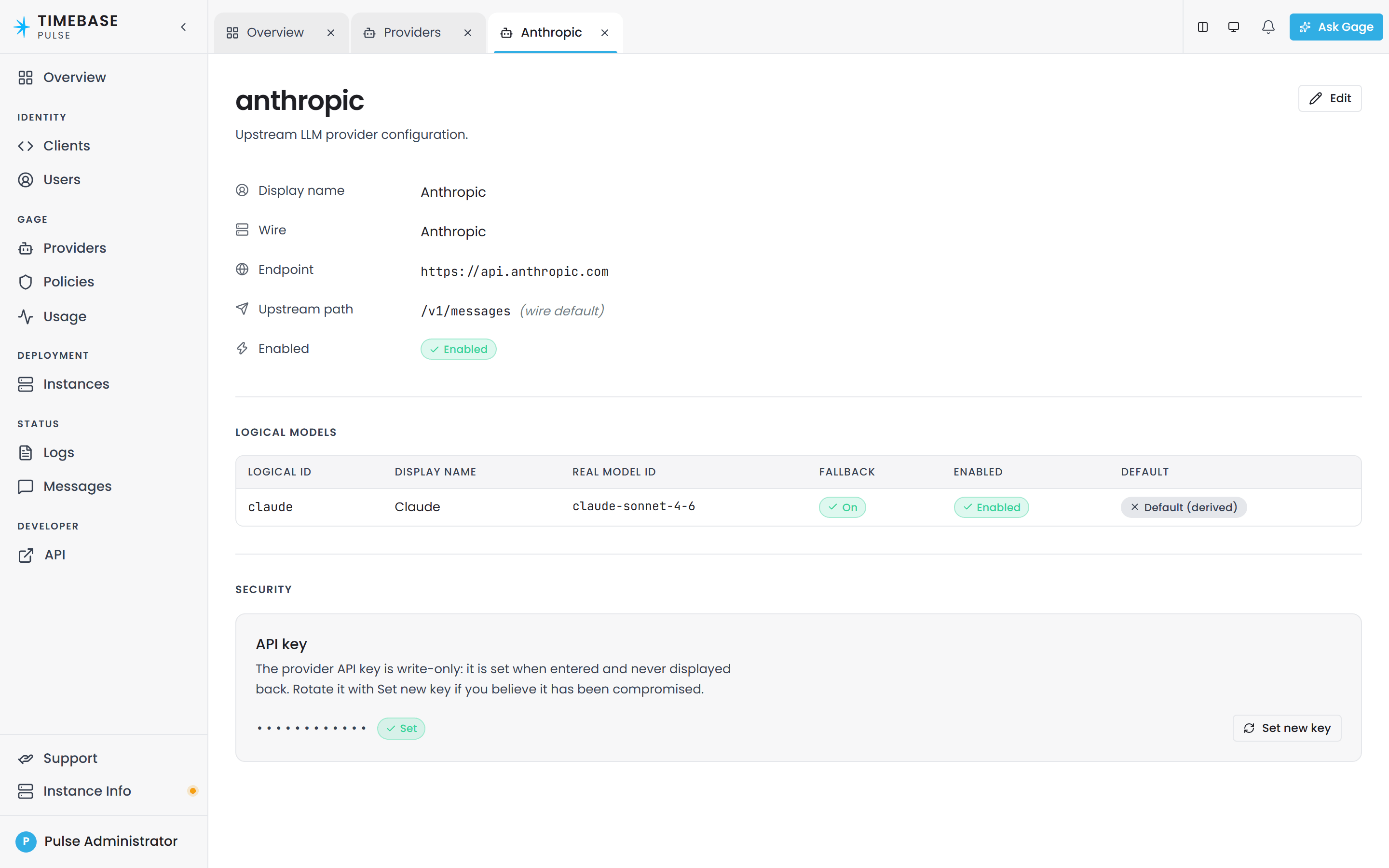
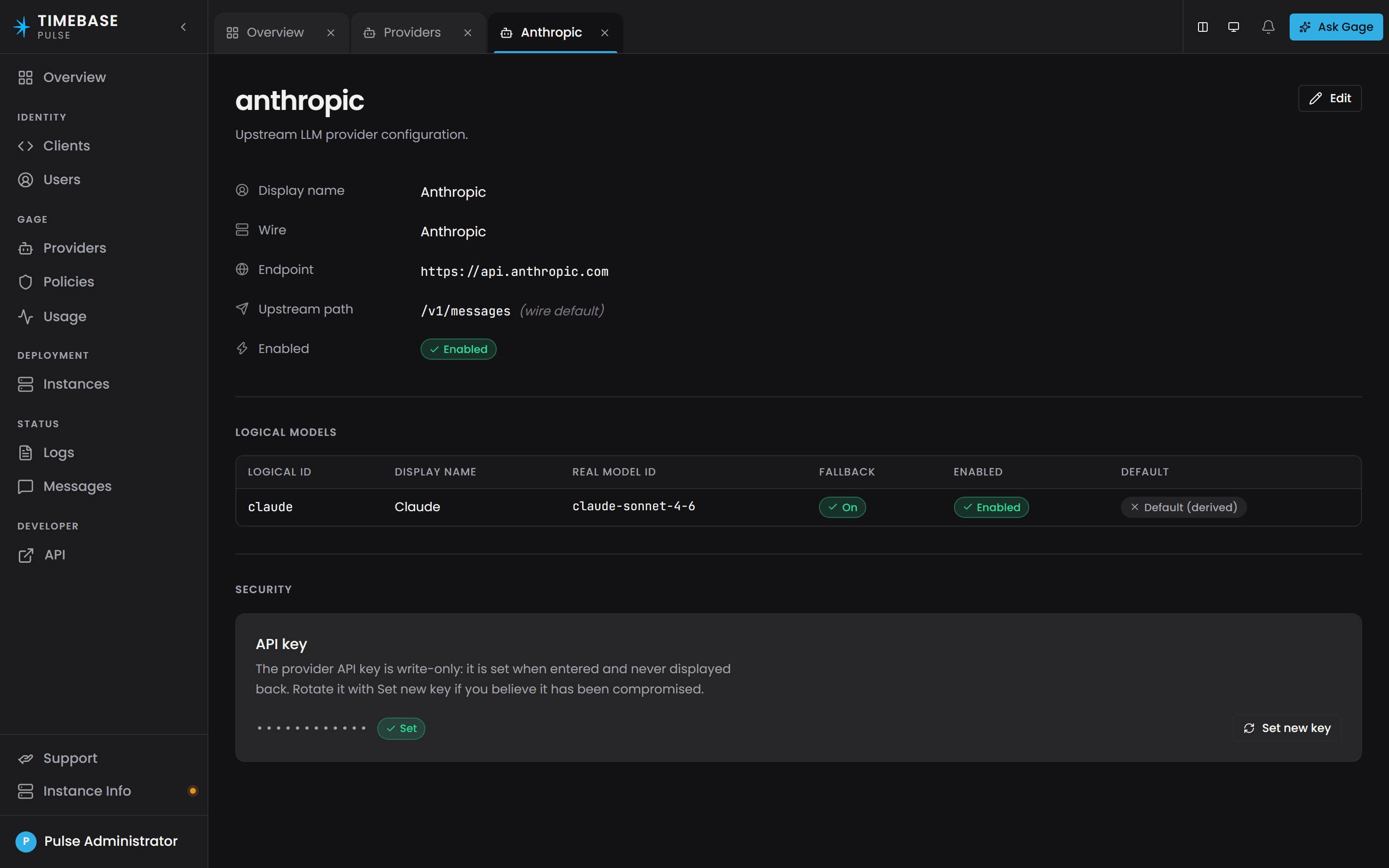
- Select the anthropic provider. Its page shows the seeded values above, with the key under Security masked and marked Not set.
- Under API key, choose Set new key.
- Paste your Anthropic API key and confirm with Set key.
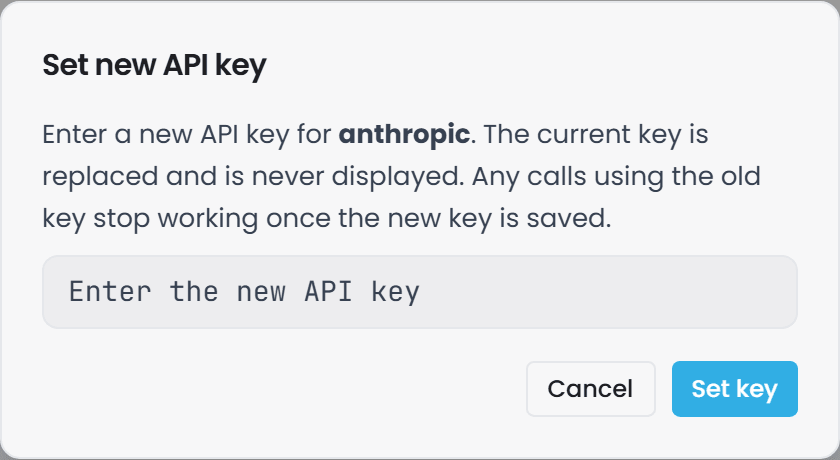
That is the whole step. The key is write-only: once saved the page shows it as Set and never displays it again. Entering a key never changes whether a provider is enabled, so the seeded provider starts answering as soon as its key is saved, and a provider you have switched off stays off when you give it a new key.
the provider is seeded only on a genuine first run. Delete it and it stays deleted - restarting Pulse does not bring it back.
Moving to a different model, or a different provider#
Real Model Id is the field to change to move to a newer Anthropic model. Nothing in any component refers to it, so the change is invisible to the rest of the platform.
To use OpenAI, a local Ollama server or anything else, create a provider of your own alongside the seeded one. A provider carries the credential and the wire format. A logical model gives that provider's real model a stable name of your own:
| Field | What it is |
|---|---|
| Provider Id | The first half of the model handle, such as openai |
| Wire | Anthropic or OpenAI, matching the API your provider speaks |
| API key | The provider credential. Write-only once saved |
| Logical Id | The second half of the handle, such as smart or fast. Avoid default, which is reserved - see Step 3 |
| Display Name | The label shown in the Pulse interface. Free text |
| Real Model Id | The model name your provider expects |
| Enabled | Both the provider and the model must be enabled to be usable |
The handle is the provider Id and the Logical Id, joined by a slash. A provider openai with a Logical Id of smart gives you the handle openai/smart.
the Real Model Id never appears in Timebase configuration. It is the name Pulse sends upstream, and you can change it - to move to a newer model, for example - without touching any component. The Logical Id is the name your deployment uses, and it is immutable once created.
Confirm the catalogue is not empty:
GET https://<your-pulse-host>:4542/api/gage/models
Every enabled model of every enabled provider appears here, each with its handle, along with the handle the reserved word default resolves to.
Components do not poll for this. Pulse pushes the catalogue to every Gage-enabled component the moment it changes, and a component re-reads it whenever it connects or reconnects. So enabling a model, disabling one, or changing which is the default reaches every assistant in your installation within seconds, with nothing to restart.
For the full provider reference - non-standard endpoints, fallback between providers, usage logging and key rotation - see Configuring Gage LLM providers and models.
Step 3: Choose which model the assistant uses#
The assistant in Historian, Explorer and Collector is one agent, named gage. This step points it at a model.
There are two ways to do it, and on most installations you only need the first.
Mark a default model in Pulse#
In the provider editor, each logical model carries a Default Model toggle. Turn it on and that model becomes the default for every Gage assistant in the installation - it is the model the reserved word default resolves to on every host.
Three things follow from it being install-wide:
- There is at most one. Marking a model as the default clears the default on every other model, across every provider. You do not clear the old one first.
- It must stay usable. A change that would leave the installation with other models but no usable default is refused, and the message names the model that is blocking it. Move the default by marking another model, rather than by clearing the current one.
- Emptying the catalogue is still allowed. The last usable provider may always be disabled or deleted, because an installation with no models at all has nothing to be inconsistent about.
Until somebody marks one, the default is the alphabetically first handle in the catalogue. With anthropic/claude and openai/smart both enabled, anthropic/claude wins because a sorts before o, and enabling a third model whose handle sorts earlier would move it. That is what an installation upgrading from an earlier release keeps doing, so nothing changes underneath it.
Mark one as soon as you have two models. The fallback is a rule about the alphabet, not a decision anybody made, and it moves when the catalogue changes.
Pin one agent to a specific model#
Marking a default answers "what should everything use". Pinning answers "what should this one use instead". Map the agent name to a handle in the component's Pulse:Gage:Agents, for which the shipped Pulse:Gage block carries a commented example:
"Pulse": {
  "Gage": {
    "Enabled": true,
    "Agents": {
      "gage": "anthropic/claude"
    }
  }
}
Three things about this map:
- The value is the full handle, both halves. A Logical Id on its own does not resolve: the component compares the value against the catalogue's handles exactly, so
claudewhere the catalogue saysanthropic/claudereports "names Gage model 'claude', which is not in the catalog pinned from Pulse". - The key is the agent's name, and it is matched without regard to case.
- An entry here wins over everything else, including a model named in the agent's own definition file. It is the one place an operator retargets any agent, built-in or custom, without editing agent files.
Where an agent is not in the map, Timebase resolves its model in this order:
- the handle named in the agent's own definition file, then
- the installation's default model - the one an administrator marked, or the alphabetically first handle where nobody has.
default on its own is a reserved word meaning "use the installation's default model", in this map and in an agent definition alike. It is never read as a handle, because a real handle always contains a slash.
This is why the seeded logical model is named claude rather than default. If you do name one default, the two readings still look identical and are still not: "gage": "default" asks for whichever model is the installation default, while "gage": "anthropic/default" pins that particular model. They part company the moment the default is somebody else.
Pin an agent when it needs a different model from everything else - a cheaper model for a high-volume agent, a stronger one for a hard job. Where every agent should use the same model, marking it as the default in Pulse is the better answer: it is one decision in one place, it reaches every component without a configuration edit, and you can read it back from the Pulse interface.
Step 4: Give the component its client secret#
The component authenticates to Pulse with its own OAuth client and exchanges a client_credentials token, then calls the proxy.
The client already exists. Pulse seeds one per component on its first start, so there is nothing to register. What is missing is the secret: Pulse generates a random one per install and does not print it, while the component ships with "ClientSecret": "". An empty string never matches a generated secret, so the token exchange fails until you copy it across.
| Component | Client id | Seeded redirect URI |
|---|---|---|
| Historian | Historian |
https://localhost:4512/callback |
| Collector | Collector |
https://localhost:4522/callback |
| Explorer | Explorer |
https://localhost:4532/callback |
| Atlas | Atlas |
https://localhost:4552/callback |
| Connect | Connect |
https://localhost:4562/callback |
| Bridge | Bridge |
https://localhost:4572/callback |
| Pulse's own assistant | Pulse |
none - client_credentials only |
To connect one:
- In Pulse, open Clients and select the client named after your component.
- The secret is masked. Reveal it and use the copy button, or rotate it to a value you choose. Rotating is usually easier in a scripted deployment, because you pick the value in advance.
- Put that value in the component's
Pulse:Auth:ClientSecret, and checkPulse:Auth:ClientIdmatches the client id above. - Restart the component. The
Authblock is read at startup.
Do not create a second client by hand. You will either collide with the seeded one or leave an unused registration behind.
Two things to watch:
- Pulse's own assistant needs none of this. Pulse derives its own loopback address and reads its own client secret straight from its client store, so there is nothing to copy and no Gage configuration in Pulse's
settings.configat all. - A deployment that is not on localhost needs the seeded redirect URI changed to the component's real address. The
client_credentialsexchange the assistant uses does not involve a redirect, but browser sign-in does.
Then confirm Pulse is reachable at the address in Pulse:Host, Pulse:Port and Pulse:UseTls.
For the full client reference, see Registering Timebase apps as OAuth clients in Pulse.
The proxy the component calls is:
POST https://<your-pulse-host>:4542/api/gage/proxy/v1/messages          (Anthropic wire)
POST https://<your-pulse-host>:4542/api/gage/proxy/v1/chat/completions  (OpenAI wire)
You do not call these yourself - the component does. They are listed so you can confirm reachability and recognise them in a log.
Step 5: Add an agent definition, then ask a question#
An agent is a named assistant with its own instructions. A component ships with built-in agents, and you can add your own by dropping a definition into the agents folder under the component's data path, then restarting.
Atlas authors agents through its own Agents page, with no restart needed - see Atlas AI Agents.
Then open the assistant with Ask Gage in the toolbar. A new panel has no conversation yet: the + button in its header opens Start an agent, which lists the built-in agents, and choosing Gage opens it as a conversation tab.
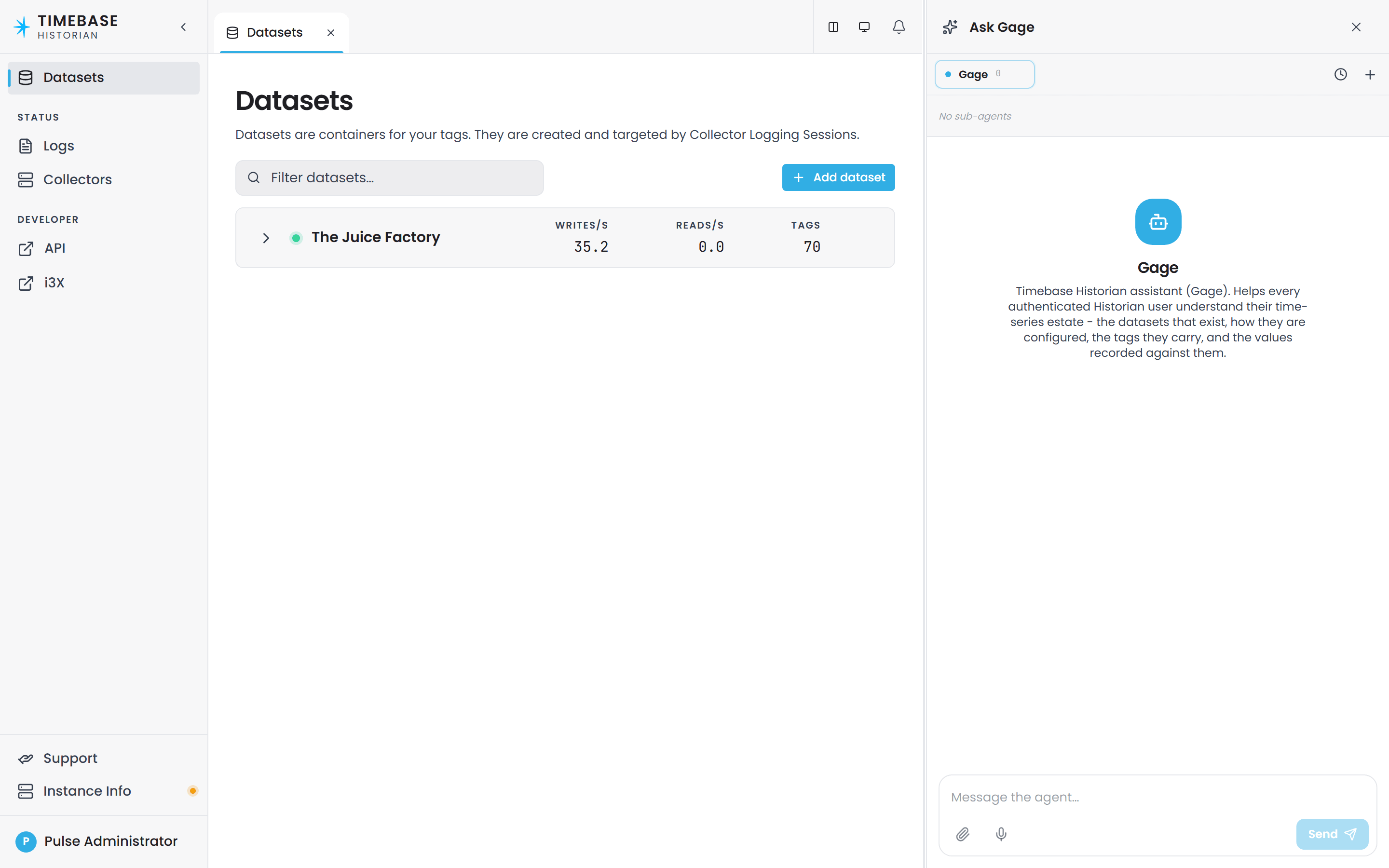
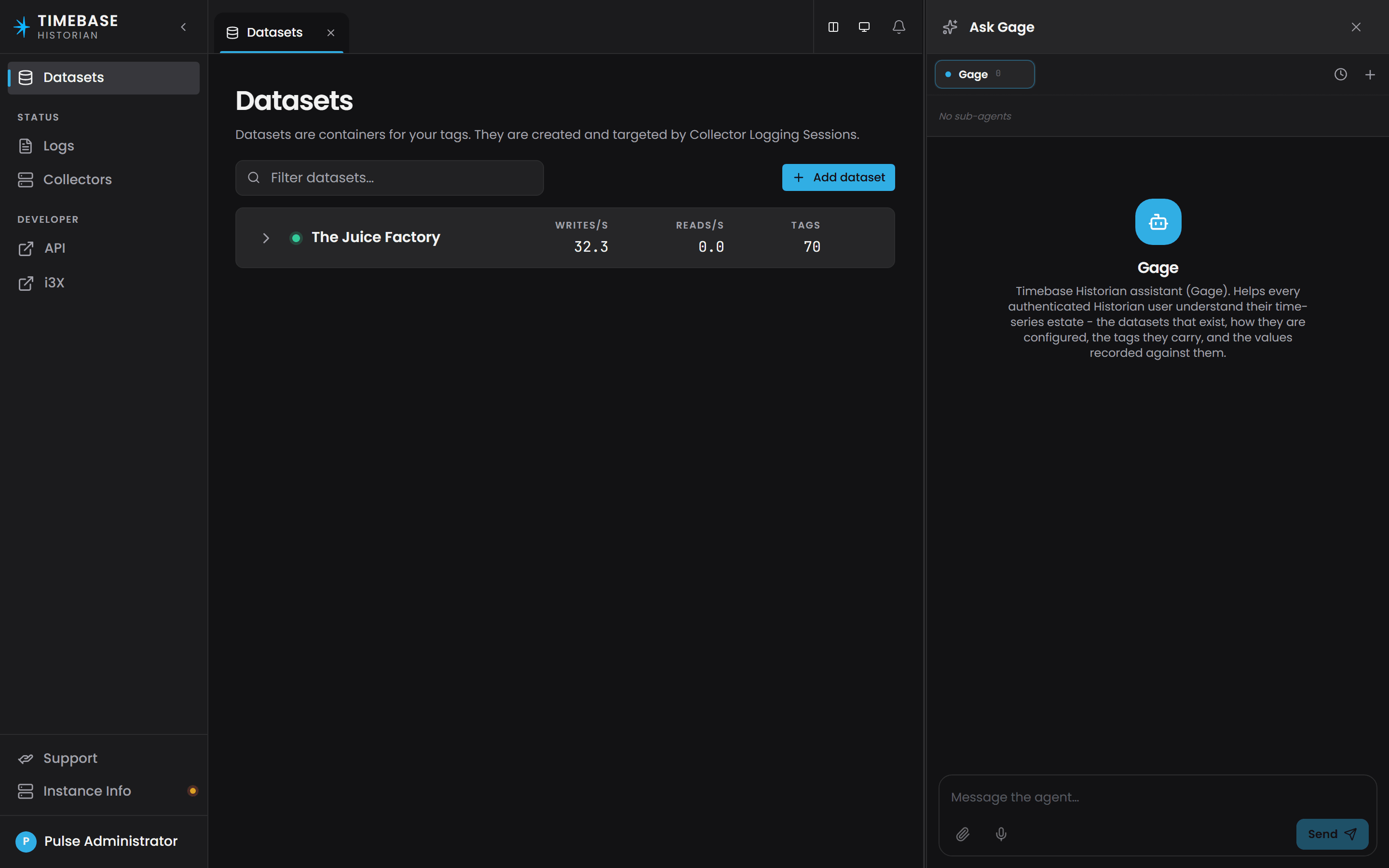
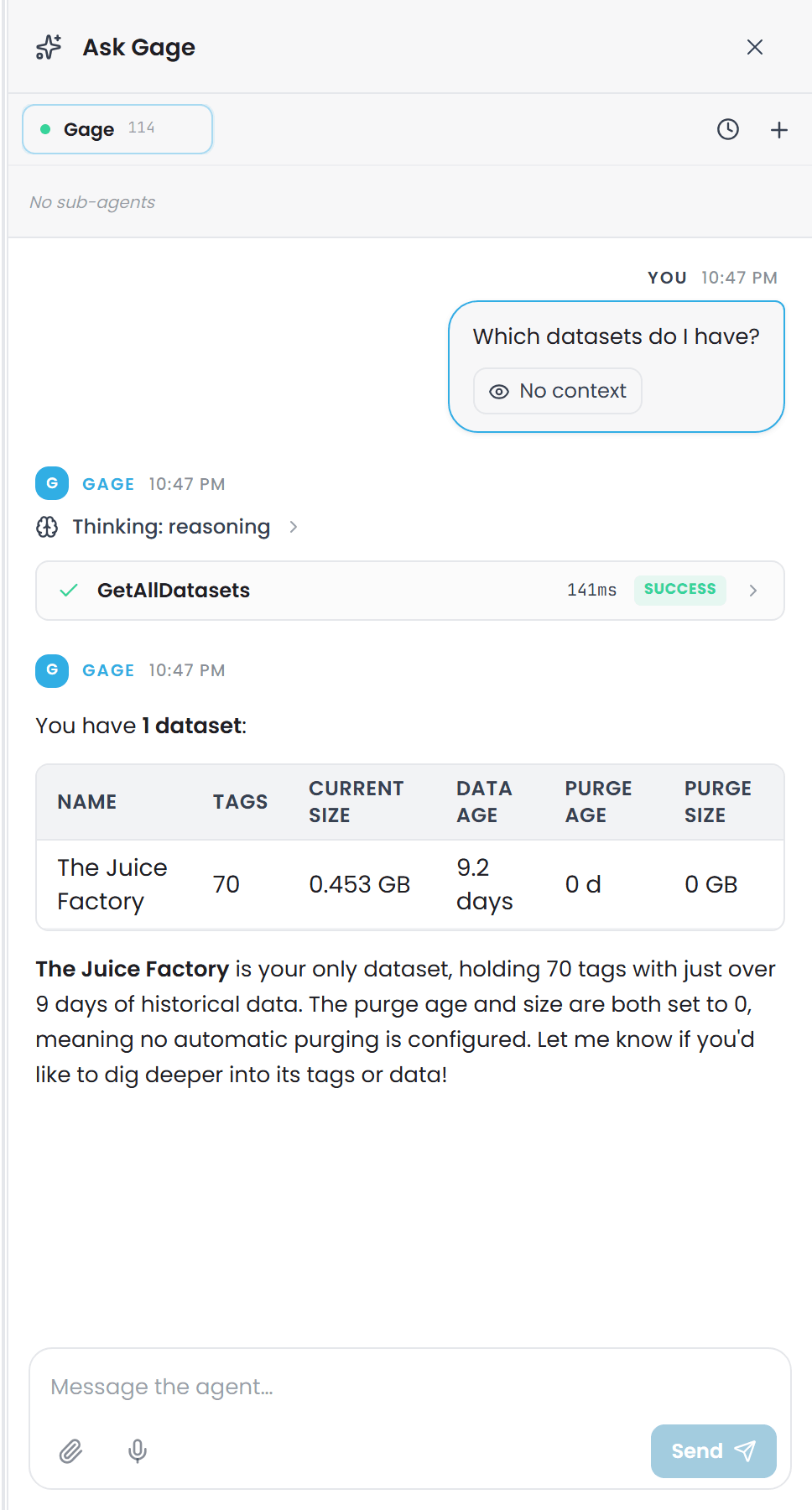
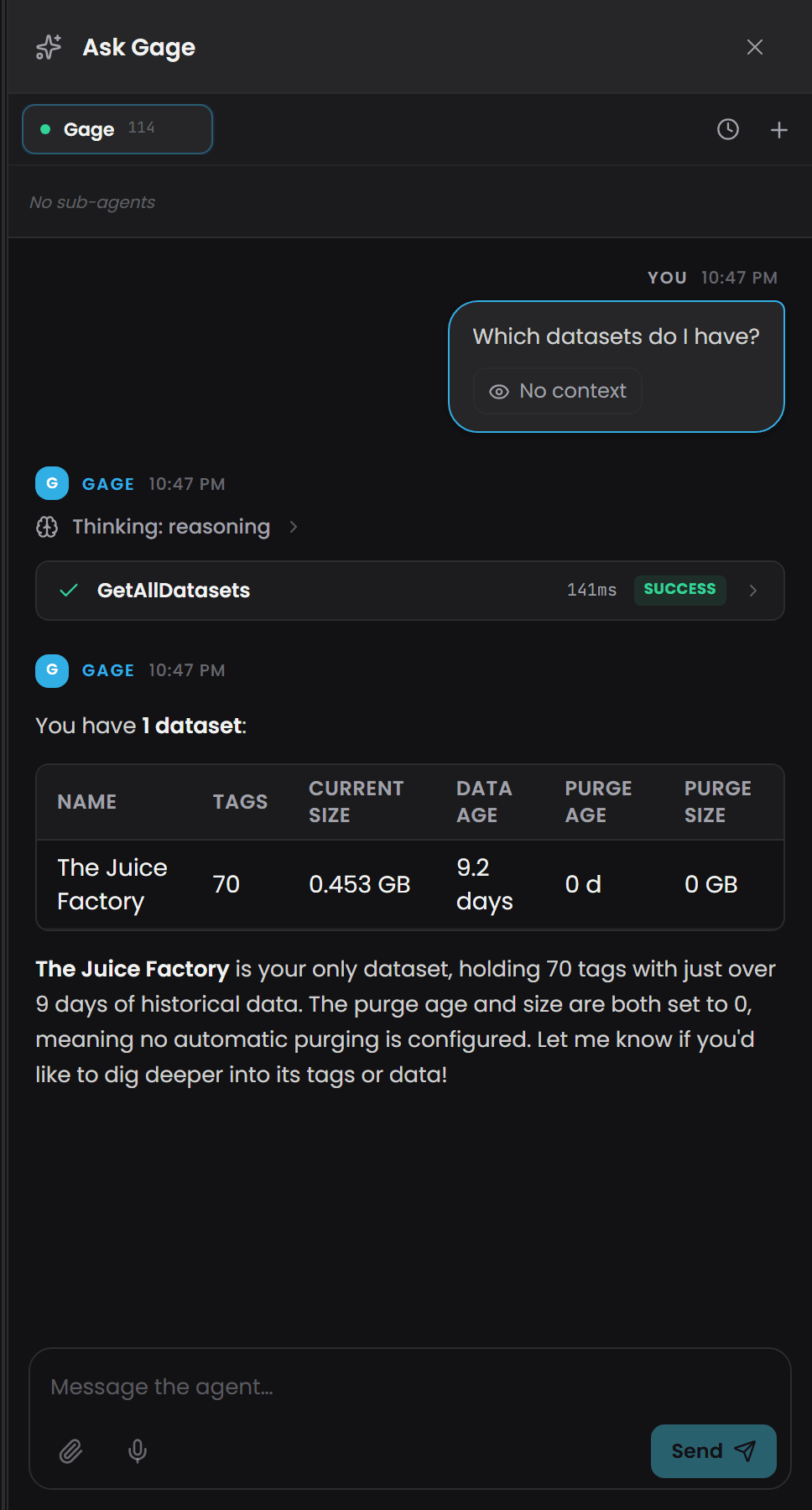
Ask something simple, such as "which datasets do I have?". A working setup answers in prose and, where the agent has tools, says what it did: the run shows a Waiting for response status while it works, then a collapsed Thinking block, one block per tool call with its duration and result, and the answer.
If the answer is an error instead, the next section names it.
Troubleshooting#
Match the message on screen.
| What you see | What it means | What to do |
|---|---|---|
| Agent setup required, with steps 1-3 unticked | The component cannot reach a model yet | Work down the card. It is checking the same things as Steps 1, 2 and 4 above, in that order |
| That model is not in your allow-list | A Gage policy has a model allow-list that does not include the handle the agent asked for | See When a model is not in the allow-list below |
| Rate limit or budget exceeded | A policy metric has been reached. The shipped [default] user policy caps each signed-in user at 1M tokens per rolling 5 hours, and a few long assistant conversations can reach that |
In Pulse, open Policies, edit the policy, pick the metric and raise its Limit. The response carries a Retry-After |
| The assistant is not offered at all | Pulse:Auth:Enabled or Pulse:Gage:Enabled is false |
Step 1. Both are required, and the assistant is never offered with authentication off |
| names Gage model '...', which is not in the catalog pinned from Pulse | The value in Pulse:Gage:Agents, or in the agent's definition, is not one of the catalogue's handles |
Compare it against GET /api/gage/models. It is the provider Id and the Logical Id joined by a slash - not the Real Model Id, and not the Logical Id on its own |
| No provider exposes the model handle | Pulse cannot resolve the handle to an enabled provider and model | Confirm both the provider and the model are enabled, and that the handle matches the catalogue |
| The component reports no models available | The catalogue is empty, or the component cannot authenticate | A new install's catalogue already lists anthropic/claude, so an empty one means the seeded provider or its model has been switched off or deleted. Confirm GET /api/gage/models returns at least one model, then check the secret from Step 4. A component does not need restarting for a catalogue change - Pulse pushes it |
| Every step on the setup card is ticked, but the first question fails with an authentication error | The seeded anthropic provider has no API key yet. It is enabled, so its model is listed, but your provider refuses every call until a key is set |
Enter the key in Pulse. Step 2 |
A 401 on the token exchange |
The component's Pulse:Auth:ClientSecret is still empty, or does not match the seeded client's secret |
Copy or rotate the secret in Pulse and set it in the component, then restart. Step 4 |
When a model is not in the allow-list#
A Gage policy can restrict which model handles a caller may use. Policies exist in two layers, Client and User, and both are checked - a call has to clear each.
Two things about the allow-list are worth knowing before you start editing:
- An empty allow-list allows every model. It is not a deny-all. So the fix is often to clear the list rather than add to it.
- A per-id list replaces the default list, rather than adding to it. A policy on one client id with two handles listed does not inherit the
[default]policy's handles as well.
Work through it in this order:
-
Read the client policy for the calling component:
GET https://<your-pulse-host>:4542/api/gage/client-policies/{clientId} -
Read the reserved
[default]client policy, which applies to every client that has no policy of its own:GET https://<your-pulse-host>:4542/api/gage/client-policies/[default] -
Read the user policies too, at
/api/gage/user-policies/{userId}and/api/gage/user-policies/[default]. A[default]user policy applies to every signed-in user, so one entry there restricts everybody no matter which component is calling. -
Compare each non-empty
AllowedModelsagainst the handle the agent is using, character for character. It is the fullproviderId/modelId, and a bare model id does not match. If the agent has no pinned handle, it is using the alphabetically first entry inGET /api/gage/models- which may not be the one you allow-listed. -
Fix it either by adding the handle, or by clearing the list to allow everything:
PUT https://<your-pulse-host>:4542/api/gage/client-policies/{clientId}
Content-Type: application/json

{ "allowedModels": [] }
a fresh installation's [default] policies carry token budgets but no allow-list, so Allowed models reads All and every model in the catalogue is usable. This message means an allow-list has been authored somewhere in the two layers.
Related articles#
- Configuring Gage LLM providers and models - the full provider, policy and usage reference
- Setting up Timebase Pulse - first-run Pulse setup
- Registering Timebase apps as OAuth clients in Pulse - the client registration Step 4 needs
- Ask Gage, the Atlas AI Assistant - using the assistant in Atlas
- Atlas AI Agents - the built-in agents and authoring your own
- Component Settings - where
settings.configlives for each component