Docker Network Settings
Why localhost fails between Timebase containers, which hostname to use instead, and which settings file to change in each component.
Why this happens#
A container's localhost is the container itself, not the machine running Docker and not another container. So a Collector configured to reach the Historian at localhost:4512 is asking itself for the Historian, finding nothing listening, and reporting:

Every component that reaches another one is affected - a Collector writing to the Historian, Explorer reading it, Connect and Bridge talking to Atlas, and all of them signing in to Pulse.
The fix is always the same: use the service name instead of localhost. Docker Compose puts every service on one network and resolves its name to the right container, so historian works from inside any of them while localhost never will.
Which hostname to use#
These are the service names in the Compose file from Start Here for Docker, and the ports each one answers on inside the network. Use the container port here, not the host port you browse to.
| To reach | Hostname | Port |
|---|---|---|
| Historian | historian |
4511, or 4512 for TLS |
| Pulse | pulse |
4542 |
| Atlas | atlas |
4552 |
| Explorer | explorer |
4531 |
| Connect | connect |
4562 |
| Bridge | bridge |
4571 |
| A Collector | simulator, opcua, mqtt, sparkplugb |
4521 |
the host port and the container port are not always the same. The Compose file publishes the opcua Collector on host port 4523, but inside the network it is still opcua:4521. Use 4523 in your browser and 4521 between containers.
Which file to change#
It is the same file in every component, settings.config in the component's volume, and the Docker-specific values in it were composed from an overlay embedded in the image the first time the container started. That overlay is never read again, so the file in the volume is the live one:
| Component | Change this in Docker | Why |
|---|---|---|
| Atlas | settings.config |
The Docker values were composed into it on first start |
| Connect | settings.config |
Same |
| Bridge | settings.config |
Same |
| Historian | settings.config |
Same |
| Collector | settings.config |
Same |
| Explorer | settings.config, and Config/sources.config for its data sources |
Same |
| Pulse | settings.config |
Same |
there is no separate Docker overlay to edit in any component, and an edit to settings.config that seems ignored has one usual cause: an environment variable in the Compose file for the same key - Pulse__Host, for example - which outranks the file. Change or remove that entry, then restart.
Restart the container after any change.
Collector: the target Historian#
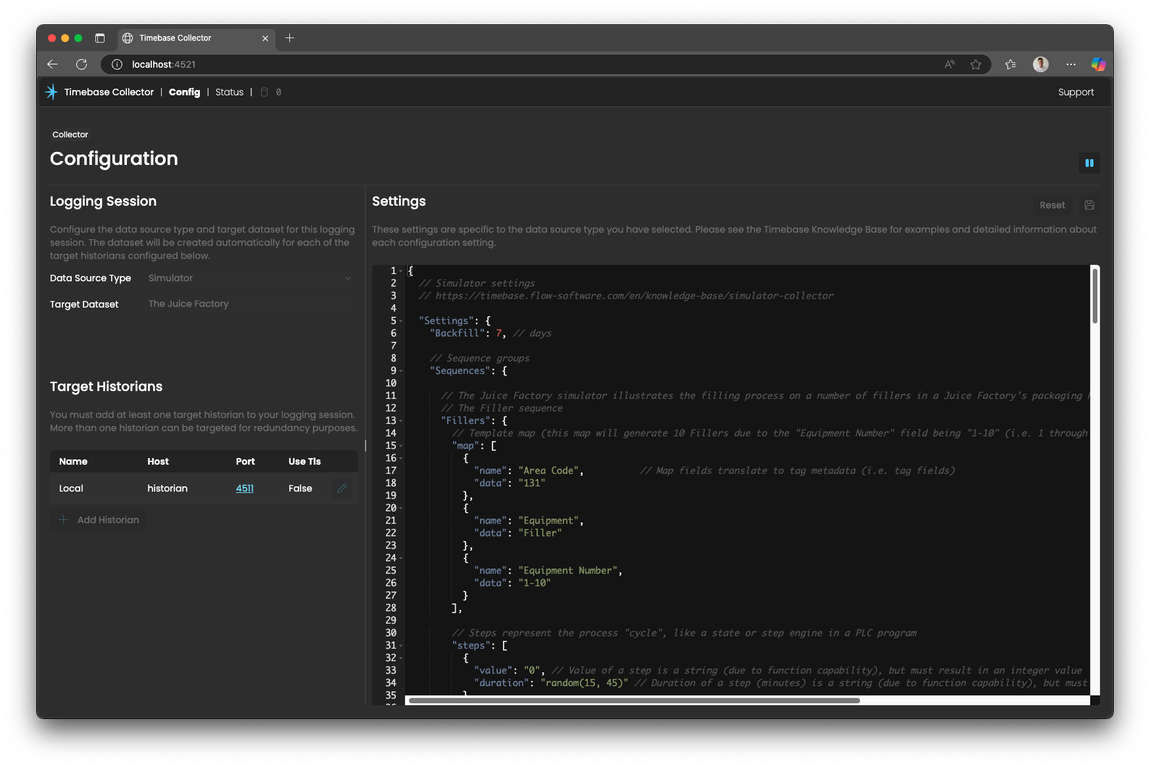
The Collector's target is set in its own interface rather than by hand. On the Collector Config page, select the pencil icon for the target Historian, and if the hostname is localhost, change it to historian. Repeat for each target if you have more than one.
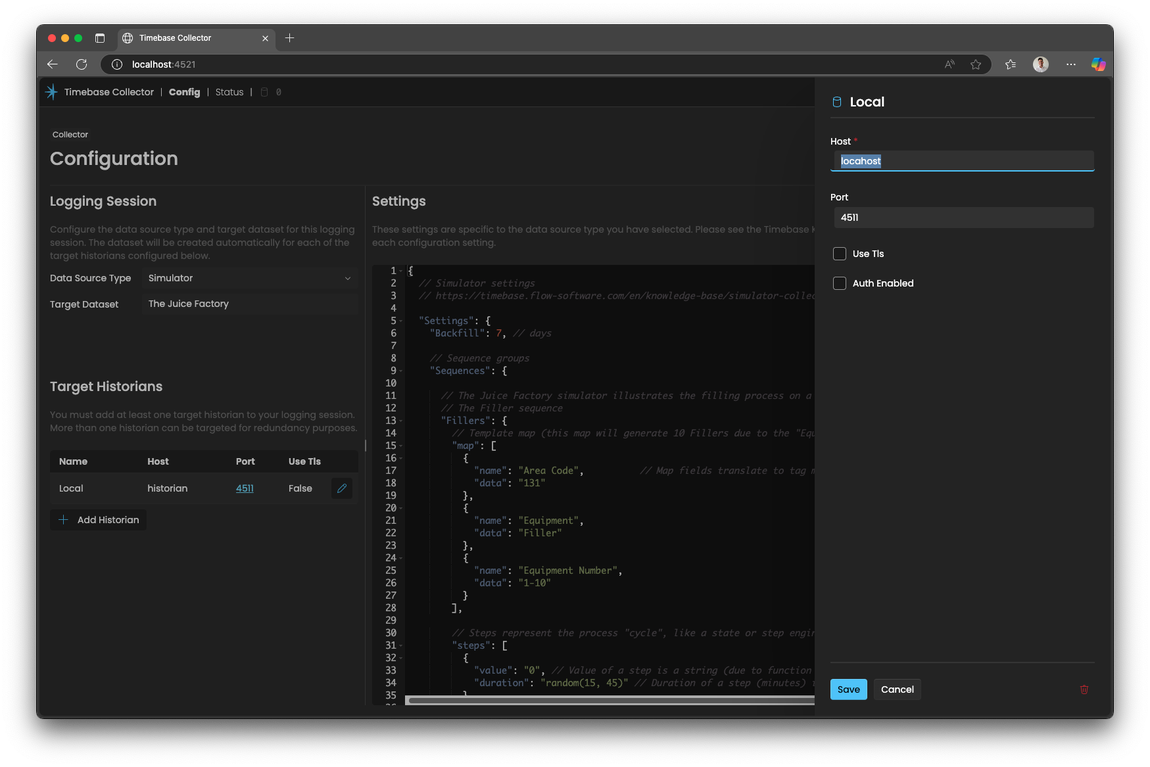
Save the change:
Explorer: the data sources#
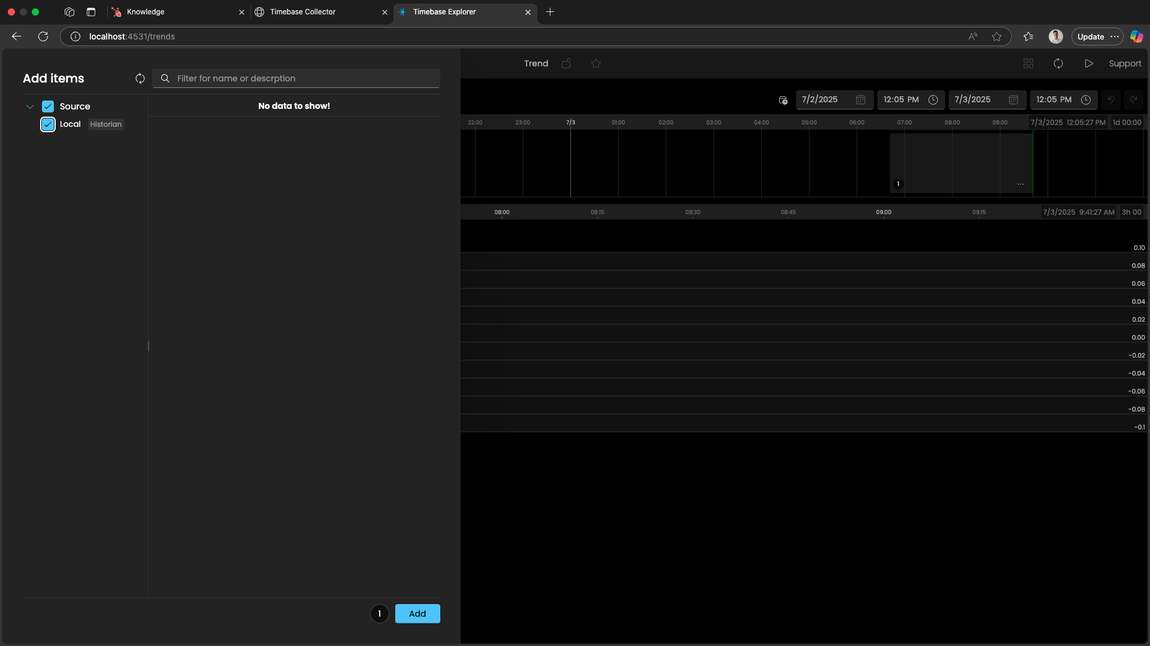
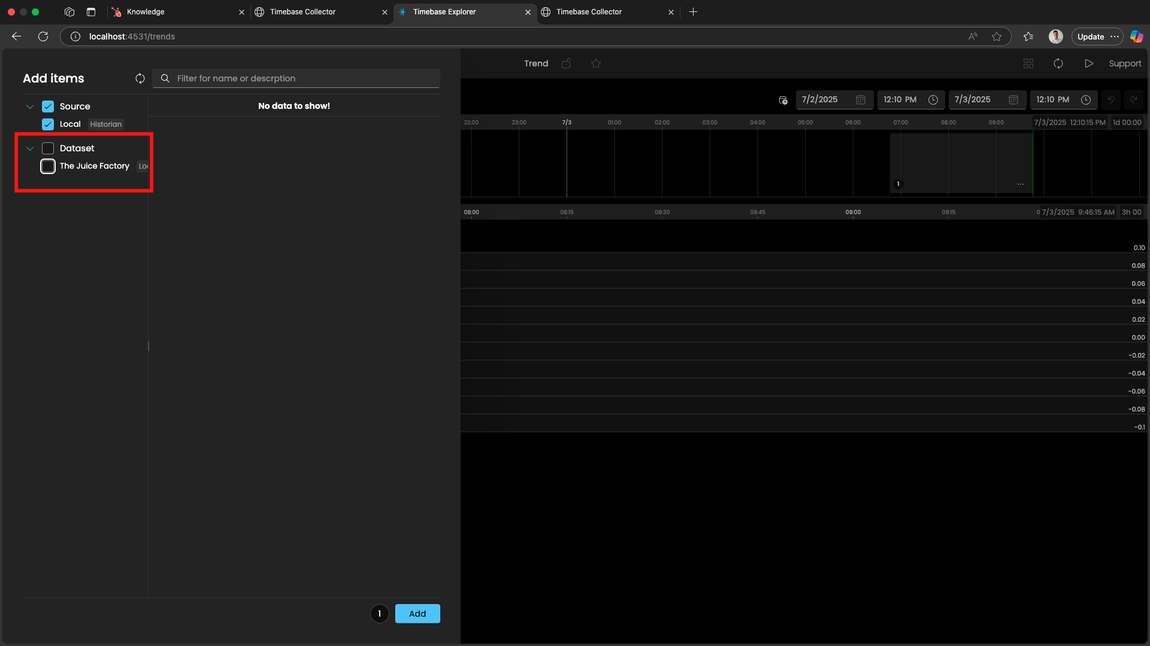
If Explorer starts but shows no datasets, its source is pointing at the wrong host.
Open Config/sources.config in the Explorer volume and edit the source's "Host" value to historian. In Docker this file is seeded from the Docker defaults on first start, so it should already say historian - if it says localhost, the volume was carried over from a non-Docker install.
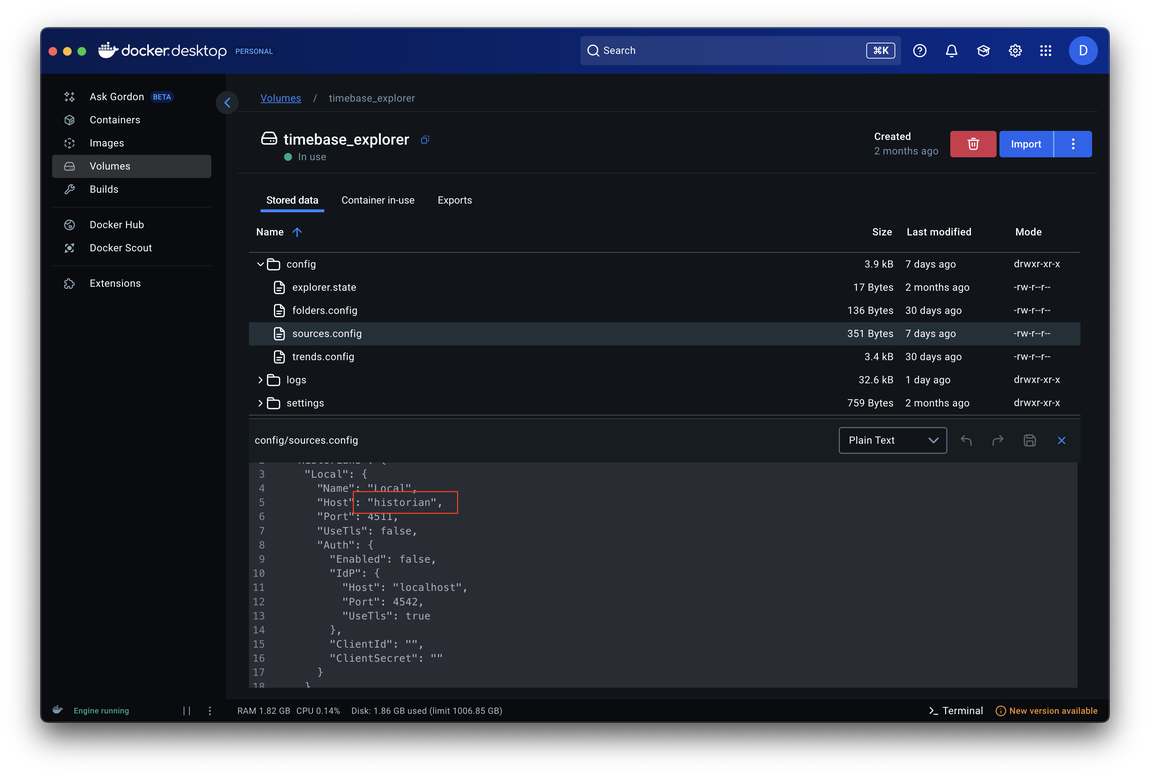
If you have secured Explorer with Pulse, the Auth object in the same file has its own IdP host, and it needs pulse for the same reason. Save, then restart the container.
Checking whether two containers can talk#
You do not need to install anything to test name resolution. From one container's Exec tab:
getent hosts historian
A line with an IP address means the name resolves. Nothing means that service is not on this network, usually because it is not running or is in a different Compose project.
To test that the port is open as well, not just that the name resolves:
curl -sk -o /dev/null -w "%{http_code}\n" https://historian:4512/
Any HTTP status back - including 401 - proves the connection was made. Connection refused means nothing is listening there, and a hang means a network or firewall problem rather than a naming one.
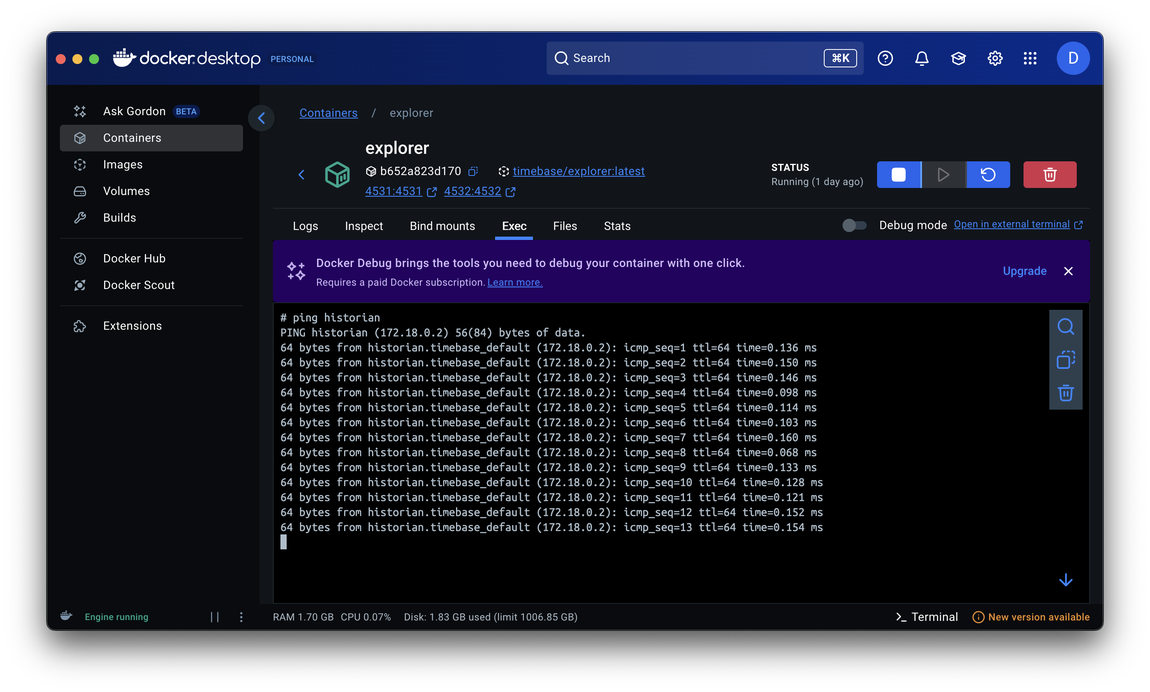
If you would rather use ping, it is not in the images by default and has to be installed per container, and it only tests reachability rather than the port:
apt-get update -y
apt-get install -y iputils-ping
ping historian
If names still do not resolve#
Service names only resolve between containers on the same Docker network. If you started components from separate Compose files, they are in separate projects and separate networks by default, and no amount of renaming will connect them. Bring them up from one Compose file, or join the second project to the first one's network.
Reaching a service on the host machine#
To reach something running on the Docker host rather than in a container - a SQL Server on your workstation, for example - use host.docker.internal rather than localhost.
Docker Desktop host networking#
Docker Desktop offers Enable host networking under Settings, Resources, Network. It makes container ports available on the host directly, and can be a quick way out of a port-mapping problem. Apply and restart Docker for it to take effect.
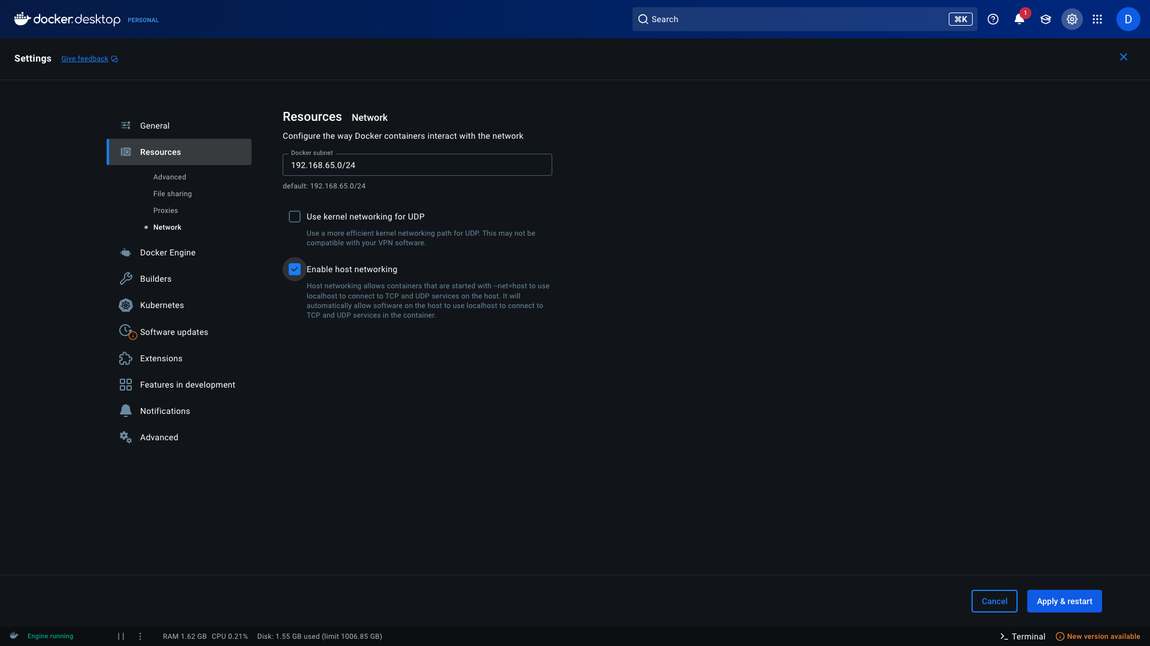
host networking changes how ports are published, not how containers find each other. Service names are still the answer for container-to-container traffic.
Mac with Apple silicon#
If names resolve everywhere else but not on an ARM-based Mac, substituting the host's IP address for the service name is a workaround worth trying.
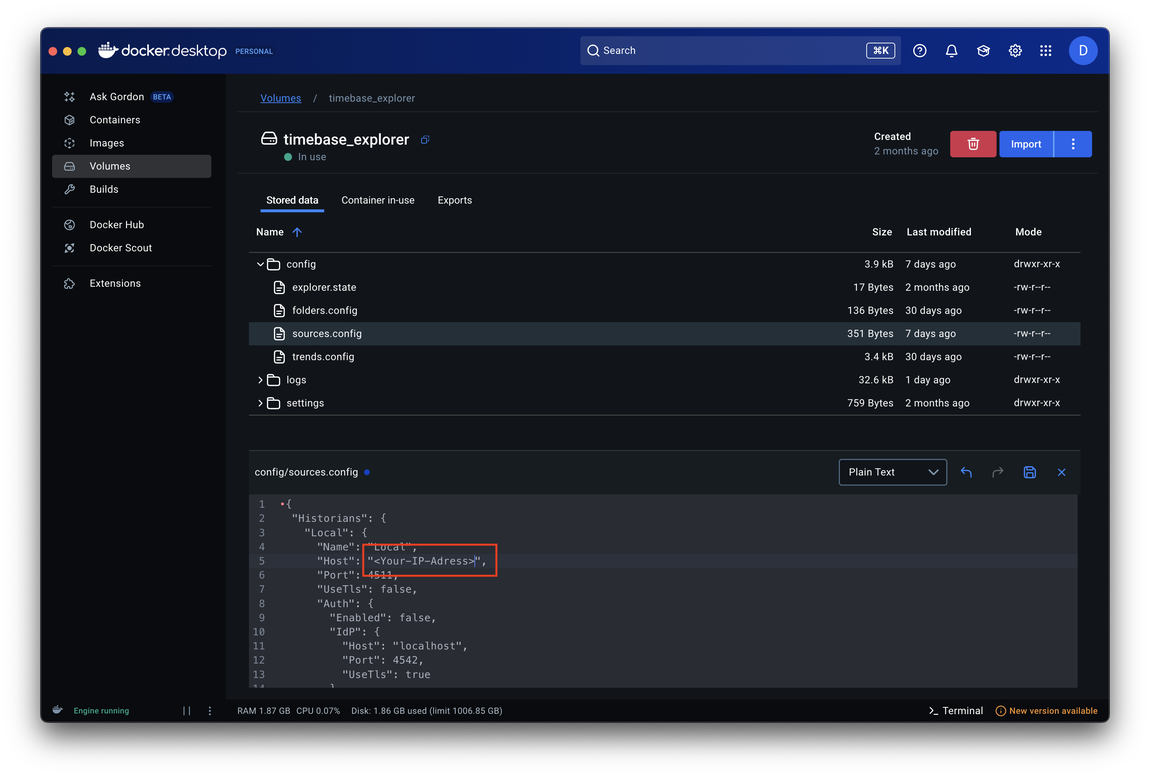
Treat it as a diagnostic rather than a fix: an IP address that changes when the network does will break again later, so if it works, the underlying problem is name resolution and is worth reporting.
Support Assistance#
Struggling? We are here to help and will support you. Please log your ticket and we will respond via email.