Registering Timebase apps as OAuth clients in Pulse
Every Timebase component that connects to Pulse needs an OAuth client registered so it can authenticate.
Overview#
Every Timebase component that connects to Pulse needs an OAuth client registered so it can authenticate. This document shows how to register clients, understand their configuration, and verify authentication is working. If you are setting up an Atlas instance with a Pulse connection, or any other Timebase component that exchanges credentials for tokens, this is where that happens.
Prerequisites#
- Pulse is running and reachable at its configured address (default
https://localhost:4542). - You have administrator access to Pulse (username and password for the login that authenticated
/approutes, or a Pulse API token with administrator scope). - You know the component's hostname and port. For example: Atlas at
localhost:4552, Historian atlocalhost:4512.
First, which ClientId are you looking for?#
Pulse uses the words ClientId and ClientSecret in two unrelated places, and mixing them up is the
fastest way to lose an afternoon. If you have already read the published article on Pulse and OpenID
Connect user authentication, you have met the other one.
| You are configuring | Whose credentials | Where they come from | Covered by |
|---|---|---|---|
| Pulse as an identity provider - letting Atlas, Historian or Collector authenticate to Pulse | A client registered inside Pulse | Pulse generates the secret | This article |
| Pulse as a relying party - letting your staff sign in through Microsoft Entra ID, Google, Okta and similar | Your external identity provider's application | You copy them out of Azure or Google | The OpenID Connect user authentication article |
The give-away is direction. If you are filling in a Timebase component's Pulse:Auth:ClientId, you want this
article. If you are filling in an Authority and a Scheme alongside the client id, you are configuring
an external provider and want the OIDC article instead.
Note also that audiences appear only in this first case. They are a property of a client registered in Pulse, and they have no counterpart in the external-provider setup.
What is a client?#
In OAuth 2.0, a client is an application that needs to prove its identity to another service. In the Timebase platform, a client represents one instance of a Timebase component (Atlas, Historian, Connect, etc.) that will authenticate with Pulse to obtain tokens.
A client is "confidential" - it has a secret that only the client and Pulse know. When the client needs to authenticate, it sends its id and secret to Pulse's /auth/token endpoint and receives a token in return. The component then uses that token to access other Timebase services.
Every Timebase component needs its own client, registered in Pulse, before it can start.
The bootstrap ordering problem: how do clients get created if Pulse hasn't started yet?#
In a Docker or containerized deployment, the usual problem is that Pulse hasn't started yet when its dependent components start, so the client ids and secrets don't exist to put into their configuration.
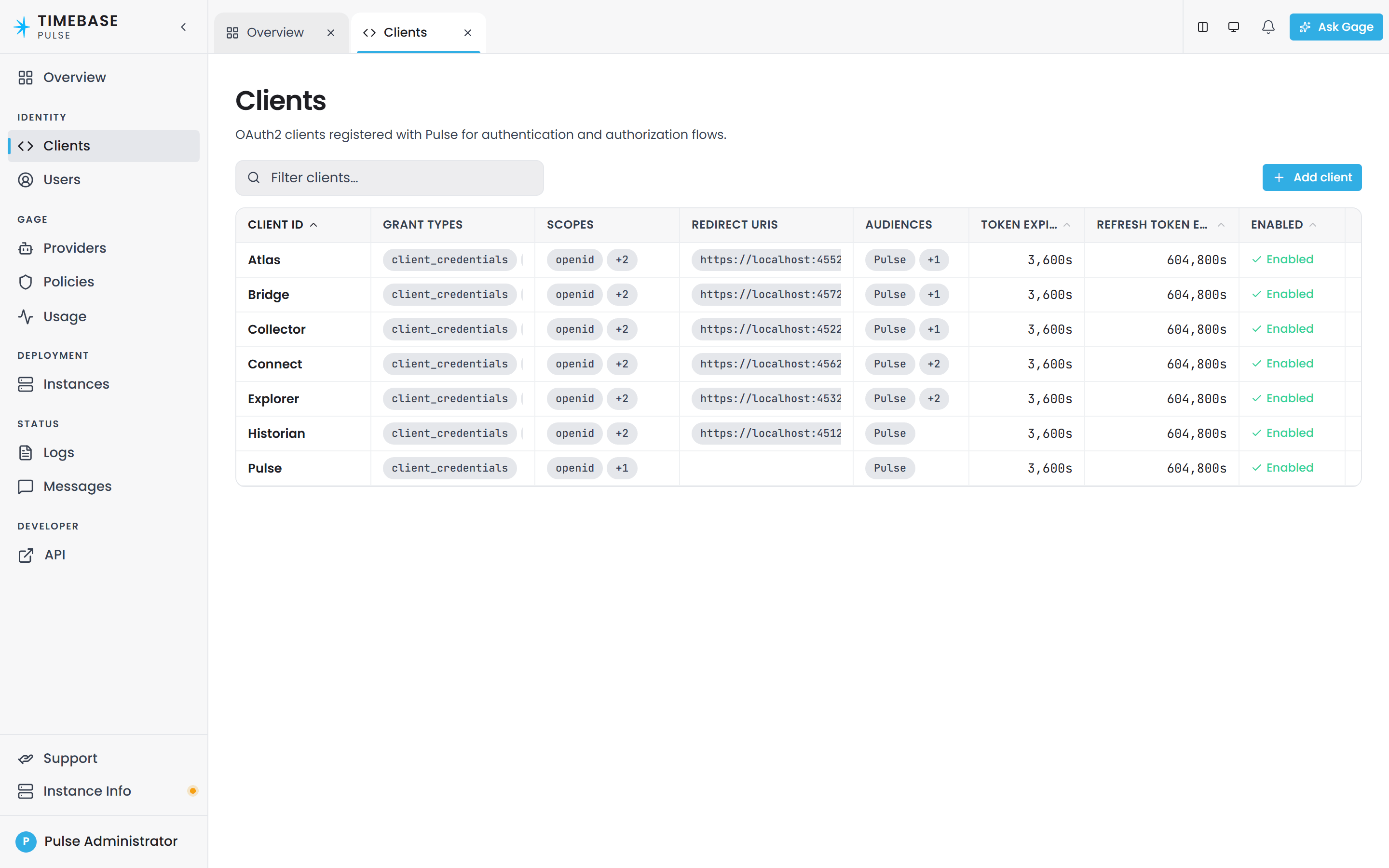
Pulse solves this by seeding well-known clients on its first startup. When Pulse starts for the first time, it automatically creates these clients if they do not already exist:
- Historian - client id
Historian - Collector - client id
Collector - Atlas - client id
Atlas - Connect - client id
Connect - Explorer - client id
Explorer - Bridge - client id
Bridge - Pulse's own AI assistant - client id
Pulse
The last one is different in kind. It is a loopback client: Pulse's own assistant uses it to call
Pulse's Gage proxy, so that traffic is metered and logged like everybody else's. It is
client_credentials only, and it has no redirect URI.
It needs no configuration. Pulse reads this client's secret straight from its own client store at
each token exchange, and derives its own loopback address, so nothing has to be copied out of the
Clients page and pasted back into Pulse's own settings.config. That is the one client on this page
you can ignore entirely.
The clients are stored in clients.config in Pulse's config directory, and seeded only once, guarded
on the client store being empty. They are never re-created or repaired afterwards.
So the client you need almost certainly already exists. Do not create an Atlas client by hand - you
will either collide with the seeded one or leave a second, unused registration behind.
Seeding does not remove the manual step#
Each seeded client is created through Client.Create, which generates its secret like this:
string clientSecret = Guid.NewGuid().ToString();
The secret is a fresh random GUID on every install, and it is not printed anywhere. Meanwhile Atlas
ships "ClientSecret": "" in its settings.config, and Pulse compares the two exactly:
// Confirm ClientSecret. Normalize null vs empty string: a seeded client may carry an empty
if (!string.Equals(client.ClientSecret ?? "", request.ClientSecret ?? "", StringComparison.Ordinal))
    return Result.Failure<TokenResponseDto>(AuthErrors.InvalidClientSecret);
That normalisation only makes null and "" equivalent to each other. An empty string still does
not equal a GUID. So on a fresh pair of installs, Atlas's token request fails with
InvalidClientSecret until you intervene.
Plan for this step; it is not optional. After Pulse's first start, and before a dependent component can authenticate, you must put the real secret into that component's
Pulse:Auth:ClientSecret- either by reading the generated one out of Pulse, or by rotating the secret to a value you choose. Rotating is usually easier because you pick the value in advance.
In Docker or compose this is an ordering problem with no automatic resolution in code: the secret does not exist until Pulse has started, but the dependent component wants it at its own start. Expect to start Pulse first, set the secret, then start everything else. A component that starts too early does not self-heal; it needs a restart once the secret is in place.
If you need a client for a component outside the six above, follow the walkthrough below.
Client fields and types#
A client has the following configuration:
| Field | Type | Default | Meaning |
|---|---|---|---|
| Client Id | string (immutable) | N/A | Unique identifier for this client. Set once at creation, cannot be changed. |
| Client Secret | string | Auto-generated UUID on creation | Credential that proves the client's identity. Sent along with the client id when requesting a token. Never returned by the public API after creation: it appears on the create response, and an administrator can reveal or copy it from the client's page in the Pulse interface. |
| Redirect URIs | list of strings | empty | Callback URLs for authorization-code flow. Used only if the client runs an interactive login: a Timebase component signing users in through Pulse, or an AI tool such as Claude Code signing a person in to reach Atlas's MCP write tools (see Atlas MCP Server). Pulse compares the whole string exactly. Format: full URL, e.g. https://localhost:4552/callback or http://localhost:8765/callback. |
| Grant Types | list of strings | empty | OAuth flows this client is allowed to use. Common values: client_credentials (service-to-service), authorization_code (interactive user login), refresh_token (extend user sessions). Pulse supports all three. |
| Scopes | list of strings | empty | Permissions granted to the client. Common values: openid, profile, offline_access. These control what the token can be used for. |
| Token Expiry | integer (seconds) | 3600 | How long an access token lives. Default 1 hour. |
| Refresh Token Expiry | integer (seconds) | 604800 | How long a refresh token lives. Default 7 days. Only used if the client has offline_access scope. |
| Enabled | boolean | true | Whether this client can authenticate. Set to false to temporarily revoke all tokens issued to this client. |
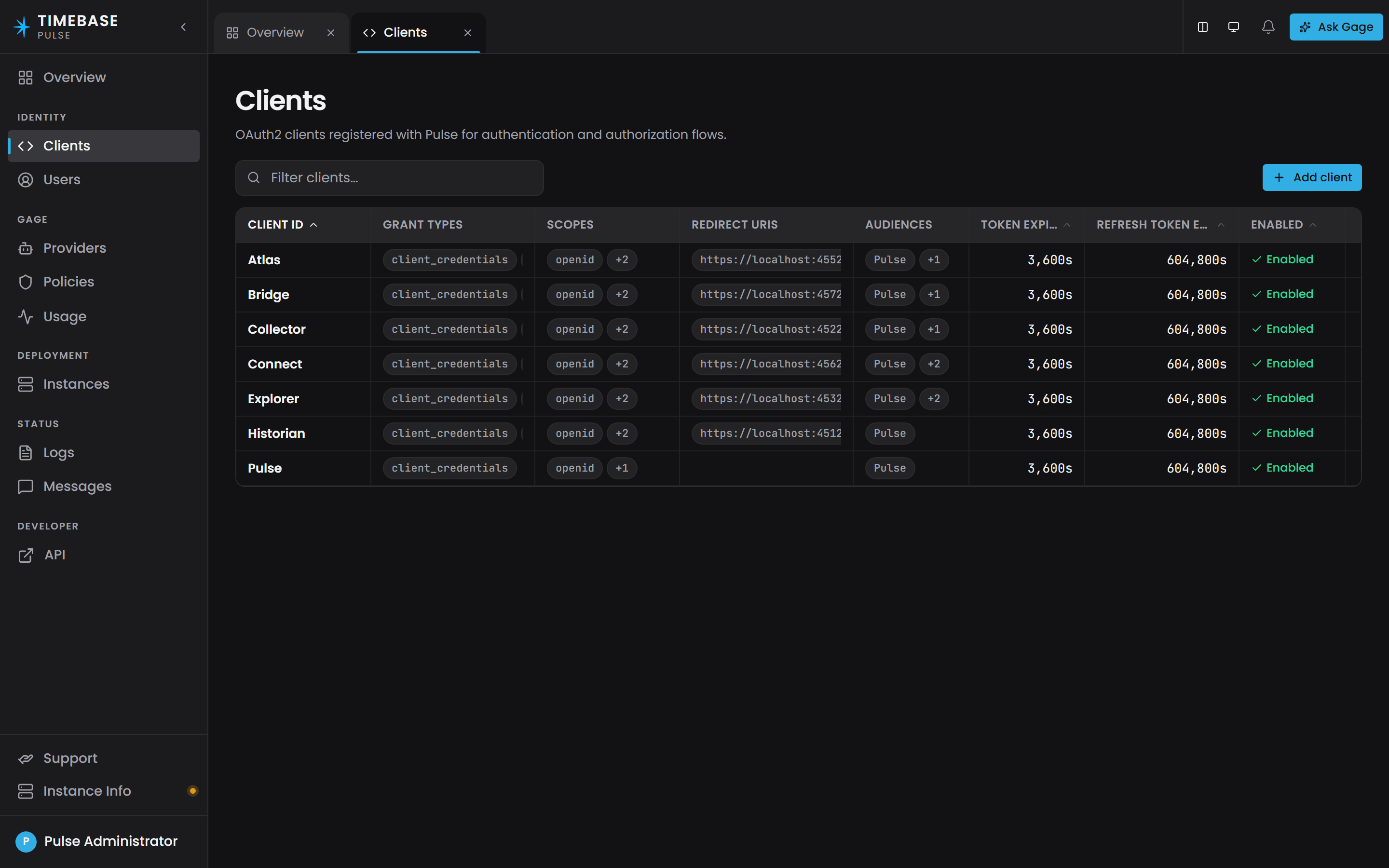
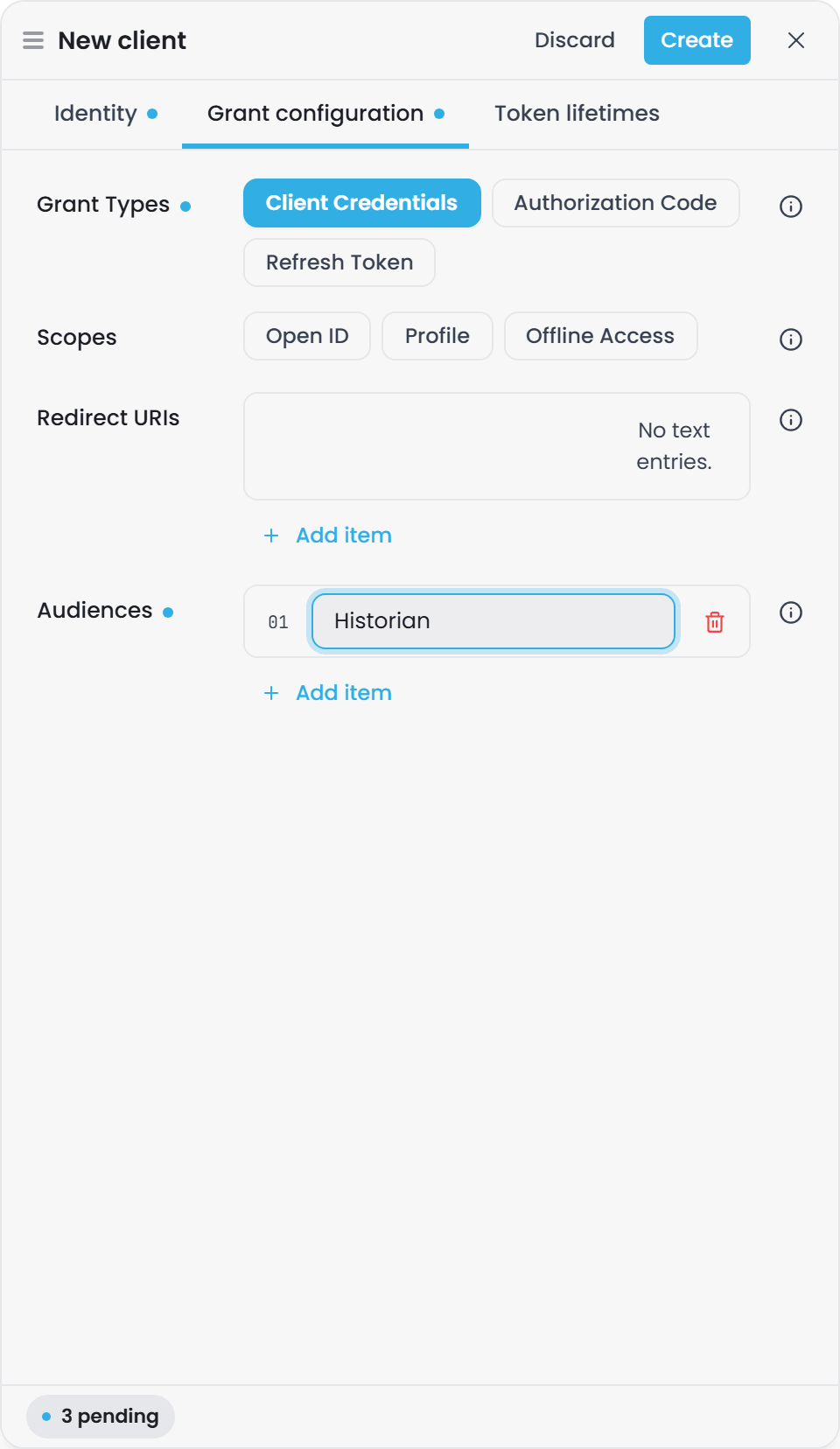
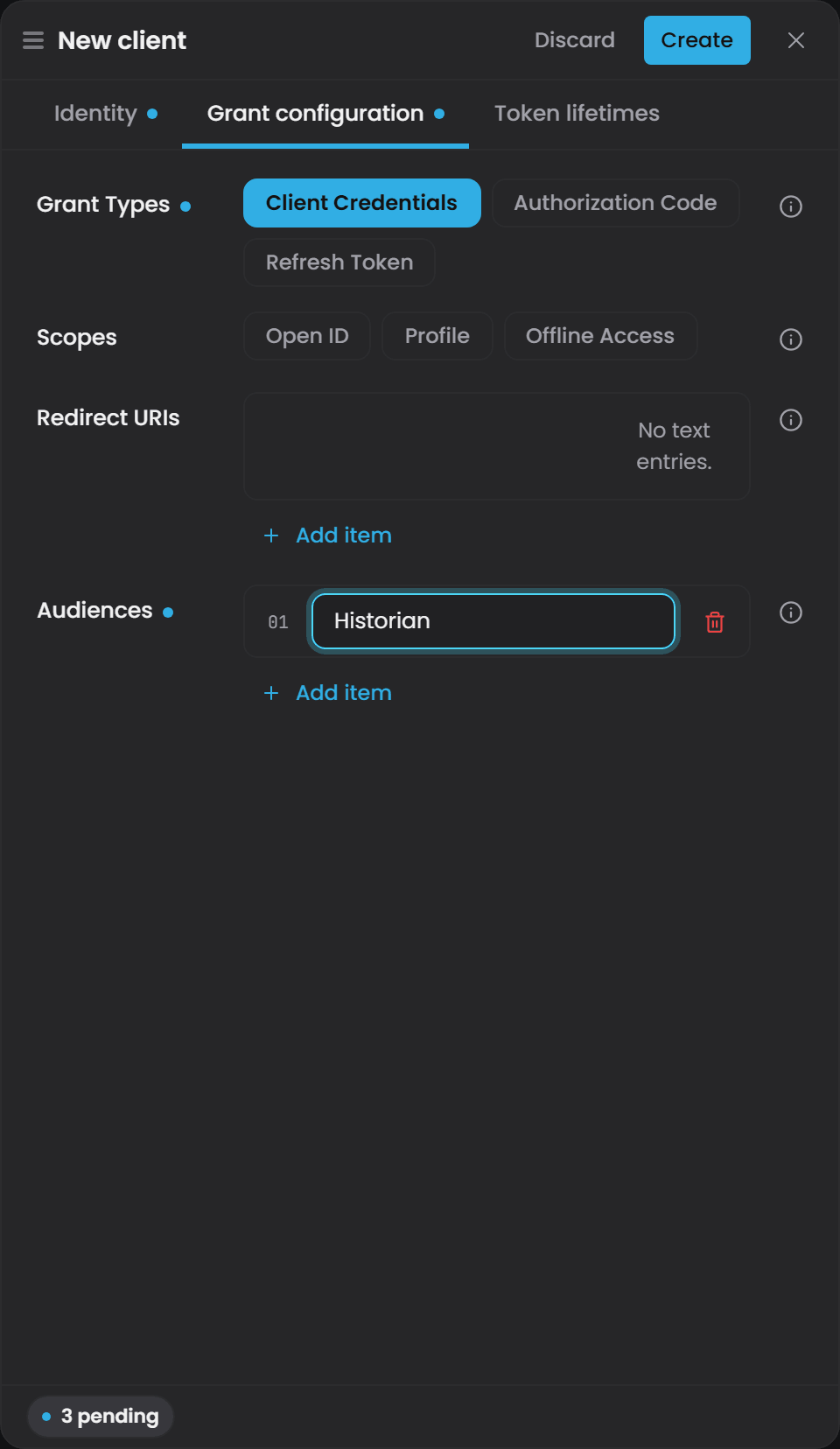
In the interface, Clients lists every client with these fields, and Add client opens a drawer with the client id and switch on its Identity tab, the grant types, scopes, redirect URIs and audiences on Grant configuration, and the two expiries on Token lifetimes.
The critical concept: audiences#
Audiences are how a token is allowed to reach a component.
When you request a token from Pulse, the token carries an aud claim listing the components that token
is valid for. When a component such as Atlas receives a token it checks whether its own client id appears
in that list. If it does, the token is accepted; if not, it is rejected with 401 Unauthorized.
The rule to remember: to let X call Y, add Y to X's audiences.
Two details make this easier to get right:
- A client's own id is always included automatically. Pulse stamps
Client.Idas the firstaudvalue and then appends the configured audiences. You never need to list a client's own id, and the seededAtlasclient can call Atlas's own API even though its configured audiences are onlyPulseandHistorian. - The field name reads backwards in the code. The
Audiencesproperty is documented in the source as "audiences allowed to reach this client", but it behaves as the opposite: the set of components this client's token may reach. Trust the behaviour, not the comment.
This is a common source of confusion. A 401 when presenting a token from the correct client with
the correct secret usually means a missing audience, not a credentials problem.
Worked example: Atlas calling the Historian's Gage endpoint#
Suppose Atlas needs to call Historian's /mcp endpoint (Historian's Gage assistant). Here is what must be true:
-
Historian has an MCP endpoint that requires a Pulse token with Historian's own client id in the audiences.
-
Atlas's client is registered in Pulse with id
Atlas. -
The
Atlasclient's audiences list includesHistorian- for example:"audiences": ["Pulse", "Historian"] -
Atlas requests a token using its client credentials (id
Atlas, its secret). Pulse'sCreateTokenCommandHandlerlooks up theAtlasclient, and because the request isclient_credentialsgrant, it generates a token with:- Audiences:
["Atlas", "Pulse", "Historian"]- the client's own id first, automatically, then its configured audiences - Subject: the client id itself (
Atlas) - No administrator role (client_credentials tokens never carry admin permissions)
- Audiences:
-
Atlas presents that token to Historian's
/mcpendpoint. Historian validates the token and checks: "IsHistorianin the audiences?" Yes. The request is allowed.
If the Atlas client's audiences omitted Historian, the token would still validate cryptographically, but Historian would reject it because the audience claim does not include its id. The error would be 401, not because the credentials were wrong, but because the token is not intended for Historian.
When setting up a new client, always populate its audiences with the list of services it will call.
Scripting the administration API#
The routes that manage clients and users, /api/clients and /api/users, and the Gage administration
routes with them, need two things at once:
- the
pulse:administratorrole, and - the
PulseAdminaudience, which no seeded client has.
Both, deliberately. Every component host keeps the tokens of the people signed in to it, and every
seeded client lists Pulse among its audiences, so the role on its own would let an administrator's
token held by any component turn around and administer Pulse.
To script these routes, register a client whose id is PulseAdmin. That is the supported path, and
the only one.
What the API will not tell you#
A client secret is returned exactly once, when the client is created. Listing clients does not include it and fetching one client does not include it. An update ignores a secret in the body: use Secret rotation instead.
So a secret that was generated and not recorded cannot be read back over the API by anyone. Reveal it in the Pulse interface, or rotate it to a value you choose.
This used to be otherwise, and it was the reason for the change. Any seeded component's token could read every client's secret, Pulse's own included, register clients, and create a Pulse administrator whose stored password hash came back in the response. If you have automation written against the old behaviour, it stopped working on purpose.
Three related changes worth knowing if you automate against Pulse:
| Route | Now |
|---|---|
GET /api/certificates |
Returns the private key only to the same caller it was issued to |
PUT /app/host/settings, /auth/revoke |
Accept an administrator's sign-in cookie only, not a bearer token |
POST /api/users |
Returns a user projection, never the stored password hash |
A refresh token can also only be redeemed by the client it was issued to. Tokens stored before this change name no client and are refused, so everyone signs in once more after the upgrade and then not again.
The Service Starter no longer logs secrets. The full child command line, client secrets and certificate passwords included, used to reach the log file, the console, the logs API and the Logs page. Those values are masked now, using the same well-known key names the settings editor redacts.
Registering a new client: numbered walkthrough#
These steps use the public /api/clients endpoint, which requires Pulse API authentication. You can also use the Pulse UI at /app/clients as an interactive alternative.
1. Get a Pulse API token#
If you are using the Pulse UI, you are already authenticated via your browser cookie and can skip to step 2. For programmatic access, call /auth/token:
curl -X POST https://localhost:4542/auth/token \
  -H "Content-Type: application/x-www-form-urlencoded" \
  -d "grant_type=client_credentials&client_id=Atlas&client_secret=<Atlas-secret>&password=&username="
Replace <Atlas-secret> with the actual secret from clients.config (visible only to admins after rotation, or visible in the log on first creation).
Response:
{
  "access_token": "eyJhbGciOiJSUzI1NiIsInR5cCI6IkpXVCJ9...",
  "token_type": "Bearer",
  "expires_in": 3600
}
Keep the access_token for the next steps.
2. Prepare the client request body#
A new client requires at minimum:
cid(client id) - your chosen unique identifiergt(grant types) - list of allowed flows, e.g.["client_credentials"]for service-to-service- Any other fields you need (redirect URIs for interactive flows, audiences, scopes)
Here is a minimal request body for a service-to-service client:
{
  "cid": "MyComponent",
  "gt": ["client_credentials"],
  "aud": ["Pulse"],
  "sl": ["openid"]
}
If your component will call other services, add them to the audiences. For example, if MyComponent calls Atlas's API:
{
  "cid": "MyComponent",
  "gt": ["client_credentials"],
  "aud": ["Pulse", "Atlas"],
  "sl": ["openid"]
}
If your component needs interactive user login, also add redirect URIs and the authorization_code grant:
{
  "cid": "MyComponent",
  "gt": ["client_credentials", "authorization_code"],
  "aud": ["Pulse"],
  "ru": ["https://mycomponent.company.com/callback"],
  "sl": ["openid", "profile", "offline_access"]
}
3. Create the client via the public API#
POST to /api/clients with the request body from step 2. Use the token from step 1:
curl -X POST https://localhost:4542/api/clients \
  -H "Authorization: Bearer <access-token>" \
  -H "Content-Type: application/json" \
  -d '{
    "cid": "MyComponent",
    "gt": ["client_credentials"],
    "aud": ["Pulse"],
    "sl": ["openid"]
  }'
Response on success (HTTP 200):
{
  "cid": "MyComponent",
  "cs": "550e8400-e29b-41d4-a716-446655440000",
  "gt": ["client_credentials"],
  "aud": ["Pulse"],
  "sl": ["openid"],
  "te": 3600,
  "re": 604800,
  "en": true,
  "cd": "2026-08-08T12:34:56Z"
}
The response contains the newly generated client secret in the cs field. This is the only time the secret appears in plaintext; copy it immediately and save it securely. If you lose it, you must rotate the secret (step 7).
4. Put the client id and secret into your component's configuration#
Your component reads Pulse:Auth:ClientId and Pulse:Auth:ClientSecret from its settings file. For example, in Atlas's settings.config:
{
  "Auth": {
    "ClientId": "MyComponent",
    "ClientSecret": "550e8400-e29b-41d4-a716-446655440000"
  }
}
Pulse's own assistant uses a separate loopback client, Pulse. There is no configuration to show:
Pulse resolves that client's secret from its own store and derives its own address, so its
settings.config carries no Gage connection settings at all.
This is the one client you never have to touch. It is seeded like the others, and unlike the others its secret is never copied anywhere: Pulse reads it from its own client store at each token exchange. Deleting it is the only way to break Pulse's own assistant.
5. Verify the component can authenticate#
Start your component (or restart it if it was already running). It will call /auth/token using the credentials you provided.
To manually verify, use the same request as step 1 with your new client's credentials:
curl -X POST https://localhost:4542/auth/token \
  -H "Content-Type: application/x-www-form-urlencoded" \
  -d "grant_type=client_credentials&client_id=MyComponent&client_secret=550e8400-e29b-41d4-a716-446655440000"
If authentication succeeds, you will get an access token. Decode it (using https://jwt.io or a JWT library) and verify:
- The
sub(subject) claim is the client id:"sub": "MyComponent" - The
aud(audiences) claim includes your component's id and any services it calls. For the example above:"aud": ["Pulse"] - There is no
roleclaim, becauseclient_credentialstokens never carry administrator permissions - The token is signed with Pulse's key (RSA SHA256)
If you get a 400 error with error: "invalid_request", check:
- Content-Type is
application/x-www-form-urlencoded grant_typeis spelled exactlyclient_credentialsclient_idandclient_secretmatch what you registered
Secret rotation#
If you believe a client secret has been compromised, or you want to rotate it as a security practice, use the rotate-secret endpoint.
The rotate-secret operation is available only via the Pulse UI (/app/clients/{id}/rotate-secret), which is cookie-authenticated and admin-gated. There is no public /api/clients/{id}/rotate-secret endpoint.
Via the Pulse UI:
- Navigate to
/app/clients - Find the client in the list
- Click to open its detail view
- Choose Rotate secret
- The new secret replaces the old one under Client secret, masked, with Reveal and Copy beside it. The old secret stops working at once.
- Update your component's configuration with the new secret
- Restart the component
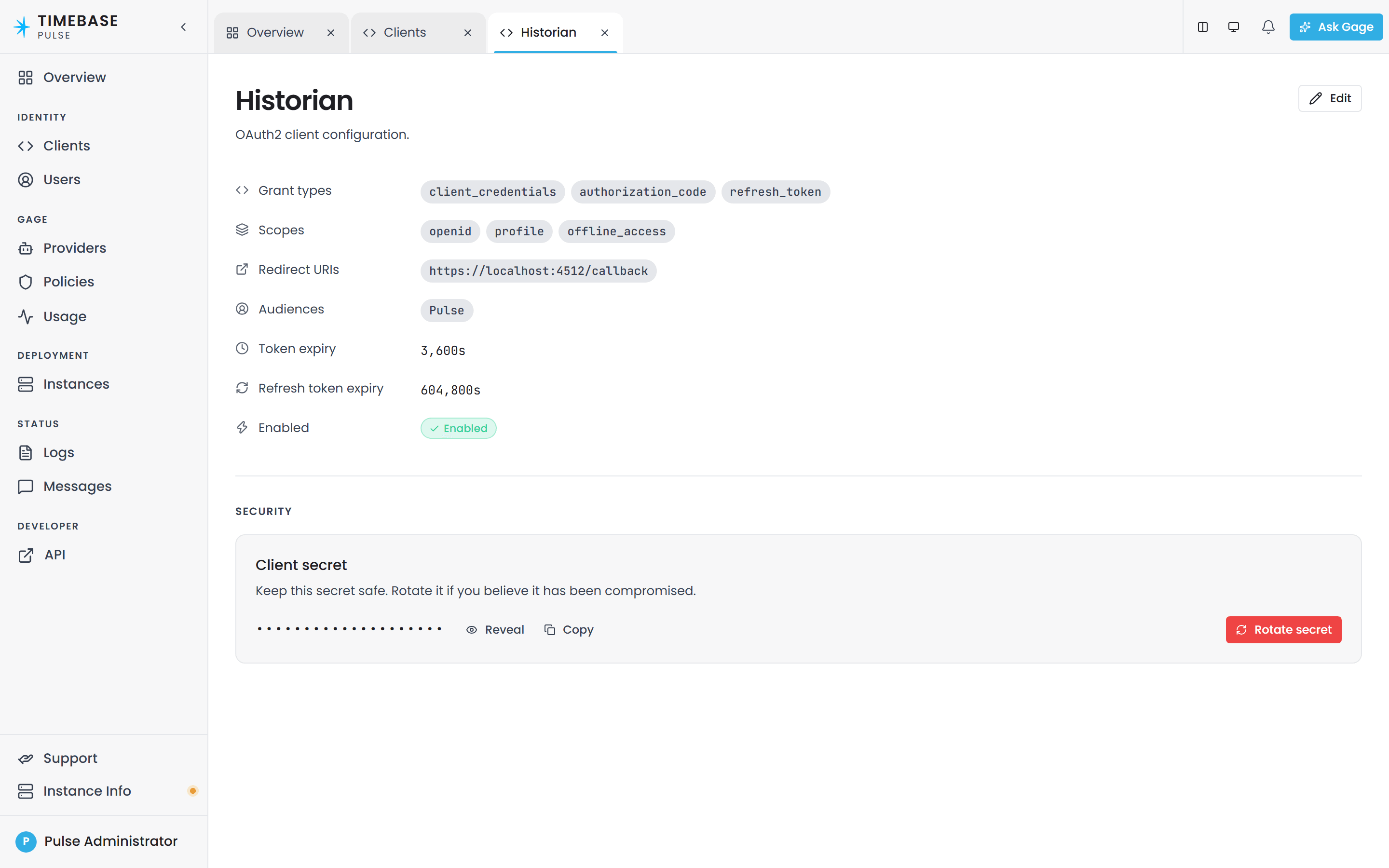
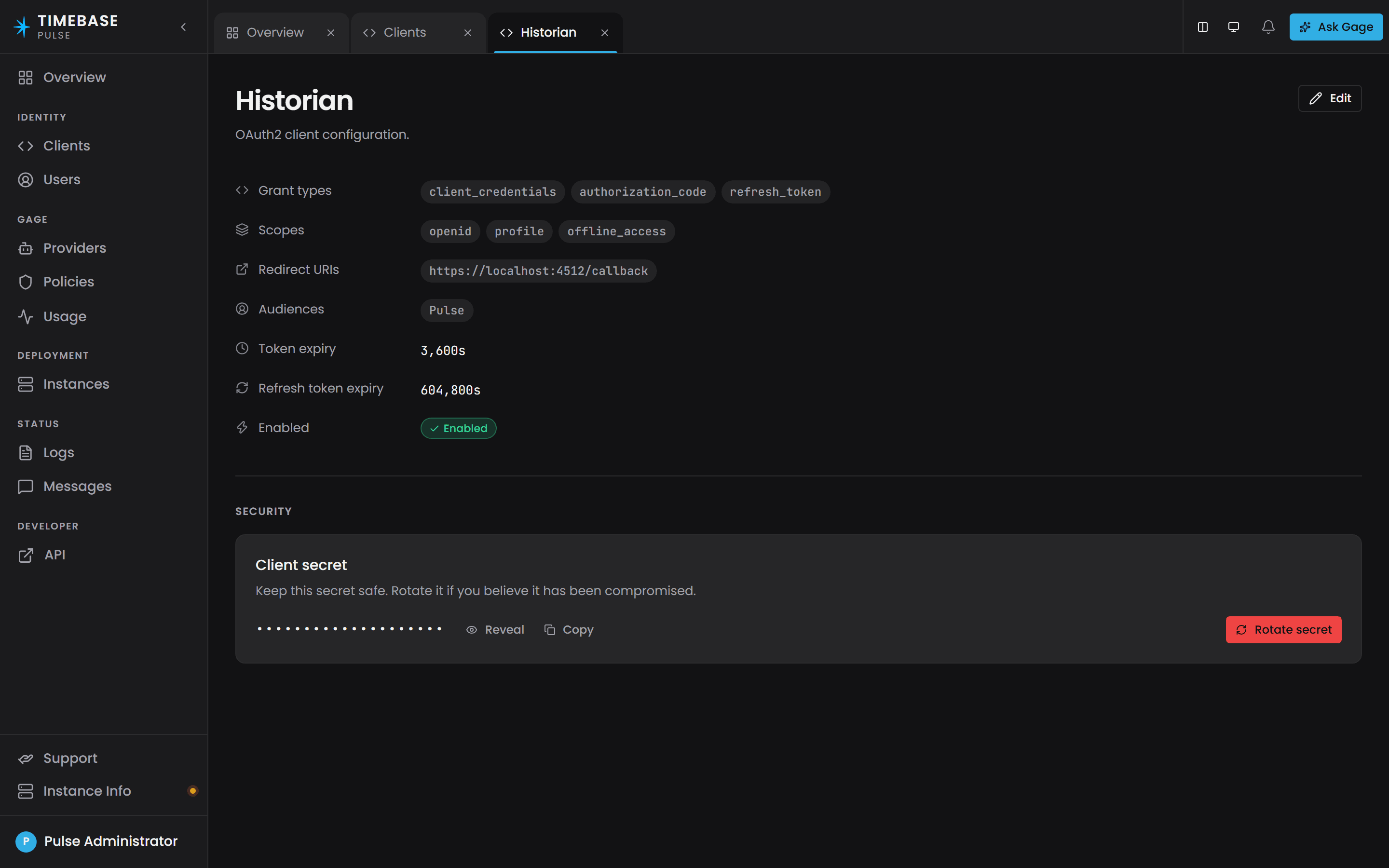
Manually via the API (if you have UI access):
The secret rotation endpoint is POST /app/clients/{id}/rotate-secret, which uses cookie authentication via the Pulse SPA. There is no way to rotate programmatically without cookie access; you must use the web UI or script it with a browser automation tool.
When a secret is rotated, the prior secret becomes invalid immediately. Any component still using the old secret will receive a 400 error on its next token request. This is why you must update and restart the component promptly.
Verifying a client was registered correctly#
Use GET /api/clients/{id} to read a client's configuration:
curl -X GET https://localhost:4542/api/clients/MyComponent \
  -H "Authorization: Bearer <access-token>"
Response:
{
  "cid": "MyComponent",
  "cs": null,
  "gt": ["client_credentials"],
  "aud": ["Pulse"],
  "sl": ["openid"],
  "te": 3600,
  "re": 604800,
  "en": true,
  "cd": "2026-08-08T12:34:56Z"
}
Note that cs (client secret) is null. Secrets are never returned after creation; they appear only once in the create response and after secret rotation. If you need the secret and have lost it, rotate it.
To list all clients:
curl -X GET https://localhost:4542/api/clients \
  -H "Authorization: Bearer <access-token>"
Troubleshooting#
Component cannot get a token (400 Bad Request, invalid_request)#
Symptom: Your component logs an error like:
Token request failed with status 400: {"error": "invalid_request", "error_description": "..."}
Causes and fixes:
-
Client does not exist. Check that the client id in your component's
Pulse:Auth:ClientIdmatches a client registered in Pulse. UseGET /api/clientsto list them. -
Client secret is wrong. Check that
Pulse:Auth:ClientSecretin your component's config exactly matches the secret you copied when you created or rotated the client. Secrets are case-sensitive. If the secret contains special characters, ensure they are not escaped or URL-encoded in the plaintext config. -
Client secret is null/empty but should not be. If your component has a non-empty secret configured, and the registered client has a different secret, rotation is required. Use the Pulse UI to rotate the secret, then update your config.
-
Content-Type header is wrong. Pulse's token endpoint expects
application/x-www-form-urlencoded. If your HTTP client is sending JSON, it will fail.
Component gets a token but is rejected by another service (401 Unauthorized)#
Symptom: Your component can authenticate with Pulse, but when it calls another service (e.g., Historian), it gets a 401 even though the token looks valid.
Cause: The client's audiences do not include the target service.
Fix: Edit the client to add the target service to its audiences. For example, if MyComponent calls Historian:
curl -X POST https://localhost:4542/api/clients/MyComponent \
  -H "Authorization: Bearer <access-token>" \
  -H "Content-Type: application/json" \
  -d '{
    "cid": "MyComponent",
    "gt": ["client_credentials"],
    "aud": ["Pulse", "Historian"],
    "sl": ["openid"]
  }'
Then restart the component so it gets a new token with the updated audiences.
The seeded client (e.g., "Atlas") has an empty secret and authentication fails#
Symptom: A component such as Atlas cannot authenticate against a freshly installed Pulse. The token
request fails and the error is InvalidClientSecret.
Cause: This is the expected result of a default installation, not a fault. The seeded Atlas client
was given a randomly generated GUID secret, and the component still ships Pulse:Auth:ClientSecret: "". The
two do not match.
Sending an empty secret cannot fix this. Pulse normalises null and "" to each other, and nothing
else - an empty string is never equal to a GUID.
Fix: give both sides the same secret. Rotating is usually easiest, because you choose the value before the component needs it:
- Rotate the seeded client's secret, or read the existing one from Pulse.
- Put that exact value into the component's
Pulse:Auth:ClientSecret. - Restart the component. It does not retry its way out of this state on its own.
New client creation fails with 400 (validation error)#
Symptom:
{"error": "...", "error_description": "..."}
Cause: The request body is invalid. Common issues:
- Missing required fields (at minimum:
cidandgt) - Field types are wrong (e.g.,
gtmust be a list of strings, not a single string) - JSON is malformed
Fix: Validate the request body structure. A minimal valid request:
{
  "cid": "MyClient",
  "gt": ["client_credentials"]
}
Use jq or a JSON validator to check the syntax.