Ask Gage, the Atlas AI Assistant
Gage is the built-in AI assistant in Timebase Atlas.
Overview#
Gage is the built-in AI assistant in Timebase Atlas. You type a plain-language question or instruction into a chat panel, and Gage reads your domain, runs queries, and (if you have the right permission) makes changes on your behalf. You would use it when you want to explore or edit a model without learning Cypher, JSON-LD, or the internal shape of an instance map.
A few terms this article uses:
- Domain - one model in Atlas: the entity types you have defined plus the instances built from them.
- Entity type - a kind of thing in your model, such as
PumporFermentationTank. - Instance map - the file that lists the real, concrete things in your plant and the pattern used to create them.
- Pulse - Timebase Pulse, the component that checks who you are and what you are allowed to do.
Gage is a shared Timebase feature, so the same Ask Gage button appears in other Timebase products. This article covers the Atlas version.
What Gage Can Do#
Gage works through a set of named agents. The default one is called gage and it is the front door: it answers questions itself and hands larger jobs to specialists.
Typical requests:
- Explore a model. "What entity types are in this domain?" or "What properties does a FermentationTank have?"
- Query data. "Show me all pumps currently above 1500 RPM." Gage writes and runs the Cypher for you.
- Change a model. "Add a property called targetSpeed to the Pump entity type." This requires the administrator role - see Who Can Change a Model.
- Run a guided workflow. "Model a new domain for our HVAC system." Gage runs a structured, checkpointed modelling pipeline.
For the full list of agents and how work is handed between them, see the Atlas AI Agents article. For the built-in workflows and the modelling pipeline, see the Atlas Skills article.
Before You Start#
Gage is not offered at all until three things are true. Atlas checks them itself and shows you which one is missing (see Troubleshooting).
- Pulse authentication is switched on in Atlas. Gage needs to know who is asking, so there is no anonymous mode. With
Pulse:Auth:Enabledset tofalse, the assistant is simply not available.Pulse:Auth:Enabledistrueby default. - Gage is enabled in Atlas. The setting is
Pulse:Gage:Enabled, and it istrueby default. - At least one model is enabled in Pulse. Atlas does not host or configure a model itself. It asks Pulse for the list of available models when it starts up.
There is no local model option and no API key to provide. Atlas talks only to Pulse, and Pulse talks to whichever model provider your organisation has configured there.
To set all three up from scratch, follow Quick Start: Turn On the AI Assistant.
Open the Ask Gage Panel#
- Open Atlas in your browser at
https://<your-atlas-server>:4552(orhttp://<your-atlas-server>:4551if your deployment is not using HTTPS). - Sign in with your Pulse account.
- Look at the top-right of the toolbar for the Ask Gage button and click it.
The panel docks on the right-hand side of the window and pushes the workspace across rather than floating over it. Drag its left edge to make it wider or narrower.
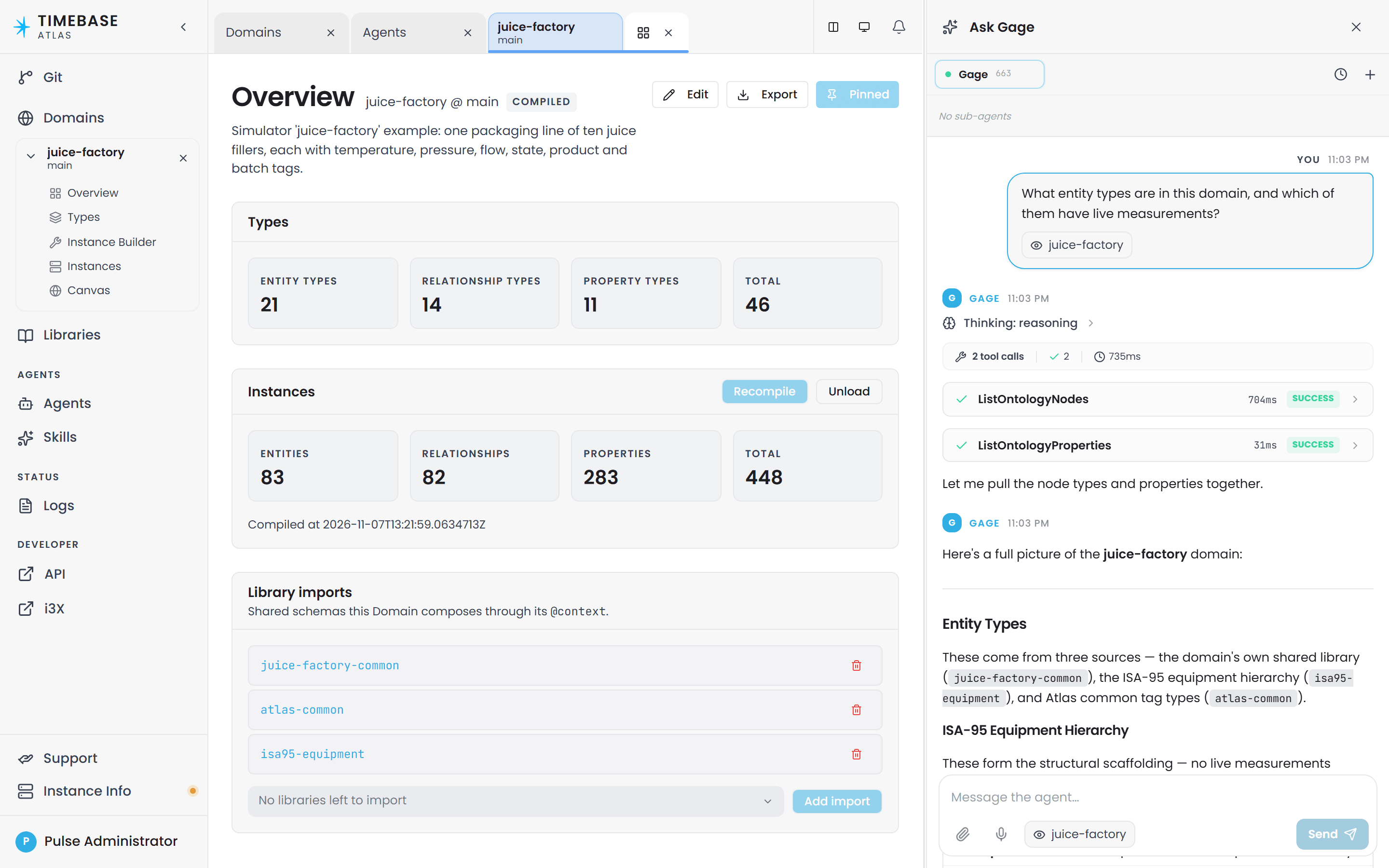
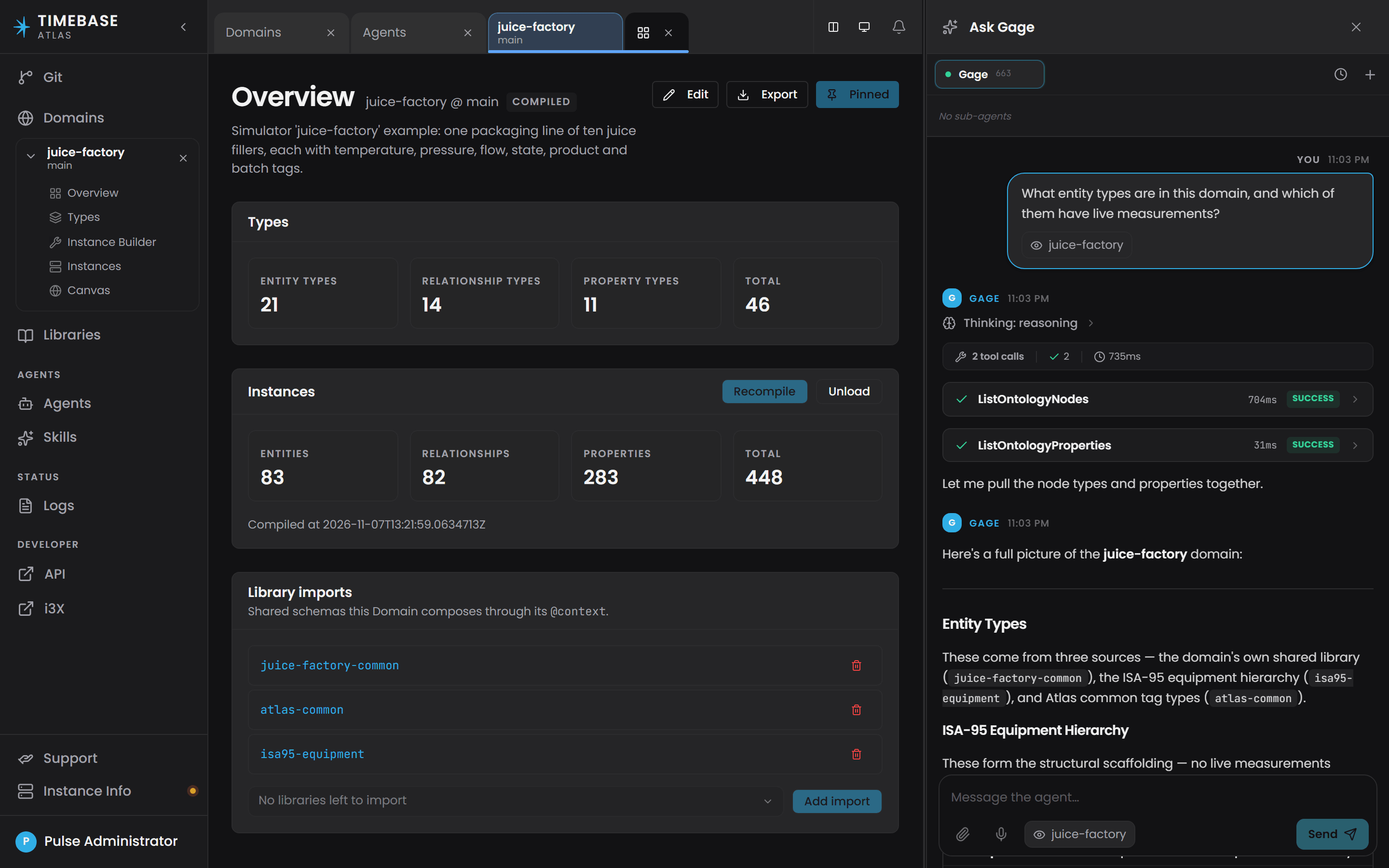
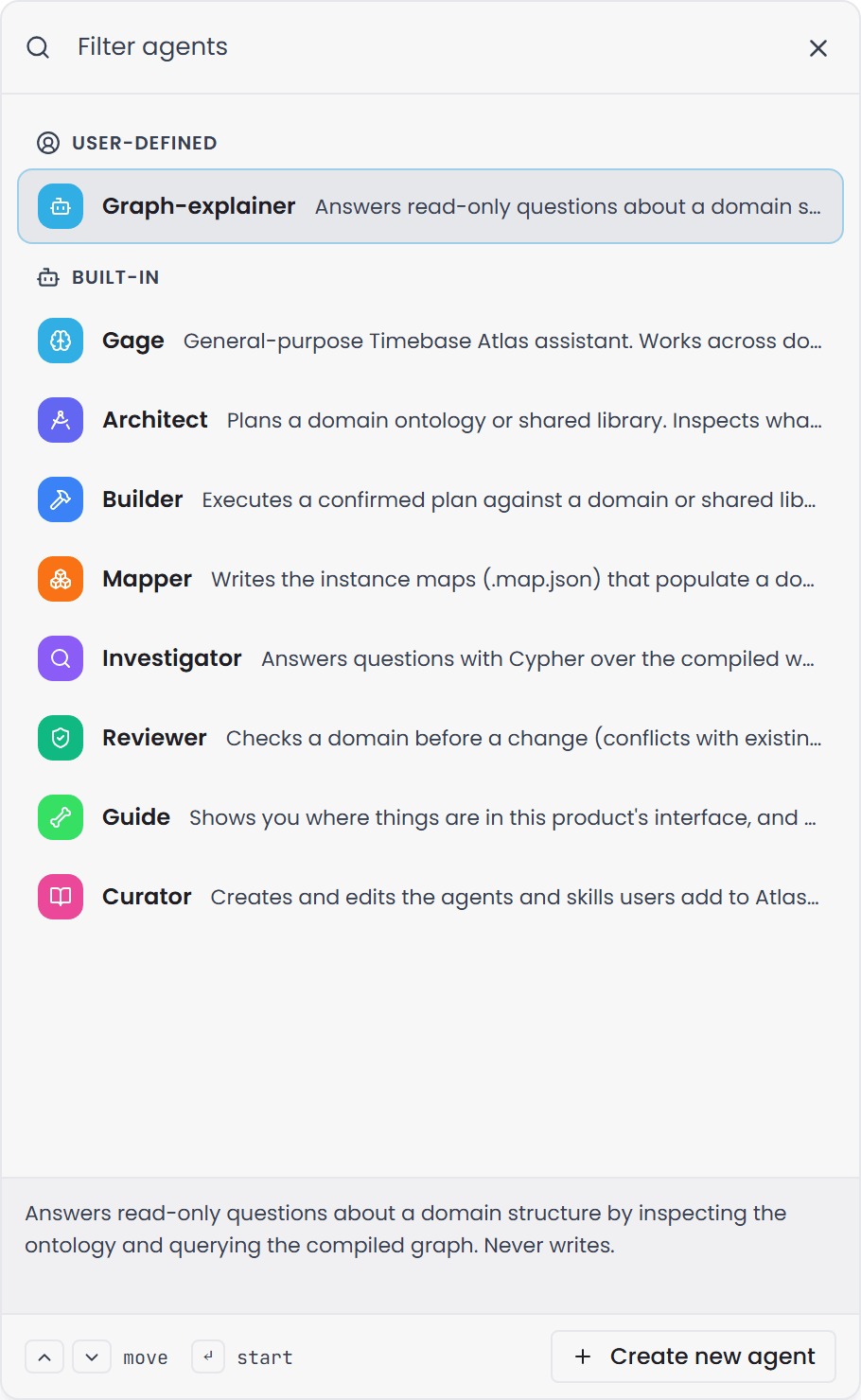
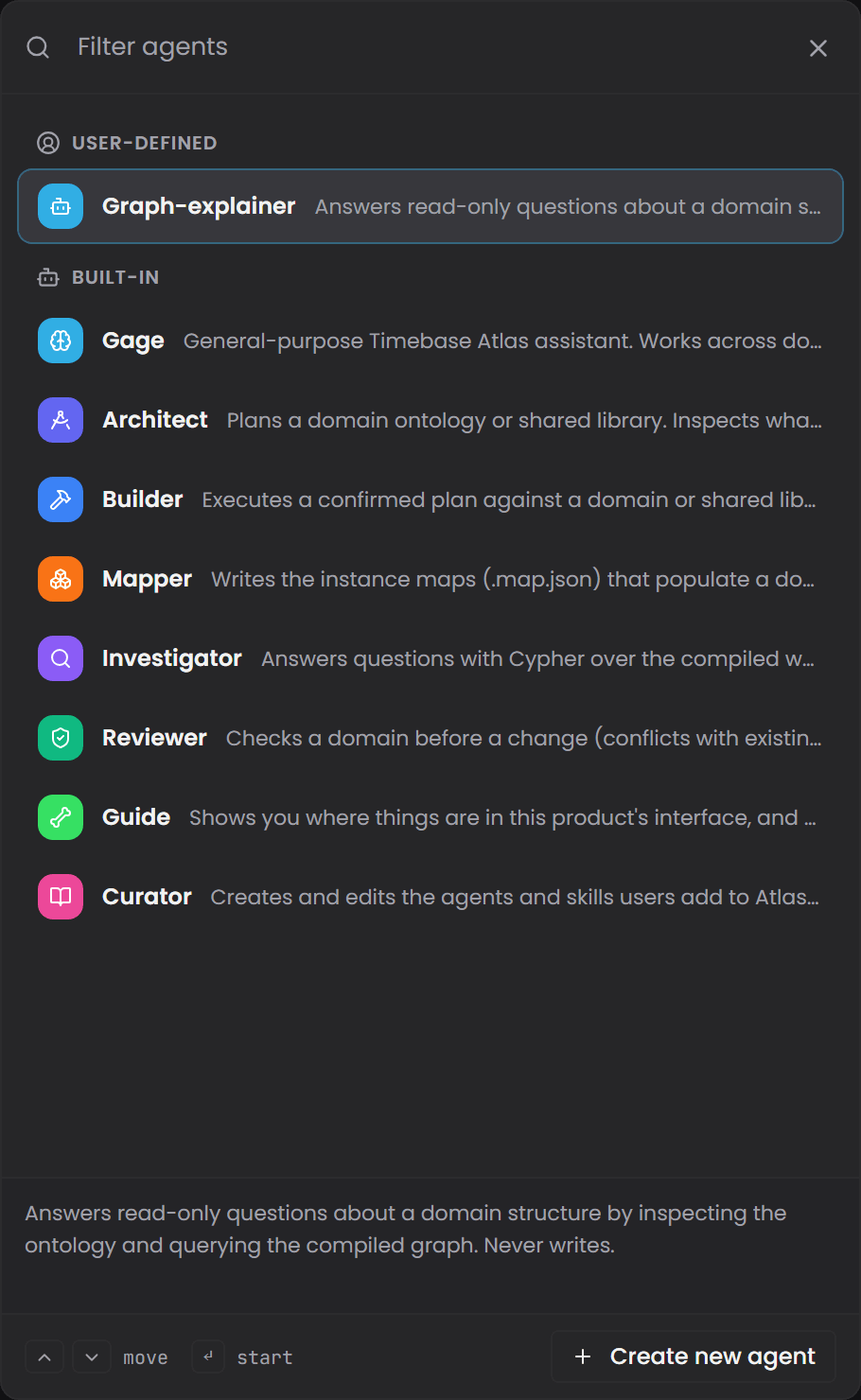
A new panel has no conversation. Start one with the + button in the panel header, or with Start an agent in the empty panel: both open the picker below.
The panel is open by default the first time you sign in, so you may not see the Ask Gage button at all. The button only appears while the panel is closed. Your choice of open, closed, and panel width is remembered in that browser.
Voice dictation needs microphone access, and browsers only allow that over HTTPS or on localhost. If you want to dictate, reach Atlas on 4552 rather than 4551.
What You See in the Panel#
| Control | What it does |
|---|---|
| Start an agent | The + button in the panel header. Opens a picker listing agents in two groups, User-defined and Built-in. Choosing one opens it as its own conversation tab. |
| Conversation tabs | You can run several agent conversations side by side and switch between them. |
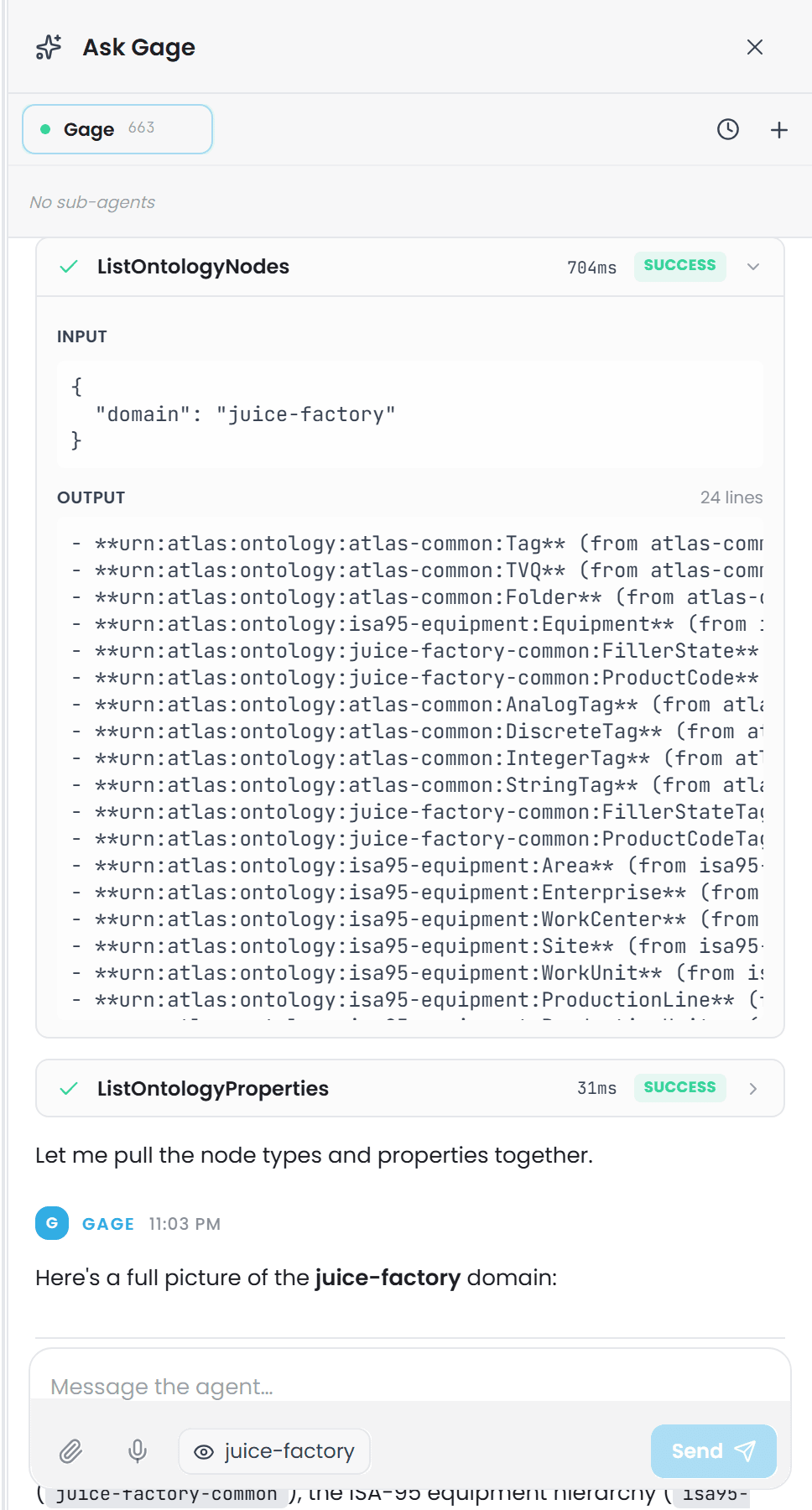
| Context chip | The chip in the message box shows what Gage can currently see: the domain of the tab you are working in, or No context when that tab has none. The same chip is stamped on each question you send. |
| Thinking blocks | Where the model works a problem through before answering, that reasoning appears as a collapsible block. This is on by default. |
| Tool blocks | Every action Gage takes appears as an expandable block in the conversation, with the tool's name, how long it took and whether it succeeded. Expanding one shows the input the agent sent and the output it got back, so you can check what it actually did. |
| Delegation cards | When one agent hands work to another, a card shows which agent was asked and what came back. |
| Attach and mention files | Upload a file to the conversation, then refer to it with @ in the message box. |
| Microphone | Dictates your message instead of typing it. The audio is transcribed on the Atlas server and never leaves your infrastructure. |
Your conversation is kept for the length of the session, so you can refer back to earlier messages without repeating yourself. A refresh restores the thread you were in.


How Gage Knows Which Domain You Mean#
Gage works on the domain and branch of the tab you currently have focused, and it re-reads that on every message. Click a different tab mid-conversation and your next message picks up the new domain and branch automatically.
Tabs that are not a domain or library - Home, the Catalog, Logs, Git, Agents, Skills, or an empty new tab - carry no domain and no branch. If one of those is focused, Gage has nothing to work on and will say the domain does not exist or ask you which domain you mean. Reopening the panel does not help; click the domain's tab instead.
The branch matters as much as the domain. If you are looking at the same domain on two branches in a split view, Gage follows whichever pane has focus.
Choose the Model Gage Uses#
Atlas has no model settings of its own. Everything about which model answers, who provides it, and what it costs lives in Pulse. Atlas's entire configuration for the assistant is four keys under Pulse:Gage in settings.config:
{
  "Pulse": {
    "Host": "localhost",
    "Port": 4542,
    "UseTls": true,
    "Cert": { "Enabled": true },
    "Gage": {
      "Enabled": true,
      "Agents": {}
    }
  }
}
| Setting | Default | What it does |
|---|---|---|
Pulse:Gage:Enabled |
true |
Offers the assistant. Set to false and the Ask Gage button disappears entirely. |
Pulse:Gage:Agents |
empty | An optional map of agent name to a Pulse model handle, for example {"graph-query": "anthropic/fast"}. An entry here always wins. Any agent not listed uses the default model Pulse works out. Agent names are matched without regard to capitalisation. |
Pulse:Gage:ThinkingEnabled |
true |
Lets the model reason through a problem before answering. Set to false to turn the thinking blocks off. |
Pulse:Gage:ThinkingBudgetTokens |
16000 |
How much reasoning the model is allowed per answer. Only applies while ThinkingEnabled is not false. |
Atlas signs in to Pulse's model service using the Client ID and Client Secret it already uses for everything else, Pulse:Auth:ClientId and Pulse:Auth:ClientSecret. There is nothing extra to provision.
Restart Atlas after changing any of these.
in a Docker deployment there is no second settings file. The Docker overlay that sets Pulse:Host to pulse was composed into settings.config the first time the container started, so change the address there, or set Pulse__Host in the Compose file, which outranks the file.
ANTHROPIC_API_KEY is forwarded by docker-compose.yml and is not read by Atlas, which reaches its model through Pulse Gage. Keep the variable only if another component in your stack uses it. There is no local model-provider setting in Atlas: nothing names a provider, a model or a key outside Pulse.
Who Can Change a Model#
Reading, asking questions, and running queries are available to any signed-in user. Changing anything requires the pulse:administrator role in Pulse.
Without that role, these are hidden from Gage:
- Creating, editing, and deleting entity types, properties, and relationships
- Editing instance maps
- Creating and editing shared libraries
- Creating, compiling, and deleting domains
- The shell, file, and script tools
- Creating or editing agents and skills
The important part is how they are hidden. The tools are removed before Gage ever sees them, so there is no error and no permission message. Gage simply behaves as though those abilities do not exist: it will explain what needs to change and then tell you it cannot do it, or offer to walk you through doing it by hand. If Gage will read but not write for you, check your Pulse role first.
Any agent in a conversation can hand work to any other agent, regardless of the tools its own description lists. So an agent advertised as read-only can still cause a change indirectly by handing the job on. This is a limit of per-agent scoping, not of your permissions: the handed-on work still runs as you, so your Pulse role still decides what can actually be written, and an agent that has been handed work cannot hand it on again. See the Atlas AI Agents article for the detail.
Where Your Conversation Goes#
Gage never contacts a model provider directly. The path is always:
- Your message, plus whatever domain structure Gage looked up to answer it, goes from your browser to your Atlas server.
- Atlas sends it to Pulse.
- Pulse forwards it to whichever model provider your organisation configured in Pulse.
Which provider that is, and whether it is hosted inside or outside your network, is a Pulse decision. There is no setting in Atlas that changes it.
Two things stay on your own infrastructure:
- Dictated audio. Speech-to-text runs on the Atlas server itself, and the audio never leaves it.
- Files Gage reads and writes. Gage's file and shell tools are confined to the current chat session's own scratch folder. Your ontology data directory and the rest of the server are out of bounds unless an administrator widens the allowed folders in
Pulse:Gage:Guardrails:AdditionalAllowedRoots. That setting takes effect on Gage's very next action, with no restart.
Share a Link to an Agent or a Skill#
Atlas has an Agents group in the left sidebar containing Agents and Skills pages, and both support direct links you can send to a colleague:
https://<your-atlas-server>:4552/agents/<agent-name>opens the Agents page with that agent selected.https://<your-atlas-server>:4552/skills/<skill-name>opens the Skills page with that skill selected.
Both take exactly one name. /agents on its own, or a link with extra path segments, does not resolve to anything.
Editing an agent or a skill on those pages takes effect immediately - it appears in the Start an agent picker straight away, with no restart. Only a definition file copied onto the server by hand needs an Atlas restart before it is picked up. Agent and skill definitions are kept out of the model's Git history, so there is no version history to roll one back from; keep your own copy of a prompt you care about.
Troubleshooting#
| Symptom | Likely cause | What to do |
|---|---|---|
| There is no Ask Gage button anywhere in the toolbar | The panel is already open, or Gage is turned off | The button only shows while the panel is closed - look for the docked panel on the right first. If there is no panel either, check Pulse:Gage:Enabled is true in settings.config and restart Atlas. |
| The panel shows a setup checklist instead of a chat box, headed "Gage is not fully configured. Complete the outstanding steps below." | One of Atlas's four readiness checks has failed | The checklist names which. Work through the four rows below. |
| Checklist step "Enable authentication and Gage" is not satisfied | Pulse:Auth:Enabled or Pulse:Gage:Enabled is false |
Set Pulse:Auth:Enabled to true in settings.config, with Pulse:Host pointing at Pulse and Pulse:Auth:ClientId and Pulse:Auth:ClientSecret filled in, then set Pulse:Gage:Enabled to true and restart Atlas. There is no assistant with authentication switched off. |
| Checklist step "Configure a model in Pulse" is not satisfied | Pulse has no enabled model | Enable at least one provider model in Pulse's Gage settings, then restart Atlas. Atlas reads the model list once at startup. Nothing about models is configured in Atlas. |
| Checklist step "Reach the Gage proxy" is not satisfied | Atlas cannot get a token from Pulse | Confirm the Pulse:Auth:ClientId client is registered in Pulse, that Pulse:Auth:ClientSecret matches, and that Pulse is listening on the address in Pulse:Host, Pulse:Port, and Pulse:UseTls. |
| Checklist step "Provide an agent definition" is not satisfied | No agent files were found | The gage agent ships with Atlas, so this usually means an incomplete install or an emptied agents folder. Reinstall, or drop a definition into the agents folder under Atlas's data path and restart. |
| Gage says the domain does not exist, or asks which domain you mean | The focused tab is not a domain or library tab | Click the tab for the domain you want. Home, Catalog, Logs, Git, Agents, Skills, and blank tabs carry no domain and no branch. You can switch tabs mid-conversation; the next message picks up the new scope. |
| Gage answers questions but will not make any changes | You do not hold the pulse:administrator role |
Ask a Pulse administrator to grant it. Without it, every write, compile, and lifecycle ability is hidden from Gage rather than refused, so there is no error message to go on. |
A reply contains text like [tool 'CompileDomain' failed] … |
A step Gage attempted did not run | That step did not take effect, whatever the surrounding text says. Read the reason in the brackets, fix it, and ask again. |
| Gage changed something you did not want | The instruction was ambiguous | There is no undo. For changes that have not been published yet, use Discard draft in the validation panel. For anything already committed, use the Git page's commit history to see what changed and revert it. |
| You edited an agent file on the server and nothing changed | Files edited on disk are only read at startup | Restart Atlas. Edits made on the Agents or Skills pages in the browser apply immediately and do not need a restart. |
| The microphone button has no effect | The page is not on HTTPS | Browsers allow microphone access over HTTPS or on localhost only. Reach Atlas on 4552 rather than 4551, publishing that port if you have not already. |
| A URL you were sent shows a blank or unexpected page instead of an error | Atlas serves its own interface for any address it does not recognise | Check the link. Only /agents/<name> and /skills/<name> resolve for these pages; /agents on its own does not. |