Atlas AI Agents
An agent in Timebase Atlas is a named assistant with its own instructions and its own set of tools. Atlas ships with eight: the general assistant, six specialists and a guide to the interface.
Overview#
An agent in Timebase Atlas is a named assistant with its own instructions and its own set of tools. Atlas ships with eight of them. One is the general assistant you talk to in the chat panel, six are specialists that each handle one part of building or looking after a domain model, and one shows you around the interface. This article explains what each agent does, how they work together when you ask for a full domain model, and how to create an agent of your own.
For what the assistant is, how to open it, and what it needs from Pulse before it will run, see the Atlas AI Assistant article. For the saved instruction sets the assistant can follow, see the Atlas Skills article.
The Eight Built-In Agents#
| Agent | What it does | Can it change your domain? |
|---|---|---|
gage |
The general assistant and the front door. Answers questions, inspects domains, libraries and instance data, makes small direct edits to types, properties and relationships itself, and hands larger jobs to the specialists below. | Yes, for small direct edits |
architect |
Reads your domain summary, inspects existing domains and shared libraries for anything reusable, and produces a step-by-step plan of the entity types, properties and relationships to create. It plans only. | No |
builder |
Carries out a confirmed plan: creates the domain, imports libraries, and creates entity types, properties, relationships, data types, enumerations and functions in the right order, then verifies the build. Works on shared libraries as well as domains. | Yes |
mapper |
Writes the instance definitions in your .map.json files, so your model is populated with real sites, lines and equipment. Works map-first, so one definition covers a whole series and its relationships. |
Yes |
reviewer |
Checks a domain before and after a change. Before: looks for conflicts between what is planned and what already exists. After: compiles the domain, queries it, and reports whether the result matches the plan. It reports, it never fixes. | No |
investigator |
Answers questions by writing and running a Cypher query against your compiled model: relationships, what feeds what, live or historical values, totals, and large surveys across many types in one pass. You do not need to know Cypher. | No |
curator |
Creates and edits the agents and skills you add to Atlas. Started directly, it interviews you; handed a finished definition, it writes it. Writing needs the administrator role, and it never deletes. | No, it changes agents and skills, not the model |
guide |
Shows you where things are in the Atlas interface and points at them on your screen. It is the same guide every Timebase component ships. | No |
Note: earlier Beta builds used different names. atlas became gage, designer became architect, instance-builder became mapper and graph-query became investigator; builder and reviewer kept their names, and curator is new. Older names still, domain-analyst, ontology-architect, conflict-resolver, schema-builder, graph-validator, ontology-analyst, library-architect and cypher-analyst, were consolidated into this set some time ago and exist under no name.
How the Assistant Builds a Domain#
When you ask for something substantial, such as modelling a whole site or a whole library, the assistant works through a fixed sequence of stages and hands each stage to the specialist that owns it. For a new domain built from scratch, the stages are:
- Interview. The assistant asks you about your domain directly, in the chat panel. It works in rounds: the main things in the domain, how they connect, what attributes matter, whether there are specialised subtypes, and how many of each thing exists. It does not hand this to a specialist, because a specialist gets one turn and cannot ask you a follow-up question. It produces a written domain summary at the end.
architect. Turns the confirmed summary into a concrete plan, reusing library types where it can. Nothing is written at this stage.builder. Creates the domain, the library imports, and the entity types, properties and relationships in the plan.mapper. Populates the model with concrete instances.reviewer. Compiles the domain, queries it, and reports whether the result matches the plan.
The five modes#
The assistant picks the sequence to match what you asked for. If your intent is unclear it will ask which one you want.
| Mode | When you would use it | Stages |
|---|---|---|
| Build | A new domain from scratch | interview → architect → builder → mapper → reviewer |
| Enrich | Adding to a domain that already exists | interview → architect → reviewer (checks for conflicts first) → builder → mapper → reviewer |
| Schema only | Design the types, do not populate anything yet | interview → architect → builder → reviewer |
| Populate only | The types already exist, you just need instances | mapper → reviewer |
| Shared library | Building reusable vocabulary rather than one modelled site | interview → architect (library plan) → builder → reviewer |
reviewer runs at the end of every mode, and twice in Enrich mode. It is never skipped.
Checkpoints#
The assistant stops after every stage, shows you what came back, and waits for you to confirm before it moves on:
- After the interview, confirm the domain summary.
- After
architect, confirm the plan. This is the approval gate: nothing is written to your domain by the specialists until you agree to the plan here. - After
reviewerruns its pre-change check, review and resolve any conflicts it found. - After
builder, confirm the build report. - After
mapper, confirm the instance report.
You can correct, redirect or stop at any checkpoint.
Warning: The checkpoints protect the staged sequence above, not every request. For a small, direct request, for example "add a Pressure property to Pump" or "rename this relationship", the gage assistant carries the change out itself with no plan, no specialist and no approval gate. It holds the tools to define and update types, properties and relationships in a domain or a library directly, so treat a direct instruction to it as a direct instruction to your domain. Instance maps are the exception: the assistant hands every instance-map change to mapper. If you want the plan-first behaviour for a type change, ask for the work to be planned before it is built.
Note: A property can be left open (a Defer property), for example a Running property that accepts a double, a string or a boolean. The type that uses it must resolve it before it can compile (validation rule O-B23). When builder creates or updates an entity type or a relationship, it can pin the leaf on that type with propertyPins, so Running is a boolean on Pump and a double on Tank. A pin on the property itself covers every type. Gage reads a type's pins back in its detail views and names any leaf that is still unresolved. See Defer properties.
Working on a branch#
When your model repository has more than one branch and the page you are on is not scoped to one, every agent can list the branches and let you pick one by number for the rest of the conversation. A repository with a single branch never asks. The branch you pick is where that conversation's reads and writes go; the page's own branch, when it has one, always wins.
Starting an Agent Directly#
You do not have to go through the assistant. In the Ask Gage panel, the + button in the header opens Start an agent, and choosing an agent opens it as its own tab. The list is split into User-defined and Built-in groups, and every built-in agent is selectable, including the specialists.
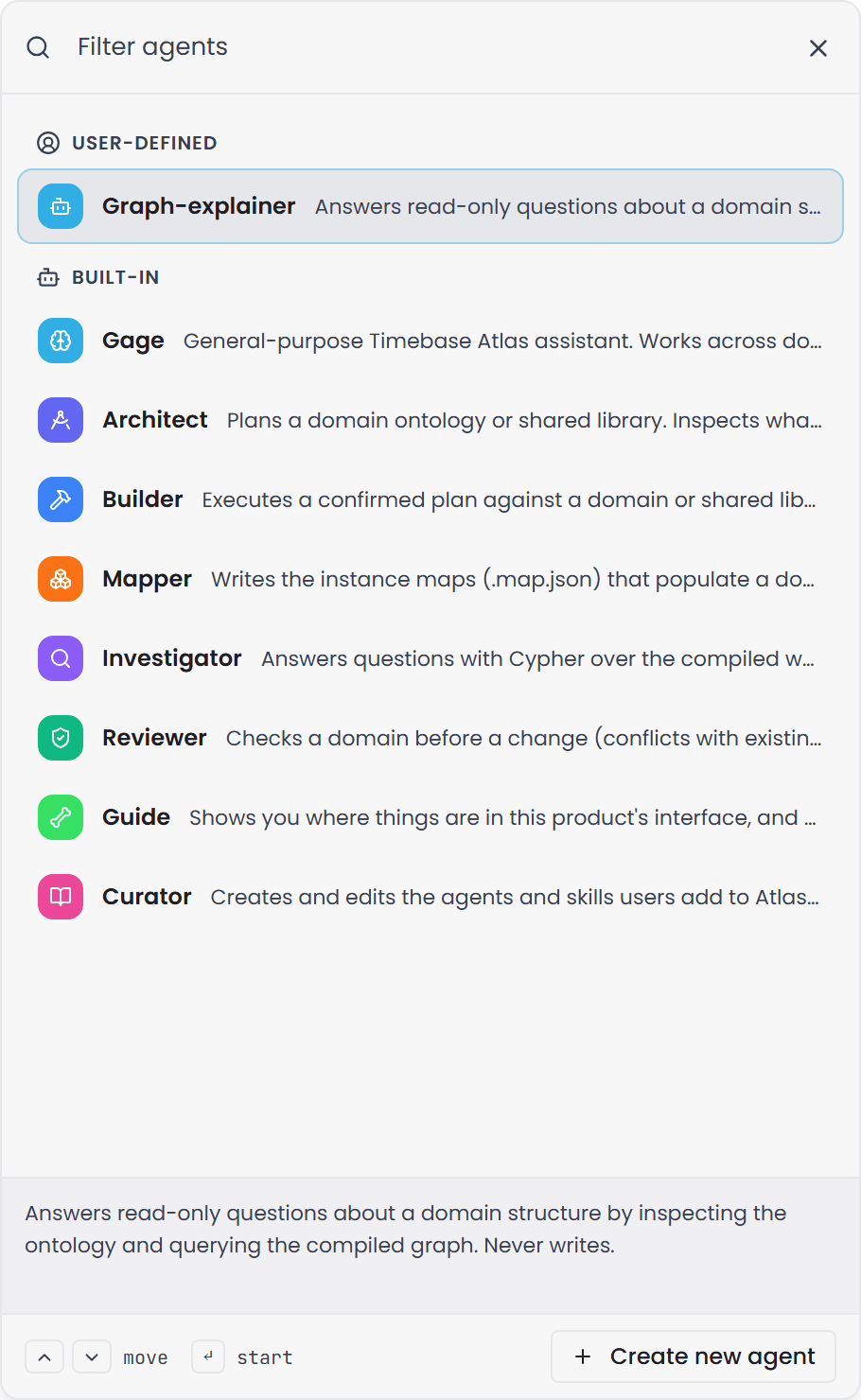
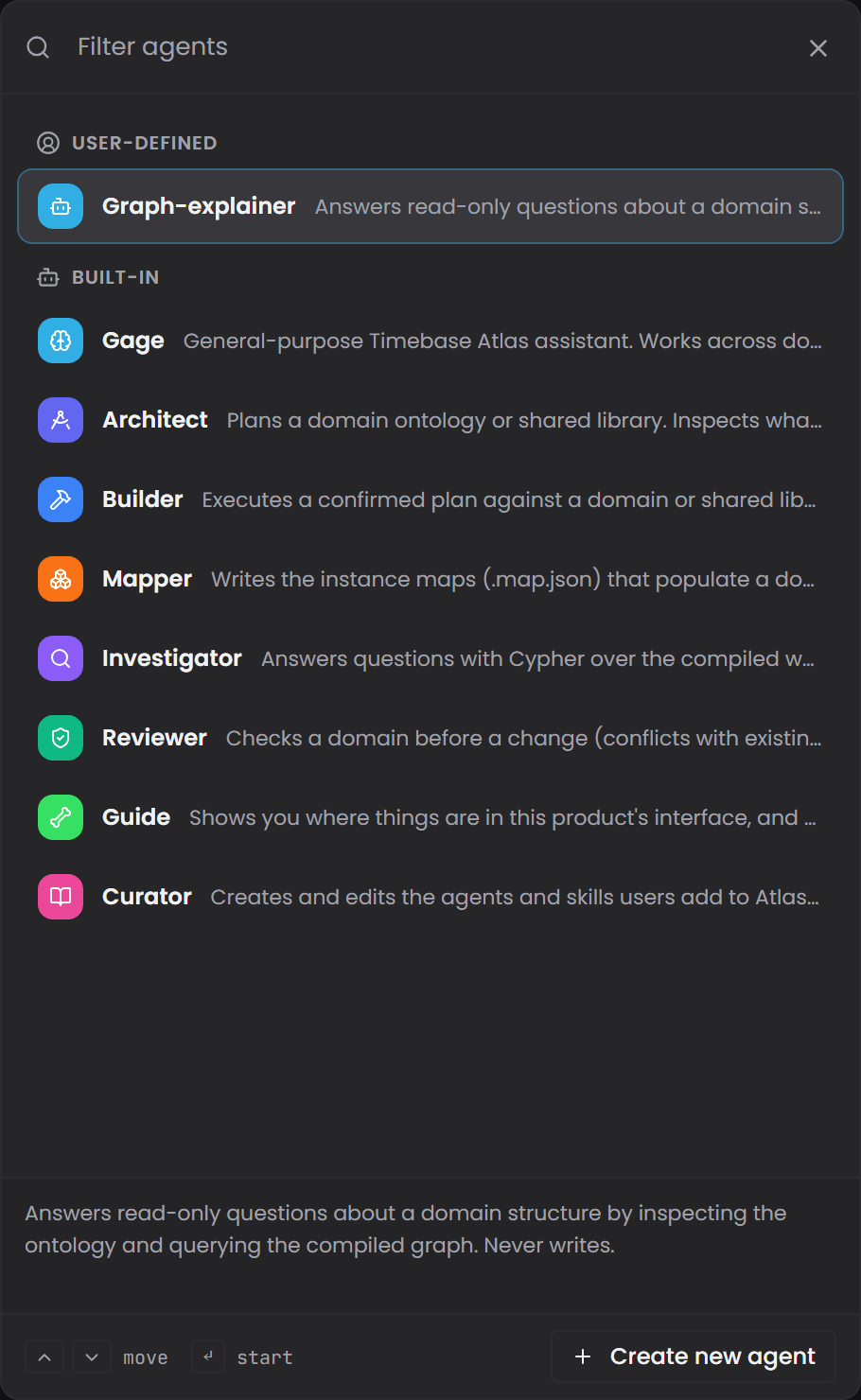
Starting one directly is useful when you already know which one you want and do not need the surrounding conversation. The most common cases are investigator for a one-off data question, for example "which pumps feed Tank 3", where the full modelling sequence is irrelevant, and curator when you want to be interviewed into a new agent or skill.
Create Your Own Agent#
You can add your own agent with its own instructions and its own set of tools. This is useful when you want the assistant's behaviour narrowed to one job, for example an agent that only ever reads and explains, or one that always works against a particular library.
Note: Creating or editing an agent requires the pulse:administrator role. Anyone who is signed in can read the agent list and chat with an agent, and an administrator can also create and edit them.
There are two ways to write one. Ask curator, or ask the assistant to create an agent for you: it interviews you, one question at a time and at most ten, then writes the definition. Or fill in the page yourself:
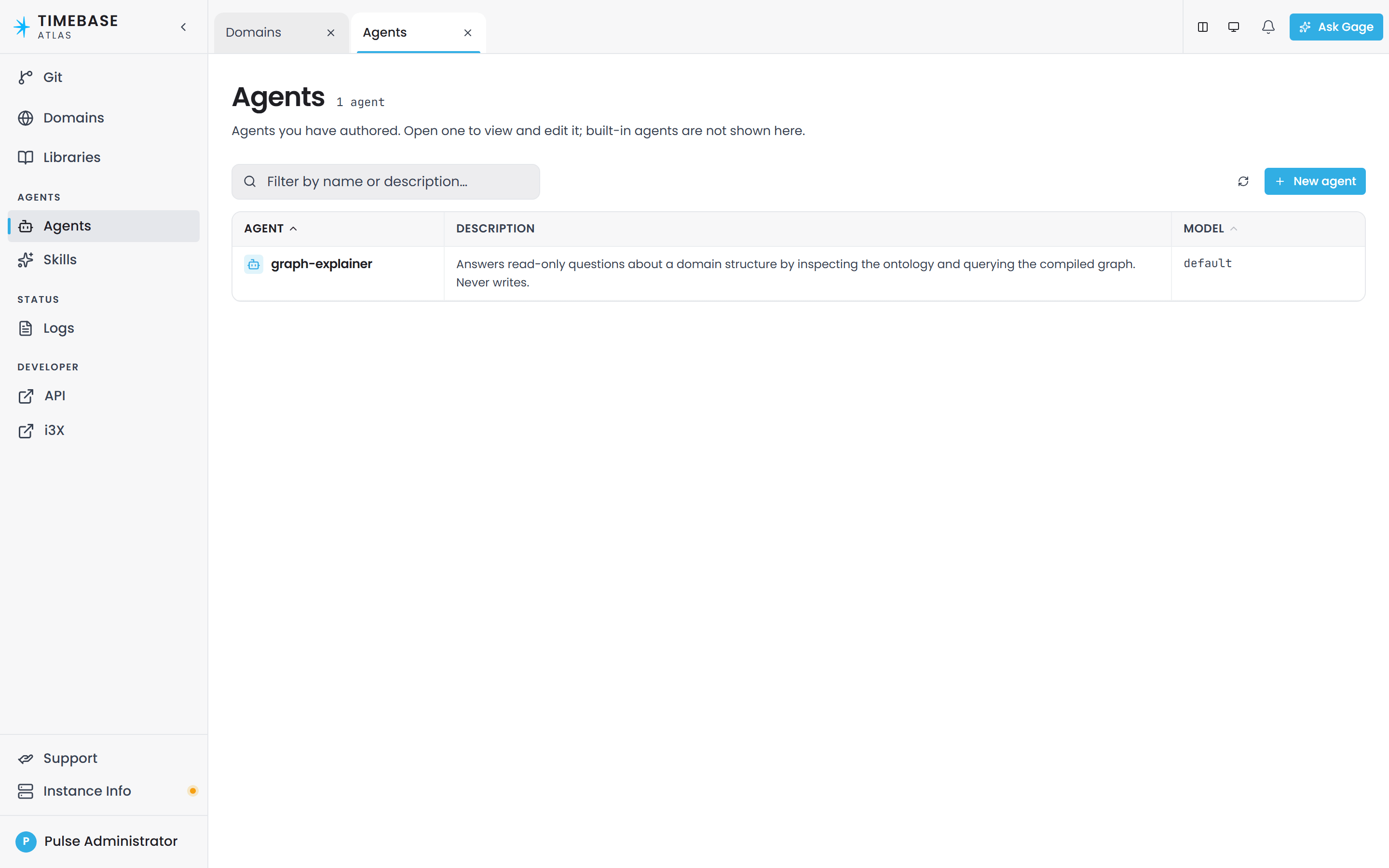
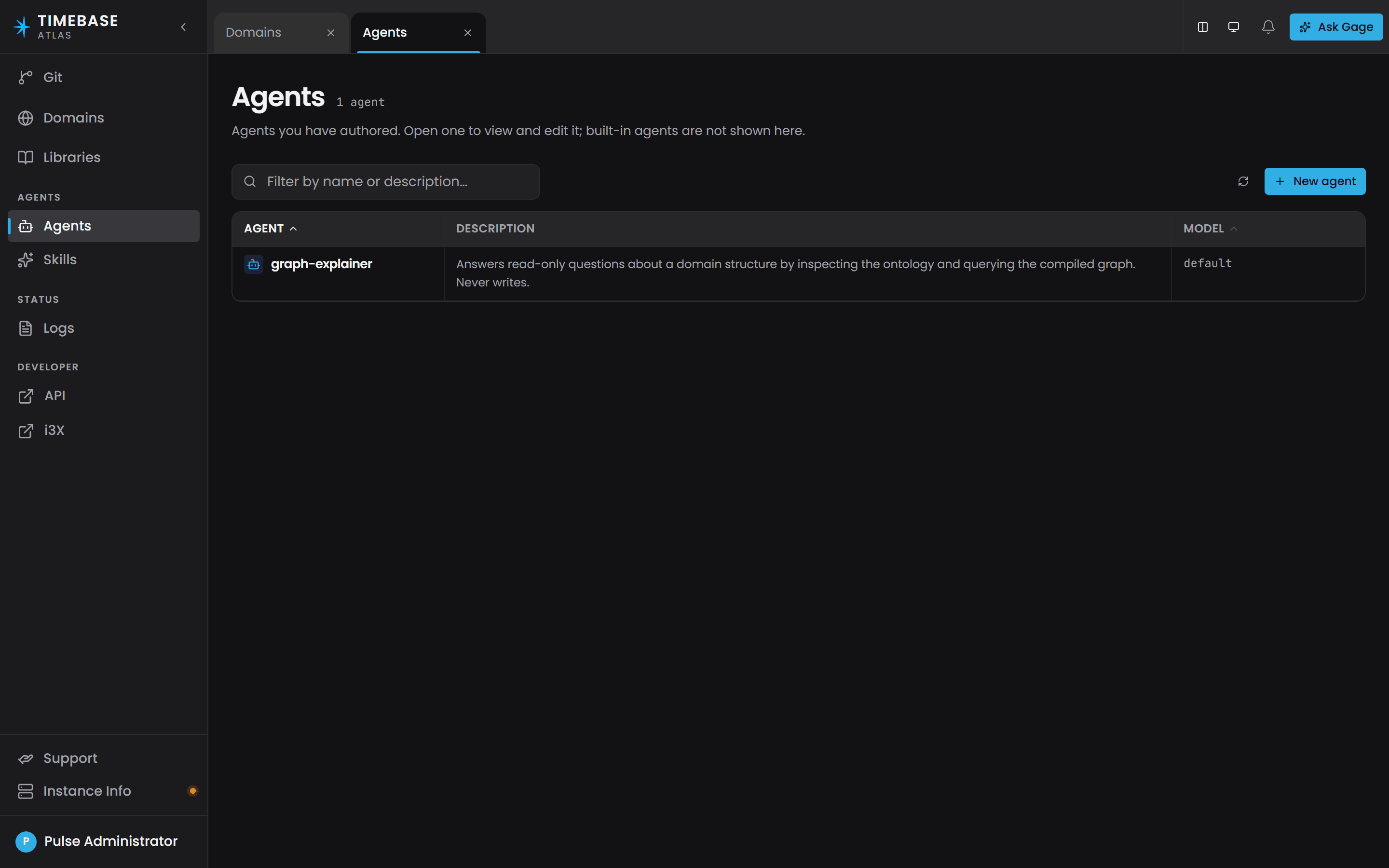
- In the sidebar, open the Agents group and select Agents.
- Select New agent above the grid. The page lists only agents you have authored, with their description and model, so on a fresh installation it is empty. The built-in agents never appear here.
 3. Enter a Name. Use lowercase letters, numbers and hyphens only. Anything else is rejected with
Agent name must be lowercase letters, numbers, and hyphens only.
4. Enter a Description. This is the text shown in the Start an agent picker, and it is also what the assistant reads when deciding whether to hand work to your agent, so make it say plainly what the agent is for.
5. Choose a Model from the list Atlas offers. The list comes from Pulse and is covered in the Atlas AI Assistant article.
6. Under Tool access, switch on Restrict tool access and tick the providers the agent may use; expand a provider to pick single tools. Left off, the agent gets every tool. Leave Max tool rounds blank to accept the default of 40.
7. On the Instructions tab, write the system prompt. This is the agent's standing instructions: what its job is, how it should behave, and anything about your model it always needs to know. The Raw tab shows the whole definition file as text.
8. Select Create.
Once created, the agent is available immediately in Start an agent and to the assistant. You do not need to restart Atlas.
Important: agent definitions are held outside the model's Git repository, so they do not appear on the Git Management page, have no history, no branch scoping, and no rollback. If you overwrite an agent's system prompt there is no version history to restore from, so keep your own copy of a prompt worth keeping. The same applies to skills.
The tool list#
The tools you pick under Tool access decide what your agent can actually do. The names below are what the picker shows.
| Tool | What it lets the agent do |
|---|---|
OntologyToolProvider |
Read entity types, properties and relationships in a domain |
OntologyWriteToolProvider |
Create, change and remove them |
DomainToolProvider |
List and inspect domains and libraries |
DomainLifecycleToolProvider |
Create a domain, compile it, and manage its imports |
InstanceMapToolProvider |
Read instance map files and definitions |
InstanceMapWriteToolProvider |
Create and change instance definitions |
LibraryToolProvider |
Read shared libraries |
LibraryWriteToolProvider |
Create and change shared library content |
CypherToolProvider |
Run Cypher queries against a compiled model |
BranchToolProvider |
List the repository's branches and pick one for the conversation |
SkillToolProvider |
Find and load skills. It is not in the picker because it cannot be turned off: Atlas adds it to every agent it saves, because it is how any agent reaches a skill at all |
SkillWriteToolProvider |
Create and update skills |
AgentToolProvider |
List the agents and tool providers on this host, and read an agent's definition |
AgentWriteToolProvider |
Create and update agents |
BashToolProvider |
Run shell commands on the Atlas server |
FileSystemToolProvider |
Read and write files on the Atlas server |
ScriptToolProvider |
Run a skill's reference scripts and write their output |
GetLogsToolProvider |
Read the Atlas log |
CurrentTimeToolProvider |
Read the current time |
UiMapToolProvider |
Search the interface map and show steps on screen; what the guide agent uses |
You can also name a single tool rather than a whole provider, for example OntologyWriteToolProvider:DefineOntologyNodes. Every tool an agent holds is described to the model on every call, so an agent with a short, specific list is cheaper and more focused than one with every provider switched on. The shipped gage agent is written that way.
Warning: OntologyWriteToolProvider, LibraryWriteToolProvider, InstanceMapWriteToolProvider, DomainLifecycleToolProvider, SkillWriteToolProvider, AgentWriteToolProvider, BashToolProvider and FileSystemToolProvider all require the pulse:administrator role. If a non-administrator uses an agent that lists them, those tools are removed before the agent starts and the agent is not offered them, so it works with the tools it has and tells you when something is outside them. The picker records which tools the agent may use; the role of the person using the agent still decides what it can reach.
Note: Max tool rounds caps how many times in one message the agent may call tools and read the results before it must answer. Blank means 40. A run that reaches the cap stops with a visible notice, and the tool call it was about to make is not made. The shipped specialists set lower caps than the default; set one on your own agent when you want to bound how much work a single message can do.
Editing, duplicating and deleting#
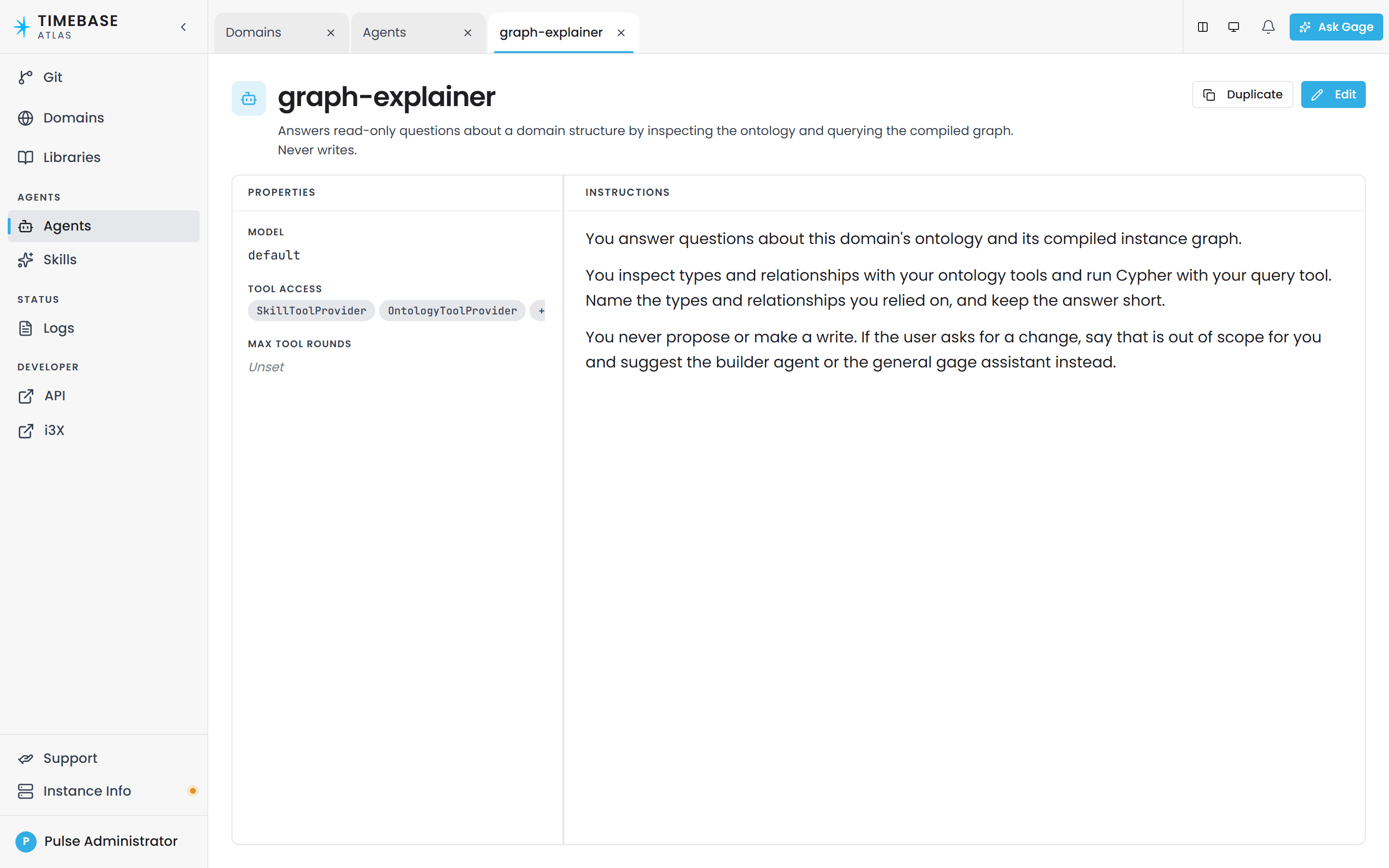
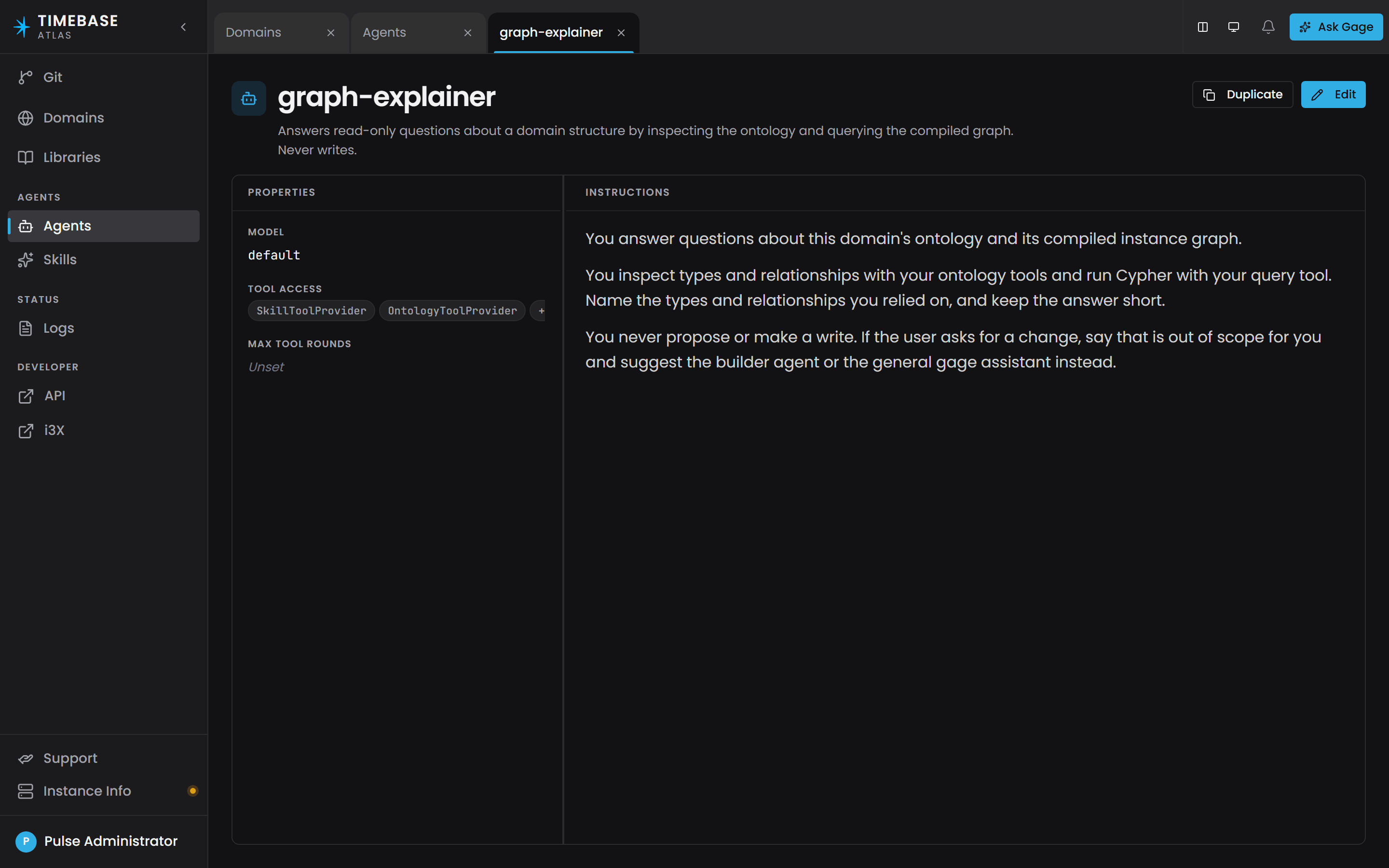
Select an agent's row to open it as its own tab, showing its description, its properties (model, tool access, max tool rounds) and its instructions, with Duplicate and Edit at the top. Duplicate creates a copy under a new name, which is the supported way to start from an existing agent's instructions. Edit opens the same editor as New agent; the name is fixed after creation. Delete, at the foot of the editor, asks you to type the agent's name to confirm and tells you that saved conversations with the agent are kept.
The built-in agents are read-only: they cannot be opened, edited, copied, deleted, or shadowed by an agent of the same name. Atlas says so directly, for example 'gage' is a built-in agent and cannot be updated through this endpoint. and, on create, 'gage' is a built-in agent name. A shipped agent already uses this name — built-in agents cannot be overridden; choose a different name. If you want to start from a built-in agent's behaviour, copy its instructions into a new agent of your own.
Linking straight to an agent#
Every agent has a direct link of the form /agents/<AgentNameHere>, which opens the Agents page with that agent already selected. This is useful for a bookmark or for pointing a colleague at a specific agent. The link needs exactly one name after /agents/. Plain /agents and /agents/ do not resolve.
Adding an agent by file#
An administrator with access to the server can also drop an agent definition into the agents folder under the Atlas data path instead of using the page. The file is a markdown file with the settings at the top and the system prompt below. An optional displayOrder setting places the agent in the picker; agents without one sort by name.
Note: An agent added this way is only picked up when Atlas next starts. Nothing watches the folder. Agents created or edited on the Agents page take effect immediately.
agents live in {Config}/agents and skills in {Config}/skills, where Config is the Atlas store path. In Docker the platform Compose file sets Config=/atlas/config. A relative Config value is anchored to the install directory rather than the working directory.
How Work Is Handed Between Agents#
When you chat with an agent, that agent is also given a way to hand a task to any other agent in the list. This matters when you read the roster table above, because the table describes what an agent does with its own tools, not the limit of what it can cause to happen.
For example, architect has read-only tools and never writes anything itself. But architect can hand a task to builder, which does write. So read every row of that table as "these are the tools the agent uses itself", not "this is the most this agent can ever cause".
Three things are worth knowing about how this behaves:
- It only happens inside a chat session. An agent run without a session, for example from an automated call, is not given the hand-off ability at all.
- It is one level deep. An agent that receives a handed-off task cannot hand it on again, so a chain never runs away.
- Your permissions still apply. The specialist runs as you. If you are not an administrator, the write tools are unavailable to it exactly as they are to the agent you started with. Handing work to another agent cannot get around a permission you do not have.
The hand-off is always available: it is granted after an agent's own tool list is applied, and it covers every other agent in the list. A handed-off task that reaches the receiving agent's tool-round cap stops there and reports what it had so far.
Troubleshooting#
- An agent you are looking for is not in the list (for example
atlas,designer,graph-queryorinstance-builder) - those are the earlier names ofgage,architect,investigatorandmapper. Older names still,domain-analyst,ontology-architect,schema-builder,conflict-resolverandgraph-validator, were consolidated into the current set and exist under no name. See the note under The Eight Built-In Agents. - The assistant will not make changes to my domain - the write, lifecycle, shell and file tools all require the
pulse:administratorrole. Without it those tools are removed before the agent starts, so the assistant sees no way to make the change and reports that those tools are not available to it. Ask an administrator to make the change, or to grant you the role in Pulse. - The assistant refuses to add instances itself - instance-map writes belong to
mapper. The assistant hands them over rather than making them directly, so expect a hand-off and an instance report rather than an immediate edit. - The Agents page is empty - the page lists only agents you have authored. The built-in agents are always available in Start an agent but never appear on this page. An empty list on a new installation is expected.
- I cannot edit or delete one of the built-in agents - built-in agents are read-only on every authoring action, and you cannot create an agent that reuses a built-in name. Use Duplicate on one of your own agents, or create a new agent and paste the instructions you want into its system prompt.
- Saving a new agent is rejected with a name error - agent names allow only lowercase letters, numbers and hyphens. The message is
Agent name must be lowercase letters, numbers, and hyphens only.A name already used by one of your own agents returnsAgent '<NameHere>' already exists. - An agent stops mid-task with a notice about tool rounds - it reached its Max tool rounds cap. Ask it to continue, or raise the cap on your own agent if the work genuinely needs more rounds.
- I copied an agent file onto the server and it is not in the list - files added by hand are only discovered when Atlas starts. Restart the Atlas service. Agents created on the Agents page do not need a restart.
- My agent edits do not show up on the Git Management page - agent and skill definitions are held outside the model's Git repository, so they produce no commit, no diff and no history. There is no rollback, so keep your own copy of any prompt you need to be able to restore.
- No agents are offered at all - authentication and the Pulse model service must both be configured before Atlas offers any agent. Atlas reports the outstanding steps itself on the assistant's status view. See the Atlas AI Assistant article for the setup.
- A specialist did something outside the role described above - any agent in a chat session can hand its task to another agent, so a read-only specialist can cause a write by handing the job to
builder. The change still respects your own permissions. Use the checkpoints to see what is being proposed before you approve it.