Using the Example Domains
What has to be running, and named how, before a shipped example domain compiles and shows live values: the Simulator dataset, a Connect source with the right alias, and the catalog path the domain reads at compile time.
Atlas ships eight worked domains (a juice factory, a bottling plant, a wind farm, a solar plant, a combined-cycle power station, a minerals concentrator, an upstream oil and gas facility and a water treatment works). Each one models the plant that the matching Simulator example in the Collector generates, and each one gets its tags, with their descriptions and units, from the Timebase Historian source in Connect rather than from text typed into the domain. That makes the examples honest about how a real site is wired up, and it means an example domain does nothing until the chain behind it exists. This article is that chain, in the order you build it.
Prerequisites#
- A Collector, a Historian, Connect and Atlas, all running and able to reach one another. The Docker stack or the Windows installer gives you all four.
- Connect registered against Atlas as a target (see Connecting Data Sources, steps 1 and 2). The example domains do not need anything else from Connect.
- Permission to add a logging session in the Collector, a source in Connect and a domain in Atlas.
How an example is wired#
Every example domain binds its tags to one Connect source and one Historian dataset, and it reads two things from that source:
| What the domain reads | Binding path shape | Example |
|---|---|---|
| The tag catalog, once, at compile time: one row per tag with its name, description, unit and format | <alias>/<topic key> |
historian-wind/Wind |
| Each tag's values, continuously | <alias>/<dataset>/<tag name> |
historian-wind/Wind/710-SIT-001.PV |
The first segment of both paths is the alias of the Connect source. The second segment is the Historian dataset name in the value path and the topic key in the catalog path, and the examples use the dataset name for both. So three names have to line up: the dataset the Collector logs to, the topic key you give that dataset in Connect, and the alias Connect derives from the source's name. Nothing in the Collector or in Connect pins those names; a dataset and a source are called whatever you called them when you set them up. The domain is what pins them, because its instance maps are written against one catalog path. This table is the contract for each example:
| Atlas example | Simulator example in the Collector | Historian dataset | Connect source name (its alias) | Catalog path the domain reads |
|---|---|---|---|---|
juice-factory |
Juice Factory (annotated) | The Juice Factory |
historian-juice-factory |
historian-juice-factory/The Juice Factory |
foodbeverage |
Food & Beverage | Food Beverage |
historian-foodbeverage |
historian-foodbeverage/Food Beverage |
wind |
Wind | Wind |
historian-wind |
historian-wind/Wind |
solar |
Solar PV & Storage | Solar |
historian-solar |
historian-solar/Solar |
powergeneration |
Power Generation | Power Generation |
historian-powergeneration |
historian-powergeneration/Power Generation |
mineralsprocessing |
Mining & Minerals | Minerals Processing |
historian-mineralsprocessing |
historian-mineralsprocessing/Minerals Processing |
oilgas |
Oil & Gas | Oil Gas |
historian-oilgas |
historian-oilgas/Oil Gas |
watertreatment |
Water & Wastewater | Water Treatment |
historian-watertreatment |
historian-watertreatment/Water Treatment |
The names are case-sensitive and the spaces matter. Oil Gas is not Oil & Gas, and historian-wind is not Historian Wind.
Step 1: Generate the data in the Collector#
- Open the Collector's interface and add a logging session for the Simulator plugin, pointed at your Historian.
- Set the session's Dataset to the dataset name in the table above, exactly. The Historian creates the dataset on first write. The Collector's logging session fields, including Dataset, are described in General Configuration of the Data Collector.
- In the session's configuration drawer, select Reset and choose the Simulator example from the table. This loads that example's configuration into the form.
- Select Save. The Simulator backfills a few days of history and then runs live.
After a minute, the Historian's dataset holds the example's tags with their descriptions and units, which is what the domain is about to read.
A fresh install seeds a Simulator session named example-simulator that already carries the Juice Factory example. It ships disabled and logs to a dataset called default, so for juice-factory you only need to change its Dataset to The Juice Factory and enable it, rather than add a session.
Step 2: Publish the dataset in Connect#
- Open Connect's interface and select Sources, then Add, with the type Timebase.Historian.
- Give the source the Name from the table, exactly as written, for example
historian-wind. Connect derives the source's alias from this name, replacing only/,:,{,},[and], so a name ofhistorian-windgives the aliashistorian-windthat the domain's binding paths start with. If an alias with that name already exists, Connect appends-2; pick a different name for the older source instead, because the domain cannot findhistorian-wind-2. - Fill in the Historian connection fields and select Test.
- Under Datasets, add one topic whose key is the dataset name and whose Dataset is the same name, for example key
Wind, datasetWind. Leave the Filter empty so the catalog returns every tag in the dataset. The two shapes this produces are explained in Timebase Historian Connector: the key becomes the catalog path, the dataset value becomes the per-tag value template. - Select Preview on the topic. You should see the tag rows with
name,description,format,dataType,uomandfieldscolumns. - Select Save. Connect advertises the source to Atlas immediately.
A fresh install also seeds a Connect source named example-historian-juice-factory, with the alias historian-juice-factory, that already reads the dataset The Juice Factory. It ships switched off, and its three topics (The Juice Factory/FillerTotals, FillerTemps and FillerFlowRates) each carry a filter, so none of them is the catalog path historian-juice-factory/The Juice Factory that the domain reads. For juice-factory, open that source, add a fourth topic with the key The Juice Factory, the dataset The Juice Factory and no filter, save, and switch the source on. The filtered topics can stay; they are there to show what a filter does.
The alias is what matters, not the display name and not the minted con_ id. If you created the source under another name and want to keep it, open the source's page, check its Alias, and either change the alias to the one in the table (Connect asks you to confirm, because every path written against the old alias stops resolving) or rename it. A con_ id is also accepted as the first segment of a binding path, but the shipped examples are written against the alias.
Step 3: Import and compile the domain in Atlas#
-
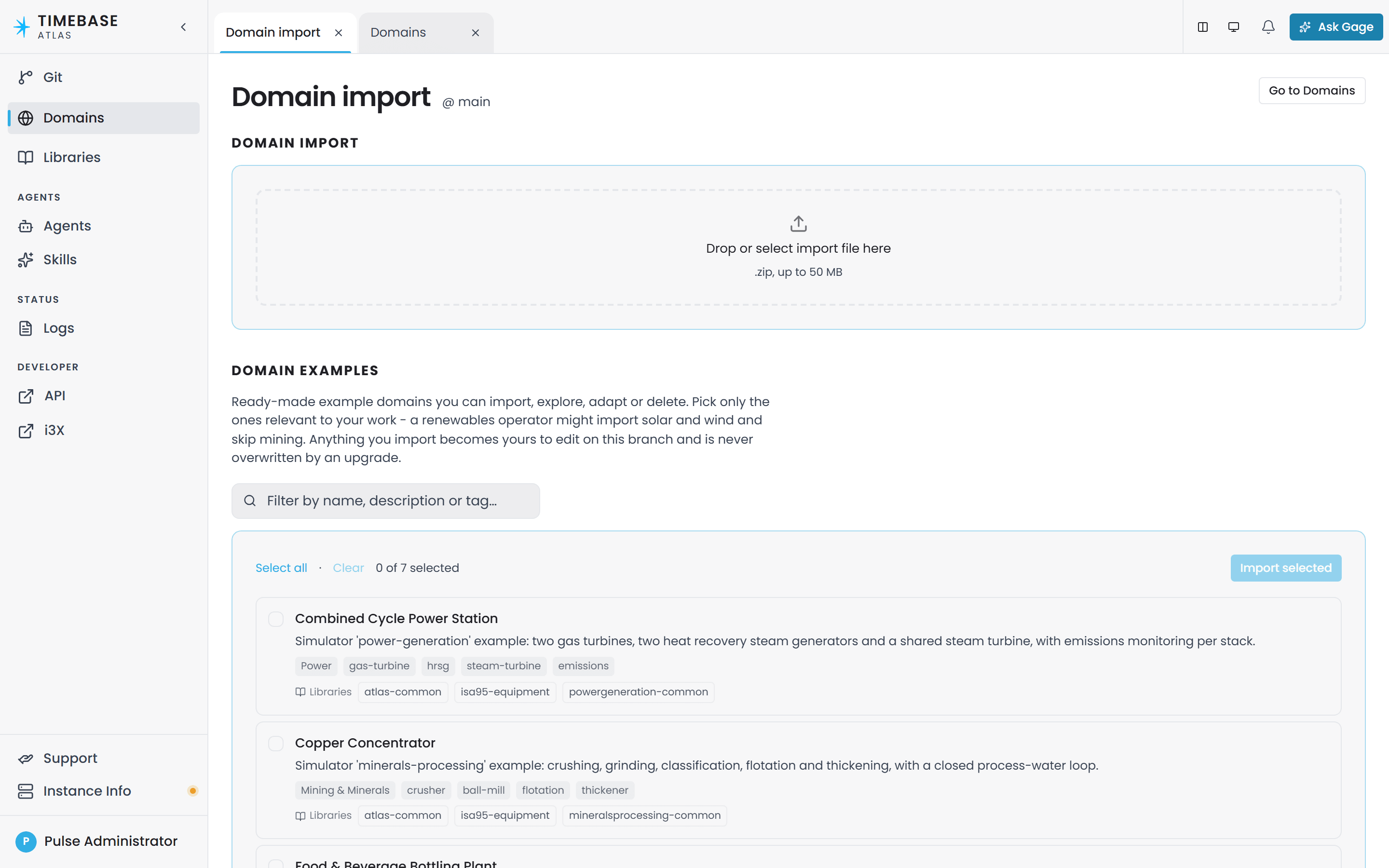
In Atlas, open Domains and select Import. The Domain import page lists the shipped examples under Domain examples, each with a scope note, its tags and the libraries it brings. An example already on the branch is ticked, greyed and marked Imported.
-
Tick the example and select Import selected. The button counts what you ticked. The domain and the three libraries it imports (
atlas-common,isa95-equipmentand the example's own industry library) land on the branch named in the page header.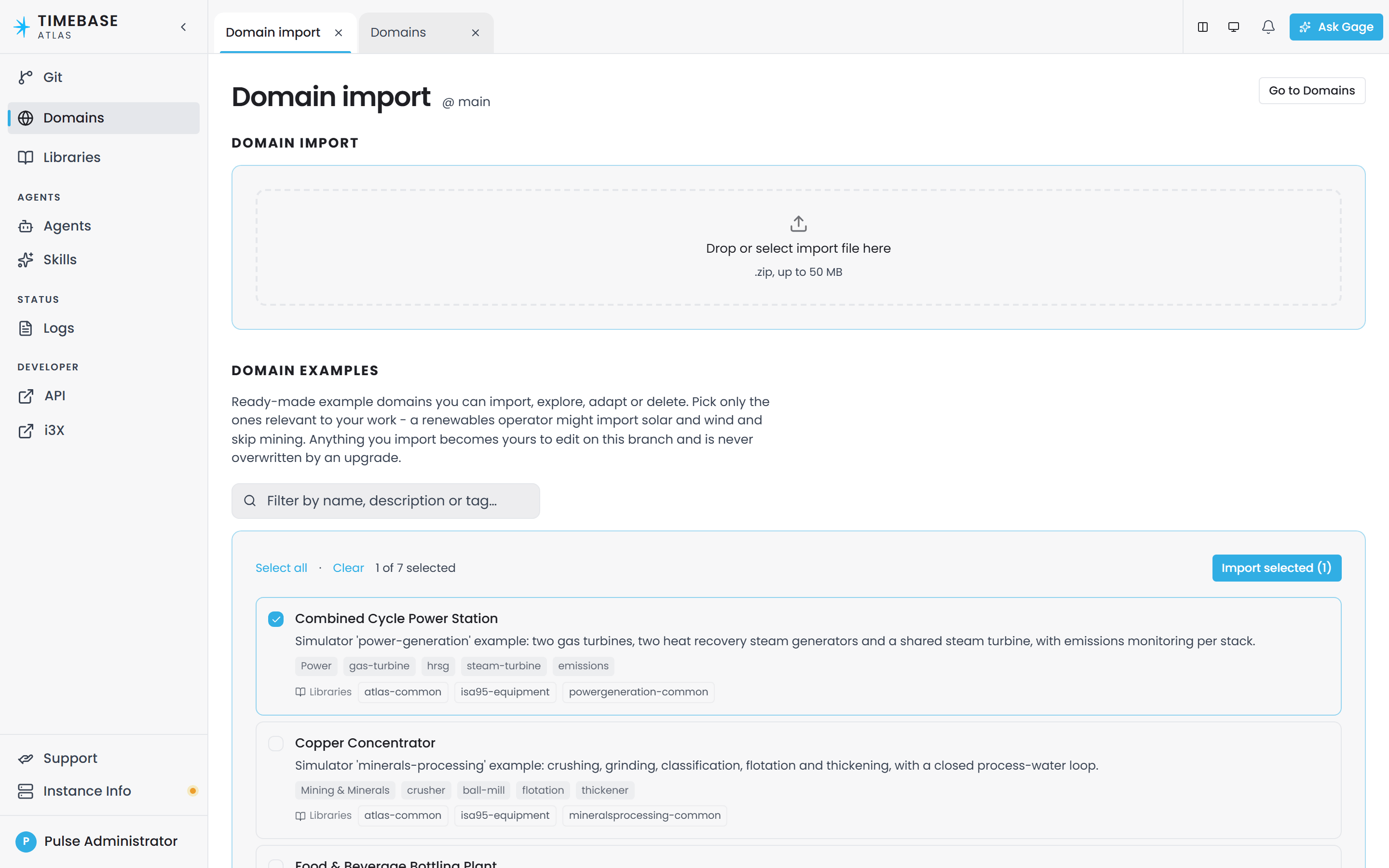
-
Compile the domain. Atlas reads the catalog path from Connect, creates one tag entity per catalog row the domain's maps select, and binds each tag's
Datato its value path.
The result is a site hierarchy of ISA-95 equipment, each unit containing its tags through equipmentContainsTag, with Description and UOM filled from the Historian's tag metadata and each equipment's own signal properties (for example WindSpeed on a WindTurbine) reading the matching tag's Data. Format is filled the same way when a tag declares a display format; the shipped Simulator examples do not, so it is empty for them. Query it either way:
MATCH (t:WindTurbine) RETURN t.Uri, t.WindSpeed.Value, t.WindTurbineState.Value
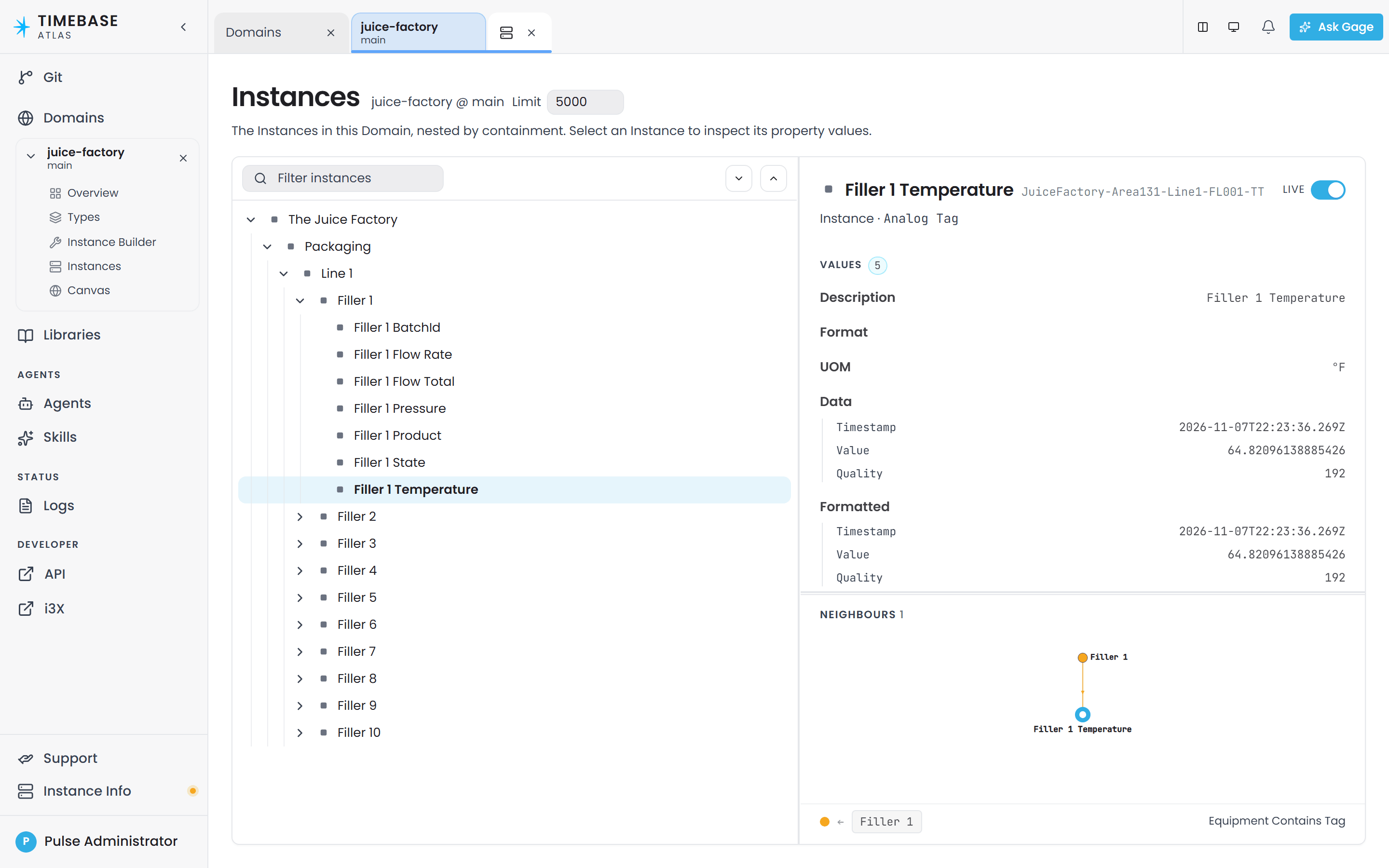
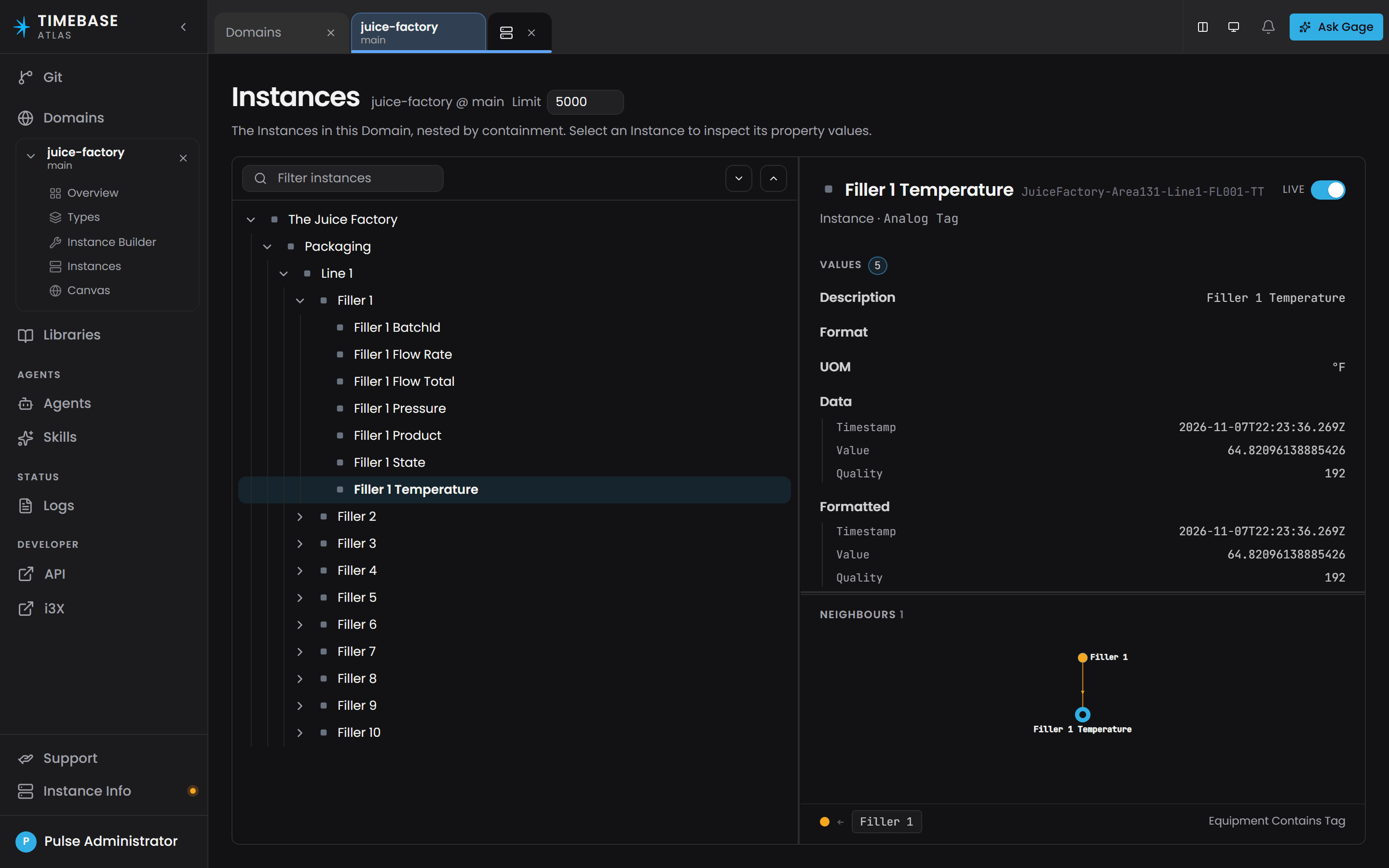
A tag entity on the Instances screen with Live on: Description and UOM came from the Historian's catalog, Data is the live value, and Format is empty because the Simulator example declares none.
When it does not work#
| Symptom | Cause | What to do |
|---|---|---|
The domain does not compile and validation reports rule I-B10, sources.catalog.bindingPath '…' is not advertised by any connector, once per instance map |
Connect is not advertising the catalog path in the table. Either the source is switched off, its alias is not the one in the table, or it has no topic whose key is the dataset name (a topic keyed The Juice Factory/FillerTemps advertises that path, not The Juice Factory) |
Open the source in Connect and compare its alias and topic keys with the table. Add the dataset-keyed topic, save, switch the source on and compile again |
The domain does not compile and validation reports rule I-B19 on every equipment signal, saying its instanceUri does not match any expanded instance |
The catalog path returned no rows, so no tag entities were created and the equipment's references point at nothing. Connect is down, the source is missing, its alias is not the one in the table, or the topic key is not the dataset name | Work through steps 1 and 2. GET /api/v1/connectors on Atlas lists what Connect is advertising right now; the alias must appear as the first segment of the example's catalog path. Compile again once it does |
| The domain compiles, but a unit is missing some of its tags | The Simulator is not producing those tags yet, or the topic has a Filter that drops them | Preview the topic in Connect and compare with the tag names in the domain's instance maps. Clear the filter |
Tags appear but Data is empty |
The value path does not resolve: the dataset name in the Collector session differs from the one in the table, or the Simulator session is stopped | Check the dataset in the Historian and the session in the Collector. Value bindings are not validated at compile time, so a wrong dataset name is silent |
UOM shows an escape sequence such as \u00b0F instead of °F |
An older Connect escapes non-ASCII characters in the catalog's uom column |
Update Connect |
Format is empty |
The tag declares no display format. None of the shipped Simulator examples sets one, so Format is empty for every example tag |
Nothing, for the examples. For your own tags, add format to the tag in the Simulator configuration, or declare it in the source system, and it flows through the catalog like the unit does |
| The domain compiled before but is not compiled after an Atlas restart | A domain with catalog sources is deferred at start-up until its connector advertises, rather than compiled empty. Atlas compiles it on its own the moment Connect advertises the source | Give Connect time to start. If the domain is still uncompiled once Connect is up, the source is not advertising the alias the domain expects; check GET /api/v1/connectors and compile by hand after fixing it |
Why the examples are built this way#
The static alternative, typing °F into every temperature tag, works on a fresh install with nothing else running, and it is what the examples used to do. It also teaches the wrong habit: on a real site the Historian already knows each tag's description, unit and format, and the domain should read them, not copy them. The catalog pattern the examples now use is the one described in Using connector metadata in instance maps, and the instance map mechanics are in Instance Maps. The price is the one this article exists for: the connector has to be there when the domain compiles.
Two more things to know when you read the maps:
- Each example maps a subset of the units the Simulator produces (six of the ten wind turbines, four of the eight inverters, and so on), chosen so the whole domain stays inside the default licence tier, which charges every tag entity for the properties its class declares. The selection is the alternation inside each map's name transform (
(?<Num>001|002|003|004|005|006)); widen it on a licensed install to map the rest. - Each library's
SCOPE.mdin the source tree records what the library holds, what it leaves out and why, including this connector precondition.