Instance Maps
An Instance Map is the recipe that turns a type in your Ontology into the real things you want to see in Atlas. The Ontology says what a Pump is.
Overview#
An Instance Map is the recipe that turns a type in your Ontology into the real things you want to see in Atlas. The Ontology says what a Pump is. The Instance Map says which pumps exist, what each one is called, and where each one's values come from.
You would read this when you have finished defining types and you now need actual equipment in the domain: one site-level asset, a fixed set of twelve fillers, or one instance for every row in an asset register a connector can read.
Two terms used throughout, in plain English:
- Connector - a component that talks to an outside system (the Timebase Historian, an OPC UA server, a SQL database, an MQTT broker) and feeds data into Atlas.
- Compile - the step that turns your saved definitions into the live model. Nothing you author here exists as an instance until you compile.
This article covers building instances. It does not cover where each property's value comes from. For Static, Bound and Calculated sourcing strategies and the exact format of a connector binding path, see the article Property Sourcing Strategies - Static, Bound, and Calculated.
The three shapes an instance map can take#
An instance map definition produces one instance, a fixed set of instances, or one instance per row a connector returns. The names Atlas uses internally, and which you will see in error text and support conversations, are:
| Shape | What it produces | What makes it that shape |
|---|---|---|
Singleton |
Exactly one instance | No Source, and no variable that produces more than one value |
StaticTemplate |
One instance per value in the longest variable | At least one variable whose data produces more than one value |
RowsetTemplate |
One instance per row the connector returns | A Source is present |
There is no field where you pick the shape, and there is no picker in the drawer. Atlas works it out from what you filled in. If you add a Source, it is a rowset template. If you have no source but a variable holding 1-5, it is a static template. Otherwise it is a singleton.
There is no shape called "Bound Template". If a document or a colleague uses that name, they mean RowsetTemplate.
Ask Gage
Ask the
instance-builderagent: "Create a Singleton instance of PumpStation. Use instance id pump-station-north, instance label North Pump Station. Set all properties to Static for now (no connector yet)."Requires the
pulse:administratorrole. Without it the write tools are filtered out before the agent runs, so it will simply say it cannot do this rather than returning a permission error.
Create instances in the Instance Builder#
You do all of this in the browser. You never have to open a file.
-
In the sidebar, select Domains.
-
In the Branch select beside the filter box, choose the branch you want to work on.
-
Find your domain in the list and select Pin on its row. The domain now appears under Domains in the sidebar with its own set of views: Overview, Types, Instance Builder, Instances and Canvas.
-
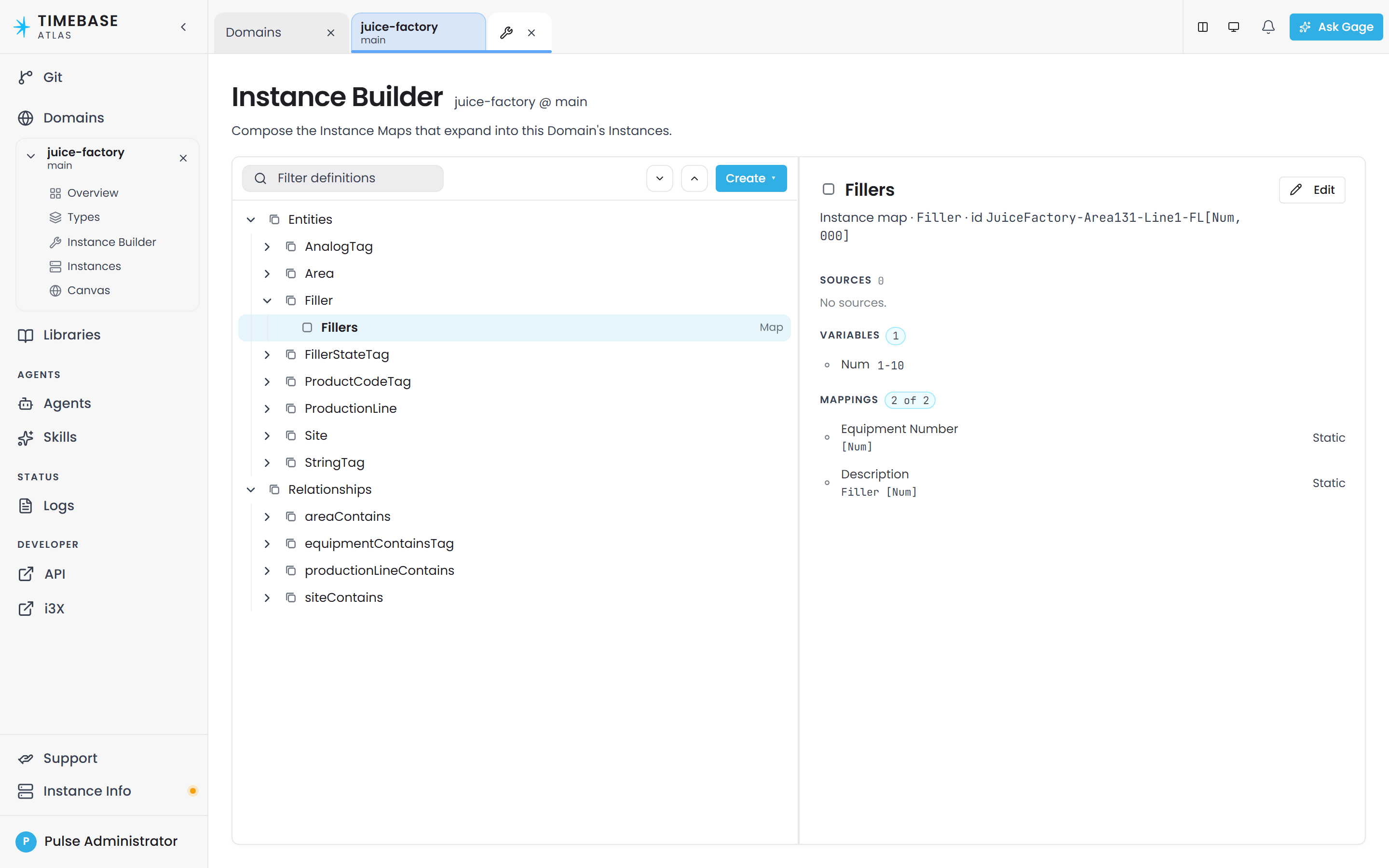
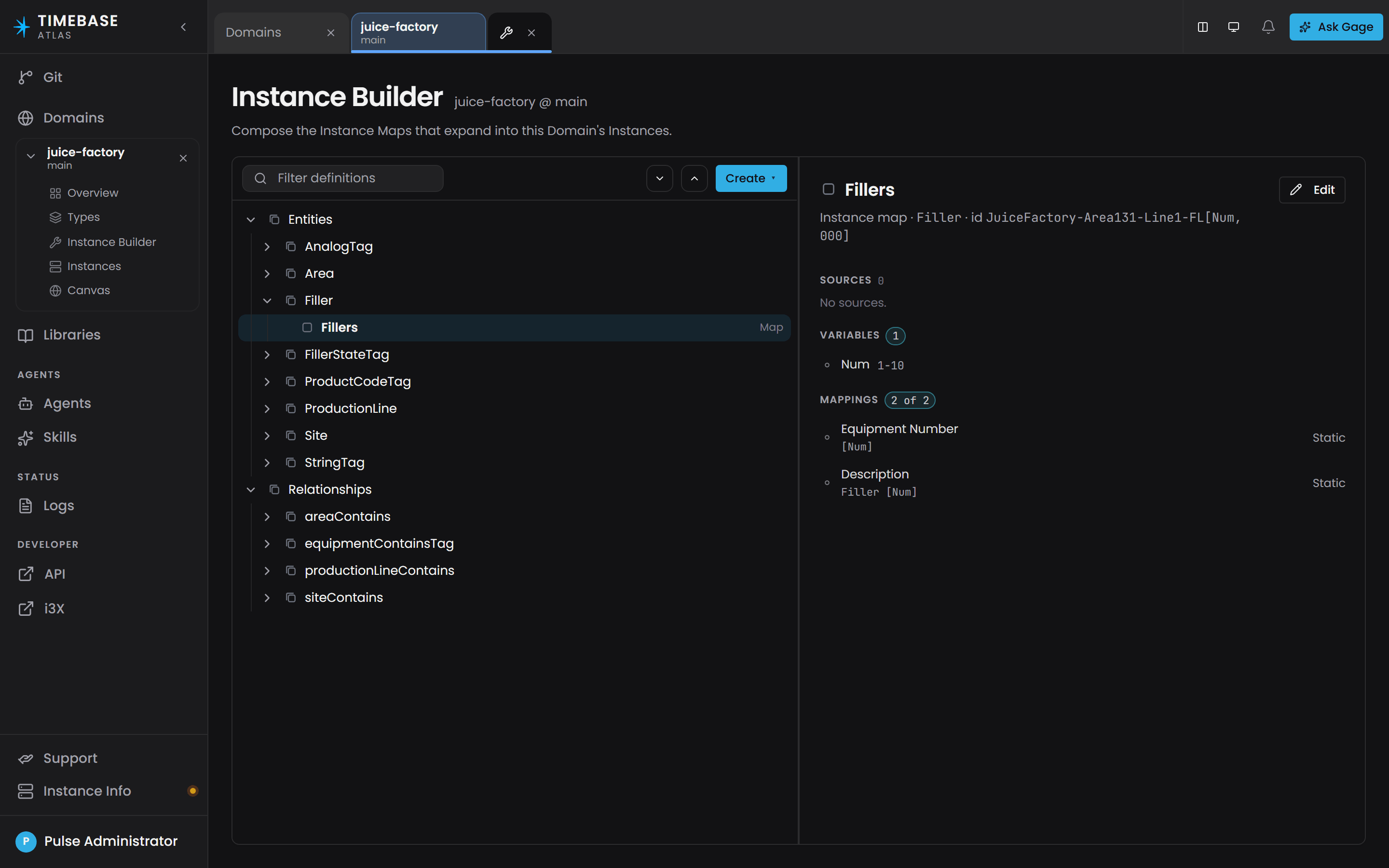
Select Instance Builder. Definitions you have already created are listed here, grouped by type under an Entities section and a Relationships section.
-
Select Create (the button carries a small ▾) and pick one of the four entries:
- Single Instance - one named thing, for example a site or a control system.
- Entity Instance Map (Bulk) - many things from one definition.
- Single Relationship - one connection between two named instances.
- Relationship Instance Map (Bulk) - many connections from one definition.
-
Fill in the drawer that opens (the fields are described below), then select Create. The button reads Save when you reopen a definition to edit it. The cross at the top right closes the drawer without saving.
A successful save leaves the drawer open, so you can keep working on the same definition. 7. Open the domain's Overview view and select Compile. The button reads Recompile once the domain has been compiled at least once. 8. Open the Instances view to see what you built.
Steps 7 and 8 are not optional. Saving a definition writes it to the branch, but it does not create anything. Until you compile, the Instances view will not show your new instances.
The bulk drawer#
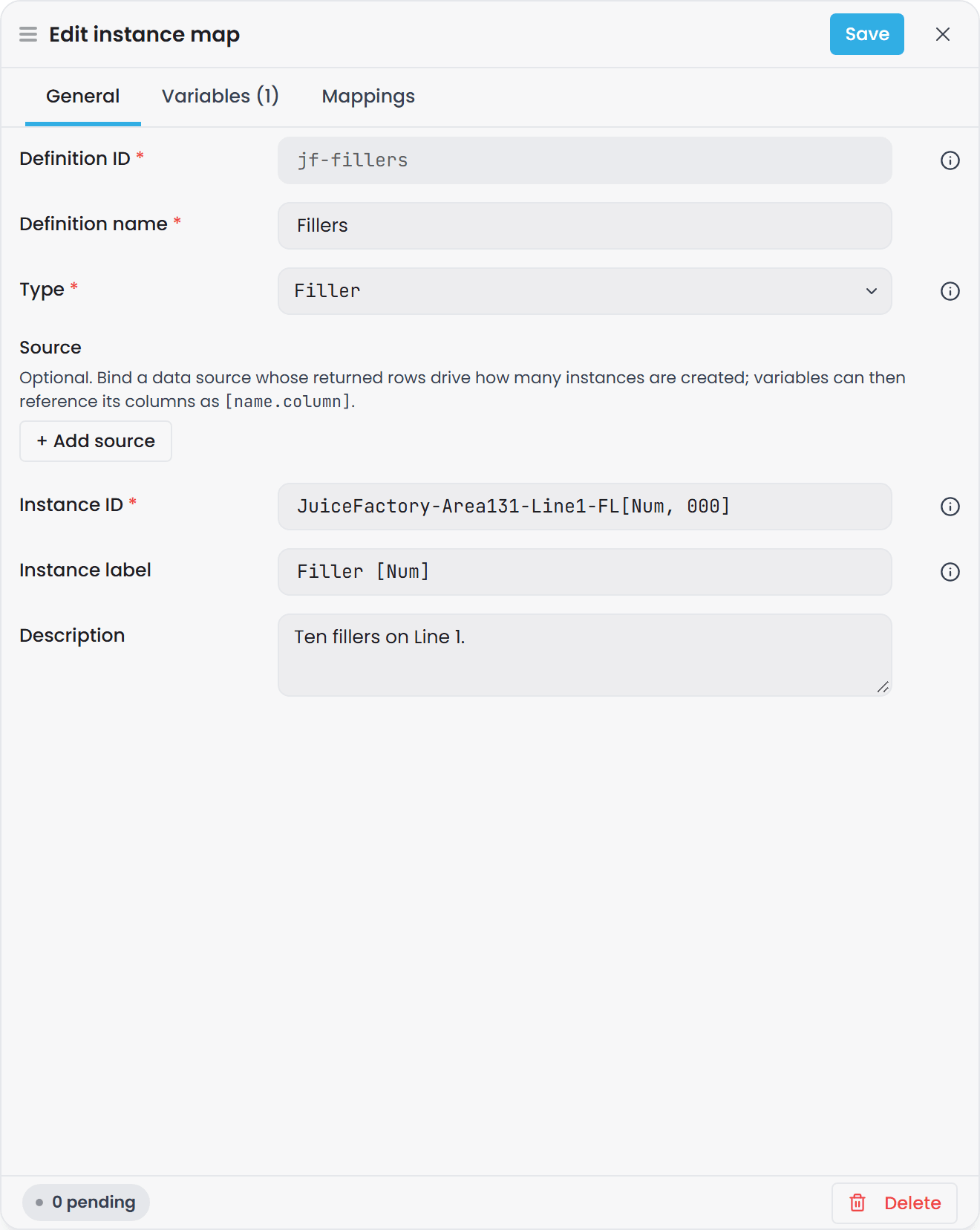
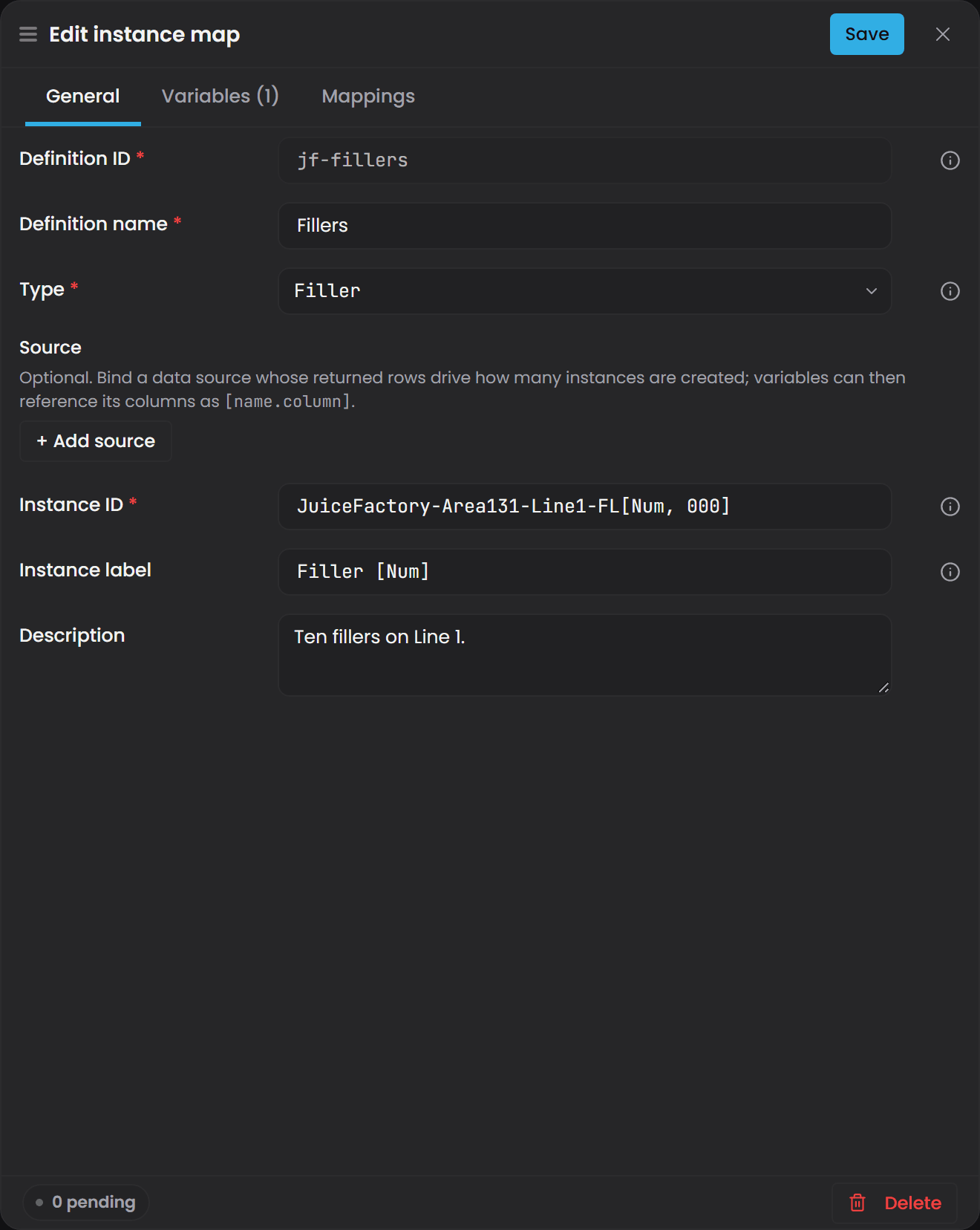
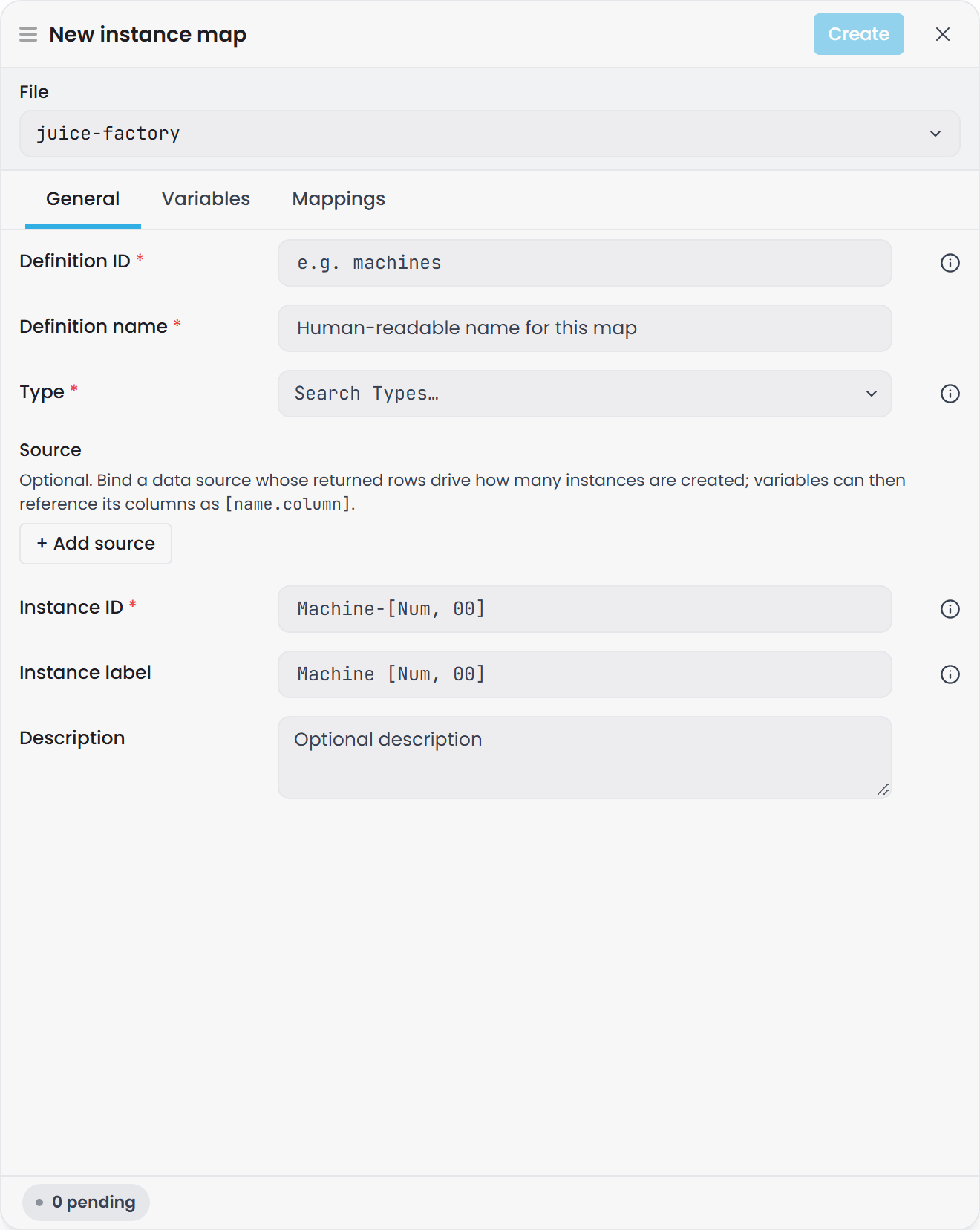
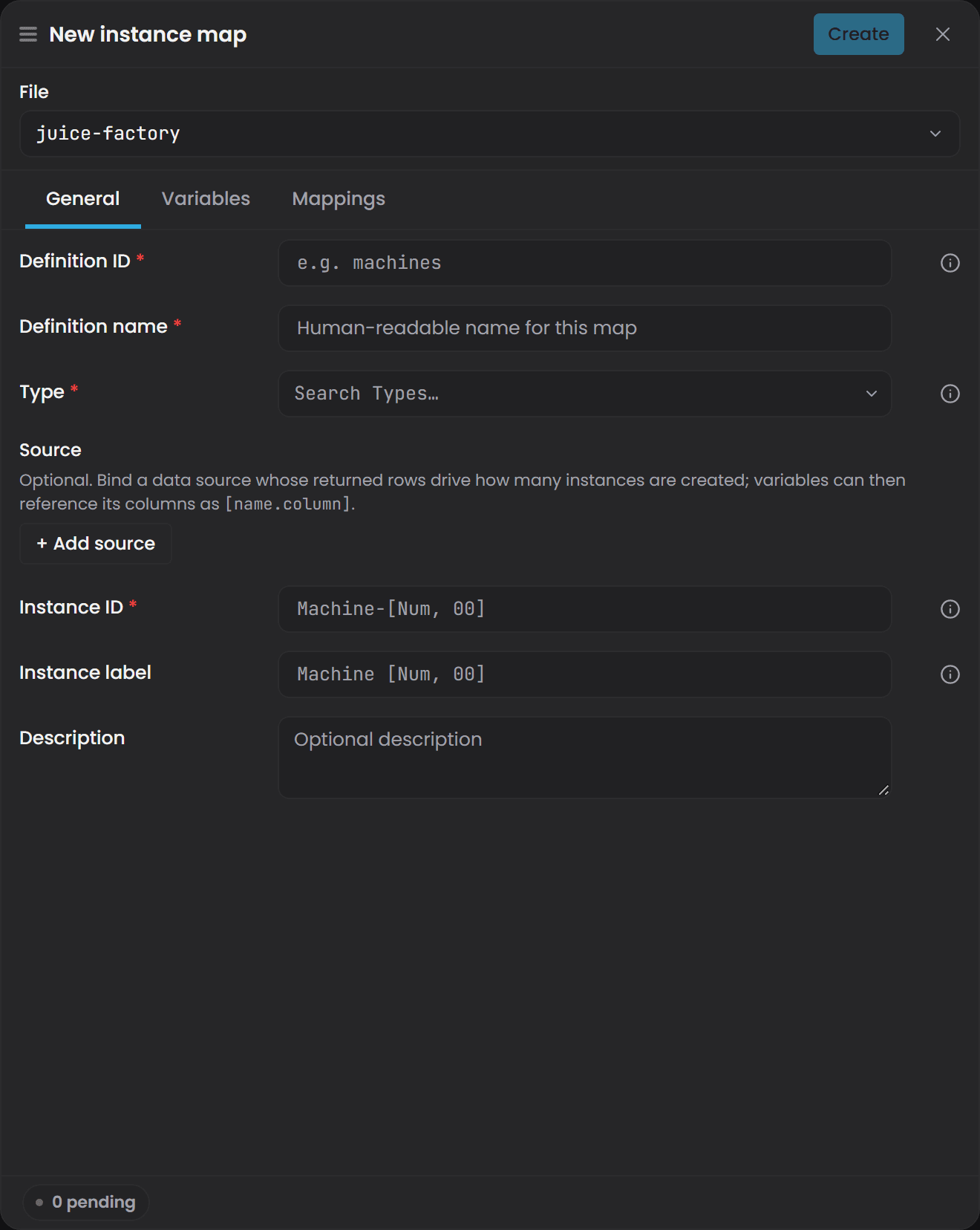
The bulk entries open a drawer titled New instance map (or Edit instance map when you reopen one). It has a File selector at the top and three tabs: General, Variables and Mappings. The Variables tab shows a live count in its own label, for example Variables (3).
The single-instance drawer#
The single entries open a drawer titled New instance (or Edit instance). It has the same General fields but only two tabs, General and Properties. It has no Variables tab and no Source block, because a single instance has nothing to repeat over.
The General tab, field by field#
| Field | Required | What to put in it |
|---|---|---|
| Definition ID | Yes | A short identifier for the definition itself, for example machines. It must be unique across every instance map file in the domain, not just the file you are saving into. Locked after creation |
| Definition name | Yes | A readable name for the definition, for example Test Machines. This is metadata about the recipe. It is not what the Instances view shows for each instance |
| Type | Yes | The Ontology type each instance will be. For a relationship map, the picker offers only relationship types |
| Instance ID | Yes | The identity of each instance produced. Use placeholders to make it different per instance, for example Machine-[Num, 00] |
| Instance label | No | The display name shown in the Instances view, the instance table and the inspector. Same placeholder syntax as Instance ID, for example Machine [Num, 00]. Leave it blank and instances show their raw identifier instead |
| Description | No | Free text for whoever reads the definition next |
| Source | No | The optional connector block that drives a rowset template. See below |
Definition name names the recipe. Instance label names each thing the recipe produces.
For a single instance, put the exact identity in Instance ID with no placeholders, for example pump-station-north.
Variables decide how many instances you get#
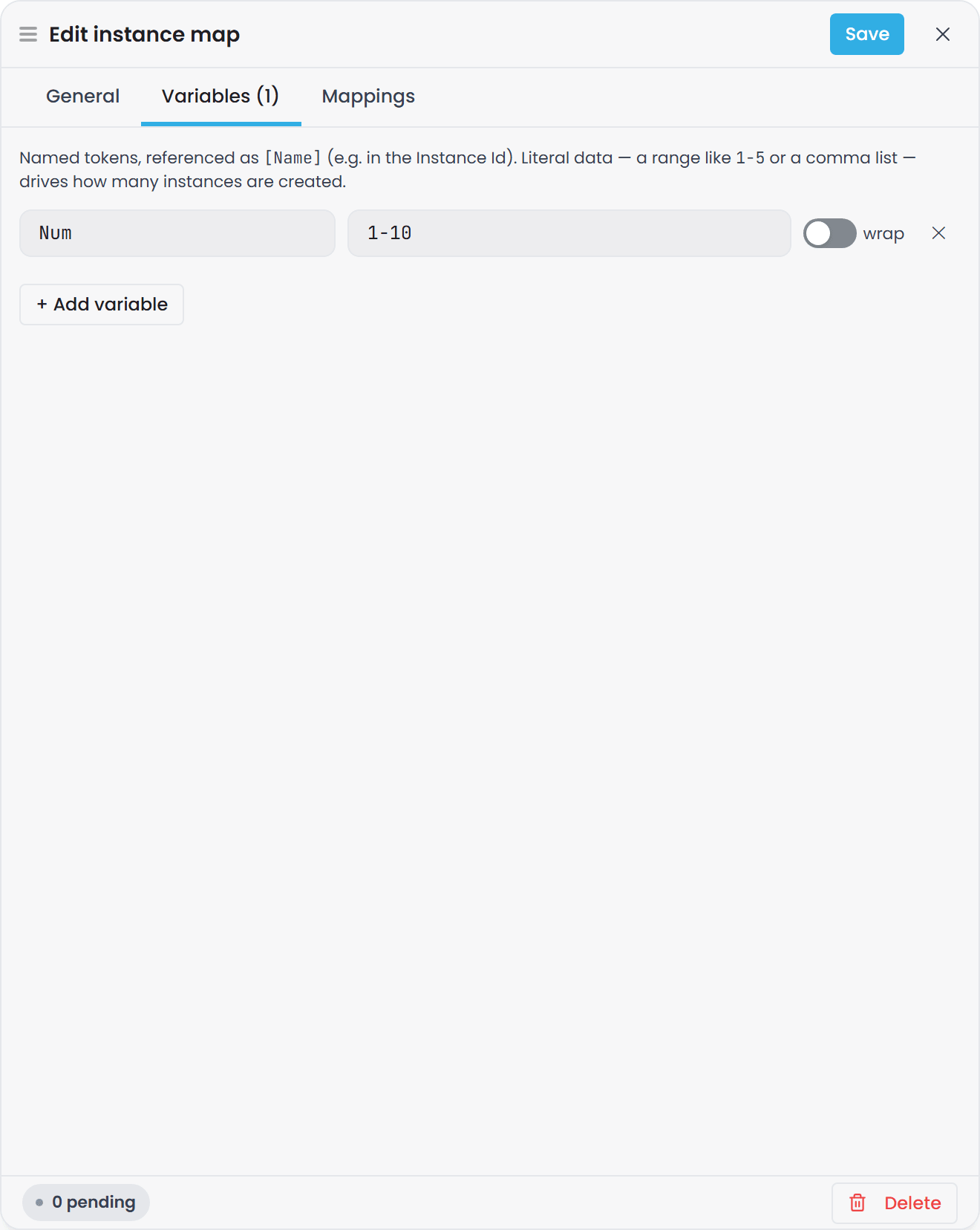
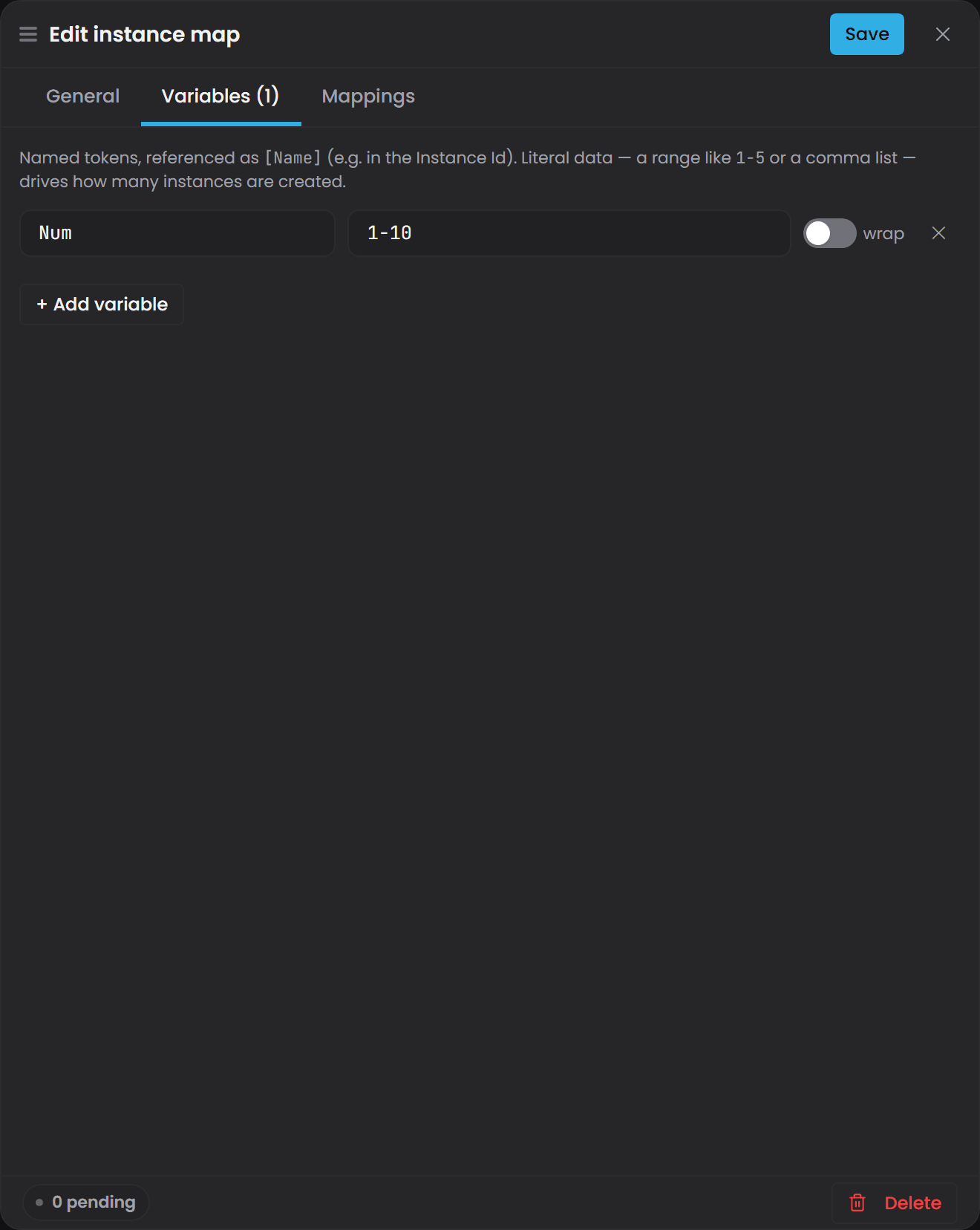
Open the Variables tab and select + Add variable. Each variable has a Name, a data value and a wrap switch. The drawer states the rule on the tab itself:
Named tokens, referenced as
[Name](e.g. in the Instance Id). Literal data - a range like1-5or a comma list - drives how many instances are created.
Placeholder syntax#
A placeholder is the variable's name in square brackets: [Num]. Add a format after a comma to pad numbers: [Num, 00] gives 01, 02, 03. A letter prefix works too: [Num, FL00] gives FL01.
The placeholder syntax is [Name]. It is not {i} and it is not $-prefixed. Atlas does not recognise {i}, so it is left in the text exactly as typed. A definition whose Instance ID reads pump-north-{i} has no variables at all, which makes it a singleton, so you get exactly one instance literally called pump-north-{i}. Nothing warns you.
Data formats#
| What you type | What you get |
|---|---|
North |
One value: North |
a, b, c |
Three values: a, b, c |
1-5 |
Five values: 1, 2, 3, 4, 5 |
01-05 |
Five values with the padding kept: 01, 02, 03, 04, 05 |
0-8/2 |
Five values: 0, 2, 4, 6, 8 |
High*3, Low*1 |
Four values: High, High, High, Low |
in the Value*count form the value takes letters and digits only, with no space before the *. Row 1*8 is read as a plain comma-separated list rather than a multiplier, so write Row1*8.
How many instances you actually get#
This is the single most misunderstood part of instance maps.
Atlas expands variables linearly, not as a cross product. The variable producing the most values sets the instance count. Every other variable is read at the same position. Two variables of three values each give you three instances, not nine.
When a shorter variable runs out of values, its wrap setting decides what happens next. With wrap off (the default) it repeats its last value. With wrap on it starts again from the beginning.
Worked example - what you get. Cooling towers, two variables:
| Variable | Data | Values |
|---|---|---|
Area |
North, South |
North, South |
Num |
1-3 |
1, 2, 3 |
Instance ID is CT-[Area]-[Num, 00]. The longest variable is Num with three values, so you get three instances:
| Position | Area |
Num |
Instance ID |
|---|---|---|---|
| 1 | North |
1 |
CT-North-01 |
| 2 | South |
2 |
CT-South-02 |
| 3 | South (repeated, wrap off) |
3 |
CT-South-03 |
Three instances, and two of them are in the South. This is almost never what someone wants when they write it.
Worked example - what you probably meant. To get six cooling towers, three per area, make both variables six values long:
| Variable | Data | Values |
|---|---|---|
Area |
North*3, South*3 |
North, North, North, South, South, South |
Num |
1, 2, 3, 1, 2, 3 |
1, 2, 3, 1, 2, 3 |
The same Instance ID pattern now gives CT-North-01, CT-North-02, CT-North-03, CT-South-01, CT-South-02, CT-South-03. The alternative, which is often clearer to read later, is one definition per area.
Ask Gage
Ask the
instance-builderagent: "Create a StaticTemplate that builds 6 cooling towers: CT-North-01, CT-North-02, CT-North-03, CT-South-01, CT-South-02, CT-South-03. Use variables Area (North3, South3) and Num (1, 2, 3, 1, 2, 3). Instance id is CT-[Area]-[Num, 00]."Requires the
pulse:administratorrole. Without it the write tools are filtered out before the agent runs, so it will simply say it cannot do this rather than returning a permission error.
Every variable must be used#
If you add a variable and never reference it, saving fails. The message names the variable:
map[] entry name 'Area' is an orphan — no instanceId, label, property strategy, or relationship template references it.
Referencing it from the Instance ID, the Instance label, a property value, a binding path or a relationship endpoint all count.
Build instances from a connector with a Source#
A Source turns one definition into one instance per row a connector returns. This is how you build a domain from an asset register or a tag catalog instead of typing every asset in by hand.
On the General tab, select + Add source and fill in:
- Source name - your own name for it, for example
fillers. You will use this name from your variables. - Source binding path - the connector path whose rows drive the count. The field hint is
connector/path.
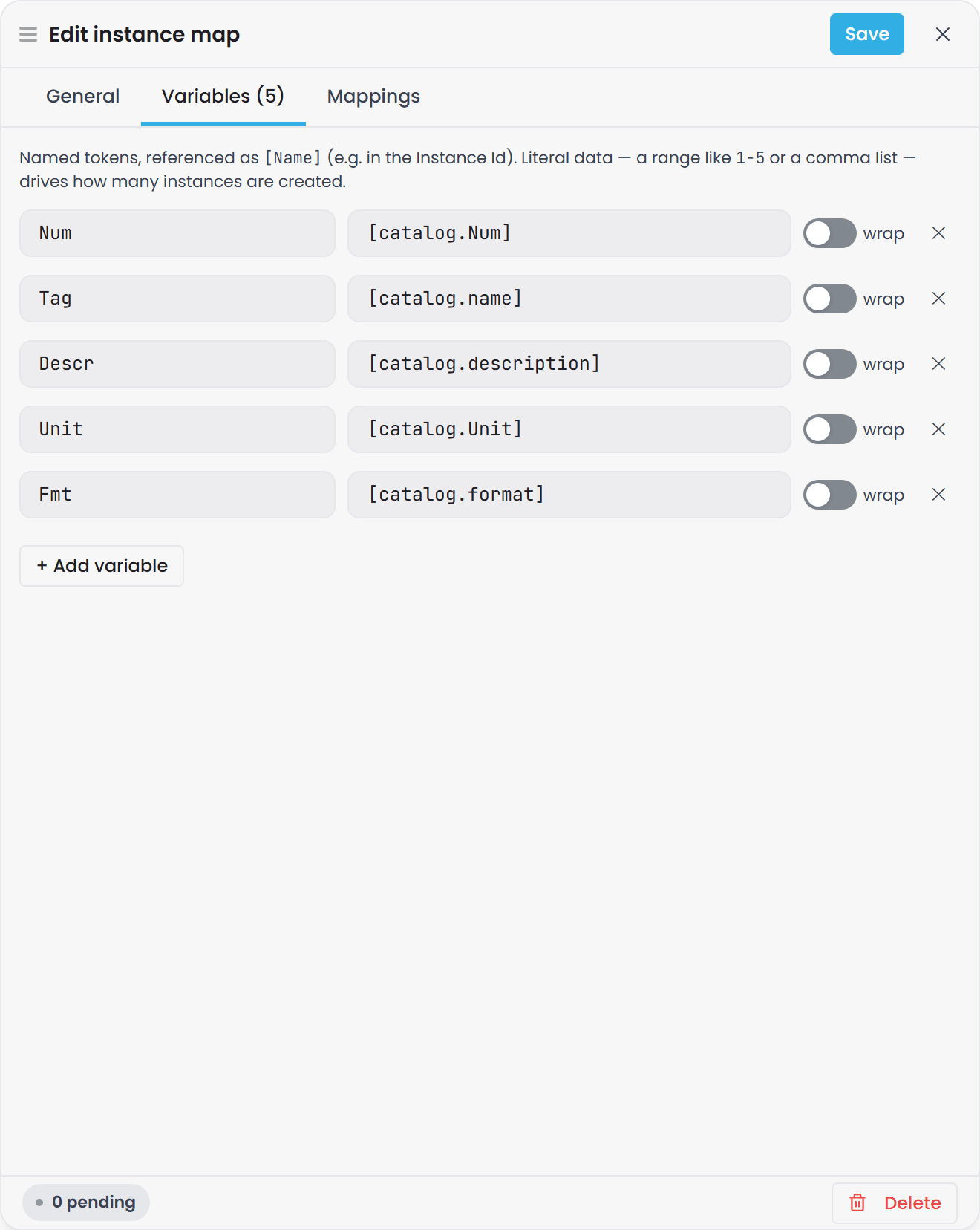
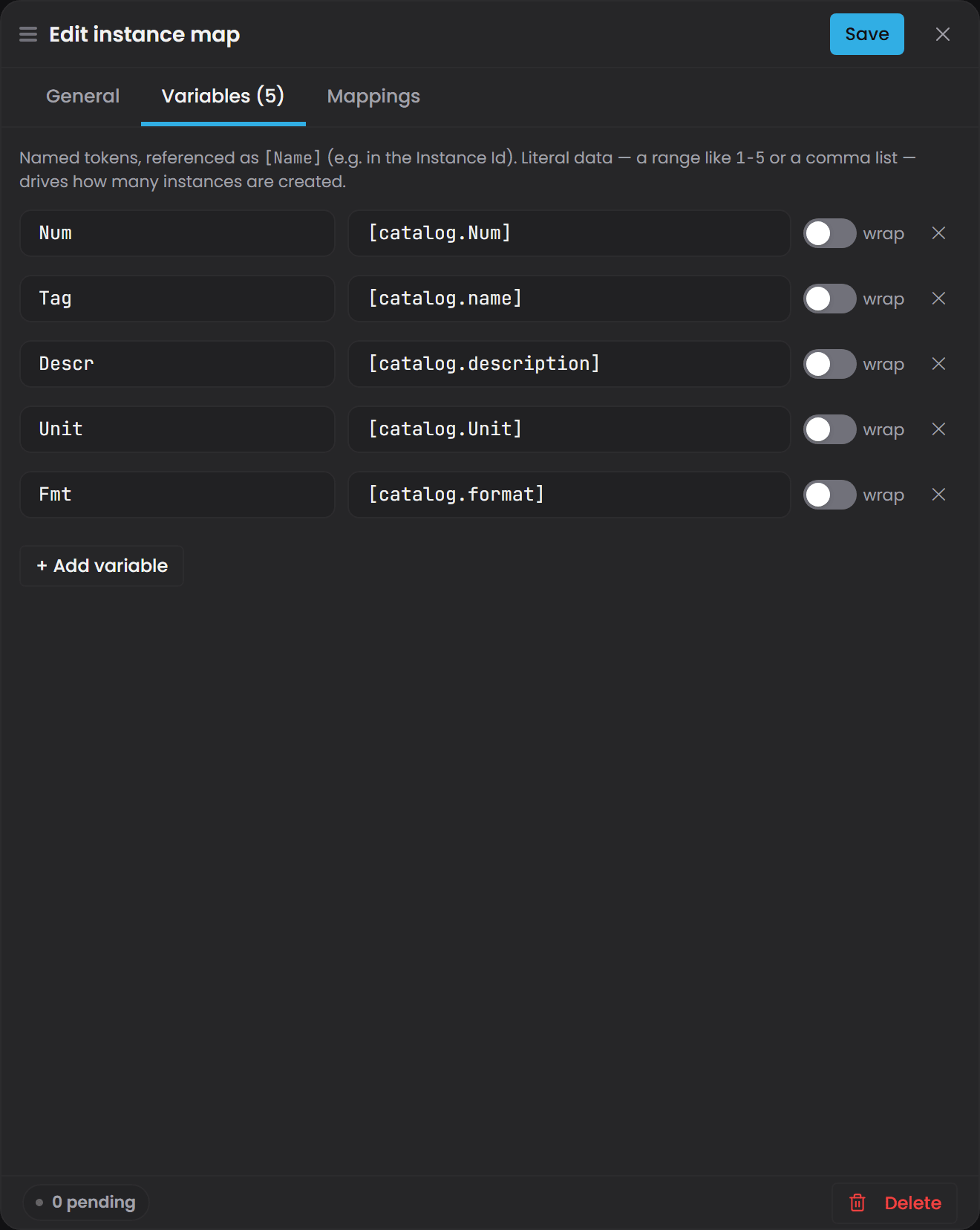
Then, on the Variables tab, set a variable's data to a column reference: [fillers.FillerNumber]. Atlas fetches the rowset once at compile time and creates one instance per row.
Use Remove source to go back to a plain variable-driven definition.
Transforms#
A raw source column is often a tag name with the useful part buried inside it. Select + Add transform to carve new columns out of one, using a regular expression with named capture groups. The two inputs are hinted raw column and (?<Capture>\d+). Each capture becomes a new column you can reference as [sourceName.CaptureName].
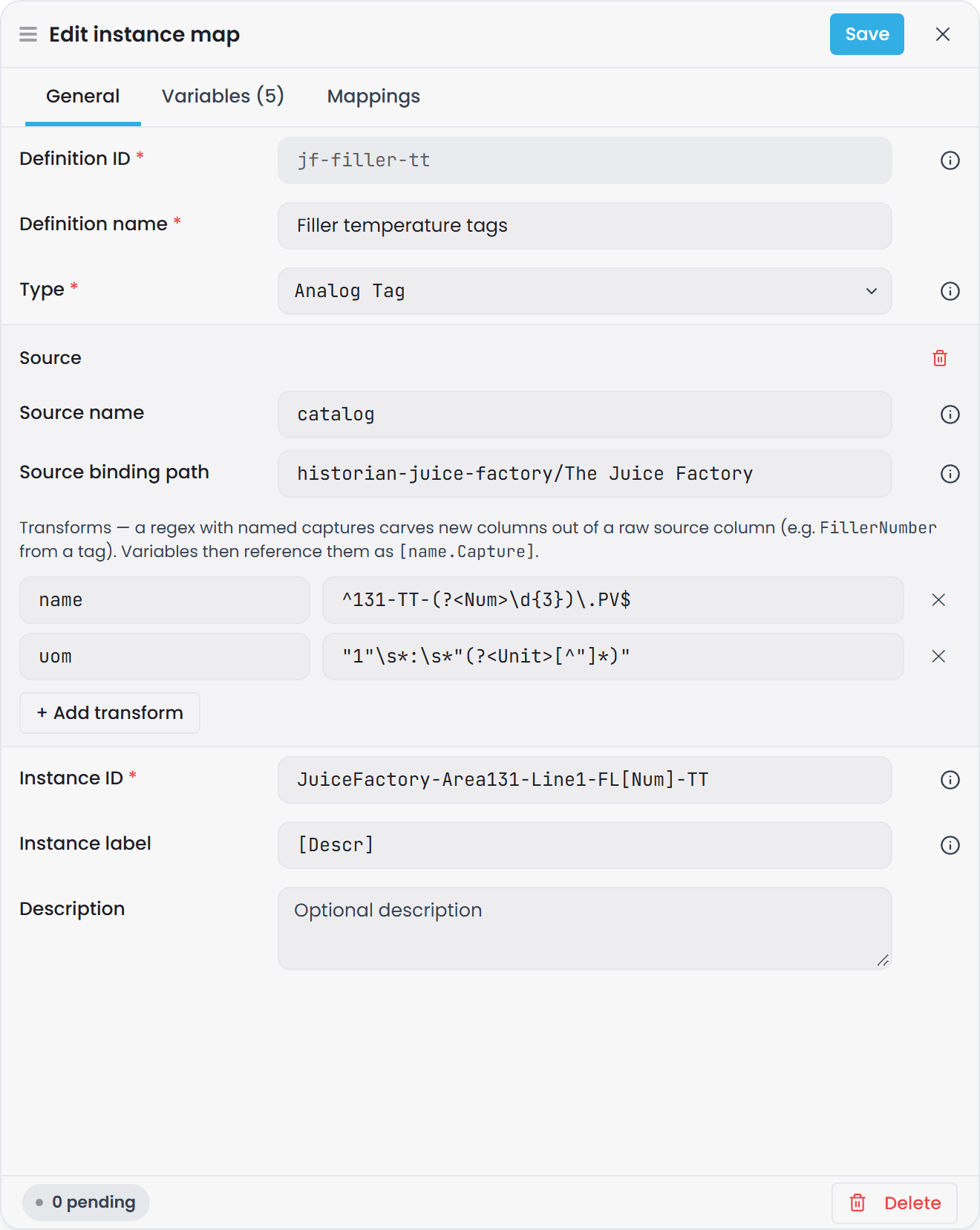
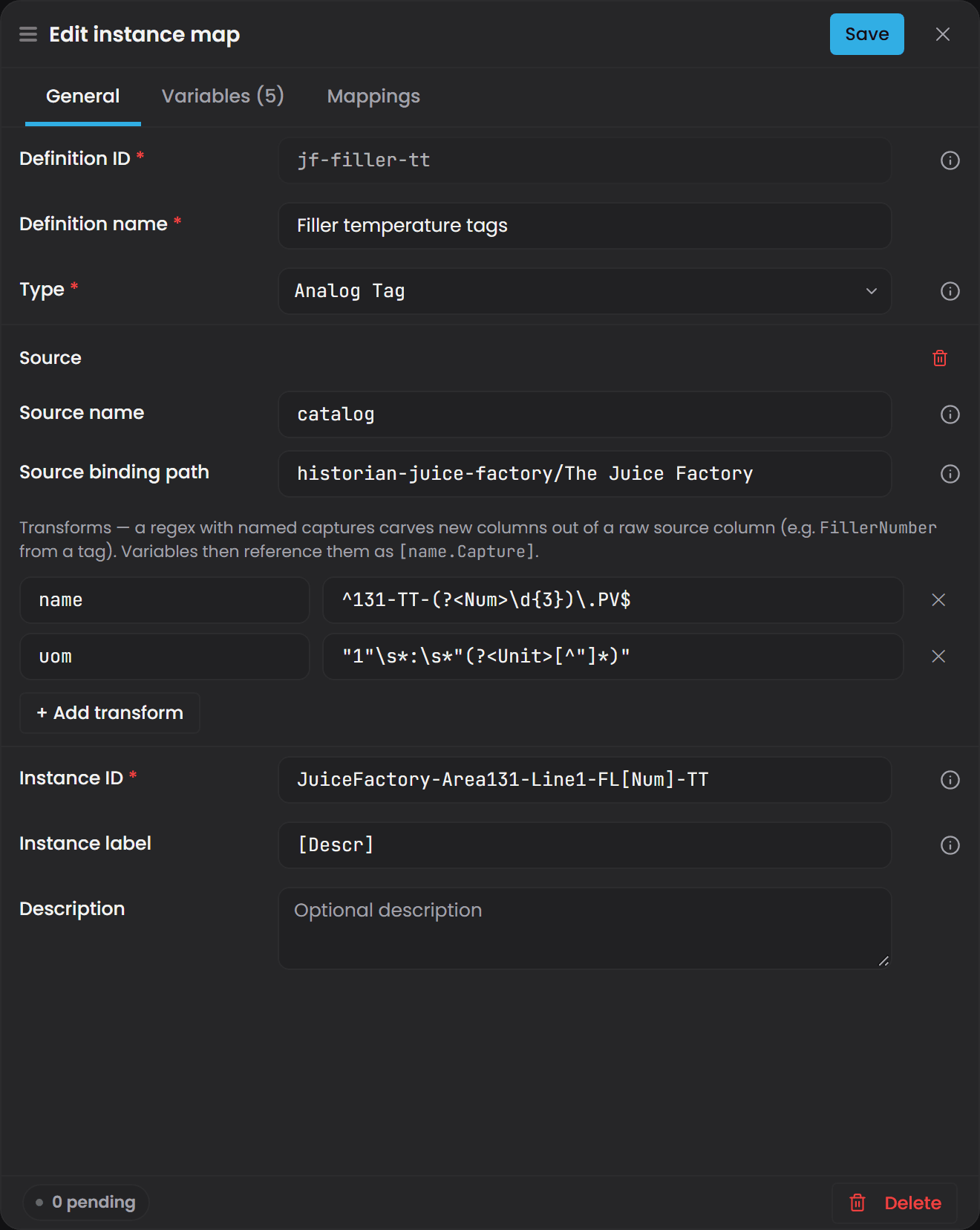
A row whose transform regex does not match is dropped, not passed through. If a transform is slightly too strict you get fewer instances than the source has rows, with nothing on screen to say so. When a definition has several transforms, a row must match all of them to survive. To read a source's description, unit or format into properties, including values held in a JSON column, see Using connector metadata in instance maps.
If the connector returns no rows at all, or every row is dropped by a transform, the definition produces zero instances. That is recorded as a warning in the Atlas log, not as an error, so the compile still reports success.
A worked shape, taken from a shipped test fixture:
{
  "id": "bound-machines",
  "name": "Bound Test Machines",
  "type": "urn:atlas:ontology:juice-factory:Machine",
  "instanceId": "BoundMachine-[Num, 00]",
  "sources": {
    "fillers": {
      "bindingPath": "historian-juice-factory/The Juice Factory/FillerTemps",
      "transforms": {
        "name": { "regex": "(?<Area>\\d+)\\-(?<Instrument>\\w+)\\-(?<FillerNumber>\\d+)\\.PV" }
      }
    }
  },
  "map": [
    { "name": "Num", "data": "[fillers.FillerNumber]" },
    { "name": "Tag", "data": "[fillers.name]" }
  ]
}
A definition can declare several sources but its variables may only reference one of them. Referencing two is rejected.
One useful difference: the Source path is checked, the property path is not#
This is the one asymmetry worth remembering.
- A Source binding path is checked when you save. If it does not resolve through a registered connector, saving reports rule
I-B10and the dependent checks on that source are skipped. - A Bound property's binding path on the Mappings tab is matched against the connector's advertised paths at start-up rather than when you save, so copy the path rather than typing it.
So if a rowset produces no instances you will usually get told. If a property never shows a value, nothing tells you at all. The property side is covered in Property Sourcing Strategies.
Ask Gage
Ask the
instance-builderagent: "Create a RowsetTemplate that builds one Pump instance per row from a connector. Source path is historian-plant/equipment-register. Add a transform that extracts PumpNumber from tag names like 131-PUMP-01.PV using the regex (?\d+). Instance id is Pump-[PumpNumber, 00]." Requires the
pulse:administratorrole. Without it the write tools are filtered out before the agent runs, so it will simply say it cannot do this rather than returning a permission error.
Relationships are instance maps in their own right#
A relationship in Atlas is not a sub-list inside an entity definition. It is its own instance map, with its own type and its own properties.
- In Instance Builder, select Create ▾ and pick Single Relationship for one connection, or Relationship Instance Map (Bulk) to create many at once.
- The same drawer opens, with the Type picker restricted to relationship types.
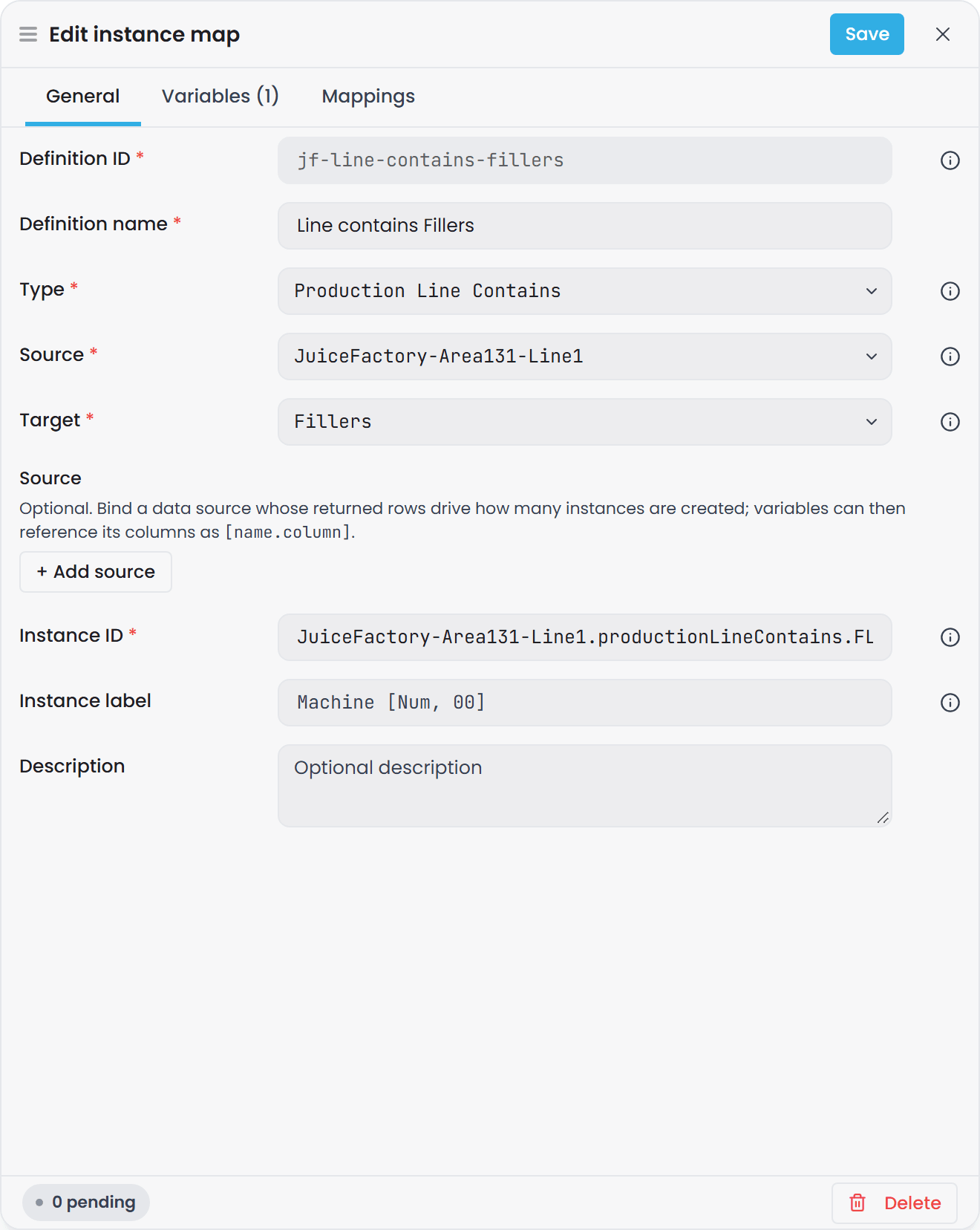
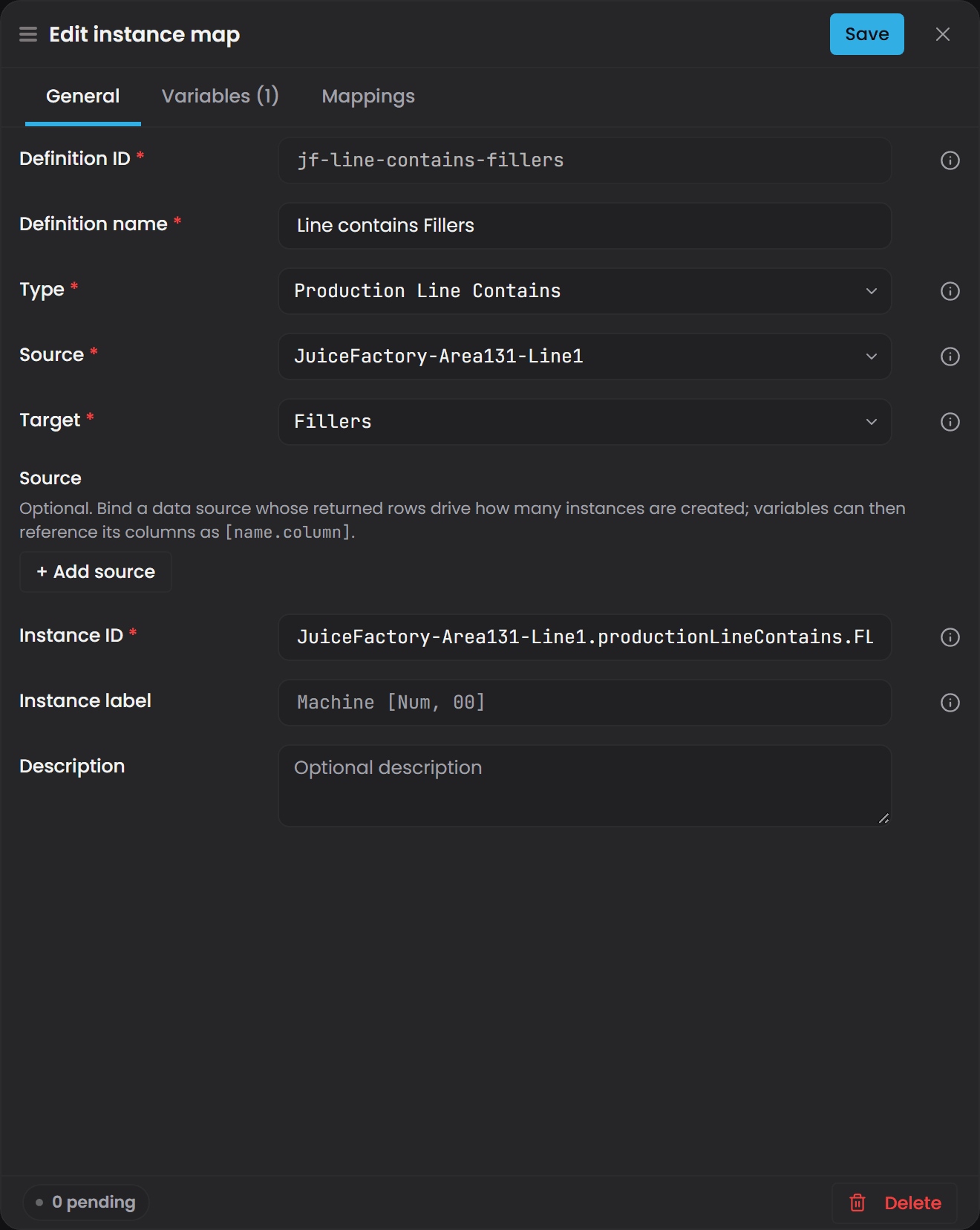
- Once you choose a type, two extra fields appear: Source and Target. Both are marked required.
- Each field takes the instance identity of one end, not the definition ID that produced it. In the bulk drawer both accept
[Name]placeholders and are resolved once per row, exactly like Instance ID.
Each end's picker is scoped to the type that end of the relationship expects, so it only offers instances that can legally sit there.
{
  "id": "feeds-pump01-tank01",
  "name": "Feeds-Pump01-Tank01",
  "type": "urn:atlas:ontology:juice-factory:Feeds",
  "instanceId": "urn:atlas:instance:juice-factory:feeds-pump01-tank01",
  "source": "urn:atlas:instance:juice-factory:pump-01",
  "target": "urn:atlas:instance:juice-factory:tank-01",
  "properties": {
    "urn:atlas:ontology:juice-factory:flowRate": [
      { "type": "StaticStrategy", "value": 2.5 }
    ]
  }
}
Because the two ends are looked up across every instance in the domain, they can come from completely different definitions and different files. That is the point: you can build the equipment from one asset register and the connections from another.
A relationship carries properties the same way an entity does, in its Mappings tab. There is no separate place for edge properties.
author each connection as its own instance map definition. A relationships[] array on an entity definition is not part of the shape Atlas reads, and because an unrecognised property is ignored, an API call that sends one returns 201 Created and creates no edges. You get a green light and an empty graph. If you have scripts or old files using relationships[], rewrite them as separate relationship definitions.
Two errors you will meet if an endpoint is wrong:
A relationship instance map must declare both 'source' and 'target'; 'target' is missing.
Relationship instance 'feeds-pump01-tank01' references target 'urn:atlas:instance:juice-factory:tank-1', which does not match any expanded instance id in the domain.
The second one almost always means you typed a definition ID where an instance identity belongs, or the instance ID pattern padded differently than you expected (tank-01 against tank-1).
Set property values on the Mappings tab#
Open the Mappings tab (called Properties in the single-instance drawer). Every property the chosen Type declares is listed, each with a chip showing where its value currently comes from. Select a property and a segmented control offers Static, Bound, Calculated and Reference. A property whose value type is a data type also offers Composed, which sources each field of the value separately.
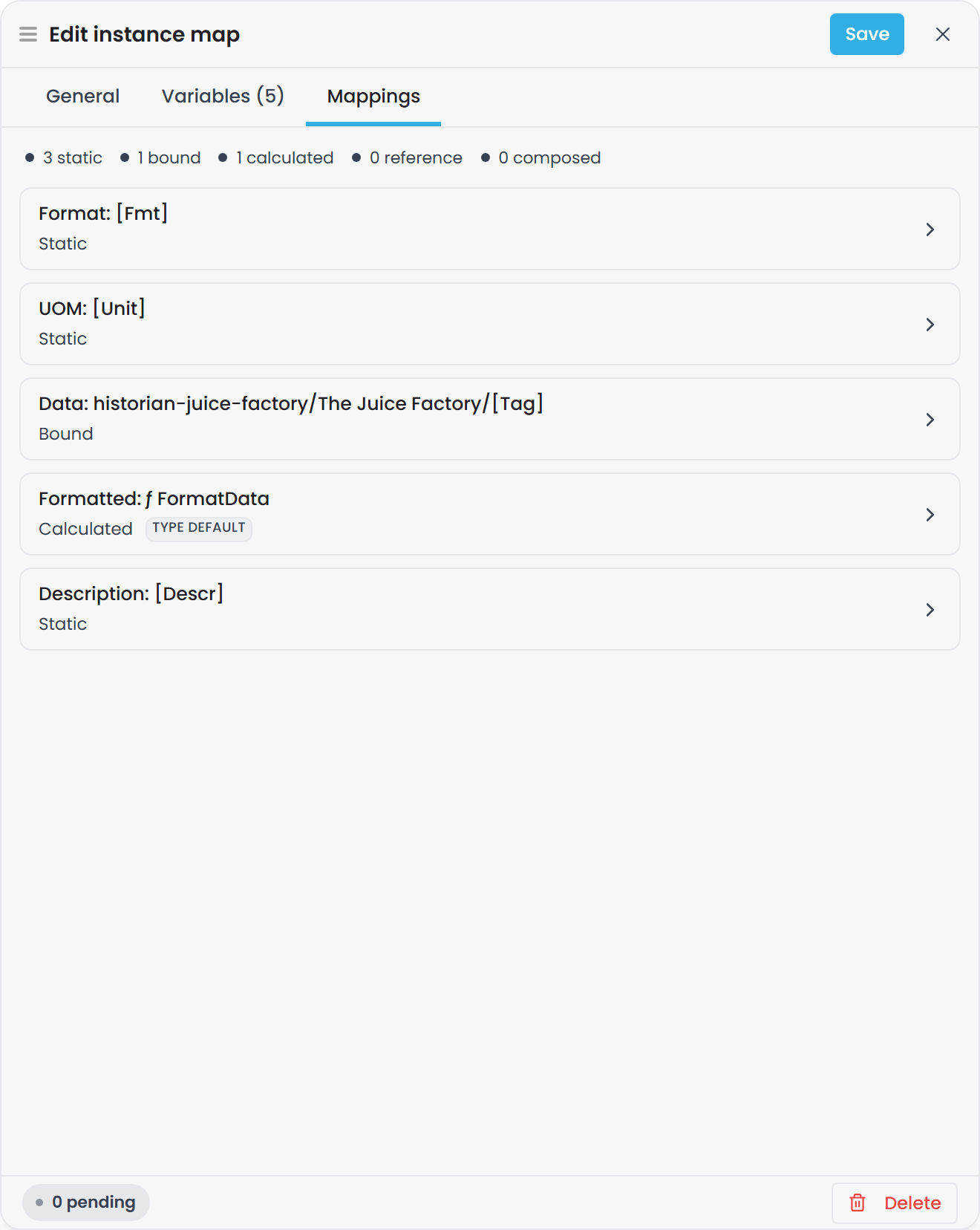
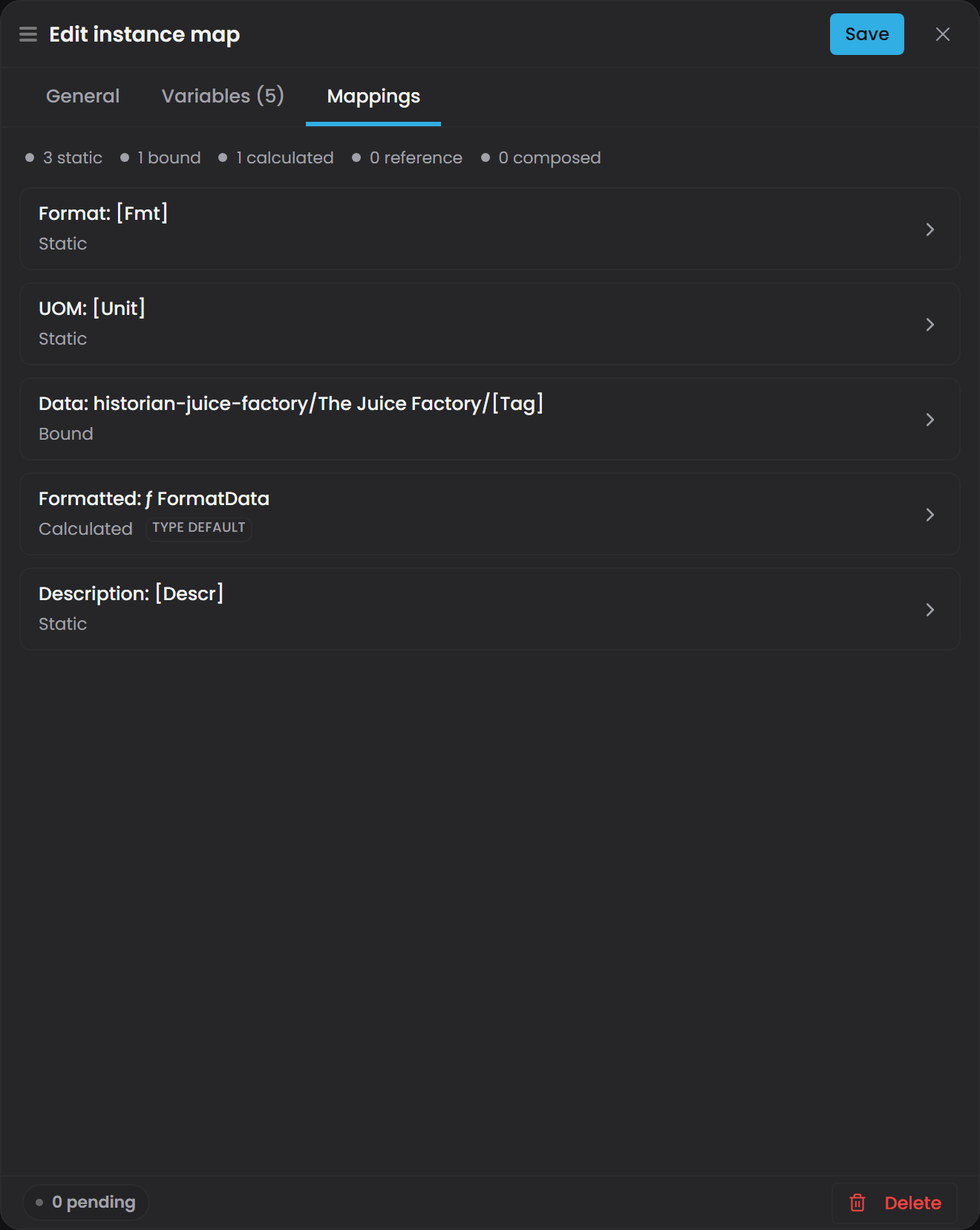
A row carrying a Type default badge is not mapped here: its value comes from a default set on the property type, and editing the row authors an instance-level mapping that overrides it. See Set a default on the property type.
For what each strategy means, when to use it, and the exact format of a connector binding path, see Property Sourcing Strategies - Static, Bound, and Calculated. That article is the reference for all of it.
Two rules that belong here because they are about the instance map file itself:
- Property keys must be the full URI. In a saved file, a property is keyed by its complete
urn:atlas:ontology:identifier. A short name such as"Site"is rejected on save with:Property key 'Site' is not a full URI. Property keys must start with 'urn:atlas:ontology:'. - The property must belong to the type. Attaching a property the type does not declare (and does not inherit) is rejected with a message that starts:
Property 'urn:atlas:ontology:my-domain:Speed' is not attached to type 'urn:atlas:ontology:my-domain:Pump'
Placeholders work inside property values and binding paths too, so one definition can give each instance its own tag: historian-juice-factory/The Juice Factory/131-TT-[Num].PV.
Where instance maps are stored#
Definitions live in files ending .map.json, in the domain's instances/ folder in Git. One file holds many definitions. You pick the file in the File selector at the top of the drawer when you create a definition, and + Create new file… lets you start a new one (Atlas adds the .map.json ending for you if you leave it off).
How you spread definitions across files is up to you. Common groupings are one file per physical area, or one file per asset type. There is one rule that does bite:
A Definition ID must be unique across every file in the domain, not just within its own file. A duplicate is rejected with: Instance id 'machines' is not globally unique across the domain; it appears in 'instances/north.map.json', 'instances/south.map.json'. Every instance map entry must have a unique id across all *.map.json files.
If you hand-edit a file#
You do not need to, and for day-to-day work you should not. If you do:
Atlas rejects any property name it does not recognise, and it rejects the whole file, not just the offending definition. One stale field name from an older article - instanceBinding, Bindings, BindKey, relationships - takes out every definition in that file at once. The file also has to have a JSON array at its root.
You will see one of these:
Instance map file root must be a JSON array; got Object.
Instance map file is not parseable JSON at line 14, column 7: ...
Note the difference in behaviour: over the API an unknown property is ignored, while in a file it stops the whole file loading.
Compile, and what happens to instances that disappear#
Select Compile on the domain's Overview view. Every compile is a full rebuild: Atlas expands every definition from scratch and replaces the previous model entirely.
Nothing is preserved across a compile. If a row leaves your source register, the instance it produced is simply not built the next time you compile, and it disappears from the Instances view and from queries. Atlas does not keep an instance alive because it existed before. Values already written into the Timebase Historian are untouched, but the instance is no longer in the Atlas model.
Atlas recompiles every domain it knows about when the service restarts, so you do not need to compile again after a restart. The exception is a domain that depends on a connector: it waits until that connector connects and advertises its paths, and if the connector never appears the domain stays uncompiled.
Outstanding items and Unpublished changes#
Both sections sit on the domain's Overview.
- Outstanding items lists validation problems with a chip reading "{n} to fix". Your changes are saved, and these do not block saving, but the domain cannot be compiled until they are resolved. Each line reads
[RuleId] message, for example[I-A9] A relationship instance map must declare both 'source' and 'target'; 'target' is missing. - Unpublished changes only appears when a save of yours failed validation. When it does, a chip reads Ready to publish or "{n} to fix first", and a button reads Publish to {branch}.
Once Unpublished changes appears, no further save reaches the branch, even a perfectly valid one. Everything keeps returning success and nothing changes. If you saved, compiled, and nothing happened, look here first, fix the outstanding items, then select Publish to {branch} and compile again.
Edit or delete a definition#
In Instance Builder, select a definition in the tree. The inspector on the right summarises its sources, variables and mappings and offers Edit, which reopens the drawer. Delete sits at the foot of the drawer, and asks you to confirm:
Delete instance definition 'Test Machines'?This permanently removes the definition. This action cannot be undone.
You delete definitions, never individual instances. Instances are the output of a compile. To change or remove an instance you change the definition that produces it and compile again. The Instances view is for browsing and inspecting only.
A delete can be refused if something still points at the definition, for example a relationship whose Source or Target would be left dangling. The refusal lists the violations that blocked it.
Ask the Instance Builder agent#
Atlas ships an assistant that authors instance maps for you. Open Agents in the sidebar and choose instance-builder. Describe what you want in plain language, for example: "Create 8 pumps in the North Pump Station, instance ids Pump-01 to Pump-08, with Speed bound to the historian tags 131-PT-01.PV through 131-PT-08.PV."
The agent writes the definitions into .map.json files for you. Review what it produced in Instance Builder before you compile - it writes to your branch just as you would.
Troubleshooting#
| Symptom | Likely cause | What to do |
|---|---|---|
| You saved a definition but the Instances view is empty | Saving does not create instances. Nothing exists until the domain is compiled | Open the domain's Overview and select Compile (or Recompile). Then reopen Instances |
| You saved and compiled, both succeeded, and nothing changed | Your save failed validation, so it went into your private draft and the branch never advanced. Both requests still returned success | On Overview, look for Unpublished changes. Fix the items listed under Outstanding items, select Publish to {branch}, then compile again |
| You expected six instances and got three | Variables expand linearly, not as a cross product. The longest variable sets the count and the others are read at the same position | Make every variable the same length. For three per area use North*3, South*3 alongside 1, 2, 3, 1, 2, 3, or split it into one definition per area |
| You got exactly one instance, and its identity contains the literal text you typed as a placeholder | The placeholder was written {i}. Atlas only recognises [Name], so {i} was left in the text and the definition had no variables at all, which makes it a singleton |
Rewrite the Instance ID using [Num] or [Num, 00], and add a variable named Num with data such as 1-6 |
Instance identities come out unpadded (Pump-1, not Pump-01) |
The placeholder has no format specifier | Use [Num, 00] for two digits, [Num, 000] for three. Alternatively write the range with leading zeros (01-06), which preserves the padding |
| A rowset definition produces fewer instances than the source has rows | A transform regex did not match some rows, and non-matching rows are dropped without a message | Loosen the regex, or test it against a raw column value from the source. Check the Atlas log for the per-transform drop counts |
| A rowset definition produces no instances at all | The connector returned zero rows, or every row was dropped by a transform. Both are logged as warnings, so the compile still reports success | Confirm the connector is online in the Connectors panel on the Home page. Check the Source binding path and the transform regexes, then look in the Atlas log for the "0 rows" warning |
Saving fails with Instance id 'machines' is not globally unique across the domain |
Two definitions share a Definition ID, possibly in different files | Rename one of them. Definition IDs are unique across the whole domain, not per file |
Saving fails with map[] entry name 'Area' is an orphan |
You added a variable and nothing references it | Reference [Area] from the Instance ID, the Instance label, a property value or a relationship endpoint, or delete the variable |
Saving fails with instanceId template references '[Num]' but no map[] entry declares name 'Num' |
The Instance ID or Instance label uses a placeholder that no variable declares | Add the variable under that exact name, or correct the spelling. Placeholder names are case-sensitive |
Saving fails with Property key 'Site' is not a full URI |
A property in the file is keyed by its short name | Use the complete identifier: urn:atlas:ontology:<YourDomainHere>:<PropertyNameHere> |
Compiling fails with Property 'urn:...:Speed' is not attached to type 'urn:...:Pump' |
The property is not declared on this type or any of its parents | Open Types, confirm the property is attached to the type you selected, and check the spelling and capitalisation |
| Relationships save and the graph has no connections | The relationships[] form was used. Unknown properties are ignored over the API, so the write returns 201 Created and creates no edges |
Rewrite each connection as its own definition with a relationship Type and both Source and Target set, using Create ▾ → Single Relationship or Relationship Instance Map (Bulk) |
A relationship reports ... does not match any expanded instance id in the domain |
Source or Target holds a definition ID, or an identity that does not match what the other definition actually produced | Open Instances and copy the exact identity of each end. Watch for padding: tank-01 and tank-1 are different |
Saving a relationship fails with A relationship instance map must declare both 'source' and 'target' |
Only one end was filled in | Fill in both. A relationship needs both ends; an entity map must have neither |
Hand-editing a .map.json file makes every definition in it disappear |
Atlas rejects unknown property names and rejects the whole file, not just the bad definition. A stale field such as instanceBinding, Bindings or relationships does this |
Remove the unrecognised field. Check the error for the reported line and column. In future, author in the drawer instead |
| An instance you had yesterday is gone after a compile | Its row left the source register. Compiling is a full rebuild and nothing is carried over | If the asset should still exist, restore the row in the source system, or move that instance into a definition that does not depend on the source |
| The instance rows in the Instances view show raw identifiers instead of readable names | The definition has no Instance label | Reopen the definition, fill in Instance label (for example Machine [Num, 00]), save, and compile. Definition name does not affect this |
| A bound property never shows a value even though instances were created | A Bound binding path is not checked when you save, so a wrong path compiles cleanly and binds nothing | See Property Sourcing Strategies - Static, Bound, and Calculated. Confirm the connector is online in the Connectors panel on the Home page, then compare the path character for character against a working one |