Branch Management
Atlas keeps every domain and every library in a Git repository, so every model you build lives on a branch.
Overview#
Atlas keeps every domain and every library in a Git repository, so every model you build lives on a branch. A branch is an independent line of edits: you can redesign a plant model on dev all week and the version your connectors and dashboards read from stays exactly as it was.
Atlas gives you a full branch workflow in the product. There is a Git page with a branch list, a New branch dialog, rename, a guarded delete, a Compare view that is also where you merge, and commit history with file-level diffs. You do not need a Git client, a terminal, or a hosting service to promote work from one branch to another.
This article covers what branches are for, how to do each branch task on the Git page, and the equivalent /api/v1/branches calls for automating the same jobs.
if you are automating against the API, check the response content type before parsing. Atlas serves the web interface's page shell for any URL outside the API surface, so a mistyped route returns 200 text/html rather than a 404. See Automating branch work below.
For what Atlas stores in the repository and how commits are shaped, see How Atlas Uses Git. This article stays on the branch workflow.
What branches are for#
Without branches, every edit you make is immediately the live model. Branches give you somewhere to design, test and review first. A common three-branch setup:
| Branch | Purpose |
|---|---|
The default branch (usually main) |
The live, reviewed model. Connectors, dashboards and integrations read from this branch. |
staging |
Changes that are ready to test but not yet promoted. |
dev |
Active development. Experimental changes that may not be stable. |
There is no "checkout". You never switch the server onto a branch. Every Atlas web address and every API path names the branch it acts on, so several people can work on different branches at the same time without affecting each other, and the same domain can be open on two branches side by side.
What is branch-scoped, and what is not#
Almost everything you author is branch-scoped:
- Domains - the ontology (entity types, relationship types, properties, data types, functions) and the instance maps.
- Libraries - the type definitions inside a library are branch-scoped too. Editing a library on
devdoes not change what the default branch sees. - Compiled worlds - each branch has its own compiled world per domain. Compiling
devdoes not touch the compiled world on the default branch.
Only these are repository-wide:
- The library catalog - the list of which libraries exist, and creating or deleting a library, is not branch-scoped. Only library content is versioned per branch.
- The connector registry - connectors register with the Atlas server process, not with a branch. A connector visible from
devis visible from every branch. - The repository itself - one Atlas server serves exactly one data repository, and the set of branches is a property of that repository.
library content is addressed per branch (/api/v1/branches/{branch}/libraries/{library}/...) and versioned in the same repository as everything else, and staleness checking compares each imported library file per commit. Edit a library on dev and the default branch keeps its own types until you merge. Only the catalog (/api/v1/libraries), which lists, creates and deletes libraries, is repository-wide.
The default branch#
Atlas has a first-class default branch. It is the trunk that every guardrail, every merge target and every ahead/behind count is measured against, and it is resolved by the server rather than assumed by name.
Resolution order:
- The
Git:DefaultBranchconfiguration value, if it is set and a branch of that name actually exists. main, if it exists.master, if it exists.- The longest-lived branch in the repository.
- Alphabetically first, as a last resort, so the answer is always deterministic.
The default branch has two hard protections that no option overrides:
- It cannot be deleted. Not with a force flag, not from the API. The web interface does not even render a delete action on it. Over the API you get
403with"'{name}' is the default branch and cannot be deleted." - It cannot be renamed. The rename action is absent from the interface, and the API refuses with
"'{name}' is the repository's default branch and cannot be renamed."
To point those guardrails at a differently named trunk (for example trunk or production), set DefaultBranch in the Git section of settings.config:
"Git": {
  "DefaultBranch": "production"
}
This is read once when Atlas starts, so restart the service after changing it. If the name you set does not match an existing branch, Atlas ignores it and falls back through the list above rather than leaving the repository with no default.
Atlas does not force the initial branch name when it first creates the repository, so a brand-new installation ends up on whatever name the host's Git is configured to use. That is main on modern installations and master on older ones. Check the Branches rail on the Git page rather than assuming.
The Git page#
Open Git at the top of the left navigation. It sits above Domains and Libraries, because branches are the frame everything else lives inside.
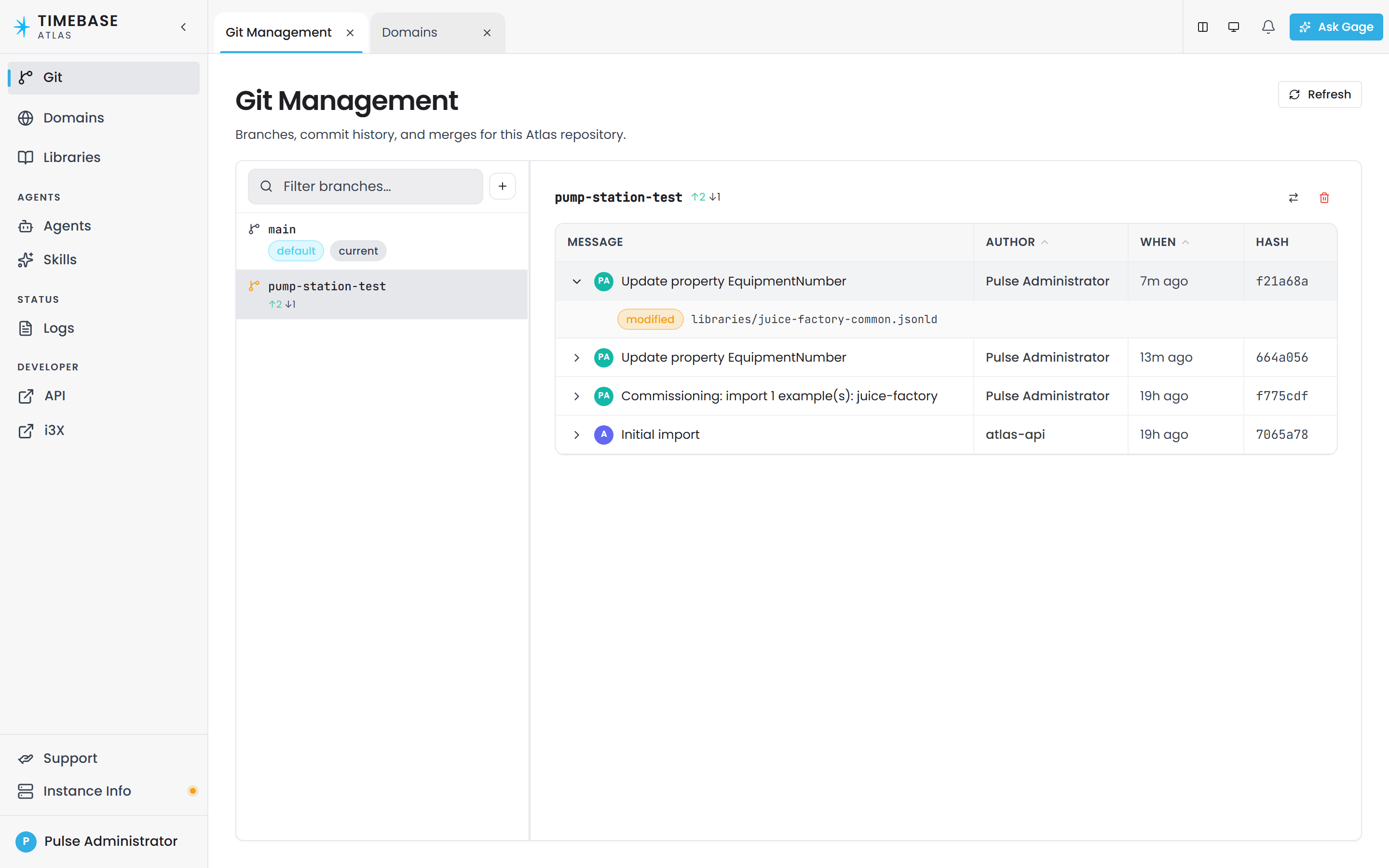
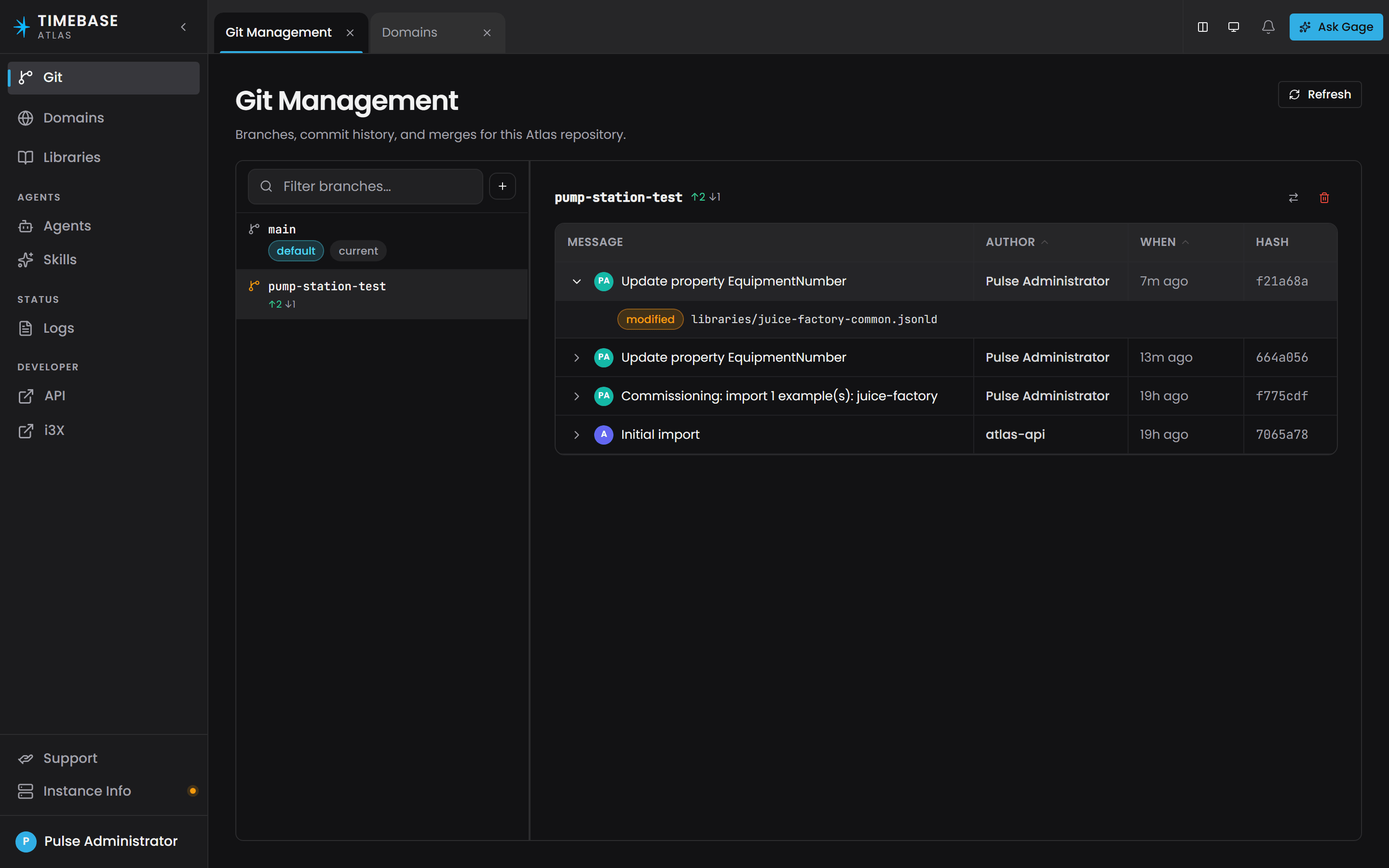
The page is titled Git Management and is split in two:
- Left: the Branches rail. Every branch in the repository, one row each. The default branch carries a default badge; the row Atlas is currently parked on carries a current badge. Every other row shows how far it is ahead of and behind the default branch, as
↑2 ↓1, and a rename (pencil) action. A New branch button (the plus) sits at the top of the rail beside the filter box. - Right: the selected branch. The branch name with the same ahead/behind summary, a Compare button and a delete (bin) action, and below them the branch's commit history as a table of message, author, when and hash. Merging happens from the Compare view.
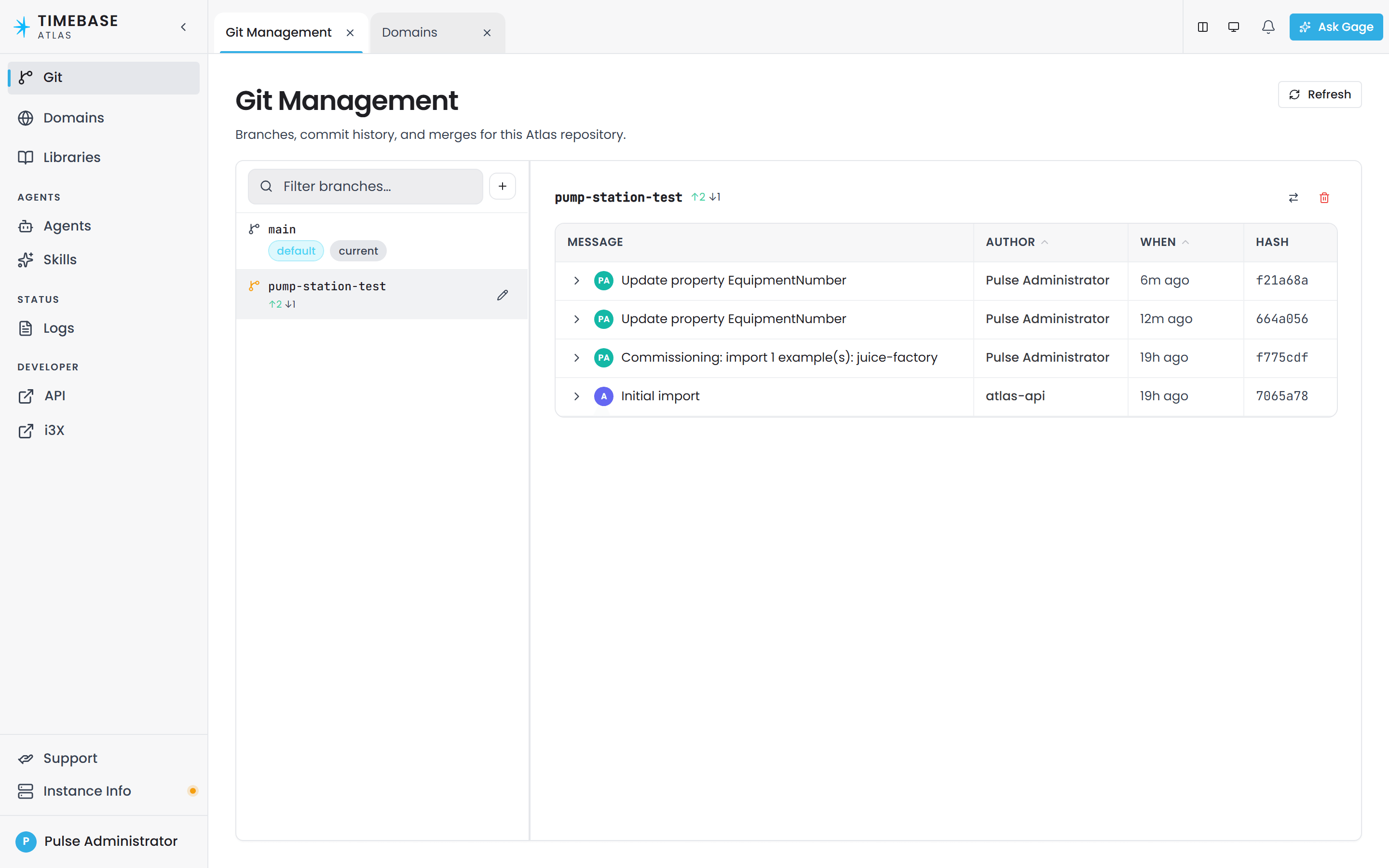
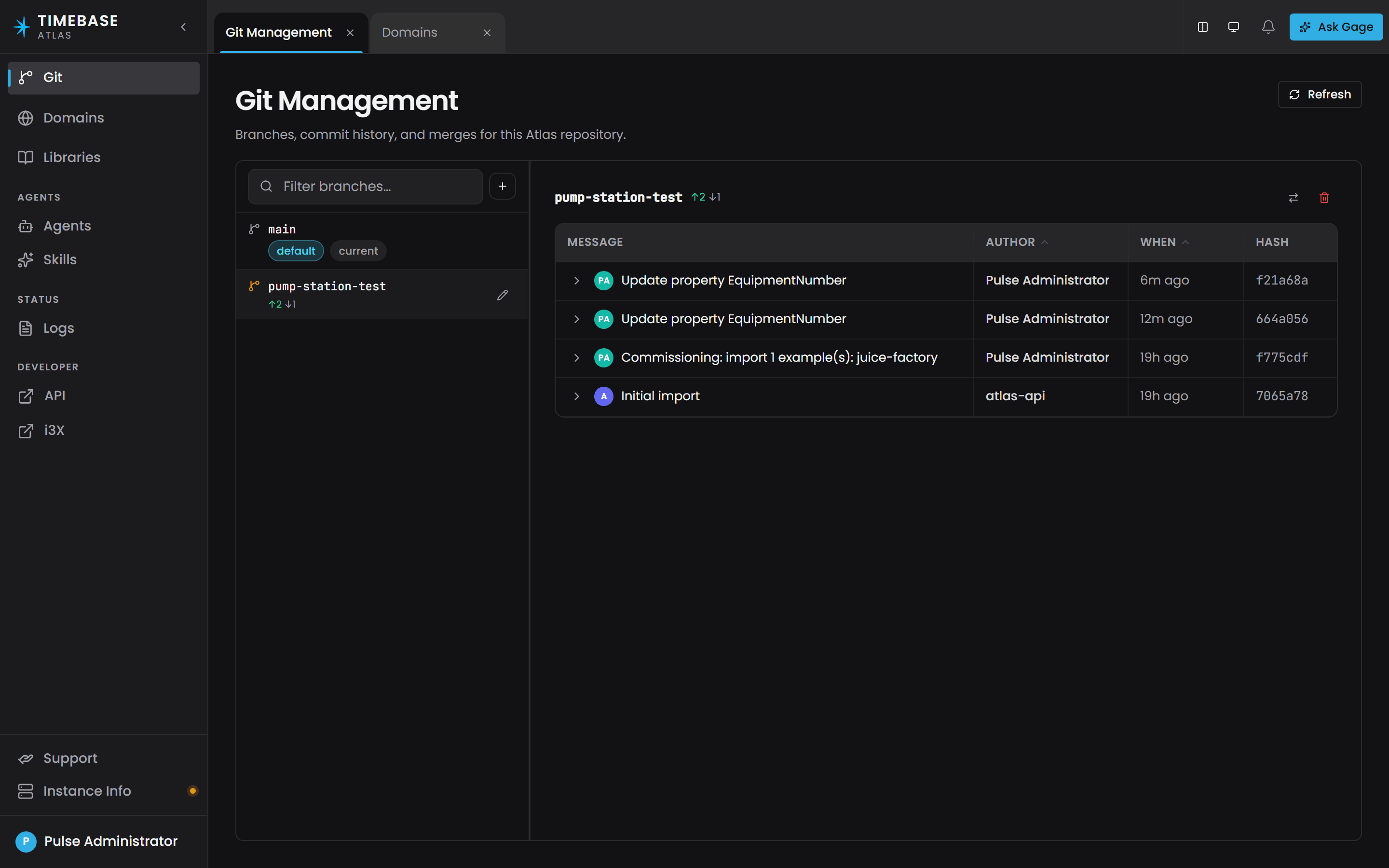
A Refresh button sits at the top right. The page also refreshes itself when you return to the browser tab, after any action you take on it, and whenever an edit lands on the branch you are looking at, so what you see stays current even when a colleague, an agent, or an MCP tool is writing at the same time.
the current badge is informational only. Atlas moves it around internally as it processes writes; it is not a branch you have selected, and it has no bearing on which branch your work goes to.
draft branches never appear in the rail. See Work that has not reached the branch yet below.
the branch actions on this page require an administrator role. The buttons are visible to everyone, and using one without that role returns a permission message.
Creating a branch#
-
Open Git in the left navigation.
-
Select the branch you want to copy from in the Branches rail.
-
Click New branch.
-
Check Base branch. It defaults to the branch you had selected. Change it if you want to branch from somewhere else.
-
Type a name into Branch name. Type it however you like: "Pump Station Test" is fine. Atlas cleans it up as you type and shows the result under the field as Will be created as
pump-station-test. -
Click Create branch.
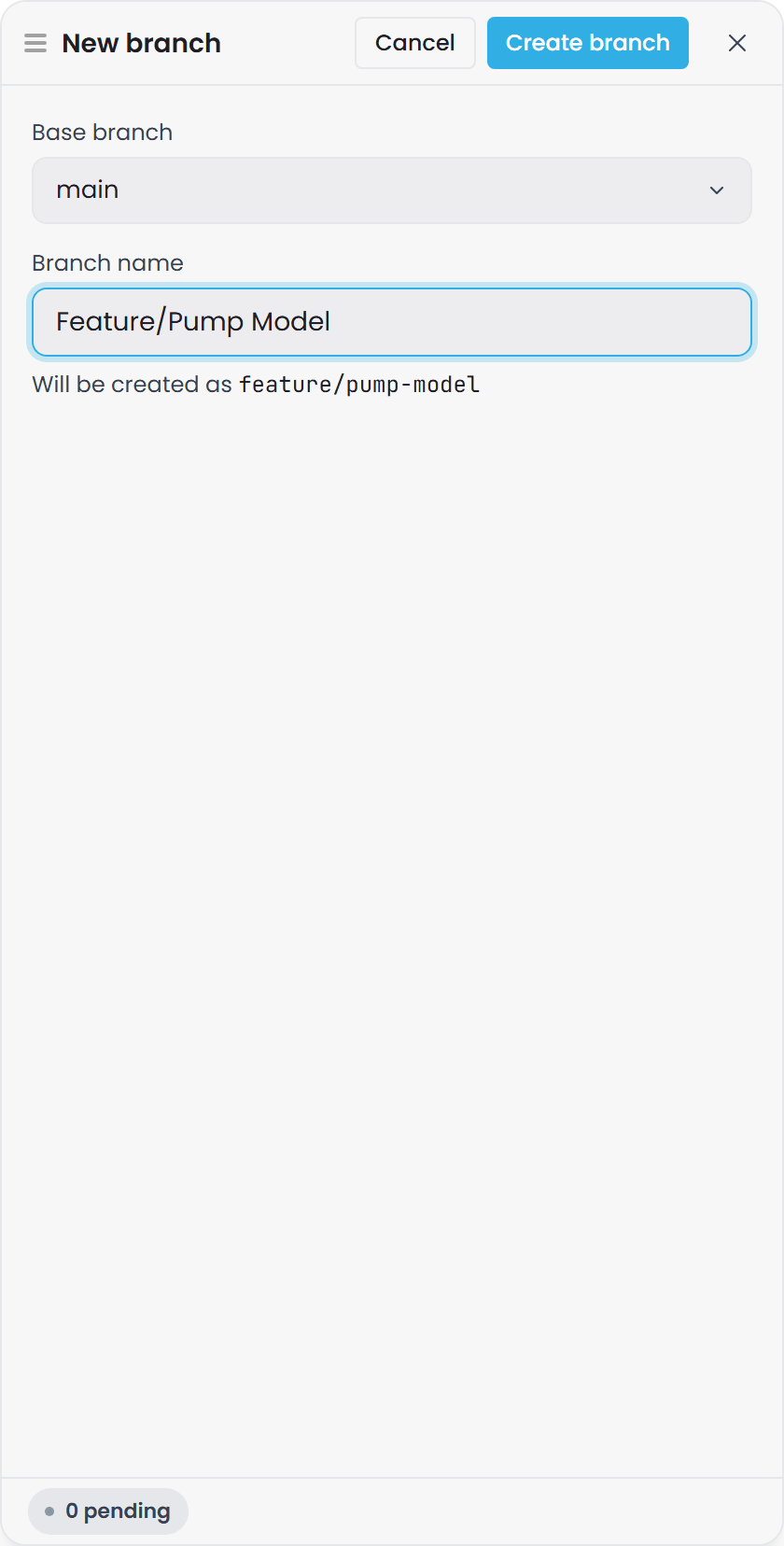
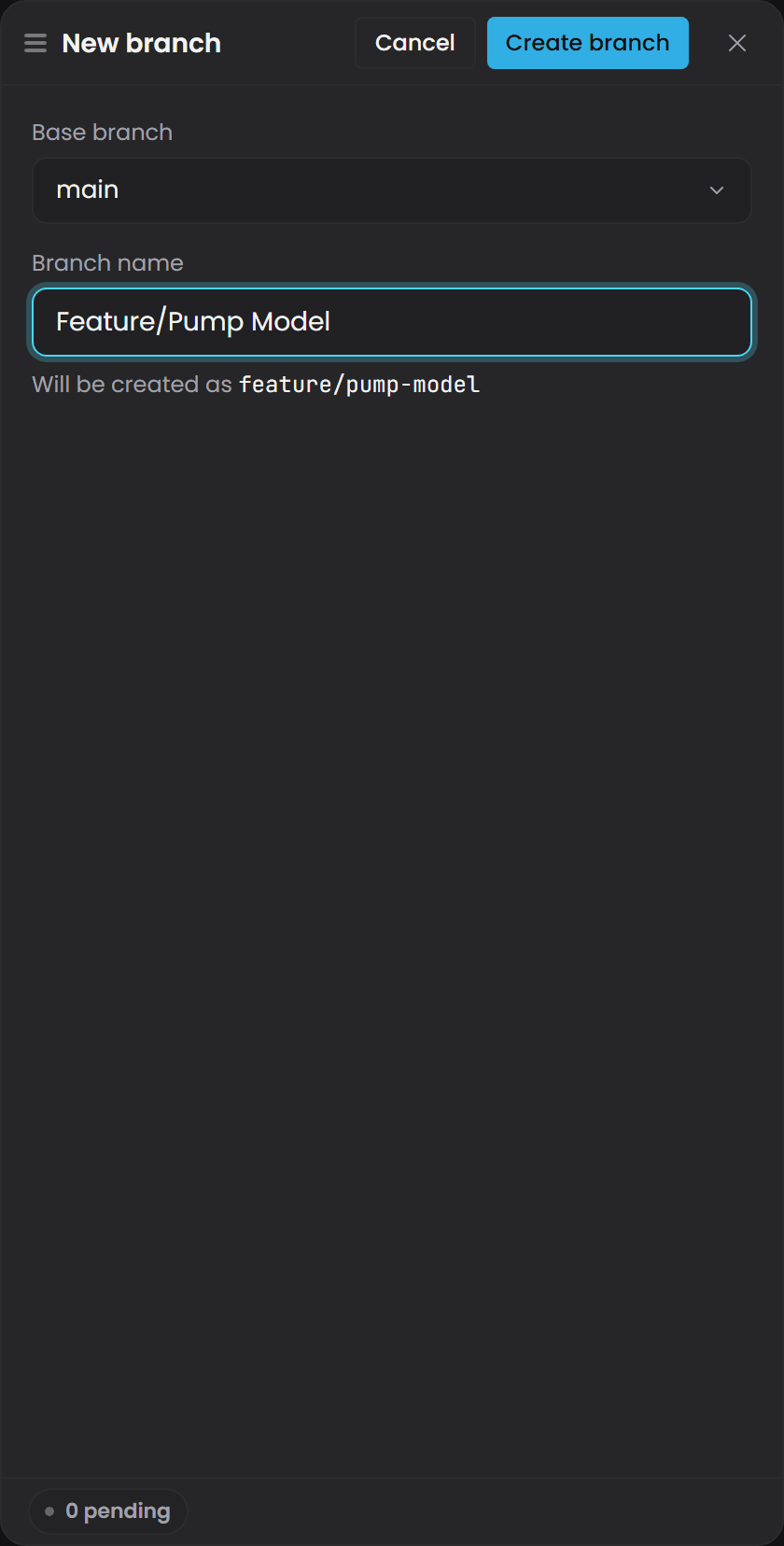
The new branch appears in the rail and is selected for you. It starts as an exact copy of the base branch at that moment: the same ontology, the same instance maps, the same libraries. From then on the two are independent.
How the name is cleaned up. The dialog lowercases what you type, turns spaces into hyphens, removes characters Git does not allow in a branch name, collapses repeated separators, and trims separators off both ends. Forward slashes survive, so typing feature/pump-model gives you exactly that. If what you typed cleans up to nothing at all, Create branch stays disabled.
that cleanup is done by the dialog. Over the API the name you send is used as given, so send an already-valid branch name from a script.
Renaming a branch#
- Open Git.
- Hover the branch in the Branches rail and click the pencil icon.
- Type the new name into New name. The dialog shows Will be renamed to with the cleaned-up result, exactly as the New branch dialog does.
- Click Rename.
If you were looking at the branch you just renamed, the page follows it to its new name. Any tabs you had open on that branch are updated too.
The default branch has no rename action, and the server refuses the rename even if the request reaches it another way.
Comparing before you promote#
Compare answers the question you ask before promoting or removing a branch: what is on it that is not on the trunk?
The selected branch's header already shows a summary against the default branch, for example 12 ahead, 3 behind. "Ahead" is commits on this branch that the default branch does not have. "Behind" is commits on the default branch that this branch does not have.
For the detail:
- Select the branch in the Branches rail.
- Click Compare.
- Pick a branch in Compare against. It starts on the default branch, but you can compare against any other branch.
- Read the counts, then the list of changed files. Each file carries a badge saying whether it was added, modified, deleted, renamed or untracked.
- Click any file. Its diff opens as a document tab of its own, named for the file and the branch, with Side-by-side, Inline and Modified only views; unchanged stretches are folded and a click unfolds them.
- Click Compare again (it reads Close compare while open) to go back to commit history.
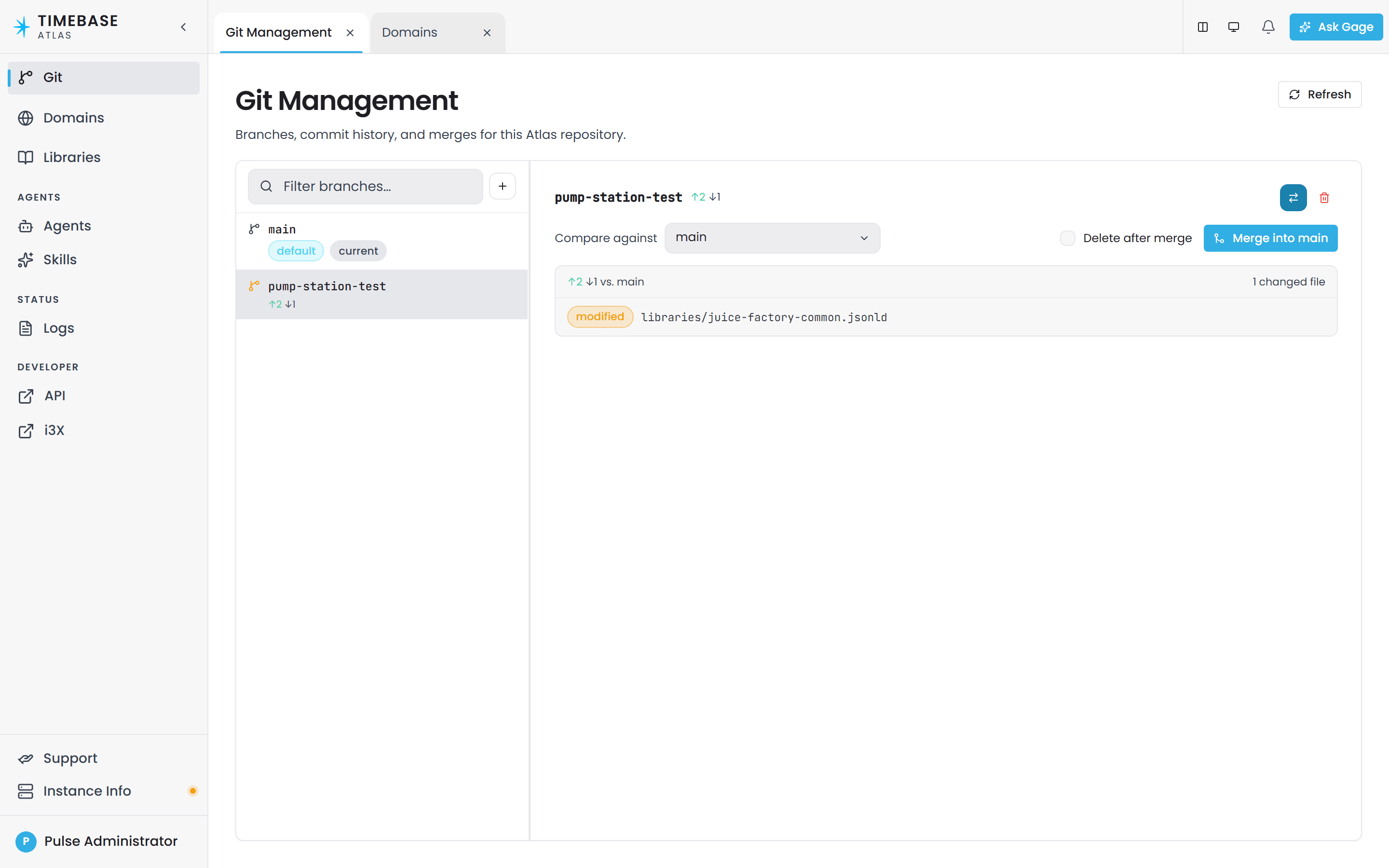
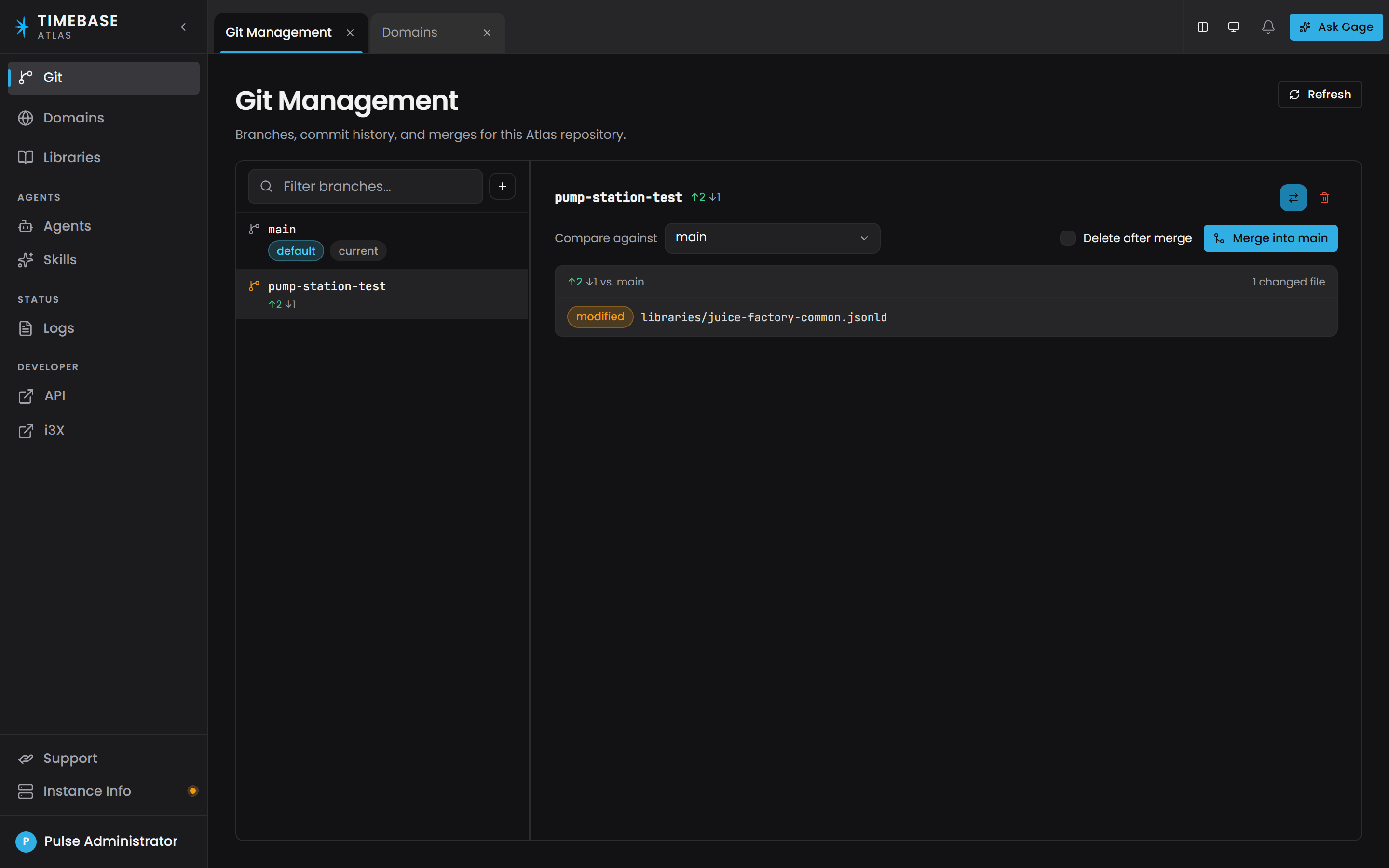
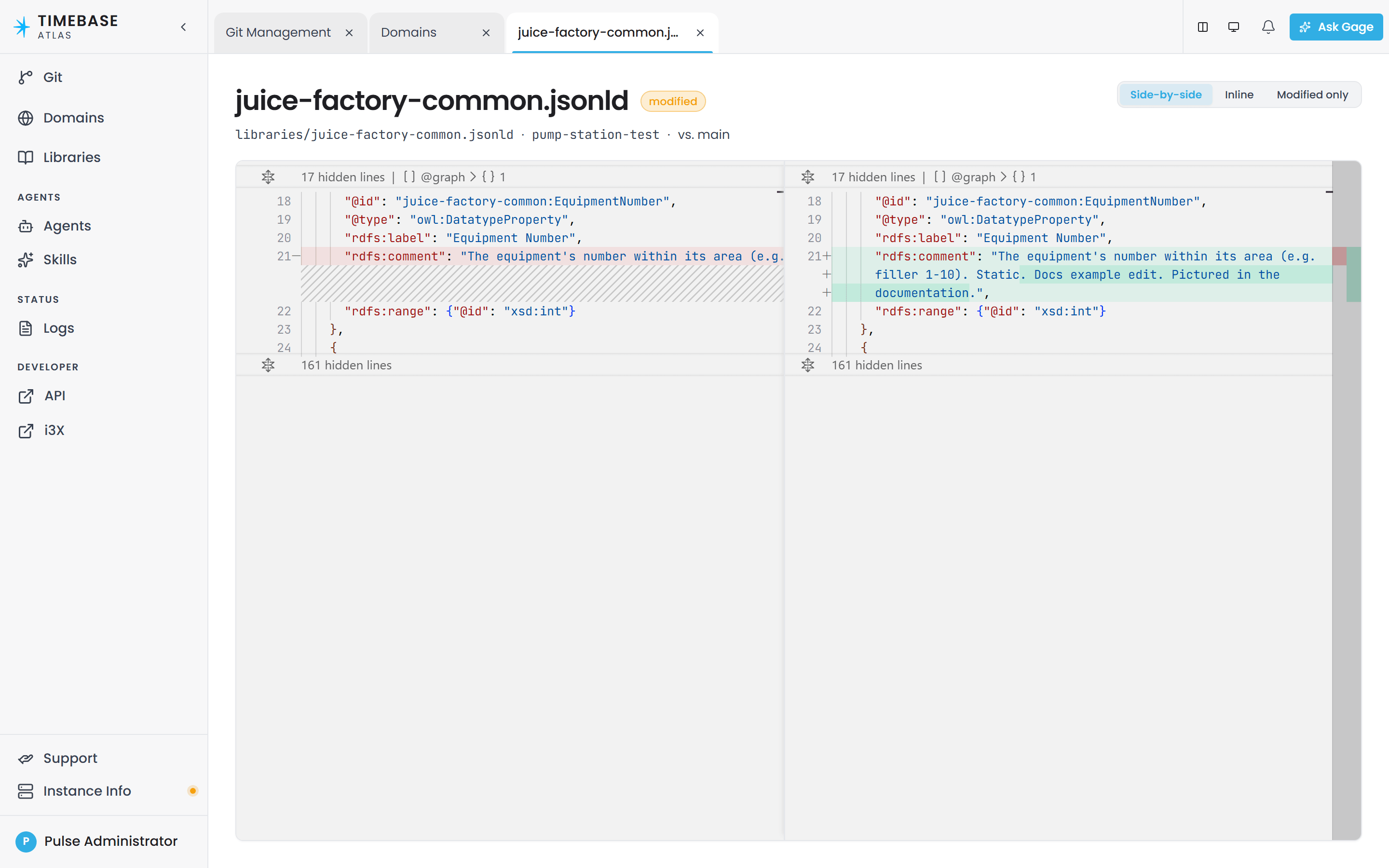
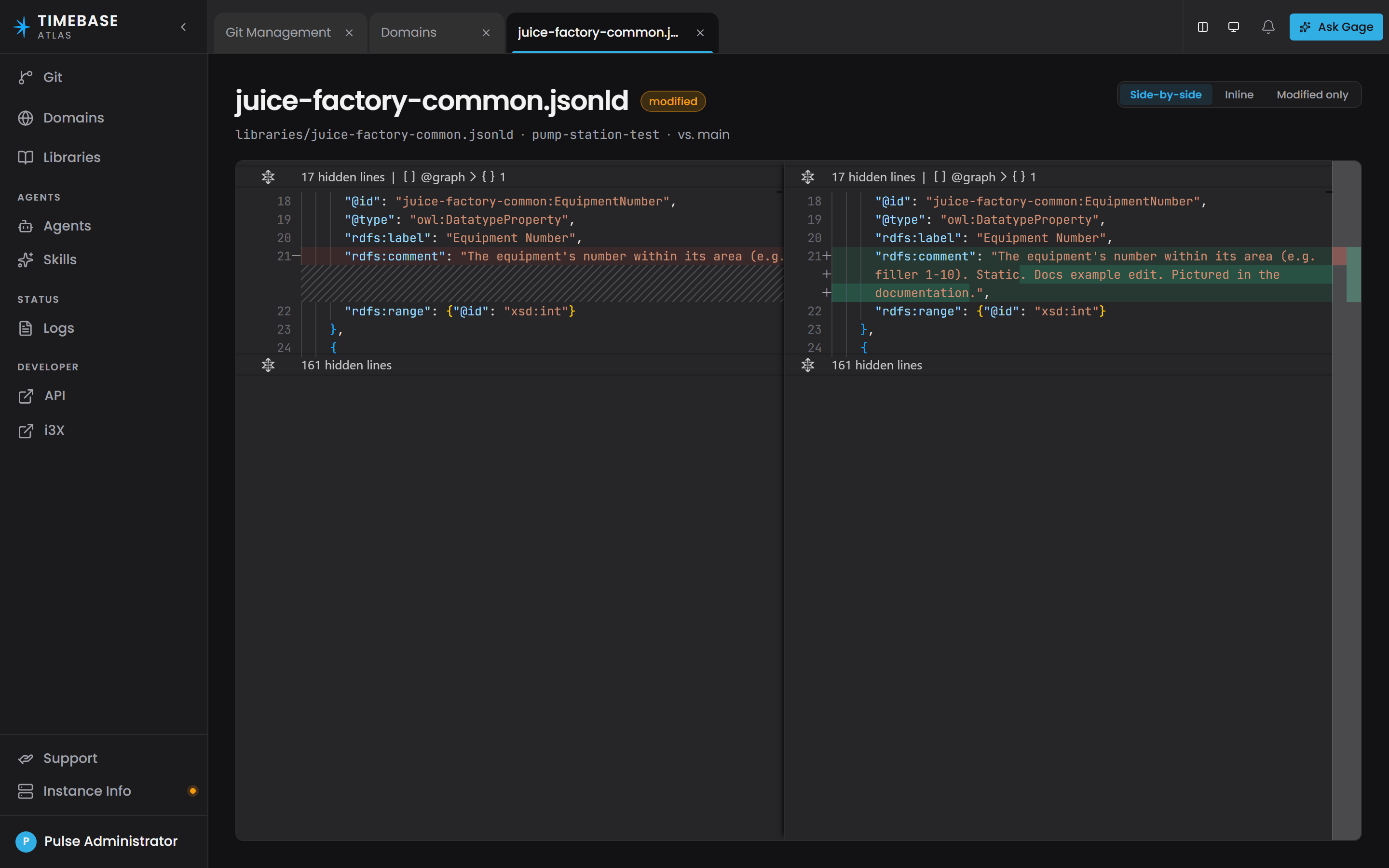
If the two branches are identical you get No differences between these branches.
Reviewing commit history#
With a branch selected and Compare closed, the right pane lists that branch's commits, newest first, with the message, the author, when it happened and the short hash. Expand a commit with the chevron on its row to see the files it touched, each with its modified or added badge; click a file to open its diff in a tab of its own.
Click Load more to page further back. Atlas returns commits in pages rather than all at once.
over the API, GET /api/v1/branches/{branch}/commits returns 10 commits when no limit is given. Pass limit (1 to 100) and follow nextCursor until it comes back null to read the full history.
Merging a branch#
Merging is how you promote work. The source is the branch you are looking at; the target is the branch it merges into.
-
Open Git and select the branch whose work you want to promote.
-
Check the ahead/behind counts in the header, then click Compare. The Compare view is where the merge lives.
-
Check Compare against. It defaults to the default branch, and it is also the branch you will merge into; pick any other branch if you need to.
-
Read the changed files, and open any you want to review.
-
Optionally tick Delete after merge to clean the branch up in the same step. This only ever runs if the merge itself succeeds.
-
Click Merge into
. -
The dialog tells you how many commits will be merged, for example
12 commits will be merged into "main"., and states the conflict policy. Click Merge.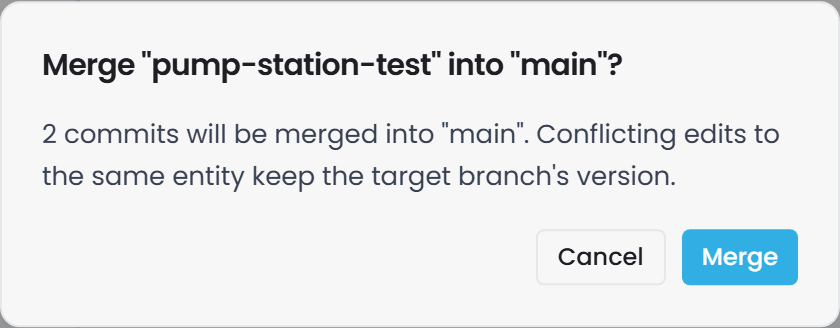
-
Recompile the target branch. A merge changes the model files, but nothing recompiles automatically. See Compiling after a merge below.
How Atlas resolves overlapping edits. The dialog states the policy: Conflicting edits to the same entity keep the target branch's version. Atlas resolves two people’s edits to the same ontology file automatically, by merging the definitions each side added. It resolves the commissioning record the same way: when both branches imported examples, the merged branch lists every example either side imported. If it can do that, the merge completes and you get a normal merge commit.
Read the response body after a merge#
When Atlas cannot resolve a conflict automatically it stops the merge and leaves the target branch untouched, and it reports that outcome in the response body rather than as an error status.
In the interface the Merge dialog shows "Merge conflict - these files could not be merged automatically. The branch was left unchanged.", lists the files it could not merge, and leaves Close as the only action.
Over the API, POST /api/v1/branches/{source}/merge returns:
200 OK
Check the success field in the body rather than the status code. Request problems - a branch name that does not exist, or merging a branch into itself - come back as error statuses.
A conflicted merge is safe: nothing is half-applied and the target branch does not move. Fix the listed files on the source branch, or merge the target into the source first to bring it up to date, then merge again.
Deleting a branch#
-
Open Git.
-
Select the branch in the Branches rail and click the bin icon at the top right of the right pane.
-
Atlas checks the branch's history first and tells you what you are about to lose:
- If everything on the branch is already on the default branch, you just see This action cannot be undone.
- If it is not, you see for example 12 commits exist only on this branch. and you must tick I understand this will permanently delete these commits. before Delete becomes available.
-
Click Delete.
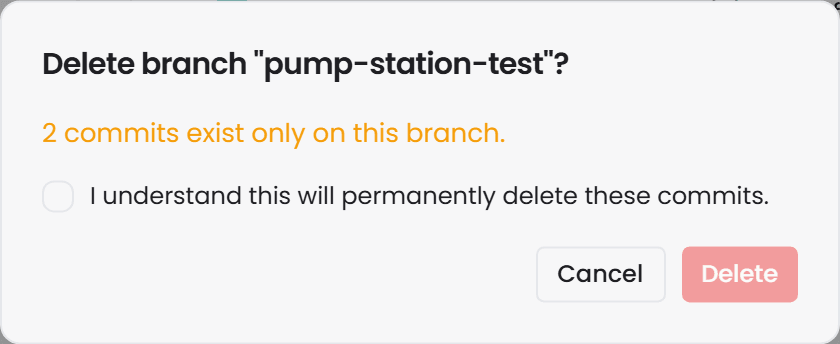
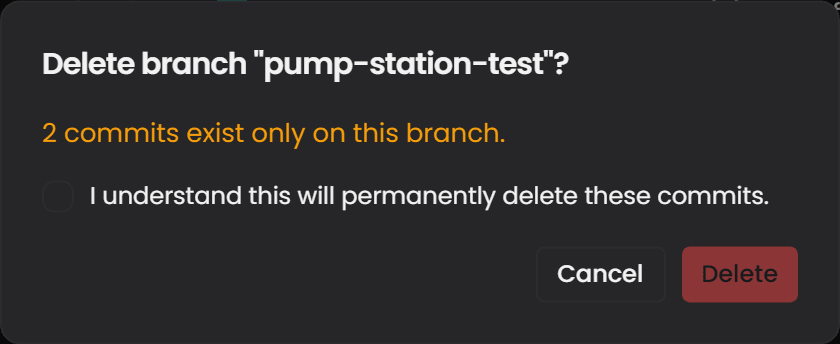
What is deleted: the branch and any commits that exist only on it. Nothing on any other branch is affected, and neither the connector registry nor the library catalog is touched.
Three deletes are refused outright:
| Refusal | What it means |
|---|---|
Branch.CannotDeleteDefault (403) |
You tried to delete the default branch. It is never deletable, regardless of any force flag. The interface offers no delete action on it at all. |
Branch.IsDraftSession (403) |
You tried to delete somebody's private draft branch. Discard the draft session instead. These branches never appear in the rail, so you can only hit this over the API. |
Branch.NotFullyMerged (409) |
The branch has commits the default branch does not have, and you did not force the delete. |
the "is it fully merged?" check is made against the default branch, which is what the delete dialog shows you.
Work that has not reached the branch yet#
A save that validates cleanly is committed straight to the branch. A save with outstanding validation problems is held in a private draft session on that branch, so the branch itself does not move and nobody else sees the work until you publish it.
Draft sessions are created lazily. A session exists only because a save failed validation, so if you have a draft session, you have unpublished work that does not currently validate. It belongs to you and to one branch, so you can hold several at once, one per branch.
What this means for branch management:
- A successful save does not prove the branch advanced. If a change is missing, open the Validation screen for the domain, fix what is listed, then publish the draft.
- A Draft pill in the modeling header tells you a session is open, on every modeling screen for that branch and for the whole life of the session. If you are not sure whether your work is published, that pill is the answer.
- A session spans the branch, not a domain. Publish promotes every domain and library you changed on that branch at once, and the Unpublished changes panel names them. Readiness is judged the same way: the button is only ready when all of them are clean.
- Draft branches do not appear in the Branches rail or in
GET /api/v1/branches, so a tidy branch list is not a statement that everyone's work is published. - Draft branches cannot be renamed or deleted like ordinary branches. Discard the session instead.
- Compiling from a draft builds your copy only. You get your own compile result back, and the shared compiled world that everyone queries is left in place until you publish.
- Deleting a domain or a library is refused while you hold a draft session on that branch. Publish the session or discard it, then delete. See below.
Deleting while a session is open#
Deleting a domain or a library is refused, with a message naming your draft and both ways out, while you hold a draft session on the branch you are deleting from.
Every other write is different: a create, an edit or a library import simply goes into the session and waits for you to publish. A delete cannot, because there is nothing about a delete to fix and publish later. Leaving one parked in a private session would mean the branch still shows the domain to everybody else while your own later edits fail against a tree that no longer has it.
What to do: publish the session if the work in it is ready, or discard it if it is not, then delete. In the interface the Delete dialog checks first and opens already blocked, with the confirm button disabled and an explanation, so you find out before you confirm rather than after.
Only your own session blocks you. A colleague holding a draft on the same branch never stops your delete.
Over the API the signal is the Atlas-Validation-Violations response header on the write, and the draft endpoints are GET /api/v1/branches/{branch}/draft, POST .../draft/publish, POST .../draft/refresh and DELETE .../draft. The status read reports hasSession, aheadCount, behindCount, diverged and canPublish, plus changedDomains, changedLibraries and otherChangeCount: the exact set Publish promotes, deletions included.
Draft sessions are covered in full in Timebase Atlas Key Concepts and Compiling and Deploying a Domain.
Compiling after a merge#
Each branch has its own compiled world per domain, so compiling dev never affects the default branch, and merging into the default branch never recompiles it.
A merge changes model files. It does not rebuild the compiled world. Connectors, dashboards and queries read the compiled world of whichever branch they are configured for, so after promoting work into your live branch you must recompile that branch's domains.
You no longer have to remember this by hand. Atlas tracks whether a compiled world still matches the branch content and marks the domain stale when it does not. The domain's Overview screen shows the prompt to recompile, and over the API GET /api/v1/branches/{branch}/domains/{domain}/world reports:
| Field | Meaning |
|---|---|
isStale |
true when the branch has moved in a way that touches this domain's files or one of its imported libraries |
compiledAtSha |
The commit the current compiled world was built from |
currentSha |
The branch's current commit |
Staleness is computed on demand from the repository content, not stored, and it follows the whole chain of imported libraries. So a merge that only changed a library the domain imports still correctly marks that domain stale.
Compile with PUT /api/v1/branches/{branch}/domains/{domain}/world. A successful compile returns entityCount, edgeCount, archetypeCount, compiledAt and functionErrors[]. A compile with outstanding validation violations returns 422 with a violations[] array, and the world is built once the last Error is cleared.
Atlas recompiles every branch-and-domain pair it knows about when it starts up, so you do not need to recompile after a restart. The exception is a domain whose instances come from a connector: Atlas waits for that connector to connect and advertise before compiling it.
Branch hygiene and memory#
Compiled worlds are held in memory, one per branch-and-domain pair, and they stay resident for the life of the process. Memory therefore tracks the number of branches multiplied by the number of domains compiled on them.
A team working on three or four branches will not notice. If you create a branch per ticket and compile on each one, keep the branch list tidy and restart Atlas after a large clean-up to release the memory. See Hardware Requirements Guide for sizing.
How branches behave under load#
Reading is cheap and never blocks. Atlas resolves the branch to a specific commit once and reads the content directly from the repository's object store, without checking anything out and without taking any lock. Any number of people can read from any number of branches at once, and reads never block writers or each other.
Writing serialises per branch. Each write takes a short-lived lock on the branch it targets, does its work in a private scratch area, commits, and advances the branch. Two writers on the same branch queue behind each other; writers on different branches do not interact at all. A merge takes the same lock, on the target branch, so a merge can never race an edit landing on the branch it is merging into.
For a bulk import, this means the useful lever is to spread work across branches rather than to parallelise writes into one branch.
Automating branch work#
The machine-facing API for branches is /api/v1/branches. Everything the Git page does is available here. This section is the summary; the request and response shape of every route, the error each refuses with, and a review workflow for an automated import are in Atlas API - Branches and Commits.
Authentication is required. Send a Pulse-issued bearer token with Atlas in its audience:
Authorization: Bearer <token>
A request without one may be redirected to the sign-in page, so a client that follows redirects receives HTML rather than a 401. See Atlas API Overview.
| Task | Call |
|---|---|
| List branches | GET /api/v1/branches |
| Create | POST /api/v1/branches with {"name": "dev", "from": "main"} |
| Rename | PATCH /api/v1/branches/{branch} with {"newName": "dev-2"} |
| Delete | DELETE /api/v1/branches/{branch}?force=true |
| Commit history | GET /api/v1/branches/{branch}/commits?limit=50&cursor=... |
| Compare | GET /api/v1/branches/{branch}/compare?base=main |
| Merge | POST /api/v1/branches/{source}/merge with {"target": "main"} |
| Files in a commit | GET /api/v1/commits/{sha}/files |
| Diff of a file | GET /api/v1/commits/{sha}/diff |
| Compile | PUT /api/v1/branches/{branch}/domains/{domain}/world |
| Compile status | GET /api/v1/branches/{branch}/domains/{domain}/world |
| Run a query | POST /api/v1/branches/{branch}/domains/{domain}/queries |
Details worth knowing:
- List returns
{name, isCurrent, isDefault, upstream}per branch.isDefaultis resolved by the server; never work it out yourself from the name. Draft branches are filtered out. - Create returns
201withLocation: /api/v1/branches/{name}and a body of{"name": "..."}. A name already in use returns409 Branch.AlreadyExists.fromis optional. - Rename returns
200with{"name": "<new name>"}. Renaming the default branch is refused. - Delete returns
204on success. Sendforceexplicitly on every call - the API applies no default for it. - Commits are cursor-paged, with the
limit=10default described above. Pass"HEAD"as the branch name to read the branch Atlas is currently parked on. - Compare takes the head branch in the path and the base as a query parameter, and returns
{aheadCount, behindCount, changedFiles[]}. - Merge takes the source in the path and the target in the body. Check
successin the body, not the status code.
Commit attribution#
Commit authorship comes from the authenticated caller. A request that carries no identity, or one made while authentication is switched off, lands as:
Anonymous <anonymous@atlas.local>
Give each pipeline its own Pulse client identity and have it authenticate like any other caller. Its name then appears in the Atlas commit history and in the Git page's commit list.
The /app/branches paths#
The Git page calls /app/branches rather than /api/v1/branches. /app is the route set the Atlas web interface uses for itself: it is gated on the browser session cookie and is not part of the published API. Build against the /api/v1 routes above.
A team workflow#
- Create a branch from the default branch, for example
feature/pump-model. - Make your changes on that branch: types, instance maps, library edits.
- Compile the branch and run a query or two to check the result. Compiling here cannot affect the live branch.
- Open Git, select the branch, and check Compare to see exactly what changed.
- Click Merge, target the default branch, and confirm.
- Recompile the default branch's affected domains, or check
isStaleon each of them. - Delete the feature branch, either from the rail or with the Delete after merge checkbox in step 5.
Connectors do not need restarting. They keep serving against the branch they are configured for and pick up the newly compiled world.
For an automated pipeline, the same sequence with the checks to make at each step:
- Make changes on a named branch.
- Check the
Atlas-Validation-Violationsheader on each write. Anything other than absent or zero means the change went to a draft session and the branch did not advance. Fail the build. - Compile the branch with
PUT .../world. Treat a422withviolations[]as a hard failure, and inspectfunctionErrors[]on a200. Warnings are read fromGET .../validationrather than from the compile response. - Run a smoke-test query with
POST .../queries. - Merge with
POST /api/v1/branches/{source}/merge. Checksuccessin the response body, not the status code. - Compile the target branch, or poll
GET .../worlduntilisStaleisfalse. - Delete the feature branch with
DELETE /api/v1/branches/{branch}?force=true.
Troubleshooting#
| Symptom | Cause | Fix |
|---|---|---|
| A merge returned 200 but nothing changed on the target branch | The merge hit a conflict Atlas could not resolve, so it stopped and left the target untouched, reporting success: false in the body |
Read success and conflictFiles in the response body rather than the status code. In the interface, the Merge dialog shows the conflicted files. Fix them on the source branch or merge the target into the source first, then merge again |
A branch request returns HTML and your parser fails on < |
The URL is outside the API surface, so Atlas served the web interface's page shell, or the request carried no bearer token and was redirected to the sign-in page | Check Content-Type before parsing. Use /api/v1/branches, PUT .../world and POST .../queries, and send Authorization: Bearer <token> |
Your pipeline's commits are all attributed to Anonymous |
The requests carry no authenticated identity | Give the pipeline its own Pulse client identity and authenticate the requests |
| A change you saved is not on the branch, even though the save succeeded | The save had validation problems, so it went into your private draft session and the branch did not move | Open the Validation screen for the domain, fix what is listed, then publish your draft. Over the API, check the Atlas-Validation-Violations header and GET /api/v1/branches/{branch}/draft |
| You saved, compiled, and nothing changed | Same cause. Compiling from a draft builds your copy and leaves the shared compiled world in place | Publish the draft first, then compile |
| Changes are not appearing in queries after a merge | The target branch's compiled world was not rebuilt. A merge never recompiles | Recompile the target branch's domains, or check isStale on GET .../world. Also confirm you compiled the branch you merged into |
A library edit on dev has not shown up on the default branch |
Library content is branch-scoped, not shared | Merge dev into the default branch, then recompile the domains that import that library |
| A new branch looks empty | You branched from a branch that had no content, not from the branch you meant | Delete it and create it again with the right Base branch. The dialog defaults the base to whichever branch was selected, which is not always the trunk |
| Delete fails with "is the default branch and cannot be deleted" | The default branch is permanently protected. A force flag does not override it | Nothing to fix. If the wrong branch is being treated as the trunk, set Git:DefaultBranch in settings.config and restart Atlas |
| Delete fails with "is an editing-session draft branch" | The name you passed is somebody's private draft branch, not a model branch | Discard the editing session instead of deleting the branch |
| Deleting a domain or a library is refused, naming an unpublished draft | You hold a draft session on that branch, and a deletion cannot be held in one | Publish the session, or discard it, then delete |
| The Publish button says another domain still has errors, but the list on screen is empty | Readiness covers every domain and library in the session, and the list only covers the screen you are on | Open the one the button names and clear its outstanding items |
| Delete fails with "is not fully merged" | The branch has commits the default branch does not have | Merge it first, or delete with force=true (in the interface, tick the confirmation box) once you are sure you can lose that work |
| A rename action is missing on a branch row | That row is the default branch, which cannot be renamed | Nothing to fix. Change Git:DefaultBranch if the trunk itself is wrong |
| Commit history over the API looks short | GET .../commits returns 10 entries when no limit is given |
Pass limit (up to 100) and follow nextCursor until it returns null |
| A branch action in the interface reports a permission error | Branch create, rename, delete and merge require an administrator role | Sign in with an administrator account, or ask an administrator to run the action |
| Two branches show identical content | They were created from the same source and nothing has been changed yet | Expected. Branches begin as exact copies |
| The live model changed when nobody promoted anything | Somebody edited the default branch directly | Do all work on a feature branch and promote through Merge after review |
| Atlas memory grows on a server with many branches | Compiled worlds are held per branch and domain for the life of the process | Keep the branch list tidy, avoid compiling on throwaway branches, and restart Atlas after a large clean-up |
Related articles#
| Article | Covers |
|---|---|
| How Atlas Uses Git | What Atlas stores in the repository and how commits are made |
| Timebase Atlas Key Concepts | The vocabulary: branch, version, draft session, world, compile |
| Compiling and Publishing a Domain | The compile lifecycle, staleness and draft publishing |
| Atlas API - Branches and Commits | Every branch and commit route with its request, response and errors, and the review workflow for an automated import |
| Atlas API Overview | The /api/v1 surface, authentication, error format and pagination |
| Atlas Libraries | Creating, importing and versioning libraries |
| Validation Rules Reference | Every validation rule ID and how to clear it |