Historian MCP Server
The Timebase Historian publishes an MCP server at /mcp for AI agents and assistants: which tools it offers, how a client authenticates, how to connect from Claude, Cursor, VS Code or Postman, and what it deliberately does not expose.
What is MCP?#
MCP, the Model Context Protocol, is an open standard that lets an AI model call tools in another product. An MCP client, which may be a desktop assistant, a coding agent or an orchestration framework, connects to an MCP server, asks it which tools it has, and calls them on the model's behalf. The Historian is such a server: a client connected to it can list datasets, find tags and read time-series data, and the model can reason over the answers.
Every Timebase component publishes an MCP server of the same shape. This page covers the Historian's; MCP Servers Across Timebase lists the others, and Atlas MCP Server covers the one component whose MCP server also takes writes.
Where to find it#
The server is built into the Historian and listens on the Historian's own ports:
| Address | https://<your historian>:4512/mcp |
| Plain HTTP | http://<your historian>:4511/mcp, for a local trial only |
| Transport | Streamable HTTP. Choose "HTTP", "Streamable HTTP" or "remote server" in your client, never STDIO |
Your ports differ if you changed the Historian's Kestrel endpoints. See Component Settings.
the MCP server is a Historian feature add-on. See Licensing for how it is licensed.
What it publishes#
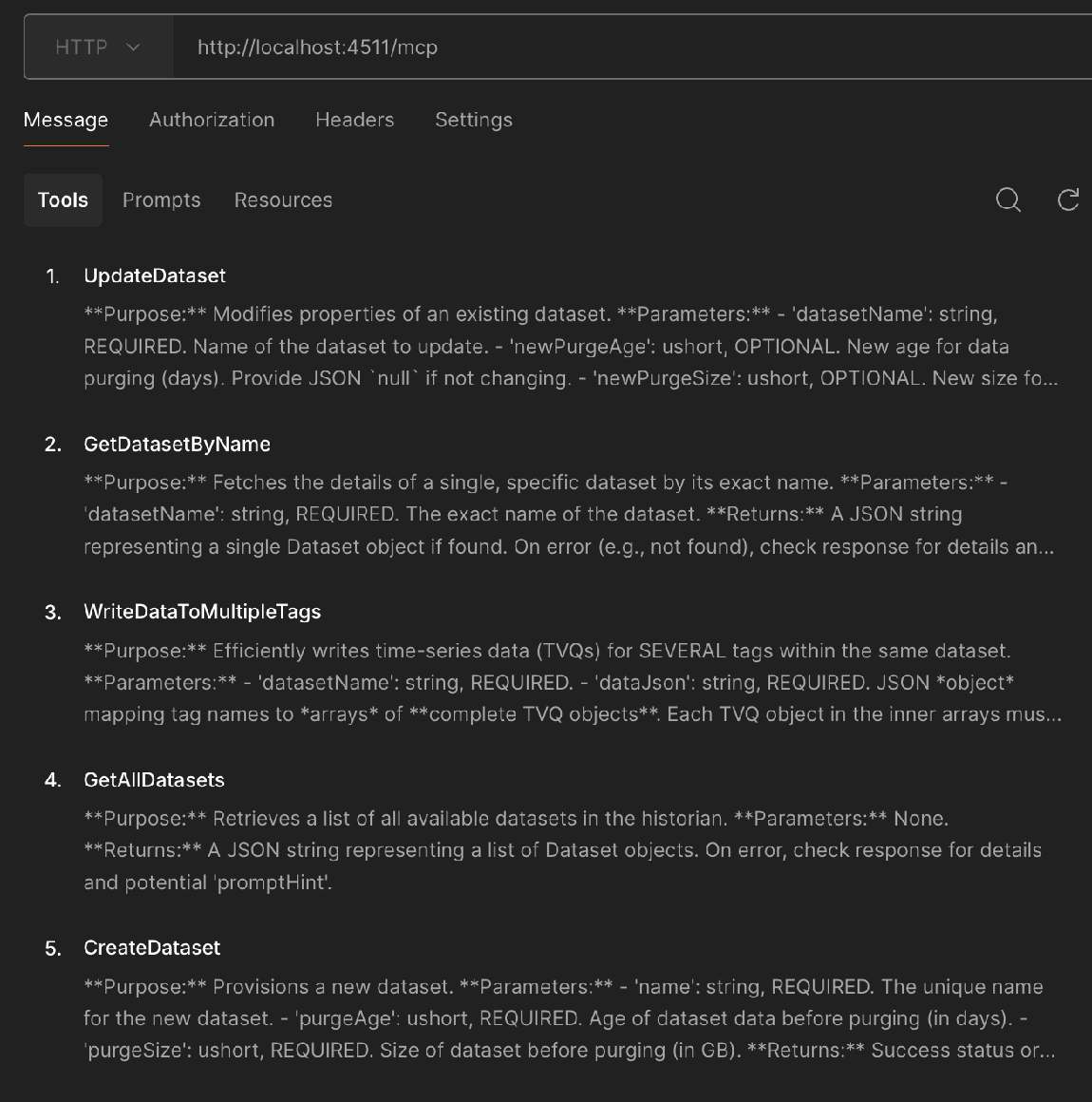
The Historian's MCP server publishes its read tools, the shared discovery tools every component carries, and the log reader. It publishes no prompts; the guidance that used to be delivered as prompts is now carried in the tools' own descriptions and in the built-in skills.
| Tool | What it does |
|---|---|
GetAllDatasets |
Every dataset, with its purge age and size, tag count and current size |
GetDatasetByName |
One dataset by exact name, including its late-data settings |
GetTags |
The tags in a dataset, grouped by bucket, optionally filtered by a text the name contains |
GetDataForMultipleTags |
Time-series values for one or many tags over a time range. The efficient way to pull data: one call, many tags |
ListSkills, GetSkill |
The skills defined on this host, and one skill's full instructions |
ListAgents, GetAgent, ListToolProviders |
The agents defined on this host, one agent's definition, and the tool providers that exist |
GetLogs |
Recent log lines from this Historian, for diagnosing a problem without opening the files |
Everything on this list only reads. A model connected over MCP can look at your datasets, tags and data and cannot change them.
The write tools stay off MCP by design. The Historian also has tools that create and update datasets, add and update tags, and write values, and they require the administrator role. They are available to the Historian's own AI assistant when an administrator is signed in, and they are never published at /mcp, whoever connects. To change a dataset or write data from outside, use the Historian's interface or its REST API.
Authentication#
The Historian ships with Pulse authentication switched on, and /mcp is protected by the same rule as the rest of its API: every request needs a Pulse bearer token whose audience includes the Historian. A request without one is answered 401.
The token is a component token, the kind a service obtains from Pulse with a client id and secret. Register a client for your AI tool in Pulse with the Historian among its audiences, as Registering Timebase apps as OAuth clients in Pulse describes, request a token, and send it on every call:
Authorization: Bearer <token>
A component token expires after an hour by default and the header does not renew itself, so a client configured with a fixed header suits scripts and sessions of that length. Nothing on the Historian's MCP server needs a person's sign-in, because nothing on it writes.
With Pulse:Auth:Enabled set to false on the Historian, /mcp is open, like the rest of the API. That is for a local trial, never for a deployment.
Connecting a client#
The steps are the same for every client; only the wording of its settings screen changes.
- Obtain a Pulse bearer token with the Historian in its audience.
- Open your AI tool's MCP server settings and add a server.
- Set the transport to Streamable HTTP.
- Set the URL to
https://<your historian>:4512/mcp. - Add a request header named
Authorizationwith the valueBearer <token>. - Save and reconnect. The client lists the tools above.
Many clients store this as a small configuration file. The shape below is the common convention, and Claude Desktop, Cursor, Windsurf, VS Code and LibreChat all accept it or a close variant:
{
  "mcpServers": {
    "timebase-historian": {
      "type": "http",
      "url": "https://<your historian>:4512/mcp",
      "headers": {
        "Authorization": "Bearer <token>"
      }
    }
  }
}
Claude Code takes the same from the command line:
claude mcp add --transport http timebase-historian https://<your historian>:4512/mcp \
  --header "Authorization: Bearer <token>"
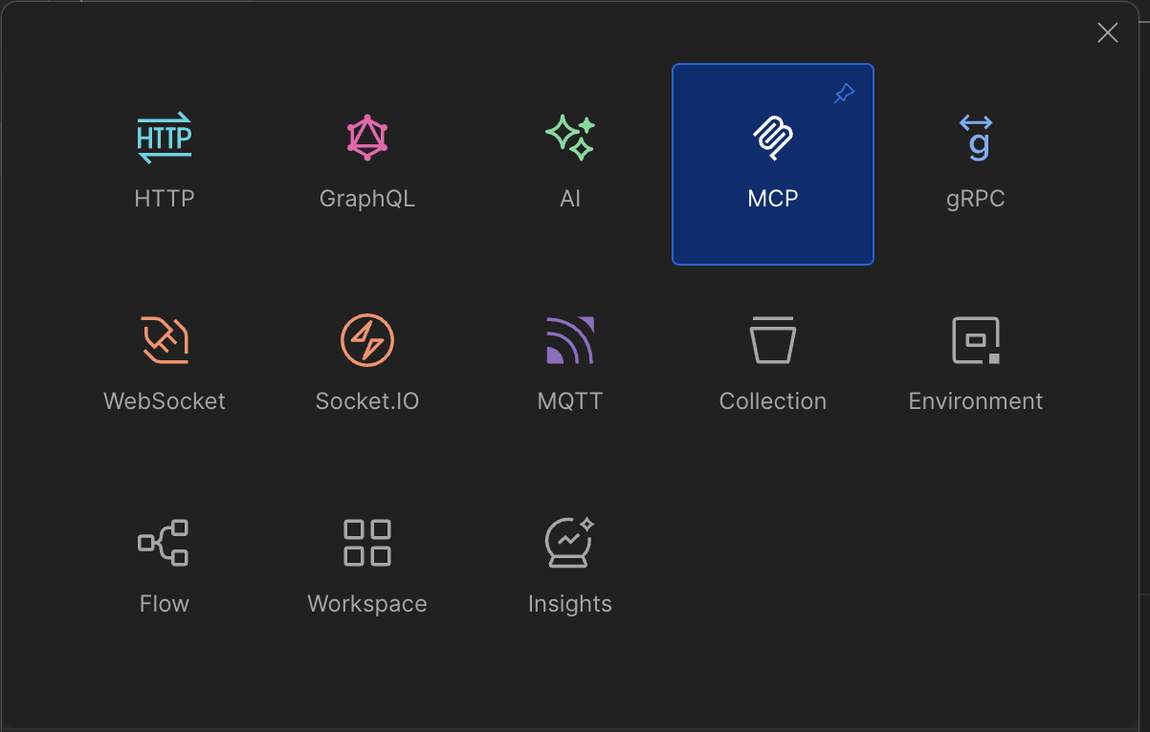
Postman can connect as well, which is a quick way to see the tool list without an AI model in the loop: create a new MCP request, choose HTTP, enter the URL, add the Authorization header, and connect. Postman lists the tools and lets you call one by hand.
Frameworks that act as MCP clients, such as the OpenAI Agents SDK and LangGraph, take the same URL, transport and header in their own configuration.
Troubleshooting#
| Symptom | Likely cause | What to do |
|---|---|---|
| The connection fails in Postman or an AI client | The Historian is not running, or the address or port is wrong | Confirm the Historian is running and reachable at the address, and that the port is its HTTPS port, 4512 on a default installation. |
401 Unauthorized |
No bearer token was sent, it has expired, or its audience does not include the Historian | Request a fresh token from Pulse for a client that lists the Historian among its audiences, and check the header is Authorization: Bearer <token>. A component token lasts an hour by default. |
| The client connects but lists no tools | The client is using STDIO, or an SSE-only transport, instead of Streamable HTTP | Select HTTP or Streamable HTTP in the client's transport setting. |
404 at /mcp |
The path is wrong, or the Historian is a version without the MCP server | The address must end in /mcp. Confirm the Historian is version 1.3 or later. |
| A TLS error against the HTTPS address | The client does not trust the Historian's certificate | Trust the Pulse root certificate on the machine the client runs on; see Timebase Certificates. Use the HTTP port only for a local trial. |
| The client asks the model to create a dataset or write values and the model says there is no such tool | The write tools are not published over MCP | Make the change in the Historian's interface or through its REST API. This is by design. |
GetLogs returns nothing useful |
The token does not carry what the host needs to read logs | On the Historian, GetLogs is gated by the same bearer rule as the other tools. Check the token, then check the Historian's log settings. |