Certificates and trust across Timebase
Pulse runs a root certificate authority (CA) that automatically signs TLS certificates for every Timebase component.
Overview#
Pulse runs a root certificate authority (CA) that automatically signs TLS certificates for every Timebase component. This document explains how the trust model works, how to configure automatic certificate management on consumers, how to supply your own certificate, and how to troubleshoot certificate issues. Readers are typically operators setting up new Timebase deployments or migrating to production TLS.
The trust story: one root CA, signed leaf certificates#
When Pulse starts, it generates a root CA certificate (a 4096-bit RSA key valid for 10 years) and stores it as a password-protected PFX file. Every component in the deployment -- Historian, Connect, Collector, Atlas, and others -- uses Pulse as its certificate authority:
-
On first start, a component generates its own 2048-bit RSA private key and creates a certificate signing request (CSR) containing only the public key and its identity (DNS names, IP addresses). It sends this CSR to Pulse.
-
Pulse signs the CSR, applying strict controls to prevent the component from requesting illegal certificate properties (e.g., claiming to be a CA itself). The signed leaf certificate is valid for 825 days (a browser-imposed limit) and is returned to the component.
-
The component stores the signed certificate and uses it for TLS. When the certificate approaches expiry, Pulse issues a replacement. Browsers and inter-component connections validate against Pulse's root CA, which is automatically installed in the operating system trust store.
The result is a fleet where every component's identity is cryptographically bound to Pulse, with no manual certificate pinning or PKI bootstrap ceremony needed.
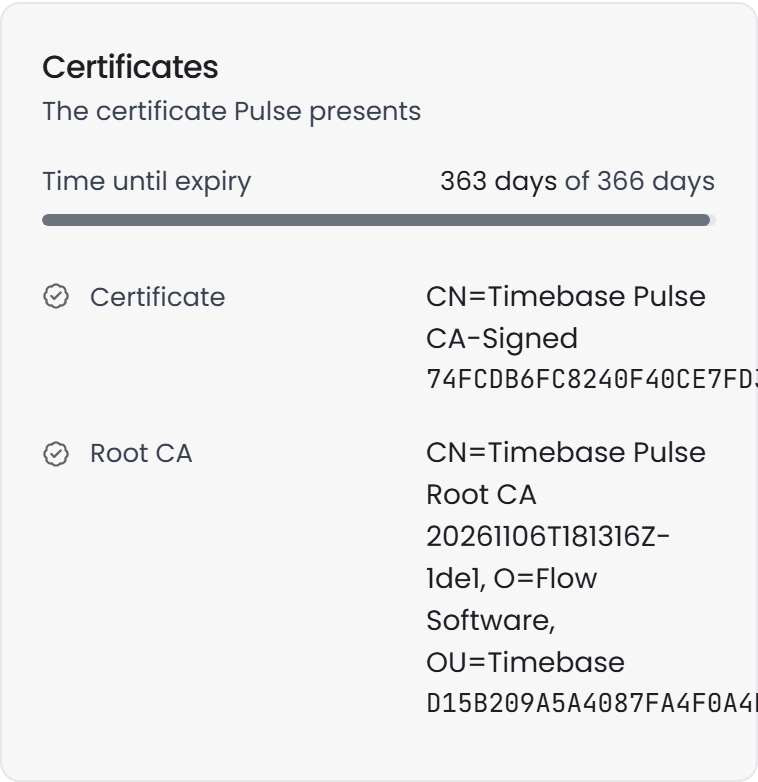
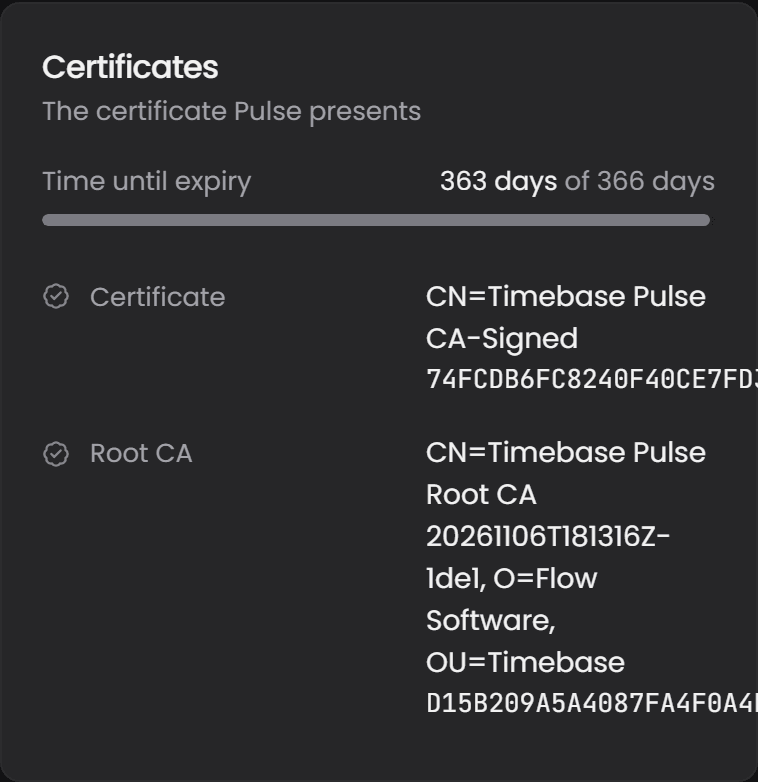
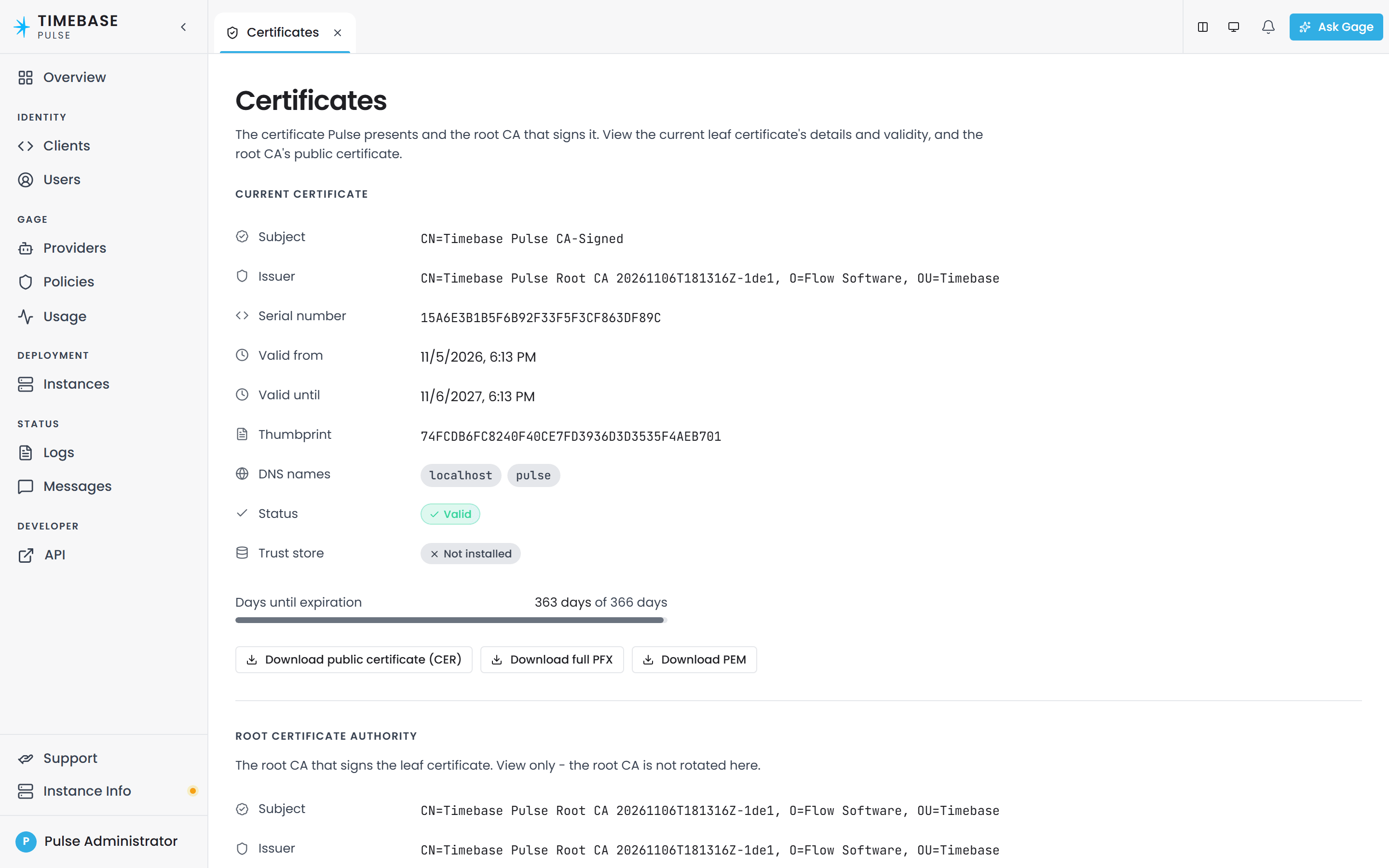
The certificate Pulse presents, and the root authority that signed it, are summarised on Pulse's Overview.
The two bootstrap routes#
Two HTTP endpoints carry the trust material. One is open, one is not, and the difference is worth understanding before you plan around either.
GET /api/ca - download the root CA public certificate#
GET https://pulse:4542/api/ca
Returns the root CA certificate in DER format (binary encoding). This is public information by definition. The root CA certificate contains only a public key and metadata; it has no private key and cannot sign anything. It is meant to be distributed to every client that needs to validate Pulse-signed certificates. Any attacker already has it (they can intercept the HTTPS connection and read it), so protecting this endpoint would prevent legitimate clients from obtaining it and accomplish nothing.
POST /api/ca/sign - submit a CSR and receive a signed leaf#
POST https://pulse:4542/api/ca/sign
Authorization: Bearer <a component's own client_credentials token>
Content-Type: application/octet-stream

<PKCS#10 CSR DER bytes>
Accepts a PKCS#10 certificate signing request and returns a DER-encoded leaf certificate signed by the root CA.
This route requires authentication, and specifically a component's own token. Three rules:
- With
Auth:Enabledset tofalse, Pulse signs nothing and answers403. Certificate management depends on authentication, never the other way round. An installation with authentication off has no signing, and that is deliberate rather than an ordering problem to work around. - The caller must present a component's own
client_credentialstoken. A person signed in through a component's client carries that client's id but their own subject, and is refused. - Pulse signs its own leaf in process. It never calls this route.
This route used to be anonymous, and the reasoning that allowed it was wrong. The old argument was that a CSR carries no secret, which is true and beside the point. The danger was never what is sent, it is what comes back: every machine enrolled with this root trusts it for any name, machine-wide, so an anonymous signer let anyone who could reach Pulse mint a trusted certificate for any site at all. If you built automation against the open route, it now needs a component's token.
Consumer side: auto-managed certificates#
By default, every Timebase component automatically manages its own certificate: it generates a self-signed cert on first start and requests a Pulse-signed replacement at startup. The following conditions must both be true:
Pulse:Cert:Enabledistrue(the default insettings.config).Kestrel:Endpoints:Httpssection exists and is configured insettings.config.
If either condition is missing, auto-management is disabled and you must supply your own certificate (see "Bring your own certificate" below).
The flag is spelled differently on Pulse. Pulse reads a root
Cert:Enabled; every other component readsPulse:Cert:Enabled. They mean the same thing for their own component, and each ignores the other's spelling entirely.
Checking your configuration#
Look for both settings in settings.config. This is the shape on a component; on Pulse itself the Cert block sits at the root instead:
{
  "Pulse": {
    "Cert": {
      "Enabled": true
    }
  },
  "Kestrel": {
    "Endpoints": {
      "Https": {
        "Url": "https://0.0.0.0:4542",
        "Certificate": {
          "Path": ""
        }
      }
    }
  }
}
The Path field is initially empty; Pulse and consumers populate it automatically.
Self-signed certificate on first start#
If no certificate exists and auto-management is enabled, the component generates a self-signed certificate on startup:
- File name and location: derived from the component type and deployment. Typically in a
certificatessubdirectory of the component's working directory. - Subject name: "Timebase {ComponentName} Self-Signed" (e.g., "Timebase Historian Self-Signed").
- Validity: 825 days (browser-compatible maximum).
- Password file: a sibling
.txtfile containing the certificate password, encrypted with DPAPI on Windows and stored with 600 file permissions on Linux/macOS. - Trust store: the certificate is NOT automatically installed to the OS trust store (only Pulse-signed certificates trigger that).
The self-signed cert is a bootstrap certificate. As long as Pulse is reachable, it will be replaced with a Pulse-signed certificate within seconds of startup.
Hot reload: certificate updates without restart#
Kestrel (the ASP.NET Core HTTP server) uses a certificate selector callback invoked at every TLS handshake. This callback checks the certificate file's modification time and reloads it if the file has changed. As a result:
- When a new certificate is written to disk, the next TLS connection uses it.
- No restart is required.
- Connections established before the replacement are not interrupted; only new connections see the new certificate.
This is critical because Pulse can issue a replacement certificate at any time (either on a schedule or when the administrator regenerates the certificate manually), and every component picks it up without downtime.
Pulse CA sync: staying in sync with Pulse#
After startup completes, each component connects to Pulse via SignalR (a WebSocket channel at https://pulse:{port}/api/subscribe) and subscribes to certificate notifications. This service:
- Fetches Pulse's root CA public certificate and installs it to the OS trust store, so browsers and HTTP clients trust Pulse-signed certificates.
- Requests a Pulse-signed leaf certificate for this component via
/api/ca/sign. - Listens for notifications when Pulse's administrator regenerates the certificate, and automatically fetches and reloads the new one.
The service is implemented as a hosted service (.AddHostedService(...)) and starts after the application is fully initialized. This delays it past startup to avoid a deadlock: if it ran synchronously at startup, a hung Pulse connection would block the component from becoming ready.
When Pulse is unreachable: The sync service retries with exponential backoff: 10 seconds, 30 seconds, 2 minutes, 5 minutes, and 10 minutes. If Pulse remains unreachable, the component continues to operate with its self-signed certificate. The component is fully functional; browsers and other clients will see a certificate warning until Pulse is reachable again and the sync service succeeds.
How a component decides to trust Pulse. Every call on the certificate channel, the hub included, is checked the same way, and the first of these to match wins:
- An ordinary trusted chain. Pulse presents a certificate from a certificate authority the operating system already trusts, that is not a Timebase root, and the name matches. An enterprise certificate needs no Timebase setup at all.
- A Timebase leaf. The certificate carries the
urn:timebase:pulsemarker and chains to the root this host has pinned, or to an OS-trusted Timebase root if no root is pinned yet.
The root is what gets pinned, not the leaf.
This replaces a leaf pin, and the difference is one you may have hit. Components used to record the SHA-256 of Pulse's leaf on first contact and never update it, so regenerating Pulse's certificate broke certificate sync on every host until somebody deleted a
pulse.pinfile on each one by hand. Rotating a leaf is now routine: the root is unchanged, so every component keeps trusting it.
The names a certificate carries#
A certificate is only accepted for the names inside it. Dial a host by a name its certificate does not carry and the connection fails with RemoteCertificateNameMismatch, whatever the trust chain says.
Every host's certificate carries:
localhostand127.0.0.1, always- anything you list in
Cert:Names - with
Cert:AutoNameson, which is the default, the hosts of that component's own configured URLs. For Pulse that isAuth:PublicAddress,Gage:SelfAddressand the Kestrel endpoints
| Setting | Default | What it does |
|---|---|---|
Pulse:Cert:Names, or Cert:Names on Pulse |
empty | Extra DNS names or IP addresses, as an array or a comma-separated list. Additive only: it never removes a name |
Pulse:Cert:AutoNames, or Cert:AutoNames on Pulse |
true |
Derive names from this component's own configured URLs. false keeps the loopback names and your Names list, nothing else |
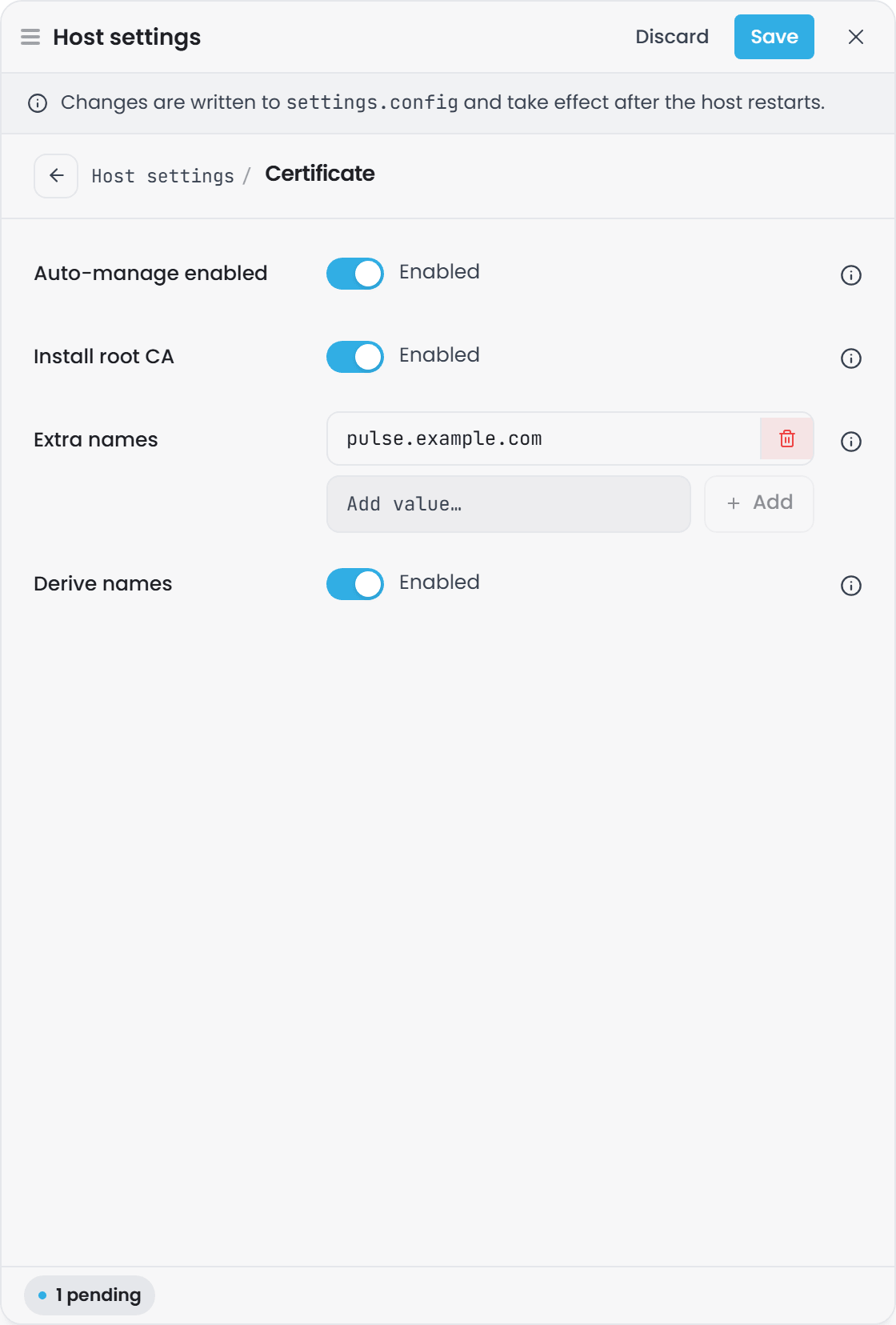
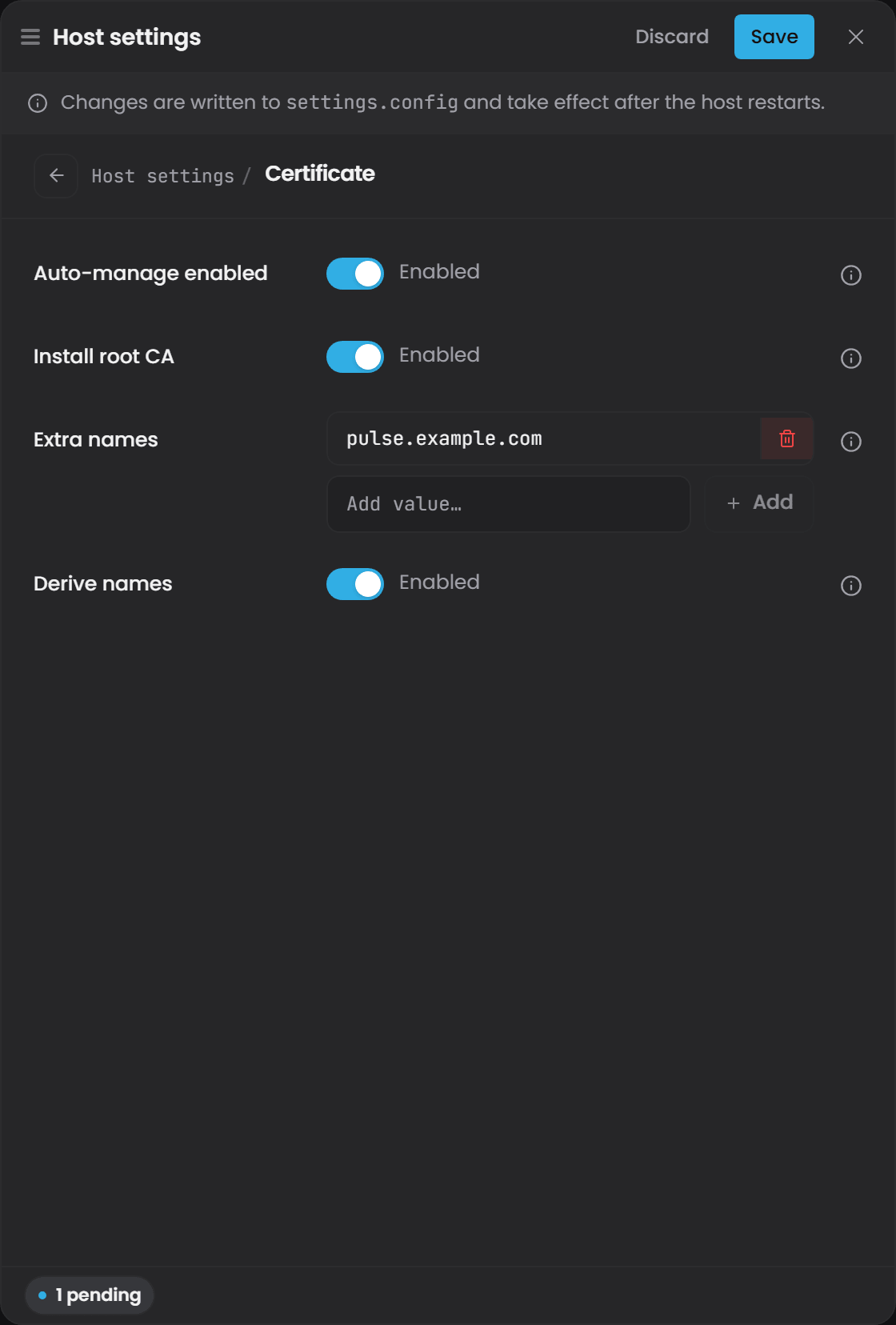
In each component's interface the same settings are under Instance Info, then Edit host settings, in the Certificate section, as Extra names and Derive names.
When you need Cert:Names. Any time a peer, a browser or a probe reaches a host by a name that is not localhost and is not in its own configuration:
- a Docker or Kubernetes service name, such as
pulse - the server's IP address or its DNS name on the site network
- a load balancer or ingress hostname in front of the host
A bind-all address such as 0.0.0.0 names nothing and contributes nothing.
every host keeps its own list, and a name set on one host reaches no other. In the interface the field is called Extra names: on Pulse it sits in Host settings under Certificate and is Pulse's Cert:Names, so it changes Pulse's certificate only. To put the same server IP or DNS name on Atlas's certificate, open Atlas's own Host settings, Pulse section, and add it to Extra names there; the same goes for the Historian, Explorer, Connect, Bridge and the Collector. On Docker that is each service's own Pulse__Cert__Names in the Compose file. Saving the field re-syncs that host's certificate; a certificate lacking a listed name is replaced on the next sync, with no restart.
Removing a name does not regenerate a certificate. A certificate is replaced when it lacks a listed name, never because it carries one you have since taken out of the list. To drop a name, regenerate: Regenerate certificate on Pulse's Certificates page for Pulse, or delete the certificate file in a component's Certificates folder and restart it, and it requests a fresh one carrying only the current names.
Environment names, the machine name, its DNS host names and its interface addresses, are added when a certificate is generated, but they never cause one to be regenerated on their own. Interface addresses are left out inside a container, where they belong to the container rather than to anything a client can dial.
Where a browser reaches Pulse#
Components reach Pulse over the back channel, at Pulse:Host, which inside a container is a service name. A browser cannot resolve that.
This used to matter at sign-in. Pulse built every discovery endpoint from the host the caller used, so a component running in Docker sent the user's browser to https://pulse:4542/auth/authorize, which resolves only inside the container network. The workaround was a hosts-file entry per service on every machine anyone signed in from.
Auth:PublicAddress settles it. It is where a browser reaches Pulse: an https origin with no path, for example https://pulse.plant.example:4542.
| Endpoint | Comes from |
|---|---|
authorization_endpoint, end_session_endpoint |
Auth:PublicAddress, else the caller's host as before |
| Token, JWKS, userinfo | The caller's host, always |
issuer, and the iss in every token |
Auth:PublicAddress plus /auth, else Pulse's HTTPS listener plus /auth |
The split is the point: the browser goes to the public address while the component still redeems the code over the back channel, so components need no configuration change when you set this.
It is static configuration and is never taken from a request's Host header. A value Pulse cannot use does not stop it: the value is refused, the fallback applies, and a warning names it once.
It also names Pulse in every token. The issuer is this address plus /auth, because a standard client, an MCP client among them, loads Pulse's discovery document from the issuer and checks that the document names the same one. So changing the public address changes the issuer: tokens issued under the old value stop validating. Restart Pulse, then the other components, which cache Pulse's discovery document. There used to be a separate Auth:Issuer setting; it is gone, and a value left in it is ignored with a warning.
Installing the root CA: Cert:Install#
A component installs the Pulse root CA so that browsers and clients on that machine trust Pulse-signed certificates. Pulse:Cert:Install, or Cert:Install on Pulse, decides how far it goes.
| Value | What is written |
|---|---|
| absent (auto, the default) | The process's own .NET store, always. On Linux, the system trust directory only when the process is privileged |
true |
Every store, with a warning wherever one cannot be written |
false |
No store at all |
Auto is what stops an unprivileged or read-only container warning on every start because it cannot write /usr/local/share/ca-certificates. When a store is skipped, the log says so at Information level and names where the CA is and how to trust it another way.
A component installs the CA on every certificate sync, so the check is read-only first: if the CA is already trusted the store is not opened for writing, the file is not rewritten, and update-ca-certificates is not rerun.
Bring your own certificate#
To use your own certificate instead of Pulse's auto-management:
Understand what you are turning off first. Disabling auto-management does not swap one certificate for another. It switches off the whole mechanism: the Pulse-signed leaf certificate, the sync from Pulse, the Pulse root each component fetches and trusts, and renewal. You then own the certificate, its trust, its renewal and its deployment on each component separately. There is no middle setting in which Pulse distributes a certificate you supplied.
-
Disable auto-management in that component's
settings.config.The key is not the same on every component, so use the one for the component you are editing:
On Pulse, it is at the root:
{
  "Cert": {
    "Enabled": false
  }
}
On every other component - Atlas, Bridge, Collector, Connect, Explorer, Historian - it sits inside the
Pulsesection, because it describes that component's relationship with Pulse:{ "Pulse": { "Cert": { "Enabled": false } } }A root
Certblock on a component is read by nothing. The component keeps auto-managing its certificate, replaces yours with a Pulse-signed one, and the setting you changed appears to have done nothing. If disabling it seems to have had no effect, this is the first thing to check. -
Supply the certificate file and password in the same
settings.config. This part is identical on every component apart from the port:{ "Kestrel": { "Endpoints": { "Https": { "Url": "https://0.0.0.0:4542", "Certificate": { "Path": "/path/to/certificate.pfx", "Password": "cert-password" } } } } }
   The `4542` above is Pulse's port. Use the HTTPS port of the component you are configuring -
   Historian `4512`, Collector `4522`, Explorer `4532`, Atlas `4552`, Connect `4562`,
   Bridge `4572`.

   - **`Path`**: absolute or relative path to a PKCS#12 (`.pfx`) certificate file containing the private key.
   - **`Password`**: the plaintext password to decrypt the PFX file.

3. **Only `Password` is read.** Kestrel loads your certificate itself, and takes its password from
   `Kestrel:Endpoints:Https:Certificate:Password` and nowhere else. `PasswordPath`, and a `.txt` file
   beside the certificate, belong to the certificates Pulse manages: with auto-management off both are
   ignored, and the component fails to start with `The certificate data cannot be read with the
   provided password`. To keep the password out of `settings.config`, set the environment variable
   `Kestrel__Endpoints__Https__Certificate__Password` instead, which outranks the file.

4. **Make every component trust your CA.** With auto-management off, a component no longer fetches
   Pulse's root, so it trusts the others only through an ordinary trusted chain (see *How a component
   decides to trust Pulse* above). Install the CA that issued your certificates in the operating system
   trust store wherever a component runs, and on every machine whose browser opens an interface. An
   enterprise CA is usually there already.

5. **Put every name on the certificate.** A caller checks the name whatever the chain says (see
   *The names a certificate carries* above), so the certificate needs every name anything dials: the server's DNS names, any service names, and `localhost`. Pulse's assistant
   calls Pulse at `localhost` unless `Gage:SelfAddress` or `Auth:PublicAddress` names another address,
   and without a `localhost` name on the certificate it stays not-ready. A public CA will not issue for
   `localhost`; with one of those, set `Auth:PublicAddress` to the hostname the certificate carries,
   or `Gage:SelfAddress` if Pulse cannot reach that hostname from inside itself.

6. **Renewing needs no restart.** Kestrel watches the certificate file. Overwrite it at the same path,
   under the same password, and the component serves the new certificate within seconds. A replacement
   under a **new** password is refused: the log shows `Unable to reload configuration`, and the
   component keeps serving the old certificate until you update the password and restart it.

### On Docker

The images run as an unprivileged user and keep `settings.config` inside a volume, so on Docker every
change above is an environment variable instead, which outranks the file. One Compose override file
carries them all, and deleting it puts the stack back on Pulse-managed certificates. The service names
below are those of the stack in
[Start Here for Docker](../../10-start-here/10-overview/20-start-here-for-docker.md); use yours if they
differ.

**1. Put two files in a `certs` folder beside `docker-compose.yml`.**

- **`timebase.pfx`**: one certificate and its private key for the whole stack. It must carry
  `localhost`, `127.0.0.1`, every Compose service name (`pulse`, `historian`, `explorer`, `atlas`,
  `connect`, `bridge`, `collector`) and any hostname a browser will use. If your CA issues through an
  intermediate, export the `.pfx` with the full chain.
- **`ca-bundle.crt`**: the image's own CA bundle with your root CA appended. Your CA must be PEM, the
  form that starts `-----BEGIN CERTIFICATE-----`; convert a DER `.cer` with
  `openssl x509 -inform der -in your-root-ca.cer -out your-root-ca.crt`.

  ```bash
  docker compose cp pulse:/etc/ssl/certs/ca-certificates.crt ./certs/ca-bundle.crt
  cat your-root-ca.crt >> ./certs/ca-bundle.crt
A component cannot add your CA to the container's trust store, because it does not run as root.
SSL_CERT_FILE points it at this bundle instead, and replaces the image's bundle rather than
adding to it. That is why the bundle carries both: the public CAs that outbound calls, such as your
LLM provider, still need, and yours.
2. Put the .pfx password in .env, beside docker-compose.yml, so it stays out of the Compose file:
TIMEBASE_CERT_PASSWORD=<the .pfx password>
3. Create docker-compose.override.yml beside docker-compose.yml. Compose merges it in on its own;
if you name files with -f, name both.
# Your own certificates instead of Pulse-managed ones. To go back, delete this
# file and run `docker compose up -d`.
services:
  pulse:
    volumes:
      - ./certs:/certs:ro
    environment:
      - Cert__Enabled=false
      - Kestrel__Endpoints__Https__Certificate__Path=/certs/timebase.pfx
      - Kestrel__Endpoints__Https__Certificate__Password=${TIMEBASE_CERT_PASSWORD:?set TIMEBASE_CERT_PASSWORD in .env}
      - SSL_CERT_FILE=/certs/ca-bundle.crt

  historian:
    volumes:
      - ./certs:/certs:ro
    environment:
      - Pulse__Cert__Enabled=false
      - Kestrel__Endpoints__Https__Certificate__Path=/certs/timebase.pfx
      - Kestrel__Endpoints__Https__Certificate__Password=${TIMEBASE_CERT_PASSWORD:?set TIMEBASE_CERT_PASSWORD in .env}
      - SSL_CERT_FILE=/certs/ca-bundle.crt

  explorer:
    volumes:
      - ./certs:/certs:ro
    environment:
      - Pulse__Cert__Enabled=false
      - Kestrel__Endpoints__Https__Certificate__Path=/certs/timebase.pfx
      - Kestrel__Endpoints__Https__Certificate__Password=${TIMEBASE_CERT_PASSWORD:?set TIMEBASE_CERT_PASSWORD in .env}
      - SSL_CERT_FILE=/certs/ca-bundle.crt

  atlas:
    volumes:
      - ./certs:/certs:ro
    environment:
      - Pulse__Cert__Enabled=false
      - Kestrel__Endpoints__Https__Certificate__Path=/certs/timebase.pfx
      - Kestrel__Endpoints__Https__Certificate__Password=${TIMEBASE_CERT_PASSWORD:?set TIMEBASE_CERT_PASSWORD in .env}
      - SSL_CERT_FILE=/certs/ca-bundle.crt

  connect:
    volumes:
      - ./certs:/certs:ro
    environment:
      - Pulse__Cert__Enabled=false
      - Kestrel__Endpoints__Https__Certificate__Path=/certs/timebase.pfx
      - Kestrel__Endpoints__Https__Certificate__Password=${TIMEBASE_CERT_PASSWORD:?set TIMEBASE_CERT_PASSWORD in .env}
      - SSL_CERT_FILE=/certs/ca-bundle.crt

  bridge:
    volumes:
      - ./certs:/certs:ro
    environment:
      - Pulse__Cert__Enabled=false
      - Kestrel__Endpoints__Https__Certificate__Path=/certs/timebase.pfx
      - Kestrel__Endpoints__Https__Certificate__Password=${TIMEBASE_CERT_PASSWORD:?set TIMEBASE_CERT_PASSWORD in .env}
      - SSL_CERT_FILE=/certs/ca-bundle.crt

  collector:
    volumes:
      - ./certs:/certs:ro
    environment:
      - Pulse__Cert__Enabled=false
      - Kestrel__Endpoints__Https__Certificate__Path=/certs/timebase.pfx
      - Kestrel__Endpoints__Https__Certificate__Password=${TIMEBASE_CERT_PASSWORD:?set TIMEBASE_CERT_PASSWORD in .env}
      - SSL_CERT_FILE=/certs/ca-bundle.crt
4. Apply it. This recreates every component with the new settings:
docker compose up -d
Verify: every port serves a certificate from your CA, and nothing has failed a TLS check:
for port in 4512 4522 4532 4542 4552 4562 4572; do
  echo | openssl s_client -connect localhost:$port -servername localhost 2>/dev/null | openssl x509 -noout -issuer
done
docker compose logs --since 2m | grep -ciE 'UntrustedRoot|PartialChain|RemoteCertificateNameMismatch'
Each issuer= line names your CA, and the count is 0.
Renewing. Overwrite ./certs/timebase.pfx under the same password, and every component picks it up
within seconds. Under a new password, update .env as well and run docker compose up -d. A new root
CA goes into ca-bundle.crt first, followed by docker compose restart, before any certificate it
issued.
Going back. Delete docker-compose.override.yml and run docker compose up -d. Pulse issues the
certificates again, and each component fetches its root as it starts.
Installing the root CA on client machines#
To eliminate browser warnings about untrusted certificates, install Pulse's root CA to your client machine's trust store:
Step 1: Download the root CA certificate#
curl -k https://pulse:4542/api/ca -o pulse-ca.cer
(The -k flag disables certificate validation for this one request, since the self-signed certificate is not yet trusted.)
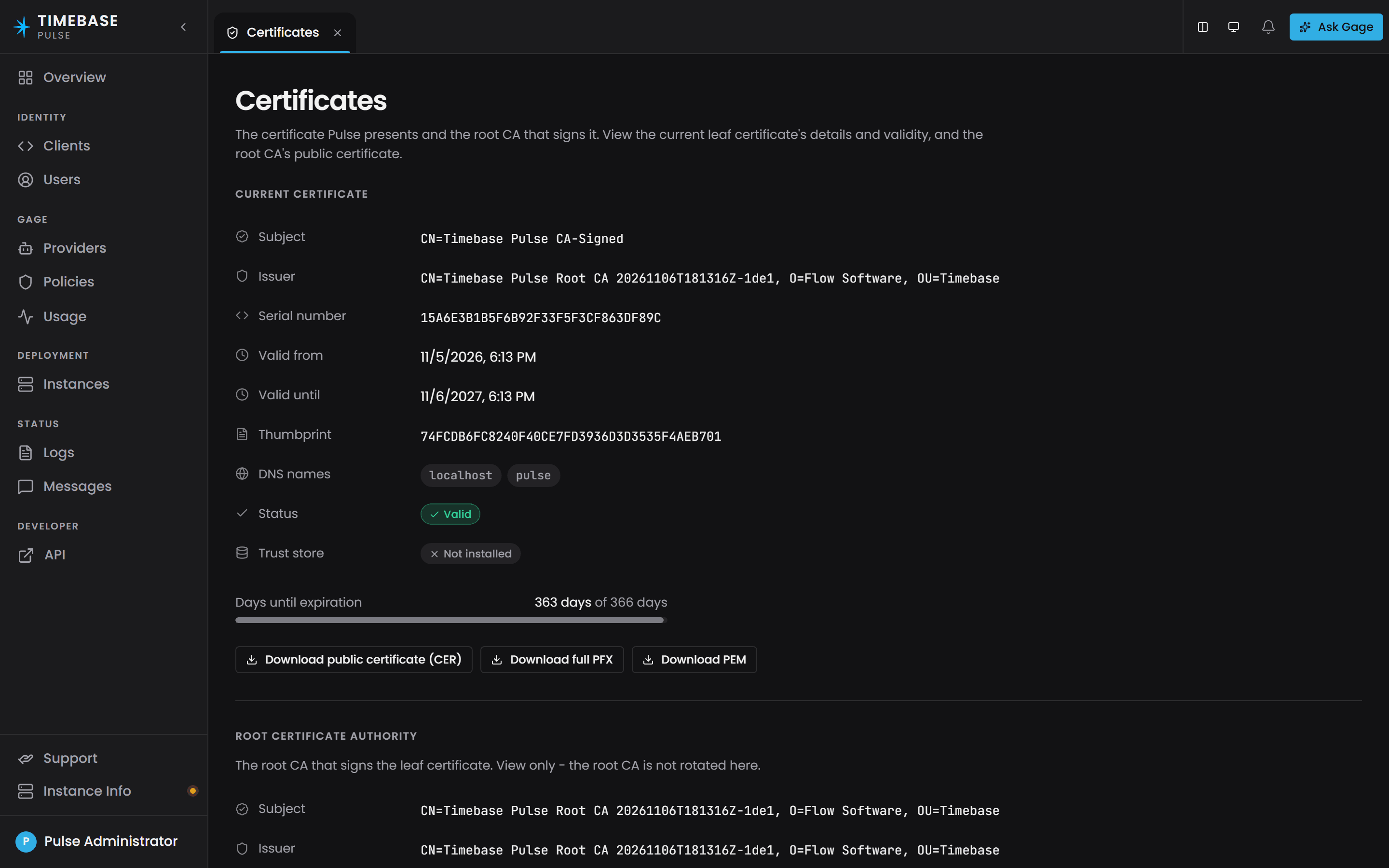
From a browser, Pulse's Certificates page, at https://<your pulse address>:4542/?tab=certificates, shows the current certificate and the root authority and offers the same downloads as files: the public certificate as CER, the full PFX, or PEM.
Step 2: Install to the OS trust store#
On Windows (Administrator PowerShell):
Import-Certificate -FilePath pulse-ca.cer -CertStoreLocation Cert:\LocalMachine\Root
On macOS (Terminal):
sudo security add-trusted-cert -d -r trustRoot -k /Library/Keychains/System.keychain pulse-ca.cer
On Linux (Debian/Ubuntu):
sudo cp pulse-ca.cer /usr/local/share/ca-certificates/
sudo update-ca-certificates
On Linux (RHEL/CentOS):
sudo cp pulse-ca.cer /etc/pki/ca-trust/source/anchors/
sudo update-ca-trust
After installation, browsers will trust Pulse-signed certificates without warnings.
Troubleshooting#
Browser shows "certificate not trusted" or warns the certificate is self-signed#
Cause: The Pulse root CA is not installed on your client machine's trust store.
Fix: Follow the steps in "Installing the root CA on client machines" above.
Verify: Open the Pulse UI (https://pulse:4542) in your browser. If the browser shows a green lock and no warning, the root CA is trusted.
A component cannot reach Pulse and keeps retrying#
Cause: The component's Pulse CA sync service cannot establish a connection to Pulse. This can happen if Pulse is down, the network is unreachable, or the configured Pulse host/port is incorrect.
Check the component's logs for messages like:
Certificate Sync reconnect attempt N failed: The remote name could not be resolved
Certificate Sync initial connection failed, will retry in background
Fix: Verify that Pulse is running and reachable from the component's machine:
curl -v https://pulse:4542/healthz
If Pulse is down, start it. If the network is the issue, restore connectivity. The component will automatically reconnect and sync its certificate when Pulse becomes reachable again.
A component's certificate has expired#
Cause: The component has been offline for longer than the certificate validity period (825 days for Pulse-signed certs), or the component was misconfigured and used a self-signed certificate that was never replaced.
Check the certificate expiry:
openssl x509 -in certificate.pfx -text -noout
Fix: If auto-management is enabled and Pulse is reachable, delete the expired certificate file and restart the component. It will generate a new self-signed cert and immediately request a replacement from Pulse.
If auto-management is disabled, you must supply a new certificate (see "Bring your own certificate" above).
A connection fails with RemoteCertificateNameMismatch#
Cause: the host is being dialled by a name its certificate does not carry. Most often a Docker or Kubernetes service name, a server IP, or a hostname in front of a load balancer.
Fix: add the name to that host's list, Cert:Names on Pulse or Pulse:Cert:Names on the component being dialled, and let it re-sync: saving Extra names in that host's interface does it without a restart, and on Docker recreating the service with the new Pulse__Cert__Names does. Then check the certificate carries the name. Adding it on Pulse puts it on no component's certificate. The list is additive, so nothing you already rely on is lost. Leave Cert:AutoNames on unless you have a reason not to; it already covers the names in the host's own configuration.
Signing in from a browser lands on an address that will not resolve#
Cause: the sign-in redirect is being built from the host the component used to reach Pulse, which in a container is a service name.
Fix: set Auth:PublicAddress on Pulse to the https origin a browser uses, then restart the components, which cache discovery. Pulse itself does not need a restart. This replaces adding a hosts-file entry per service on every machine anyone signs in from.
Certificate signing returns 403#
Cause: one of three. Authentication is off, so Pulse signs nothing. The caller presented a user's token rather than a component's own client_credentials token. Or the caller is not a component at all.
Fix: turn authentication on, and have the component request its own token. This route stopped being anonymous deliberately, so a script that used to work without a credential now needs one.
Pulse regenerated a certificate but a component has not picked it up#
Cause: Either the component is not connected to Pulse's SignalR hub (the notification channel), or the component's certificate file could not be written.
Check the component's logs for:
Certificate Sync syncing from Pulse
Certificate Sync error syncing certificate from Pulse
Check connectivity:
curl -v wss://pulse:4542/api/subscribe
(This should attempt a WebSocket upgrade; you will not successfully connect without authentication, but you can verify the endpoint is reachable.)
Fix: If the component is not connected, restart it. If the certificate file cannot be written, check file permissions on the certificates directory.
A component claims Pulse:Cert:Enabled is false, but it should be true#
Cause: The setting is missing or explicitly set to false in settings.config, or the component is a consumer type that overrides the setting from a typed configuration object (e.g., Explorer's ExplorerConfig.Pulse.Cert.Enabled).
Check the setting:
grep -B 2 -A 3 '"Cert"' settings.config
The surrounding lines matter as much as the value: they tell you whether the block is inside Pulse
or at the root.
Also check where the block is. A root Cert block on a component is read by nothing, so the
setting reads as false however it is spelled inside it. On a component it belongs inside Pulse:
{
  "Pulse": {
    "Cert": {
      "Enabled": true
    }
  },
  "Kestrel": {
    "Endpoints": {
      "Https": { ... }
    }
  }
}
On Pulse itself, the same block belongs at the root.
Restart the component. If it is a consumer with typed Pulse configuration (like Explorer), consult the Atlas documentation for how that component reads Pulse settings.