Enabling User Management in Historian Utilizing Pulse
How the Historian signs people in through Pulse: what a 2.0 installation already does for you, the one secret you have to supply, where it goes, and what to check when the sign-in page does not appear.
What a 2.0 installation already does#
The Historian ships secured. Its settings.config has Pulse:Auth:Enabled set to true, names its Pulse client as Historian, and points at Pulse on localhost:4542 over TLS. Opening the Historian's interface sends you to Pulse to sign in, and every API call needs a Pulse-issued token. You do not switch any of this on.
Two things used to be manual and no longer are:
- HTTPS and certificates. With
Pulse:Cert:Enabledon, which is the default, the Historian serves HTTPS on4512from the moment it starts, asks Pulse for a certificate signed by Pulse's own authority, and installs that authority into the machine trust store so browsers on the machine trust it. You do not bind a certificate in theKestrelsection by hand. See Timebase Certificates. - The client in Pulse. Pulse seeds a client for every component,
Historianamong them, with the sign-in redirect and audiences it needs. You do not create one or type a redirect URL. See Registering Timebase apps as OAuth clients in Pulse for what the seeded clients carry and when you would add one of your own.
What remains is the secret.
Give the Historian its client secret#
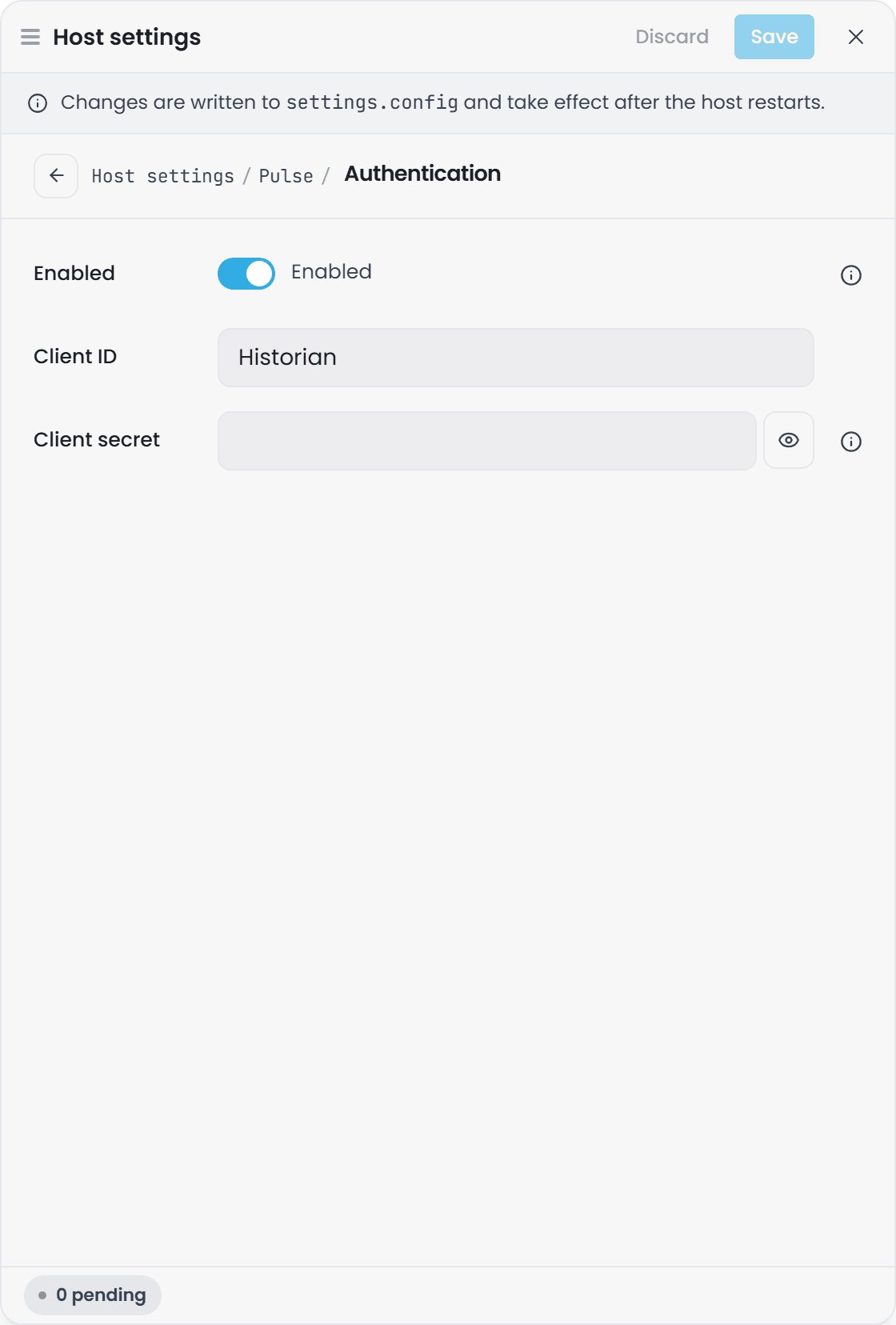
The seeded Historian client's secret is on the client's page in Pulse: Clients, then Historian, then Reveal or Copy under Client secret. Put it in the Historian's Pulse:Auth:ClientSecret:
"Pulse": {
  "Host": "<your pulse address>",
  "Port": 4542,
  "UseTls": true,
  "Auth": {
    "Enabled": true,
    "ClientId": "Historian",
    "ClientSecret": "<secret from Pulse>"
  }
}
Host is Pulse's address as the Historian reaches it. On one machine the shipped localhost is right; in Docker it is the Pulse service name; across machines it is Pulse's DNS name or address. Restart the Historian after changing the Pulse section.
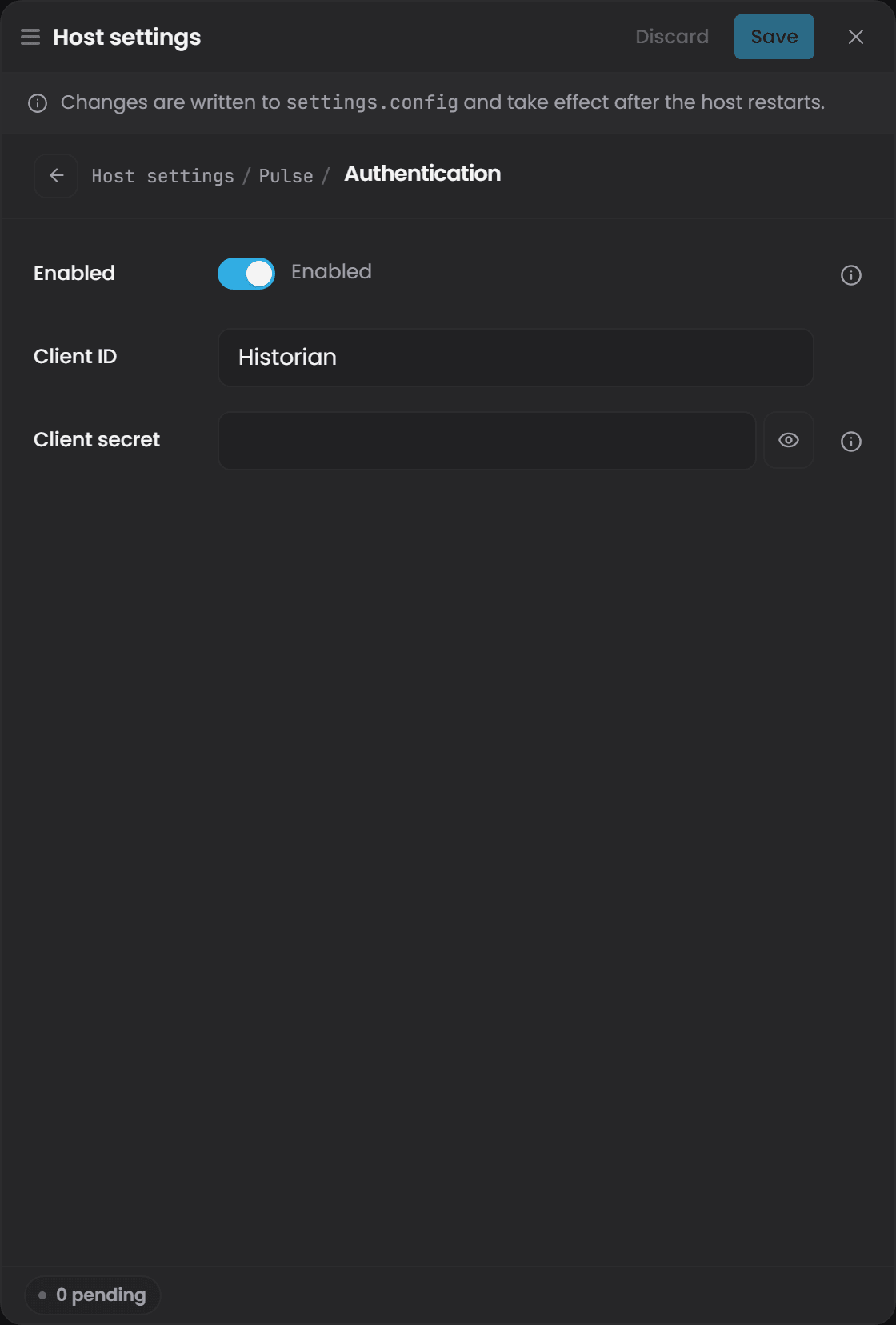
The simplest way to set the secret is the Historian's own settings editor in its interface, under Instance Info, then Edit host settings, then Pulse and its Authentication section, which writes it without showing it again.
 To keep it out of the file altogether, supply it as an environment variable instead: every setting can be given that way, with two underscores between the levels, so
Pulse__Auth__ClientSecret overrides the file. That is how the Docker guides pass secrets. See Component Settings.
What the Historian does with it#
With the secret in place the Historian does three things through Pulse:
| Signs people in | The interface redirects to Pulse's sign-in page and back. Who may do what is decided by the roles on the person's Pulse account: an administrator can change settings and delete data, everyone else reads. |
| Accepts component tokens | A Collector writing data, Explorer reading it, or an MCP client calling /mcp presents a Pulse token with Historian in its audience. A request without one is refused with 401. |
| Signs itself in to other components | Where the Historian calls another component, it uses this same identity. |
A Historian with Pulse:Auth:Enabled set to false is open: no sign-in, no tokens, every call accepted. That is for a local trial on one machine, never for a deployment.
Verify#
- Open
https://<your historian>:4512. You should be sent to Pulse's sign-in page and, after signing in, back to the Historian. - The Historian's log shows it obtained a token from Pulse, and no line saying Pulse refused the client.
- Call the API without a token and expect
401; with a token from a client that hasHistorianin its audience, expect200.
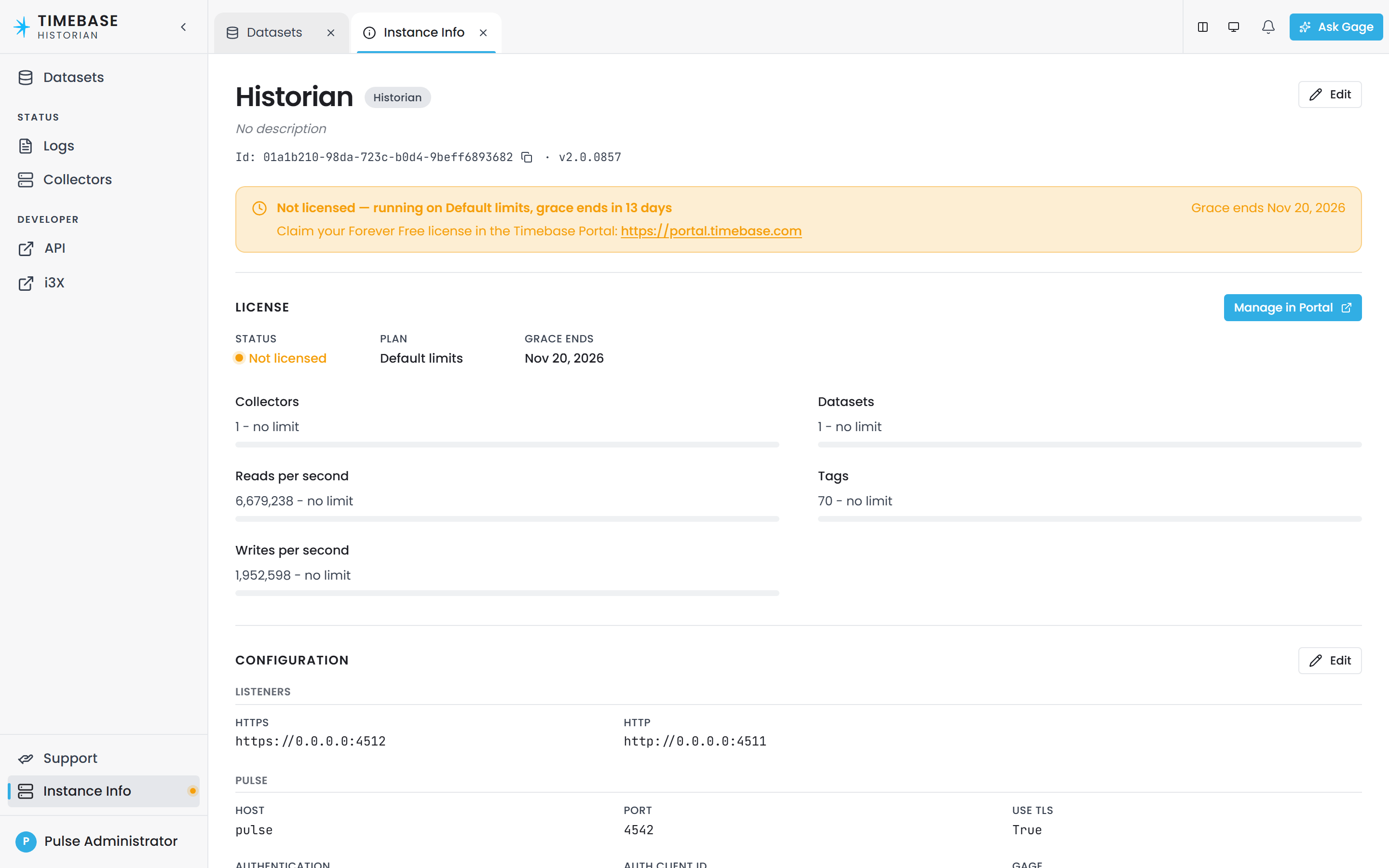
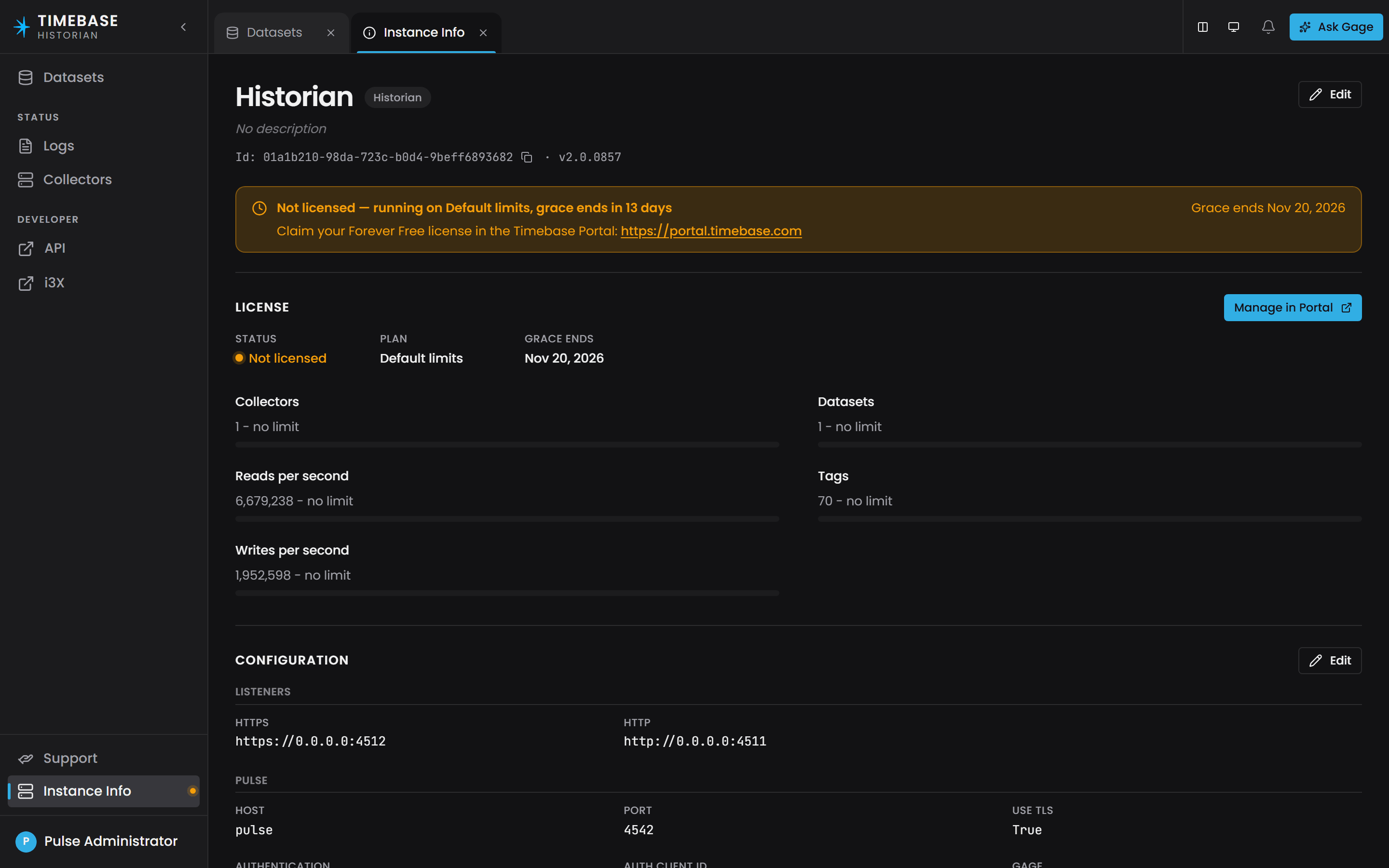
The Historian's Instance Info page lists the Pulse settings it is running on, including the client id and whether authentication is on.
Troubleshooting#
| Symptom | Likely cause | What to do |
|---|---|---|
| The browser shows a certificate warning on the Historian | Pulse's root authority is not trusted on that browser's machine | Pulse:Cert:Install puts it in the machine store on the Historian's own machine. On another machine, trust the root certificate from Pulse. See Timebase Certificates. |
| The interface never redirects to Pulse, or redirects and comes back to a blank page | Pulse:Host or Pulse:Port is wrong, or Pulse is not reachable from the Historian |
Check the address from the Historian's machine, and that the Pulse listener on 4542 answers over TLS. |
| The Historian's log says Pulse refused the client | The secret in Pulse:Auth:ClientSecret does not match the Historian client in Pulse, or the client was deleted |
Rotate the secret in Pulse and paste the new value, or recreate the client under the name Historian. |
| The log says Pulse could not be reached, and it keeps retrying | An outage, not a refusal | The Historian retries on its own, quickly, and signs in as soon as Pulse answers. |
A Collector or Explorer is refused with 401 by the Historian |
Its token's audience does not include Historian |
The seeded clients carry it. For a client you created, add Historian to its audiences in Pulse. |
| You want the Historian open for a quick local trial | Set Pulse:Auth:Enabled to false and restart. Everything else that depends on an identity, including the AI assistant, is then unavailable. |