User Management With Timebase Pulse
How to sign in to Pulse for the first time, create and edit users, make someone an administrator, reset a password, and manage the external logins linked to an account.
Pulse holds the user accounts for every Timebase component. A person signs in once, to Pulse, and the other components accept that identity. Users are managed from the Users page of the Pulse interface, which only an administrator can open; everyone else sees their own account only.
Open https://<your pulse address>:4542 in a browser. Port 4542 is Pulse's default.
Signing in for the first time#
A fresh Pulse has one account:
| Username | Administrator |
| Password | timebase |
The username is case-sensitive. Sign in, open your own user page from the Users list, and change the password under Security before anyone else can reach the instance. If the user storage file is ever deleted, Pulse creates the same default account again on the next start, so repeat the change then too.
The Users page#
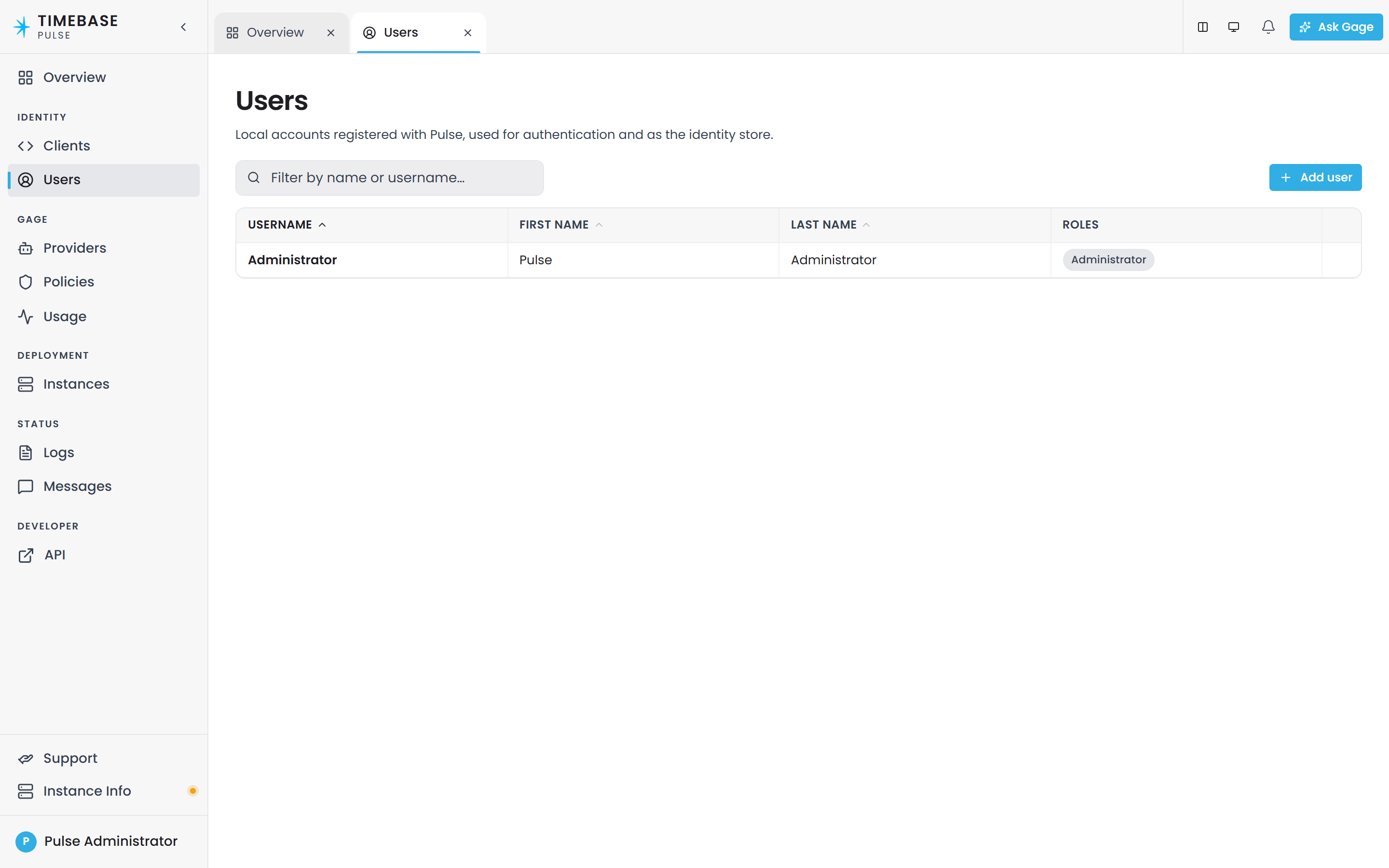
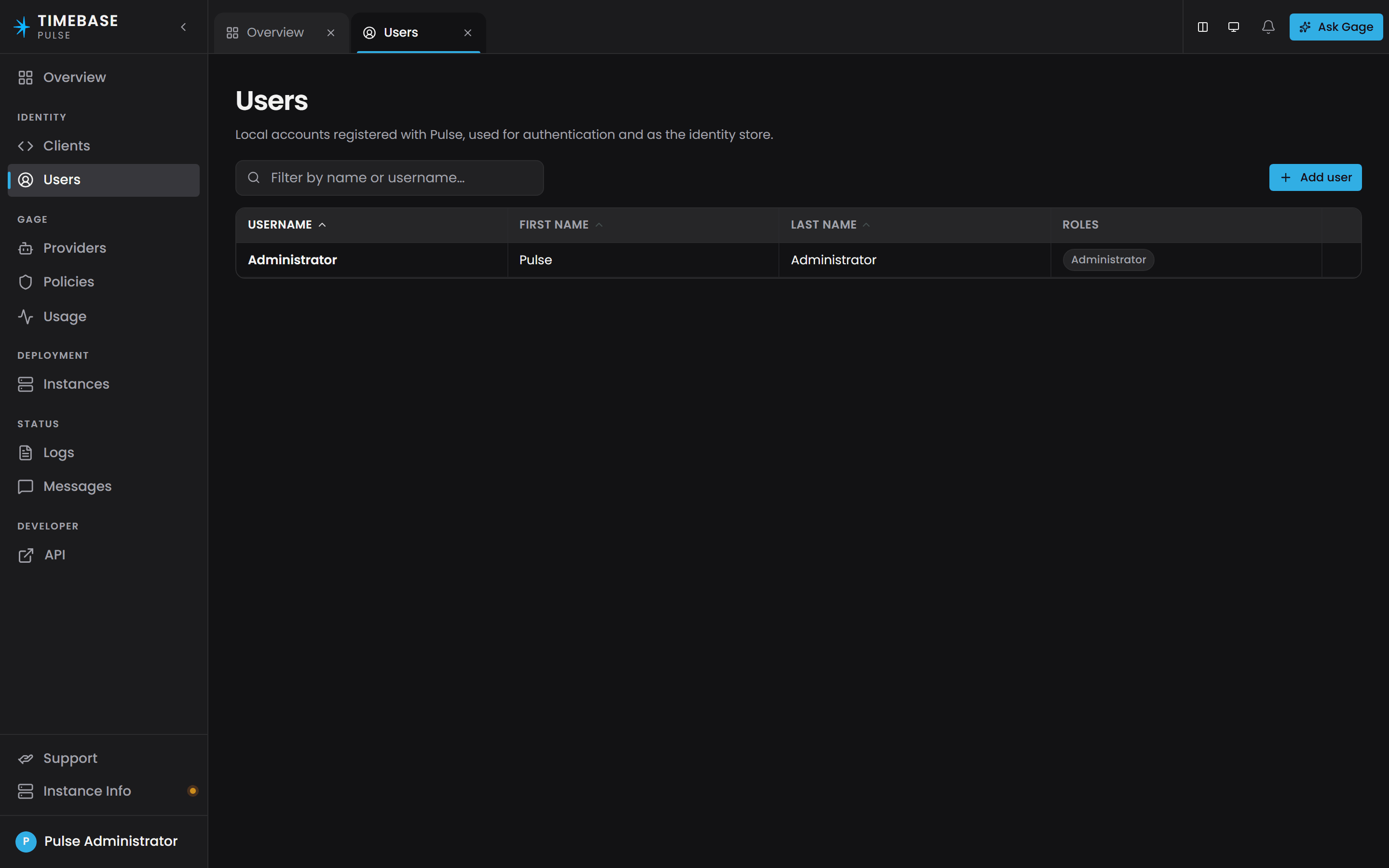
The list shows every account with its username, first name, last name and role, and can be filtered by name or by role. Selecting a row opens the user's page, which shows the same fields, the date the account was created, the external logins linked to it, and a Security section.
Creating a user#
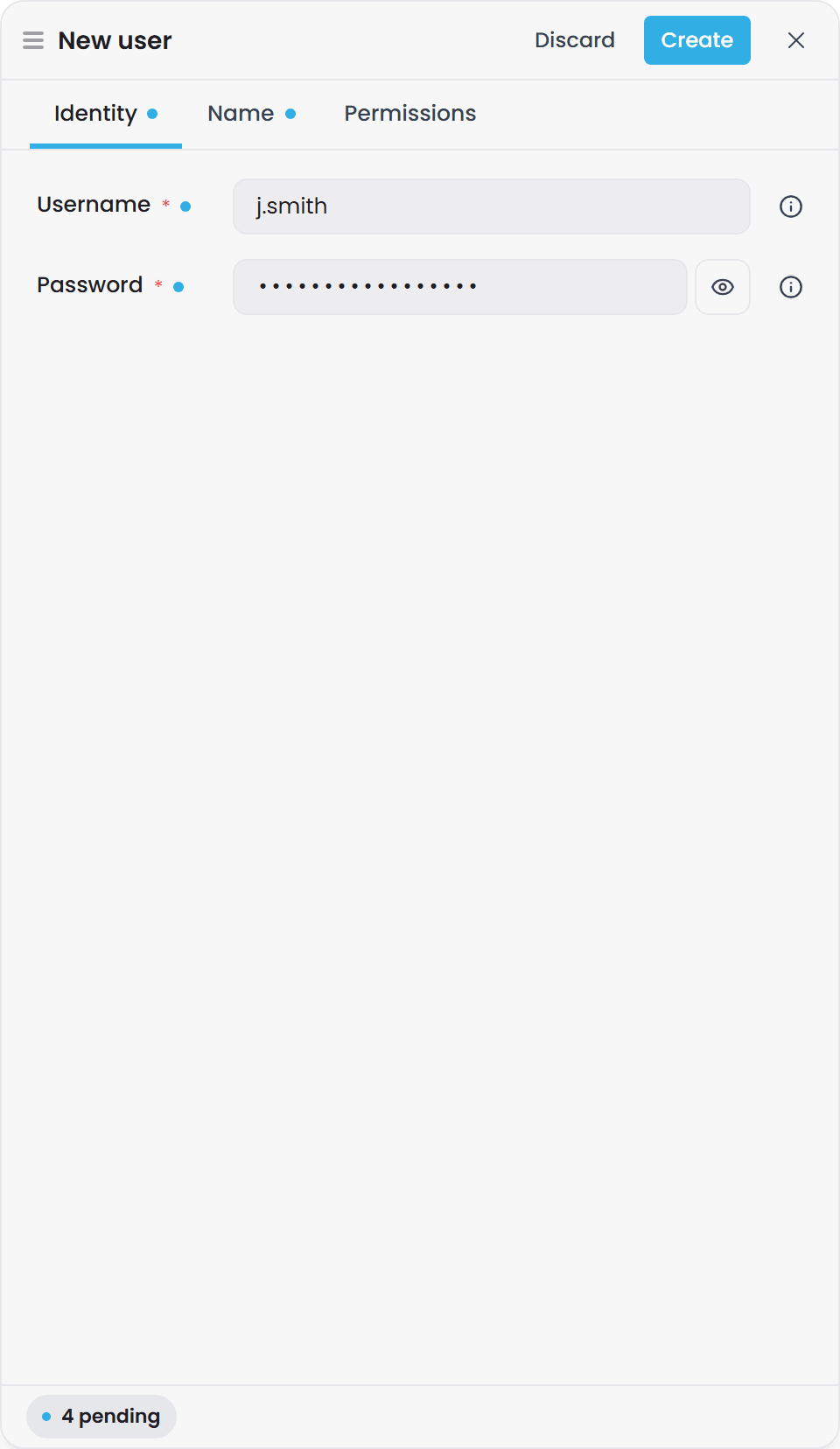
Choose Add user and fill in:
| Field | Notes |
|---|---|
| Username | What the person signs in with. It cannot be changed after the account is created, so an email address or a login name you will not need to rename works best. Letters, digits and a few common punctuation characters are allowed. |
| First name, Last name | Shown wherever the component names the person, for example as the author of a change in Atlas. |
| Password | At least 8 characters. The person can change it afterwards from their own page. |
| Administrator | On or off. See Roles. |
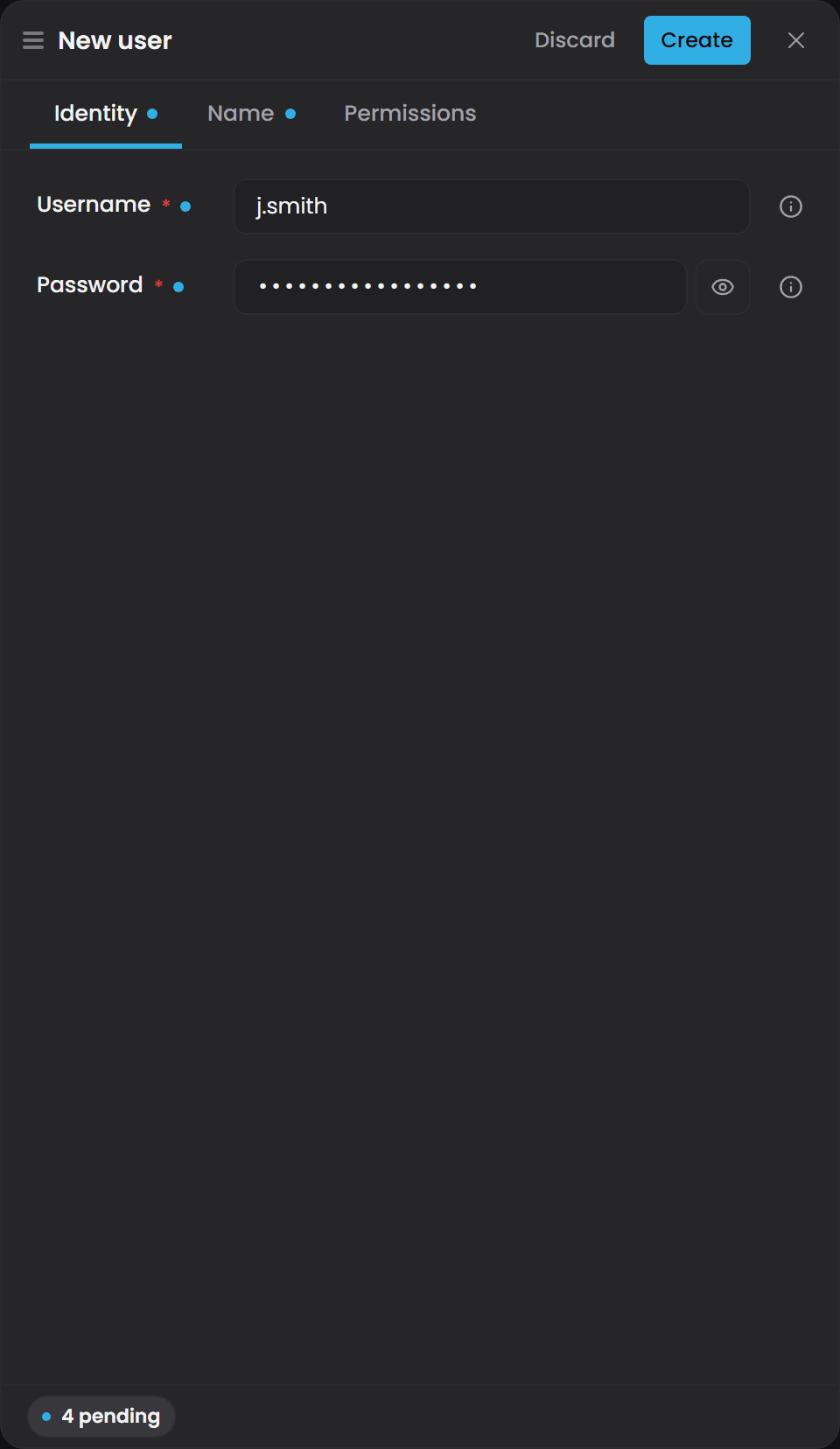
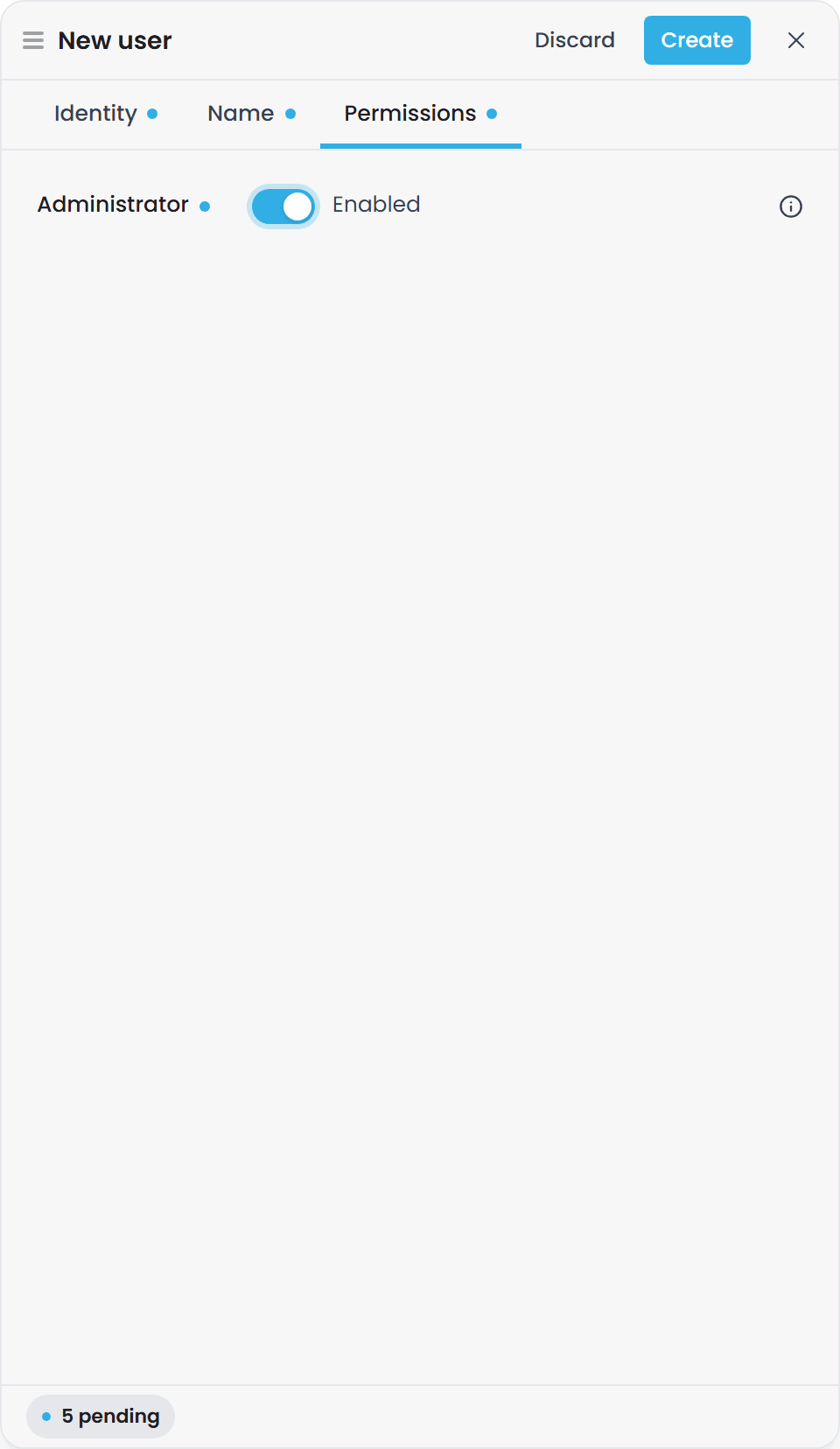
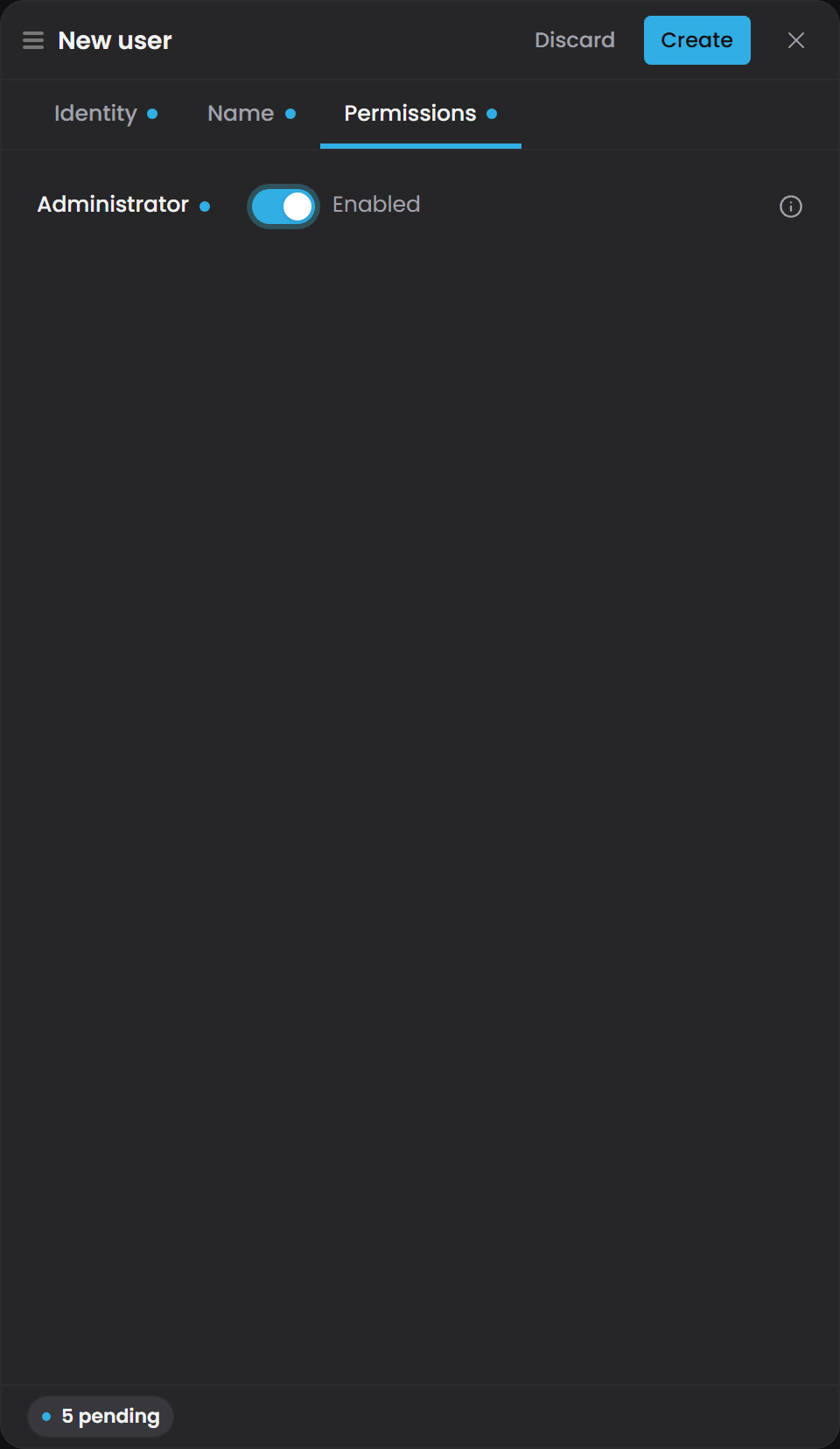
The drawer puts the username and password on its Identity tab, the names on Name, and the administrator switch on Permissions.
A person who first signs in through an external provider creates their own account instead, with no password and no roles; see Pulse And OpenIDConnect (OIDC) User Authentication. You can make that account an administrator afterwards exactly as below.
Roles#
Pulse has one role: a user is either an administrator or a standard user. An administrator can manage users, clients, certificates and the other administrative pages in Pulse, and the components treat the same role as their own administrator role, for example for write access over MCP in Atlas. A standard user can sign in and use the components, and can manage only their own account.
To change a user's role, open the user and choose Edit. The Administrator switch is the only role setting. The change applies the next time the person's token is issued, which for a browser session means on their next sign-in.
Editing a user#
Edit on a user's page changes the first name, last name and administrator switch. The username is fixed, and the password is not part of the form; passwords are set through Security instead. Everything else about the account, including the linked external logins and the created date, is kept as it is.
Passwords#
- Your own password. Open your own user page and, under Security, enter the current password and the new one.
- Someone else's password. An administrator opens the user and, under Security, chooses Reset password. No current password is needed, which is how an account whose owner is locked out is recovered.
An account that was created through an external provider has no password at all. Setting one through Reset password gives the person a second way in, and is required before they can unlink their last external login.
External logins#
A user's page lists the external identities linked to the account, one per configured provider, with the provider's name and the identifier the provider gave the account. Linking and unlinking act only on your own account: an administrator sees the section on every user's page but can change it on their own account only.
- Link. Under External logins, choose a provider you are not already linked to and sign in there. On return, the identity is attached to your account and you stay signed in as yourself. An identity already linked to a different Pulse account is refused; it has to be unlinked there first.
- Unlink. Remove a provider from the list. An account with no password cannot remove its last external login, because that would leave no way to sign in; set a password first.
Deleting a user#
An administrator can delete any account other than the one they are signed in with. Deleting an account removes its external logins with it; the person can register again from a provider's button, which creates a new account.
Troubleshooting#
| Symptom | Likely cause | What to do |
|---|---|---|
| The default sign-in is refused on a fresh Pulse | The username was typed as administrator |
It is Administrator, with a capital A. |
| A user cannot see the Users page | They are a standard user | Only administrators manage users. Everyone else reaches their own page only. |
| A user was made an administrator but still cannot reach administrator pages | Their session still carries the old role | Sign out and in again. |
| Sign-in says the account is locked | Five failed password attempts in a row lock the account for five minutes | Wait five minutes, or have an administrator reset the password. |
| An administrator cannot unlink a login on another user's page | Linking and unlinking are self-service only | Ask the account owner to do it, or reset the account's password so they can. |