Pulse And OpenIDConnect (OIDC) User Authentication
How to let people sign in to Pulse with Microsoft Entra ID, Google, Okta, Auth0 or another OpenID Connect provider: the IdentityProviders settings, what the provider must be told, what happens on a person's first sign-in, and how accounts are linked.
Introduction#
Pulse is the identity provider for every Timebase component, and it keeps its own user accounts. It can also hand the sign-in itself to an outside identity provider that speaks OpenID Connect, so that people use the account they already have with Microsoft Entra ID, Google, Okta, Auth0 or a similar service, and Pulse stores no password for them.
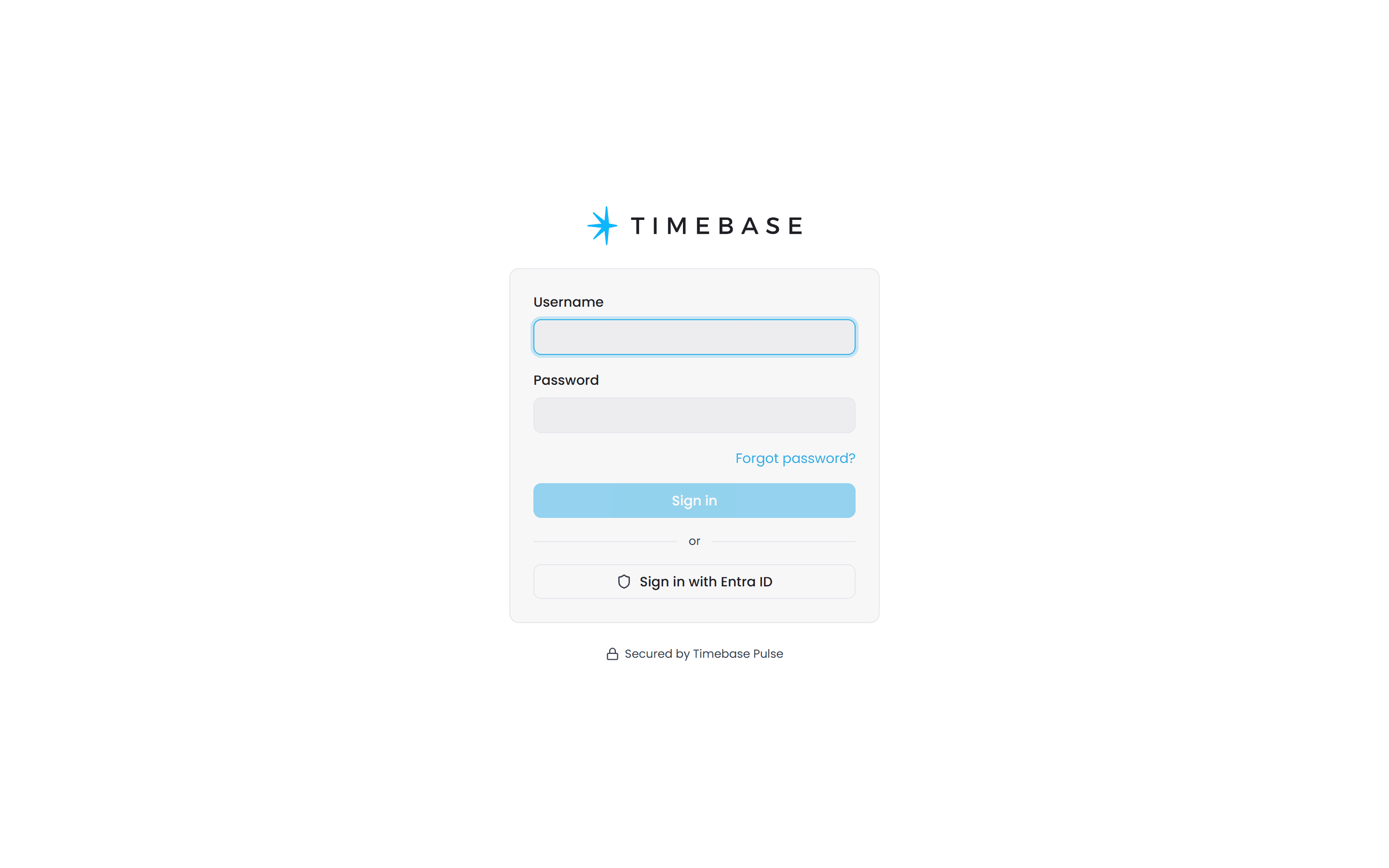
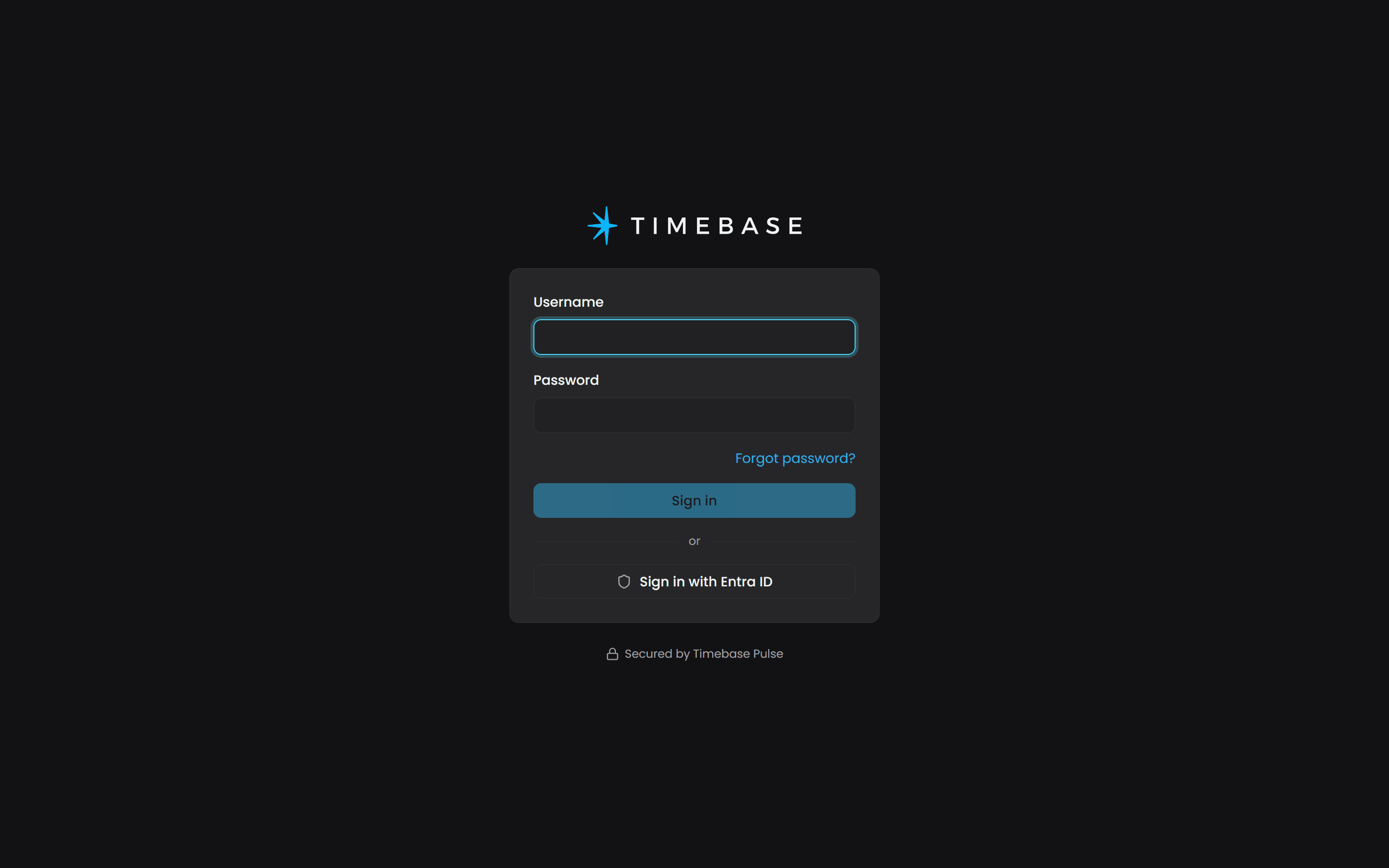
Each provider you configure appears as a Sign in with ... button on the Pulse sign-in page, beside the username and password form. A person who signs in that way for the first time is asked to complete a short registration, after which their Pulse account is linked to that external identity. From then on the button signs them straight in.
providers are configured in Pulse's settings.config file, in a section named IdentityProviders that sits beside the other top-level sections of that file. Pulse reads the section at startup, so restart Pulse after changing it. See Pulse Settings Configuration for the file itself.
The IdentityProviders section#
IdentityProviders is a list. Each entry describes one provider:
"IdentityProviders": [
  {
    "Type": "Timebase.Pulse.IdentityProvider.OpenIDConnect.Plugin",
    "DisplayName": "Entra ID",
    "Scheme": "entra",
    "LogoUri": "https://your-pulse-host:4542/logos/entra.svg",
    "Options": {
      "ClientId": "<application (client) id>",
      "ClientSecret": "<client secret value>",
      "Authority": "https://login.microsoftonline.com/<tenant id>/v2.0",
      "Scopes": [ "email", "profile" ],
      "ClaimsToMap": {
        "Name": "preferred_username",
        "Email": "email",
        "GivenName": "given_name",
        "Surname": "family_name"
      }
    }
  }
]
| Field | What it is |
|---|---|
Type |
Always Timebase.Pulse.IdentityProvider.OpenIDConnect.Plugin. An entry with any other value is ignored. |
DisplayName |
The provider's name. The sign-in page shows it on a button reading Sign in with followed by this name. |
Scheme |
A short, URL-safe identifier for this provider, unique within the list. It fixes the callback address the provider returns to, /signin-<scheme> in lower case, and it is the name shown against a linked login on a user's page. Changing it later changes the callback address, so the provider has to be told again. |
LogoUri |
Optional. An image for the button. Leave it out and a generic icon is used. |
Options |
The OpenID Connect settings, below. |
Inside Options:
| Option | What it is |
|---|---|
ClientId |
The client identifier the provider issued when you registered Pulse with it. |
ClientSecret |
The matching secret. Treat the settings file as holding a credential once this is in it. |
Authority |
The provider's issuer address. Pulse loads the discovery document from <Authority>/.well-known/openid-configuration and takes every endpoint from it. |
Scopes |
Extra scopes to request, one per entry. openid is always requested. Ask for email and profile so the claims below are present. |
ClaimsToMap |
Which claim from the provider fills which Pulse user field. The keys are Name, Email, NameIdentifier, GivenName and Surname; the values are the claim names the provider uses. See Claims. |
ClaimsToDelete |
Optional. Claim names to drop from what the provider returns, for providers that send more than you want stored in the session. |
ResponseType |
Optional. Pulse asks for the authorization code flow, which every current provider supports and which needs no special permission on the provider side. Set this only if a provider demands something else. |
Options accepts the other settings of the standard OpenID Connect client as well, for example GetClaimsFromUserInfoEndpoint for a provider that puts claims in the user-info response rather than the ID token. You will rarely need them.
you can configure several providers at once. Every one of them gets a button on the sign-in page, and a person can link more than one to the same Pulse account.
What the provider must be told#
Every provider asks for the same three things when you register an application with it:
- The application type is a web application that keeps a client secret. Choose the confidential or server-side option, not a single-page or mobile application.
- The redirect URI is Pulse's public address plus
/signin-<scheme>, for examplehttps://pulse.example.com:4542/signin-entra. The address is the one in Pulse'sAuth:PublicAddresssetting, which is the address people type into their browser; a provider will refuse a redirect to any other address. The path is lower case even if you wrote the scheme with capitals. - The scopes
openid,emailandprofile, so the provider releases a name and an email address.
Pulse uses the authorization code flow. You do not need to enable implicit grants or ID tokens on the application registration.
Claims#
A claim is a named value the provider releases about the person: their subject identifier, email address, display name and so on. ClaimsToMap tells Pulse which of them fills which field of the Pulse user. The keys are fixed:
| Key | Fills | Typical claim |
|---|---|---|
NameIdentifier |
The stable identifier Pulse links the account by | sub |
Name |
The suggested username at first sign-in | preferred_username, email or name |
Email |
The email address | email |
GivenName |
First name | given_name |
Surname |
Last name | family_name |
A key not listed in ClaimsToMap takes the standard OpenID Connect claim of the same meaning when the provider sends one, so a provider that follows the standard needs little or no mapping. Map explicitly when the provider uses its own names, as Entra ID does for the username.
What happens when a person signs in#
First sign-in. The person clicks the provider's button, signs in there, and is sent back to Pulse. Pulse looks for an account already linked to that external identity. There is none, so it shows a registration page pre-filled from the claims: a suggested username, first name and last name, all editable. Submitting it creates a new Pulse account with no password and no roles, links it to the external identity, and signs the person in. The account is a standard user until an administrator makes it one; see User Management With Timebase Pulse.
Every sign-in after that. The button signs them straight in, with no further prompt from Pulse.
A username that already exists. If the suggested username is already taken, the registration is refused and the person is told to sign in to the existing account with its password and link the provider from their own user page instead. Nothing is merged automatically, and nothing lets a fresh external identity take over an account that exists.
Linking a second identity. A signed-in person opens their own user page and, under External logins, links any configured provider they do not already have. The link acts only on the account they are signed in to. An identity that is already linked to a different Pulse account is refused, with a message saying which to unlink first. Only the account owner can link or unlink; an administrator sees the list on everyone's page but changes it on their own account only.
Unlinking. An account that has a password can unlink every external login. An account with no password cannot unlink its last one, because that would leave no way to sign in: set a password first, then unlink.
Locked accounts. A locked account is refused at the provider's callback the same way it is at the password form, and the sign-in page says so.
Provider walkthroughs#
Microsoft Entra ID#
- In the Azure portal, open Microsoft Entra ID and then App registrations, and choose New registration.
- Give it a name such as
Timebase Pulse. Under Supported account types, choose single tenant unless you mean to accept accounts from other directories. - Under Redirect URI, choose the Web platform and enter
https://<your pulse address>/signin-entra. Register. - From the Overview page, copy the Application (client) ID into
ClientIdand the Directory (tenant) ID into the authority:https://login.microsoftonline.com/<tenant id>/v2.0. Usecommonin place of the tenant id for a multi-tenant registration. - Under Certificates & secrets, create a client secret and copy its Value at once into
ClientSecret; it is shown only then. - Under API permissions, make sure the delegated Microsoft Graph permissions
openid,emailandprofileare present, and grant admin consent if your tenant requires it. - Under Token configuration, add the optional ID token claims
emailandpreferred_username.
Entra ID puts the sign-in name in preferred_username, so map Name to it as in the example above. Nothing on the Authentication page needs to be enabled: the authorization code flow works with the defaults.
Google#
- In the Google Cloud console, create or choose a project, then open APIs & Services and OAuth consent screen. Choose Internal if everyone who signs in belongs to your Google Workspace, otherwise External. Add the scopes
openid,.../auth/userinfo.emailand.../auth/userinfo.profile. - Under Credentials, create an OAuth client ID of type Web application and add
https://<your pulse address>/signin-googleunder Authorized redirect URIs. - Copy the client ID, which ends in
.apps.googleusercontent.com, intoClientId, and the client secret intoClientSecret. - Set
Authoritytohttps://accounts.google.com.
{
  "Type": "Timebase.Pulse.IdentityProvider.OpenIDConnect.Plugin",
  "DisplayName": "Sign in with Google",
  "Scheme": "google",
  "Options": {
    "ClientId": "<client id>.apps.googleusercontent.com",
    "ClientSecret": "<client secret>",
    "Authority": "https://accounts.google.com",
    "Scopes": [ "email", "profile" ]
  }
}
Google sends the standard claims, so no mapping is needed.
Any other provider#
Okta, Auth0, Keycloak and the rest follow the same shape. Find the provider's issuer address for Authority, register Pulse as a web application with the redirect URI above, request openid, email and profile, and check the provider's documentation for the claim it puts the preferred username in.
Troubleshooting#
| Symptom | Likely cause | What to do |
|---|---|---|
| No provider button appears on the sign-in page | The entry's Type is not exactly the plugin name, Scheme is missing, or Pulse was not restarted after the change |
Correct the entry and restart Pulse. Pulse logs an error at startup for an entry it cannot add. |
| The provider says the redirect URI does not match | The URI registered with the provider differs from Pulse's public address plus /signin-<scheme> |
Register the exact address. Check the scheme is lower case in the path, and that the host and port are the ones people use to reach Pulse. |
Entra ID answers AADSTS700054, "response_type 'id_token' is not enabled" |
A Pulse build from before the end of October 2026 asked for an ID token rather than an authorization code | Update Pulse. Until then, enable ID tokens under the registration's Authentication page as a workaround. |
| The registration page suggests an odd username, or no name at all | The provider did not release the claim Name is mapped to, or it is mapped to a claim the provider does not send |
Add the scope or optional claim at the provider, or map Name to a claim it does send. The field is editable at registration in any case. |
| "That username is already taken" at registration | A Pulse account with that username exists, most likely the same person's | Sign in to that account with its password and link the provider from the External logins section of your own user page. |
| "That account is already linked to a different Pulse user" when linking | The external identity is linked to another account | Sign in to that account and unlink it there first. |
| "This is the only way you can sign in" when unlinking | The account has no password and this is its last external login | Set a password under Security on your user page, then unlink. |
| Sign-in through the provider succeeds but the person is not an administrator | Accounts created at first sign-in have no roles | An administrator opens the user and switches Administrator on. |