Managing and Deleting Tags
How to find tags in a dataset, edit the metadata of one or many at once, and delete tags from the Historian's interface, and what an administrator can do that other users cannot.
Tags are managed in the Historian's own interface. Open https://<your historian>:4512, sign in through Pulse, and choose Datasets in the sidebar. Everyone who can sign in can browse datasets and tags and open a tag's data; editing and deleting tags needs the Pulse administrator role, and the controls for them are not shown to anyone else.
Finding tags#
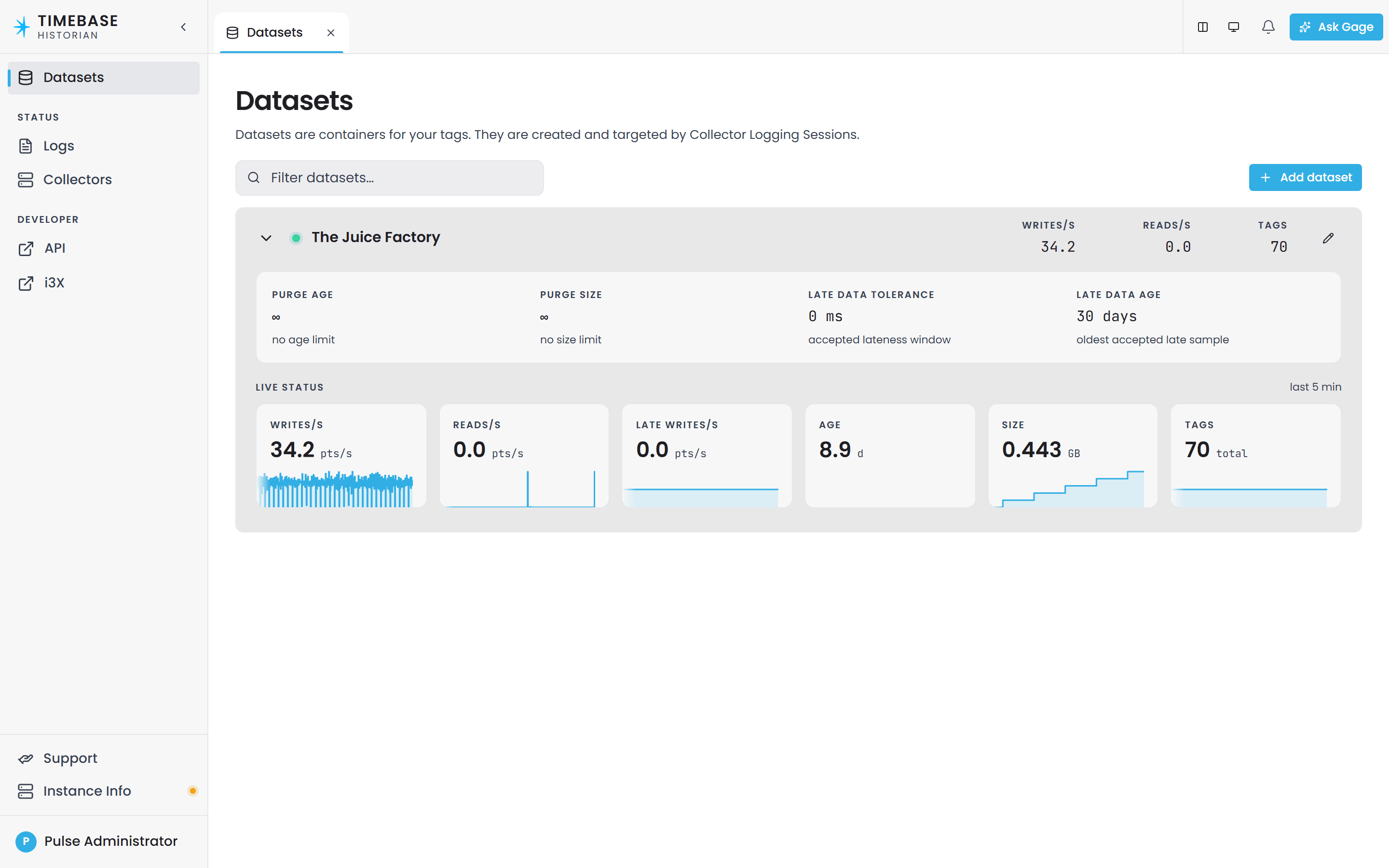
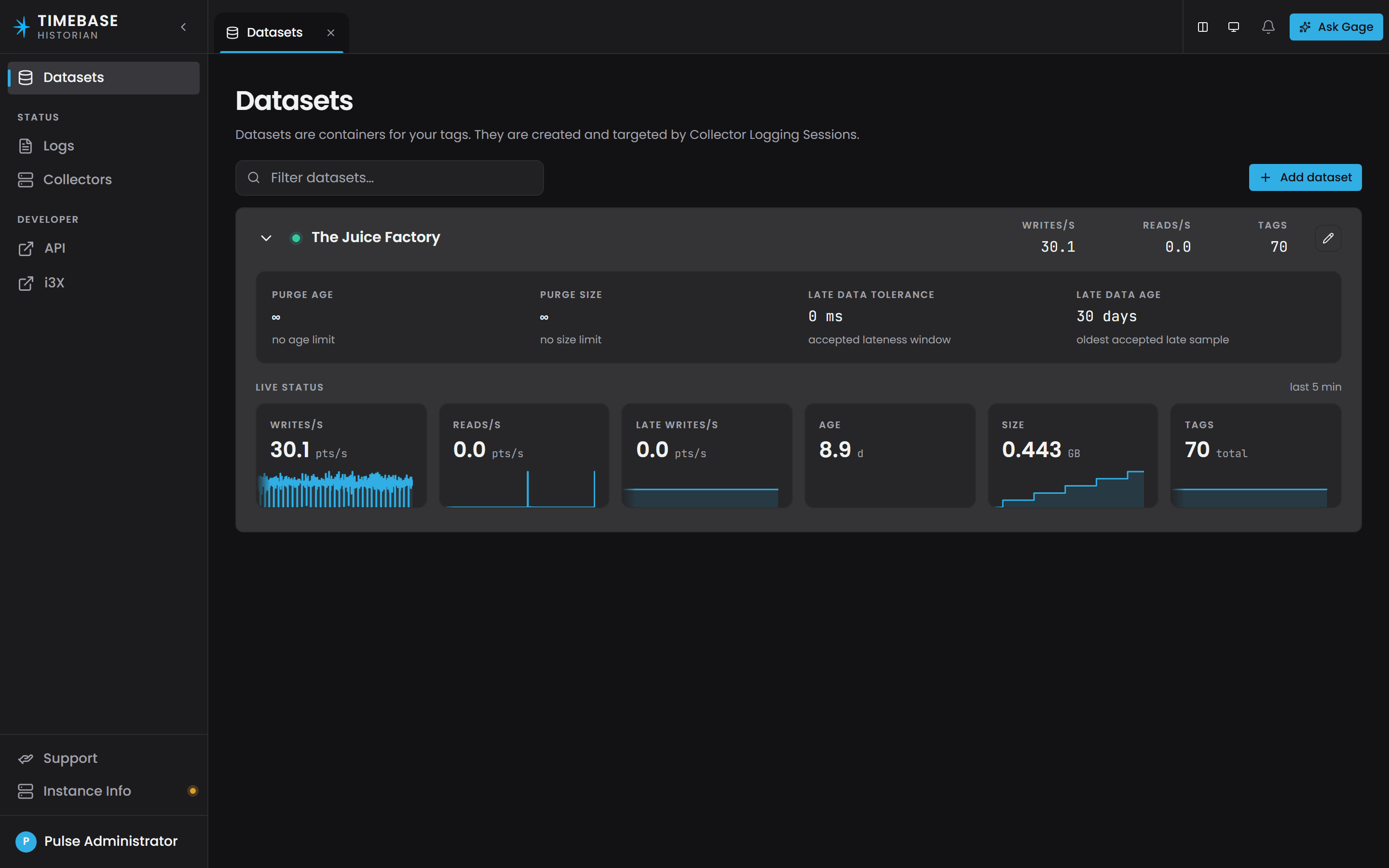
The Datasets page lists every dataset with its live write and read rates and its tag count. Expand a row for its purge limits and late-data settings, and for its late-write rate, age and size over the last five minutes. Select the dataset's name to open its Tags tab beside it.
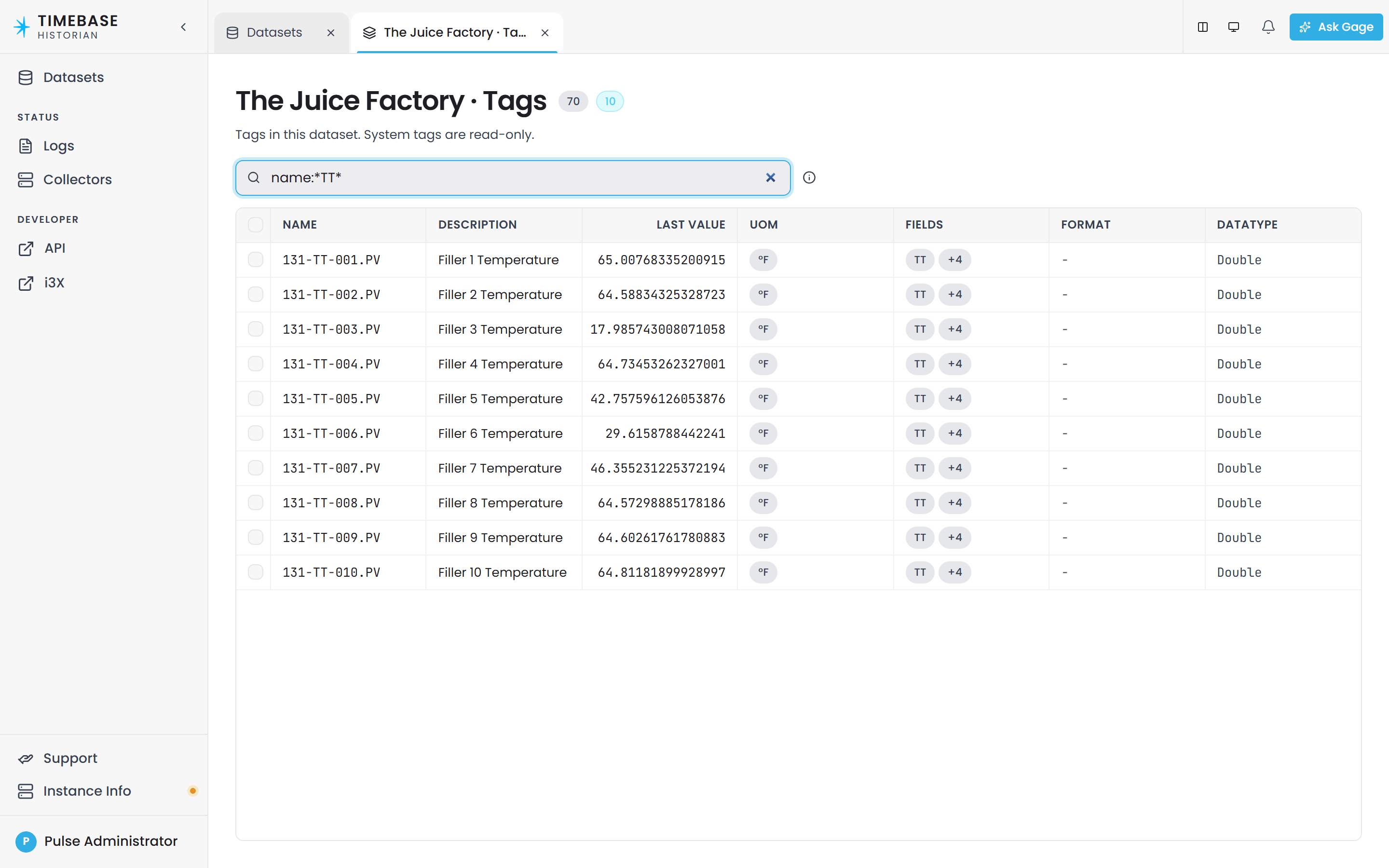
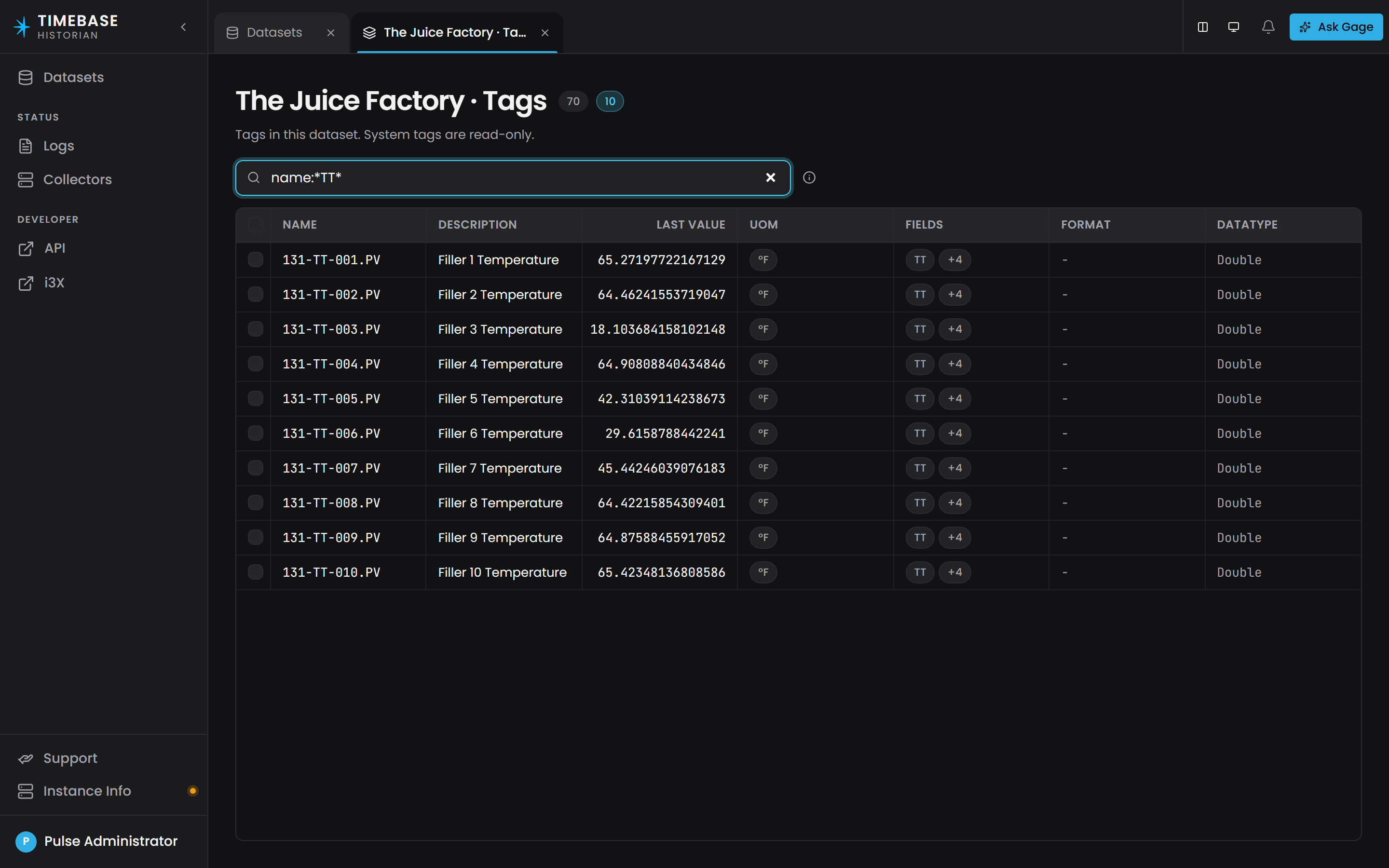
The Tags tab lists each tag with its description, last value, unit of measure, fields, format and data type. Type a filter in the box above the list and press Enter to apply it. The filter is the Historian's query language, so name:Pump* matches by name, is:good by the quality of the last value, and value>100 by the value itself, and terms combine. The full syntax is in Historian Dataset Tag Query Filters. The filter you applied stays with the tab, so opening a tag's data and coming back does not reset it. The counts beside the heading show how many tags the dataset has and how many match.
System tags are the dataset's own diagnostics and are listed read-only; see System Tags and Dataset Diagnostics. They have no selection box and cannot be edited or deleted.
Editing tag metadata#
As an administrator you can change a tag's Description, UOM (the unit-of-measure map), Fields (the metadata key and value pairs), Format (the .NET number format applied when the value is displayed, for example 0.00) and DataType. A tag's Name is its identity and cannot be changed.
- One tag. Hover the row and use the edit pencil at its right-hand end. The editor opens with that tag's current values.
- Several tags at once. Tick the box on each row, or the box in the header to select every editable tag in the current view, then choose Edit in the toolbar that appears above the list. The editor opens for the whole selection, and only the fields you change are written, to every selected tag; a field you leave alone keeps its own value on each tag. This is how you set a shared field such as
Areaon fifty tags in one save.
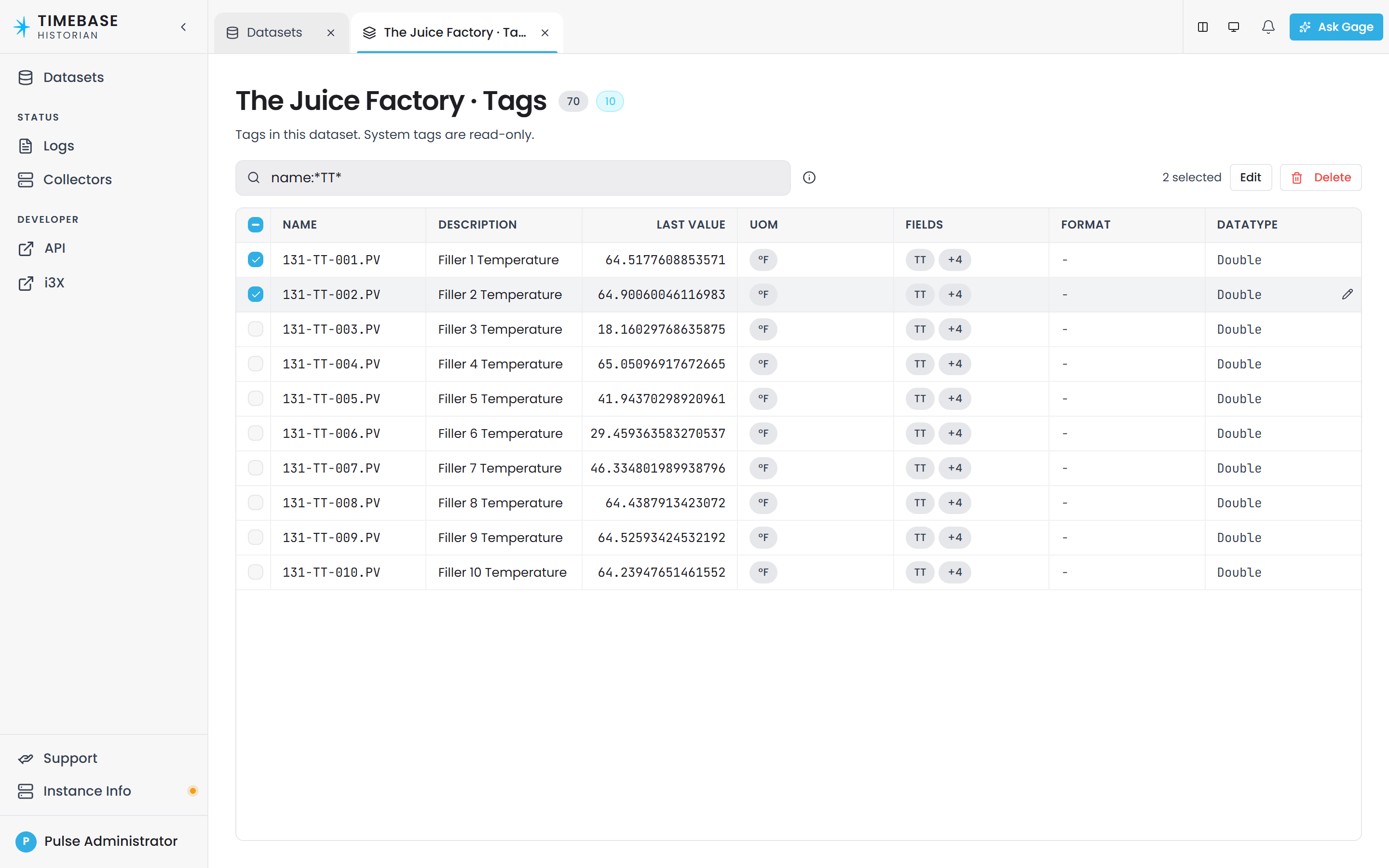
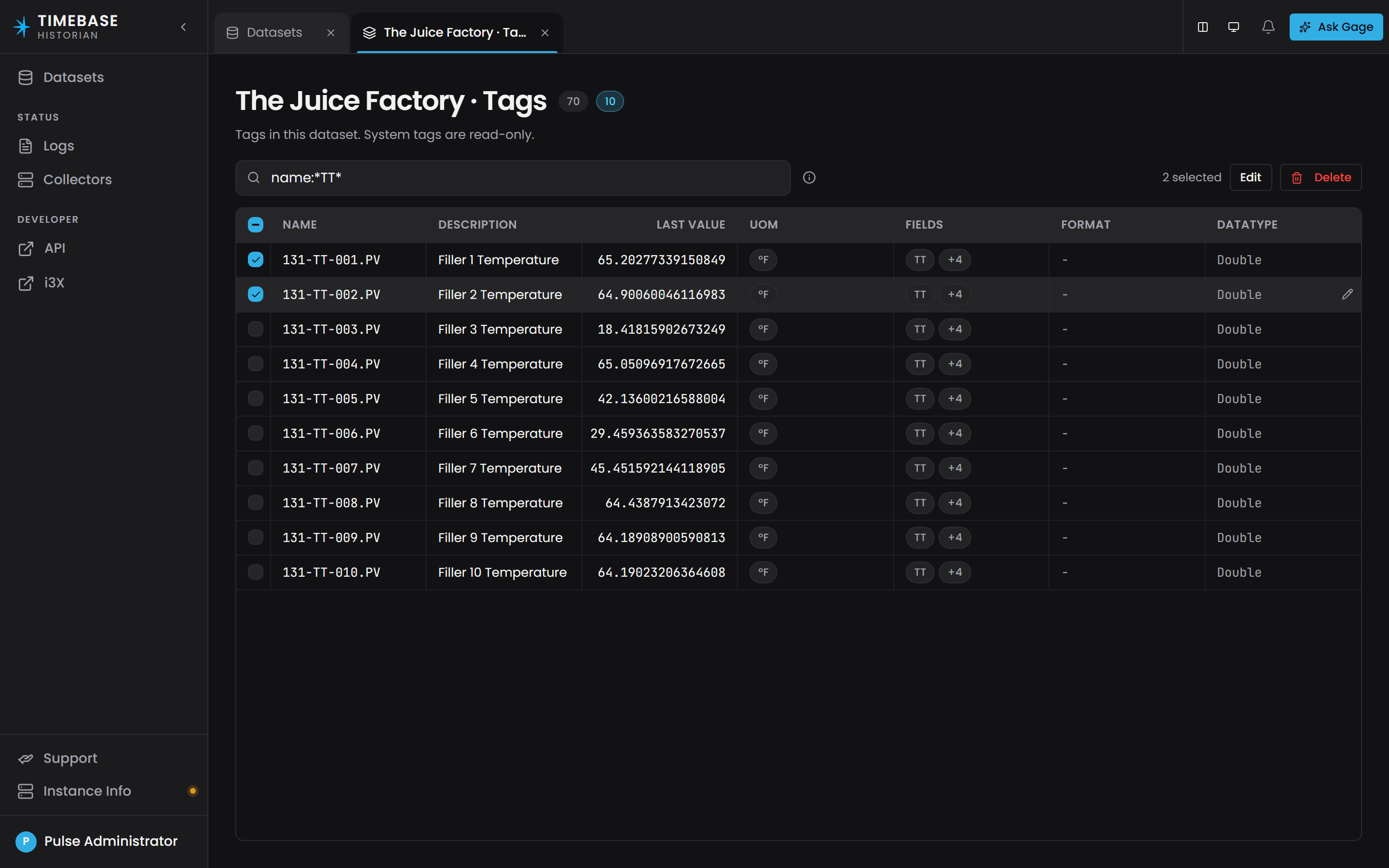
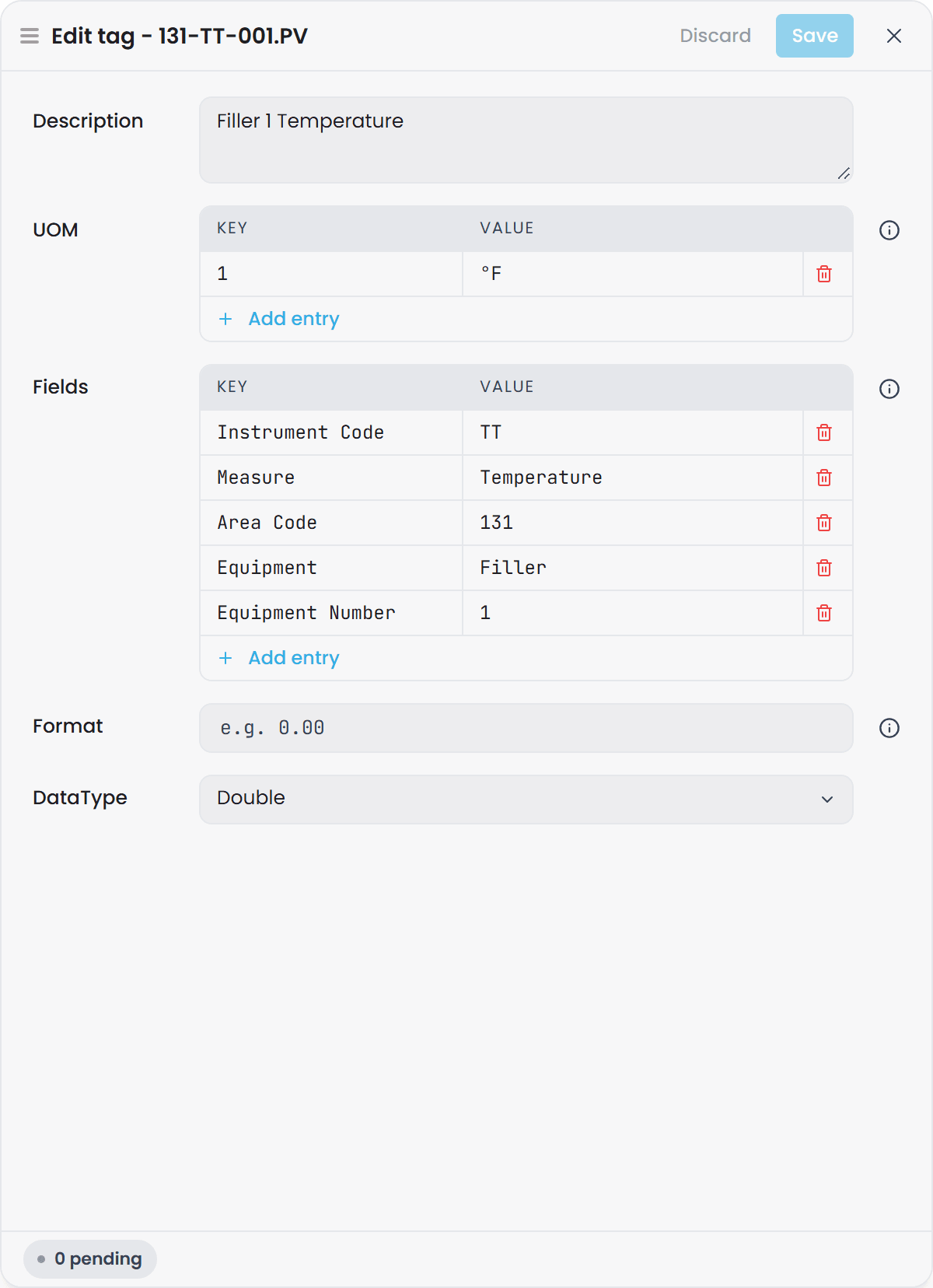
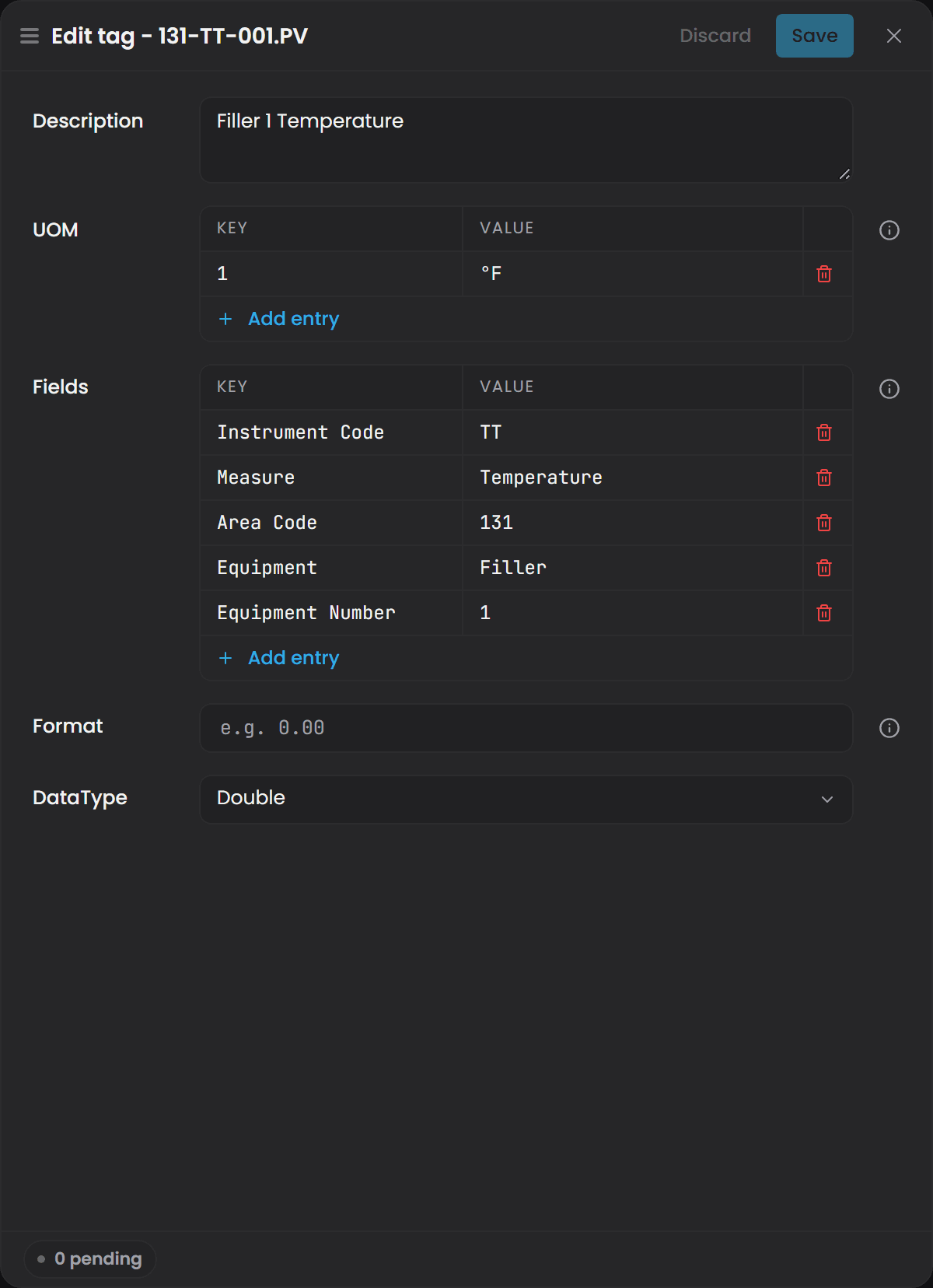
Changes apply as soon as you save and the list refreshes. A filter that narrows the list to the tags you want, followed by select-all and one edit, is the quickest way through a large dataset.
Deleting tags#
Select one or more tags as above and choose Delete in the toolbar. A confirmation names the tag, or the number of tags, and says what it will do: the tag and its history are deleted permanently. Nothing is deleted until you confirm, and the deleted tags disappear from the list at once.
A tag that a collector is still writing comes back as soon as the next value for it arrives, as a new tag with no history and no metadata. Stop or re-map the collector first if the tag is not wanted.
Troubleshooting#
| Symptom | Likely cause | What to do |
|---|---|---|
| There are no selection boxes and no edit pencil | You are not a Pulse administrator | Ask an administrator to make the change, or to grant you the role in Pulse. Everyone can still browse and open tag data. |
| A tag cannot be selected | It is a system tag | System tags are read-only by design. |
| A tag you deleted is back | A collector is still writing it | Remove it from the collector's subscription, or let it be; it is a fresh tag with no history. |
| The filter box seems to do nothing | The filter is applied on Enter | Press Enter. |
| The list is missing tags you expect | A filter is applied, perhaps from an earlier visit to this tab | Clear the filter box and press Enter. |