Managing and Deleting Folders and Trends
How saved trends and their folders work in Explorer: creating and saving a trend, organising trends into folders, renaming, saving a copy, deleting, and what needs the administrator role.
Trends, saved trends and folders#
A trend in Explorer is a tab. Open one with New trend, add tags from the tag browser, and work in it; it exists only in your browser until you save it. Saving stores the trend on the Explorer server, under a folder, so that it appears in the saved-trend browser for everyone who signs in to this Explorer and can be opened again later.
Folders are the organising unit. They nest, a trend lives in exactly one, and a trend saved with no folder sits at the top level.
Everyone who can sign in can open and use saved trends. Saving, renaming, moving and deleting trends and folders needs the Pulse administrator role. Without it the save controls are shown disabled with the tooltip Requires administrator, and the delete actions are not offered.
The saved-trend browser#
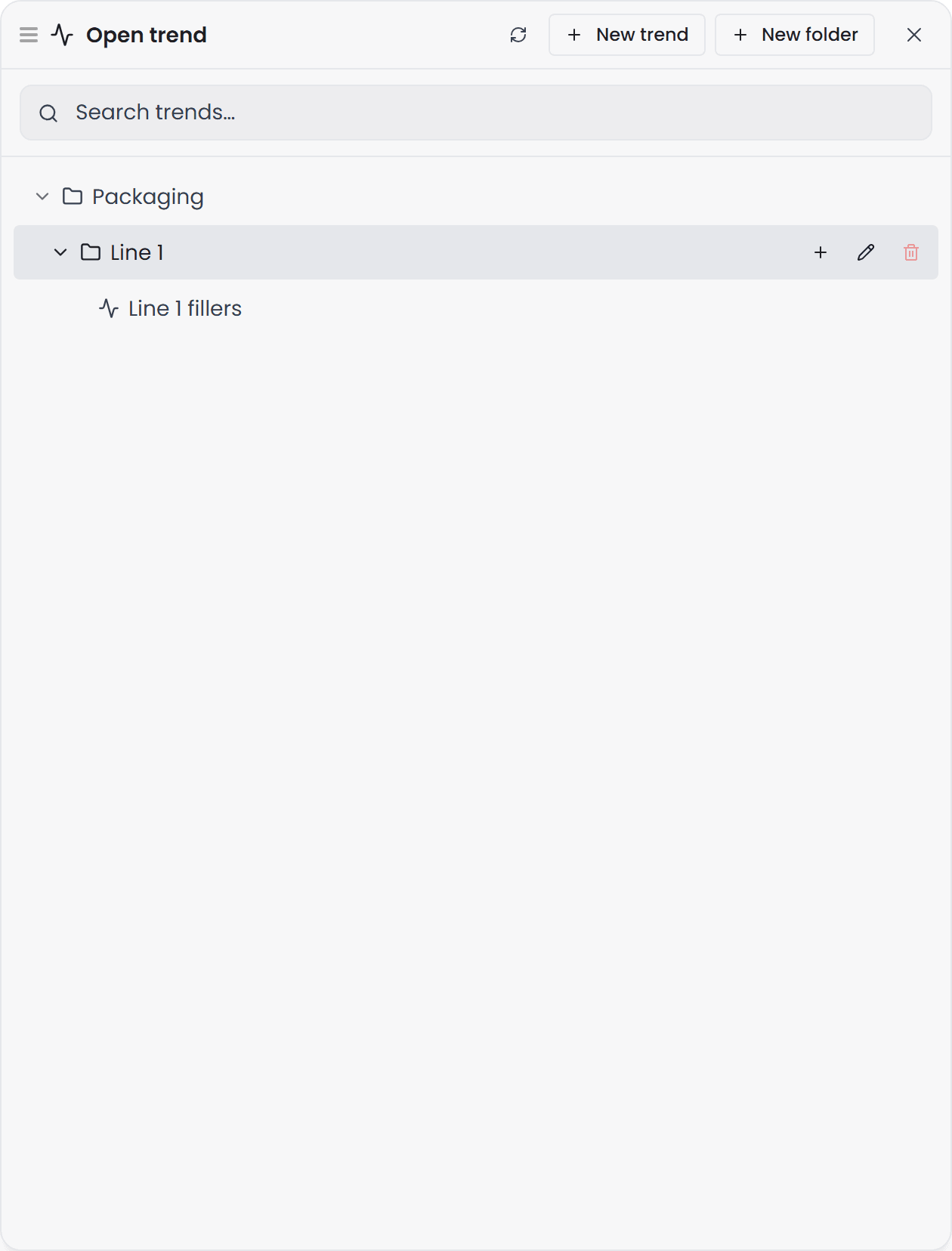
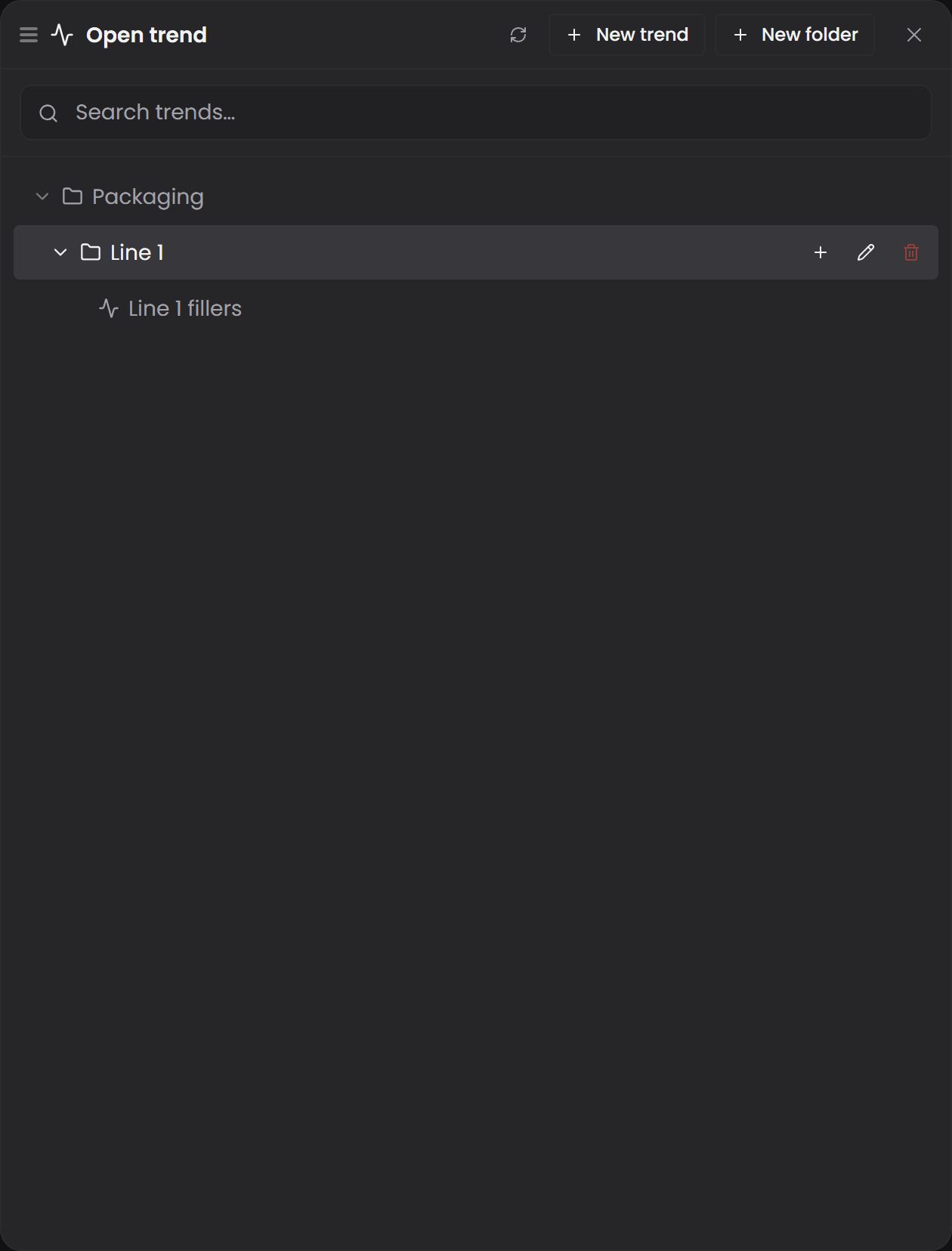
Choose Trends in the sidebar. A drawer opens listing every folder and the trends inside each, with a search box that filters the tree by name. The actions for a folder appear on its row: add a subfolder or a trend to it, rename it, or delete it.
| Action | Where |
|---|---|
| Open a trend | Select it, or use Open Trend. It opens in a new tab, or focuses the tab it is already open in |
| Start a new trend | New trend |
| Create a folder | New folder at the top level, or on a folder to create a subfolder |
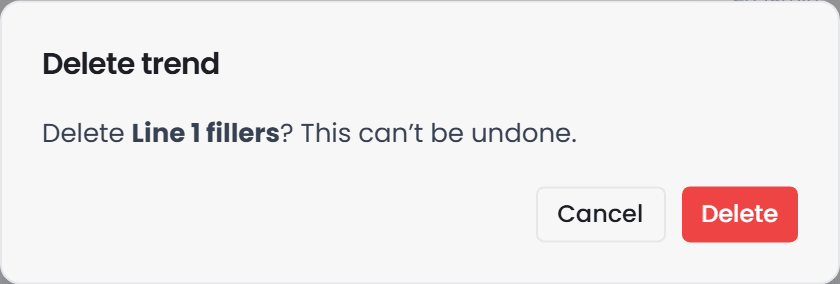
| Delete a trend | Delete trend on the trend. A confirmation says the trend will be deleted permanently and cannot be undone |
| Delete a folder | Delete folder on the folder. Only an empty folder can be deleted; the action tells you to empty it first |
A deleted trend is gone from the server. Anyone who has it open keeps their tab until they close it, and saving from that tab creates a new trend.
Saving a trend#
The save controls sit in the trend's own header.
- Save trend stores the trend under its current name and folder. It is disabled when there is nothing to save; the tooltip says No changes to save.
- Trend settings opens the trend's properties: its Title, shown on the tab and in the browser; a Description, a free-text note stored with the trend; and its Stored location, the folder it is saved under. Type a slash-separated path, or browse with the folder button, where you can also create and rename folders. An empty location saves at the top level.
- Save As saves a copy. Change the title or the folder in the settings first; saving as a copy under the same name in the same folder is refused with Trend already exists.
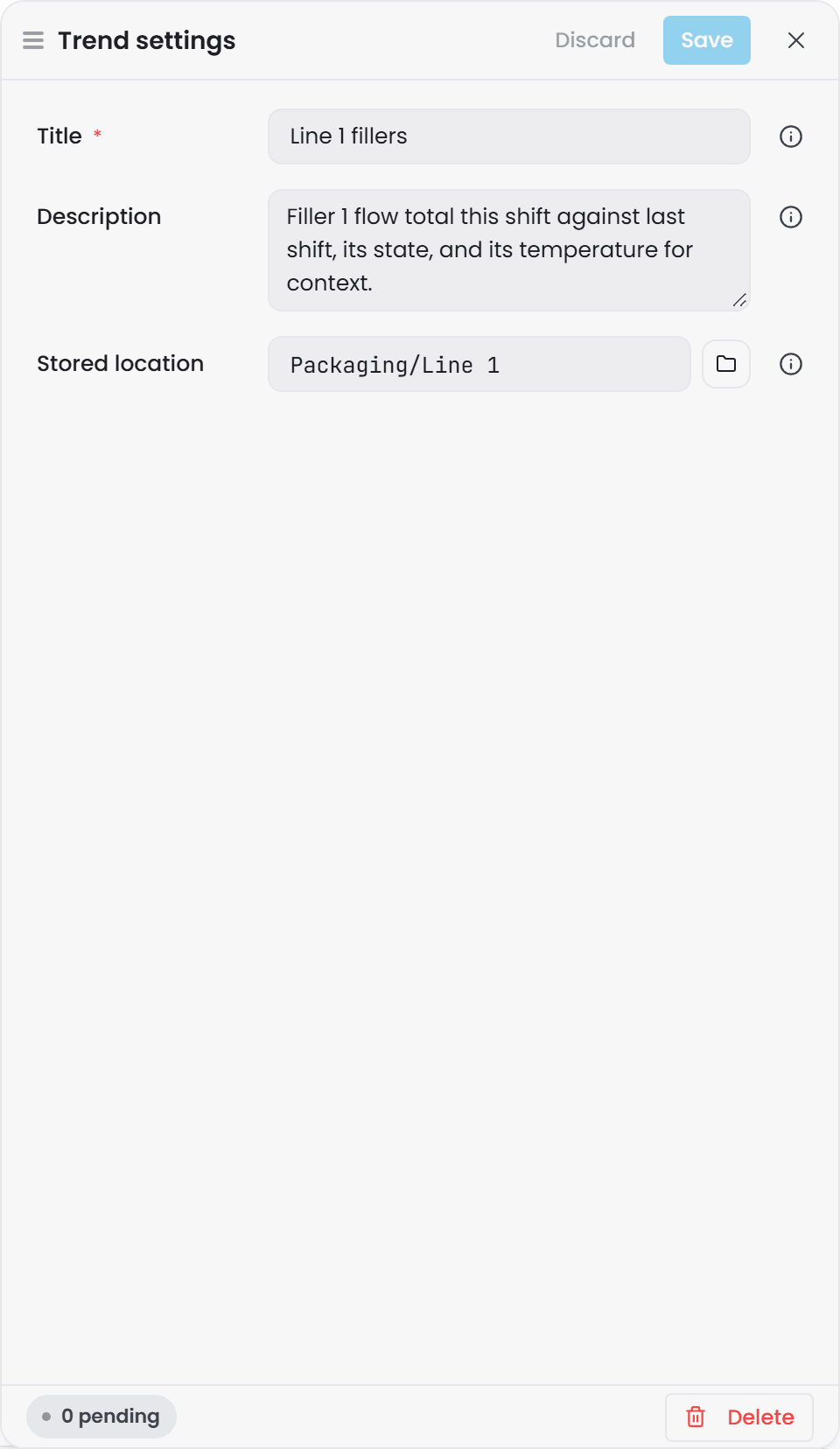
Renaming a trend is changing its Title and saving. Moving it is changing its Stored location and saving.
Unsaved changes#
A trend with unsaved changes is marked on its tab. Closing the tab, or leaving Explorer, asks whether to discard them, with Keep editing as the way back. Explorer also keeps an unsaved draft of each open trend in your browser, so a refresh does not lose your work; only closing the tab and choosing Discard does.
Troubleshooting#
| Symptom | Likely cause | What to do |
|---|---|---|
| Save trend is disabled with Requires administrator | You are not a Pulse administrator | Ask an administrator to save it, or to grant you the role in Pulse. You can still build and use the trend in your tab. |
| Delete folder says to empty the folder first | The folder holds trends or subfolders | Move or delete them, then delete the folder. |
| Save As is disabled with Save the trend first | The trend has never been saved, so there is nothing to copy | Save it, then use Save As for the copy. |
| Trend already exists on save | A trend with that title is already in that folder | Change the title or the folder in Trend settings. |
| A trend you saved is not in the browser | The browser list is stale | Use the refresh action at the top of the drawer. |
| A colleague cannot find your trend | They are looking in the wrong folder, or searching by a different name | Saved trends are shared by everyone on this Explorer; check the Stored location in Trend settings and tell them the path. |